Set up your nbn® FTTC
Your modem will take care of the hard stuff like internet settings, but we’ll need your help to plug it in. The main cables you need will come in the box, and you can grab extra Ethernet cables from the shops if you need them.
Choose your modem to get started:
| Picture | Modem |
|---|---|

|
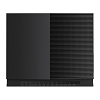
Wi-Fi Max Modem |
|
VX420-G2V Modem |

|
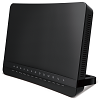
VX420-G2H Modem |
|
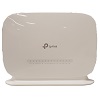
VX220-G2V Modem |
|
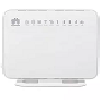
TP-Link VR1600v |
|
TPG modem not listed here? See Guides for older modems. |
|
Don't have a TPG modem? See our BYO modem guide. |
How to plug in your Wi-Fi Max Modem for nbn FTTC
- Plug in your Wi-Fi Max Modem
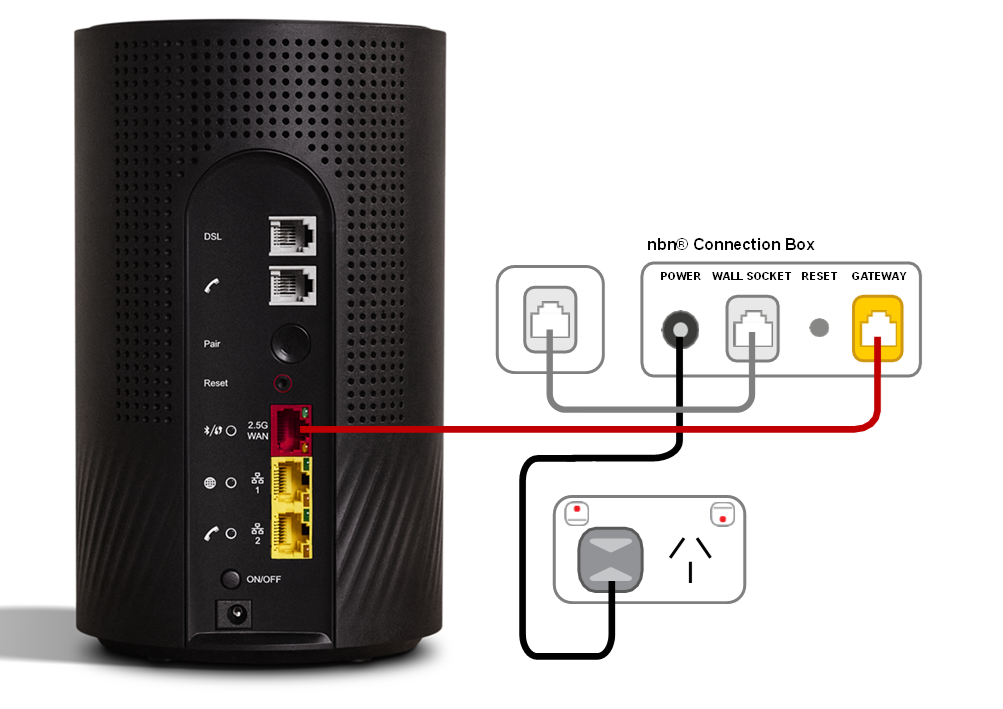
- Find your nbn® Connection Box (NCB) and unplug any old modem
- Leave the NCB plugged into the phone wall socket.
- Use the red Ethernet cable to connect your modem’s red 2.5G WAN port to the yellow GATEWAY port.
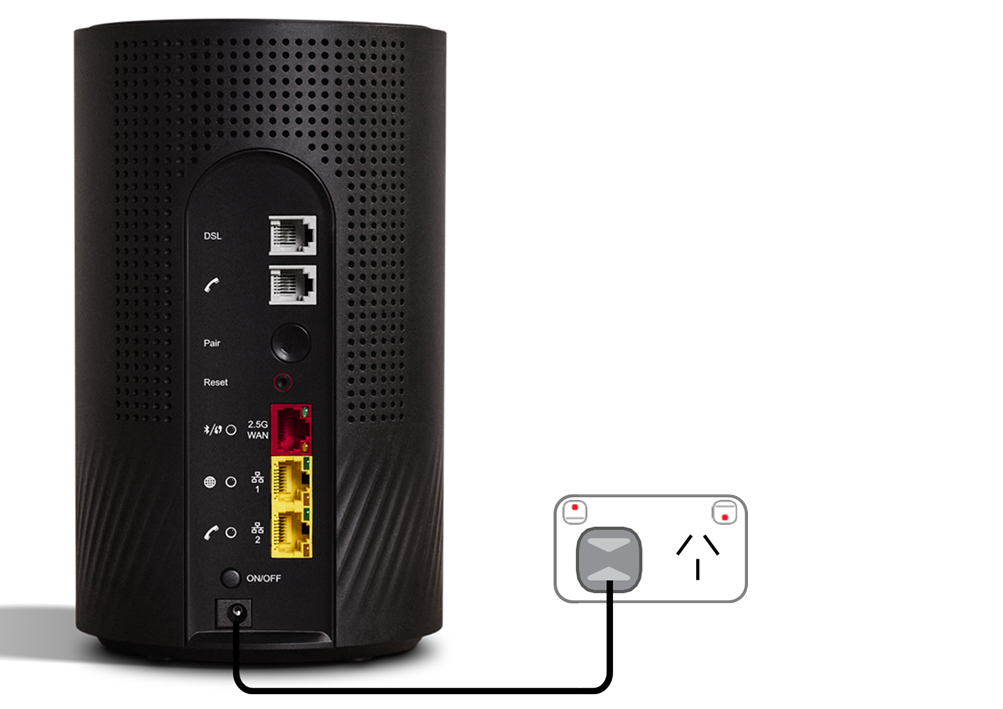
- Power on your Wi-Fi Max modem.
- Use the power cable to connect your Wi-Fi modem to a power outlet, then press the ON/OFF button.
- Wait 20 minutes for the automatic setup to complete.
- You should have a green light on the front of your Wi-Fi modem. If it’s red, call 1300 997 271 for help.
- Connect devices via Ethernet.
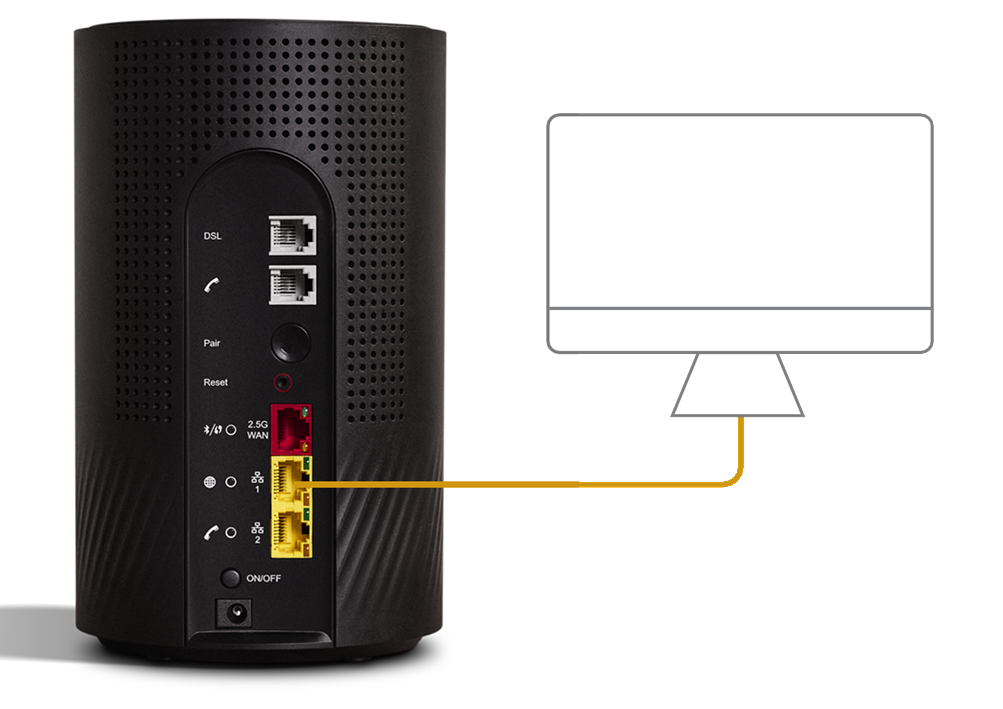
- For online gaming and HD/4K streaming, Ethernet is better than Wi-Fi. Use Ethernet for desktop PCs, gaming consoles or TVs if you can.
- You can use additional Ethernet cables to connect up to 2 devices to the yellow LAN ports.
- You can connect more devices over Wi-Fi.
- Connect your Wi-Fi devices.
- Find the default name of your Wi-Fi network printed next to “Wi-Fi Name” on your modem’s barcode sticker.
- Select your Wi-Fi Name on your device, then enter the password printed next to “Wi-Fi Password” on your modem’s barcode sticker.
- If you’re using a smartphone, you can just scan the QR code on your modem’s barcode sticker.
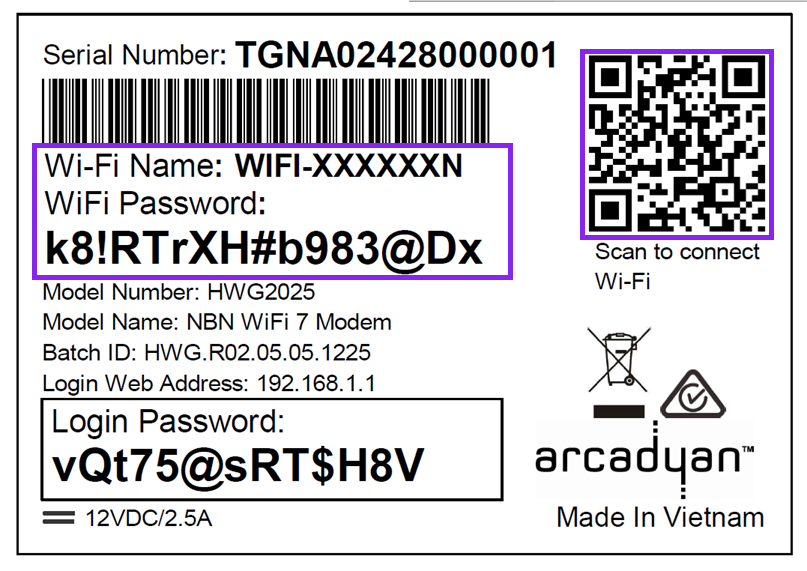
Want to customise your Wi-Fi name and password? You can use the My Internet Connect app.
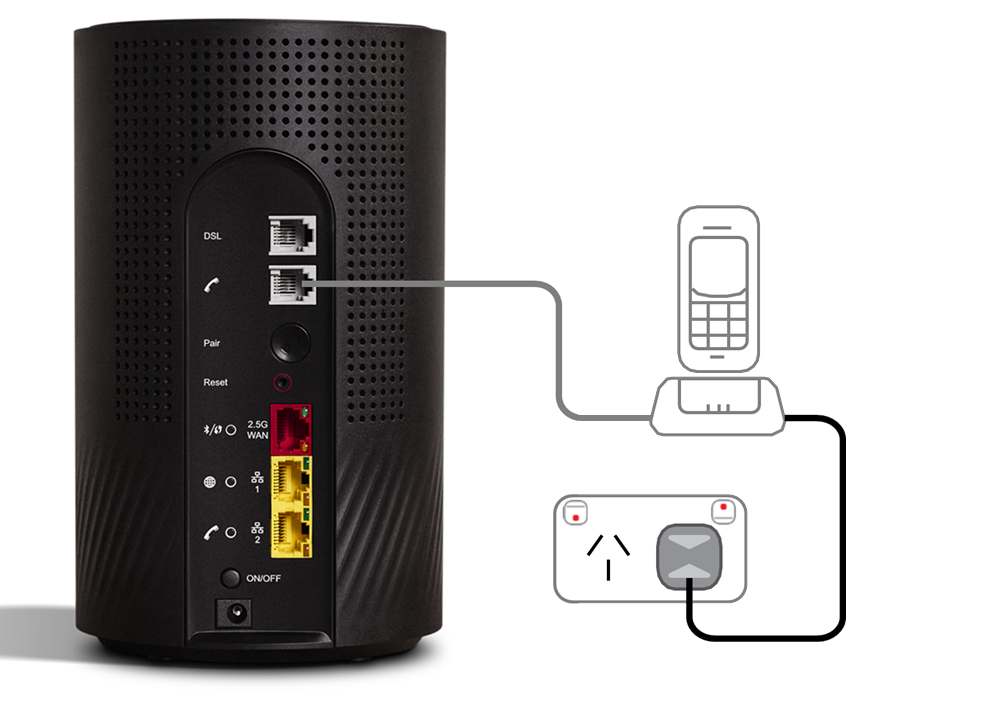
- Plug in your phone.
- Got a TPG Voice service? Use a phone cable to plug your VoIP-ready phone into the grey Phone port.
- Make sure your phone is plugged into a power outlet.
- You should have a green Phone light on the back of your modem. If it’s off or flashing blue, call us for help.
- Download the My Internet Connect app.
It’s easy to manage your home network with the My Internet Connect app.- Make sure your device is connected to your modem’s Wi-Fi network.
- Enter the Login Password on your modem’s barcode sticker.
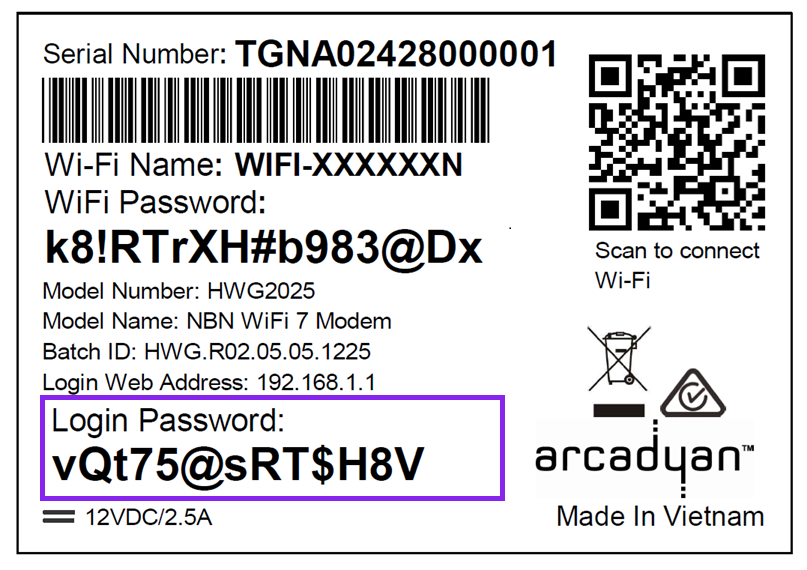
- Need help? Call our team using these numbers:
- 13 14 23 in Australia.
- +61 2 9007 3023 from overseas.
- National Relay Service for hearing impaired customers.
How to plug in your VX420-G2V Modem for nbn FTTC
- First, make sure you’ve got a message from us asking you to plug in your nbn modem. We need to get your connection ready on our side before you plug in.
- Find your phone wall socket and nbn Connection Box (NCB) – you probably already have a modem plugged in from your last internet service. Unplug any old modem from the NCB and power outlet.
If your NCB is missing, please call us on 1300 023 575. - Use the power cables to connect the Power ports on your modem and NCB to power outlets, then press your modem’s ON/OFF button.
- Use the phone cable to connect your NCB’s grey Phone port to your phone wall socket.
- Use the Ethernet cable to connect your modem's blue WAN port to your NCB's yellow Gateway port.
- Leave your modem alone for 30 minutes while it runs through its automatic setup.
- Check the Internet light on your modem. If it’s green, you’re online and you can start connecting your devices.
No green light? Call us on 1300 997 271 and we can help you out.
-
You'll find the default Wi-Fi name (SSID) and Wireless Password/PIN on your modem's barcode sticker. If you want to change your Wi-Fi name or password, use this guide.

- Your devices will automatically connect to the best Wi-Fi possible. If your Wi-Fi’s running slow, check out Improving Wi-Fi Signal.
- For online gaming or HD/4K streaming, Ethernet is better than Wi-Fi. If you have extra Ethernet cables, you can connect up to 4 devices to your modem’s yellow LAN ports.
- To use your TPG Voice phone service, just plug a handset into your modem’s green Phone port.

- You’re now good to go.
If you don’t want to keep your old modem, see if your local council has any eWaste recycling facilities.
How to plug in your VX420-G2H Modem for nbn FTTC
- First, make sure you’ve got a message from us asking you to plug in your nbn modem. We need to get your connection ready on our side before you plug in.
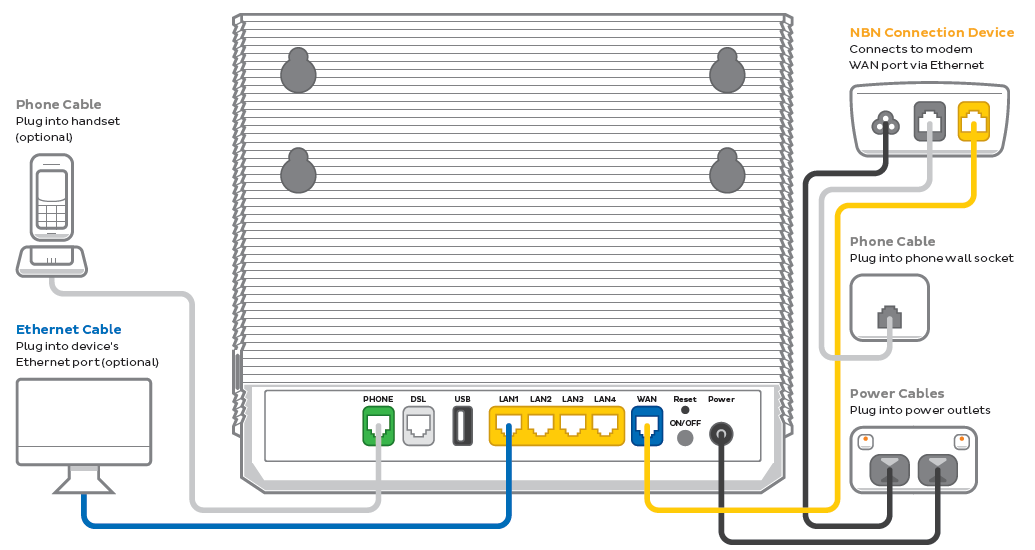
- Find your phone wall socket and nbn Connection Box (NCB) – you probably already have a modem plugged in from your last internet service. Unplug any old modem from the NCB and power outlet.
If your NCBD is missing, please call us on 1300 023 575. - Use the power cables to connect the Power ports on your modem and NCB to power outlets, then press your modem’s ON/OFF button.
- Use the phone cable to connect your NCB’s grey Phone port to your phone wall socket.
- Use the Ethernet cable to connect your modem's blue WAN port to your NCB's yellow Gateway port.
- Leave your modem alone for 30 minutes while it runs through its automatic setup.
- Check the Internet light on your modem. If it’s green, you’re online and you can start connecting your devices.
No green light? Call us on 1300 997 271 and we can help you out.
-
You'll find the default Wi-Fi name (SSID) and Wireless Password/PIN on your modem's barcode sticker. If you want to change your Wi-Fi name or password, use this guide.

- Your devices will automatically connect to the best Wi-Fi possible. If your Wi-Fi’s running slow, check out Improving Wi-Fi Signal.
- For online gaming or HD/4K streaming, Ethernet is better than Wi-Fi. If you have extra Ethernet cables, you can connect up to 4 devices to your modem’s yellow LAN ports.
- To use your TPG Voice phone service, just plug a handset into your modem’s green Phone port.
- You’re now good to go.
If you don’t want to keep your old modem, see if your local council has any eWaste recycling facilities.
How to plug in your VX220-G2V Modem for nbn FTTC
- First, make sure you’ve got a message from us asking you to plug in your nbn modem. We need to get your connection ready on our side before you plug in.
- Find your phone wall socket and nbn Connection Box (NCB) – you probably already have a modem plugged in from your last internet service. Unplug any old modem from the NCB and power outlet.
If your NCB is missing, please call us on 1300 023 575. - Use the power cables to connect the Power ports on your modem and NCB to power outlets, then press your modem’s ON/OFF button.
- Use the phone cable to connect your NCB’s grey Phone port to your phone wall socket.
- Use the Ethernet cable to connect your modem's blue WAN port to your NCB's yellow Gateway port.
- Leave your modem alone for 30 minutes while it runs through its automatic setup.
- Check the Internet light on your modem. If it’s blue, you’re online and you can start connecting your devices.
No blue light? Call us on 1300 997 271 and we can help you out.
-
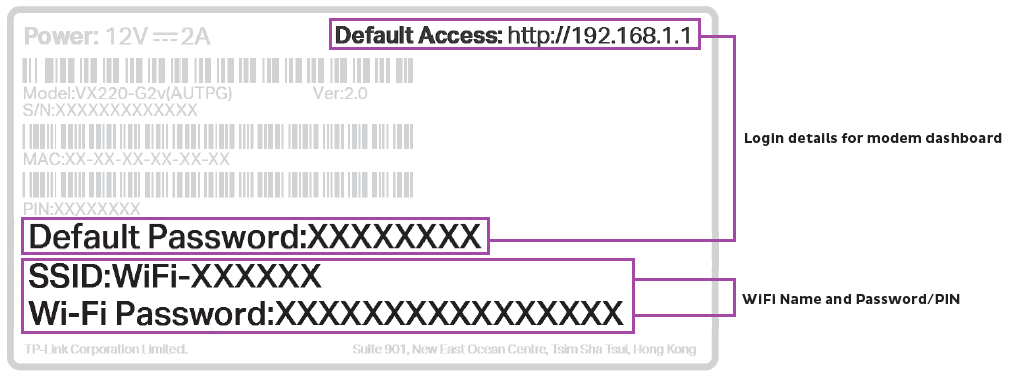
You'll find the default Wi-Fi name (SSID) and Password on your modem's barcode sticker. If you want to change your Wi-Fi name or password, use this guide.
- Your devices will automatically connect to the best Wi-Fi possible. If your Wi-Fi’s running slow, check out Improving Wi-Fi Signal.
- For online gaming or HD/4K streaming, Ethernet is better than Wi-Fi. If you have extra Ethernet cables, you can connect up to 4 devices to your modem’s yellow LAN ports.
- To use your TPG Voice phone service, just plug a handset into your modem’s green Phone port.

- You’re now good to go.
If you don’t want to keep your old modem, see if your local council has any eWaste recycling facilities.
How to plug in your TP-Link VR1600v for nbn FTTC
- First, make sure you’ve got a message from us asking you to plug in your nbn modem. We need to get your connection ready on our side before you plug in.
- Find your phone wall socket and nbn Connection Box (NCB) – you probably already have a modem plugged in from your last internet service. Unplug any old modem from the NCB and power outlet.
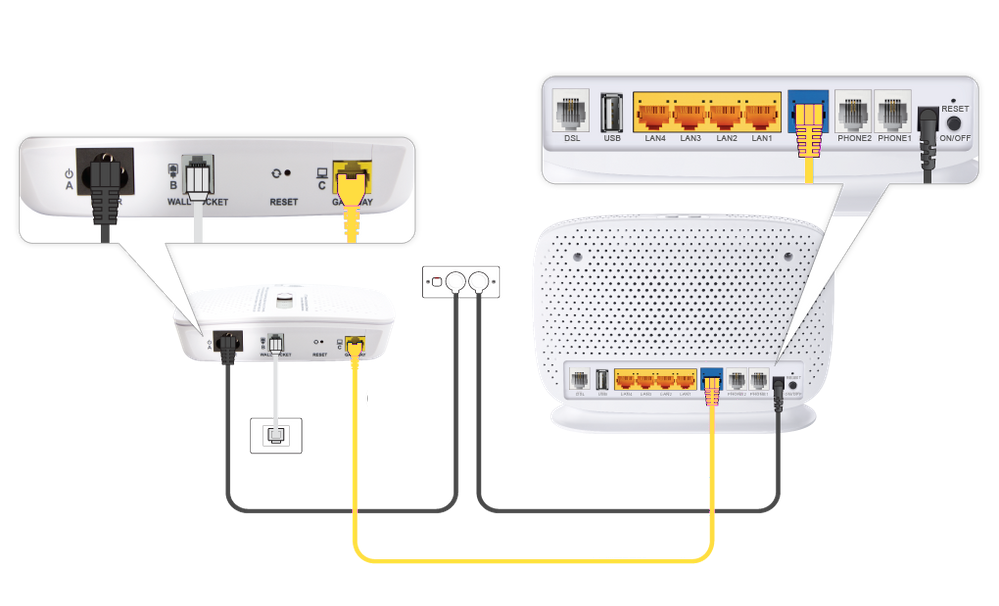
If your NCB is missing, please call us on 1300 023 575. - Use the power cables to connect the Power ports on your modem and NCB to power outlets, then press your modem’s Power button.
- Use the phone cable to connect your NCB’s grey Phone port to your phone wall socket.
- Use the Ethernet cable to connect your modem's blue WAN port to your NCB's yellow Gateway port.
- Leave your modem alone for 30 minutes while it runs through its automatic setup.
- Check the Internet light on your modem. If it’s green, you’re online and you can start connecting your devices.
No green light? Call us on 1300 997 271 and we can help you out.
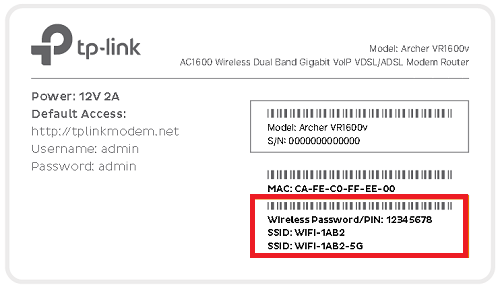
- You'll find the default Wi-Fi name (SSID) and Wireless Password/PIN on your modem's barcode sticker. If you want to change your Wi-Fi name or password, use this guide.
- Your devices will automatically connect to the best Wi-Fi possible. If your Wi-Fi’s running slow, check out Improving Wi-Fi Signal.
- For online gaming or HD/4K streaming, Ethernet is better than Wi-Fi. If you have extra Ethernet cables, you can connect up to 4 devices to your modem’s yellow LAN ports.
- To use your TPG Voice phone service, just plug a handset into your modem’s grey Phone 1 port.
- You’re now good to go.
If you don’t want to keep your old modem, see if your local council has any eWaste recycling facilities.