If your TPG nbn FTTC service is running slowly, these steps will help you identify the issue.
-
Your service may just be affected by planned maintenance. You can check your address on nbn®'s Network status and outages page and our Network Status page.
If there is planned maintenance, the results will give you an estimated fix time. -
If you have a phone with mobile data, use it to run an nbn service test in My Account.
If the nbn service test identifies an issue, we’ll contact you.
-
Find your nbn modem and turn off its power outlet for at least 10 seconds.
-
Turn the outlet back on and wait for your modem’s Internet light to come on, then run a speed test.

-
Do you have any devices connected to your modem with an Ethernet cable? If speeds on these devices are fine but devices on WiFi are slow, switch to Troubleshooting WiFi speed.
-
Make sure your modem’s Ethernet cables are in good condition, with “CAT6” or “CAT5e” printed on them.
Older Cat5 Ethernet cables are not recommended for nbn services. You’ll need to replace any broken or chewed cables.
-
Your speed may temporarily slow down if you’re running more devices or apps than your connection can handle at the same time. For example, if a device is downloading a large file or running a 4K streaming app, your speed should improve when it’s finished.
If you need to run more devices or apps at the same time, you can change your plan in My Account or call us on 13 14 23 for support. -
Run a scan on your antivirus/anti-malware software. If any infections are detected, make sure they are quarantined and removed.
Contact your software’s Customer Support if you need help. -
Still getting slow speeds? Please call us on 1300 997 271 or lodge a fault with the My TPG App (iOS or Android) and we’ll help you.
Log in to the My TPG app and hit Your Internet Speed, then Test Your Speed. If your speed is below the acceptable range, you can hit Lodge Fault and submit the form.
Your modem will take care of the hard stuff like internet settings, but we’ll need your help to plug it in. The main cables you need will come in the box, and you can grab extra Ethernet cables from the shops if you need them.
Choose your modem to get started:
| Picture | Modem |
|---|---|

|
Wi-Fi Max Modem |
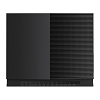
|
VX420-G2V Modem |

|
VX420-G2H Modem |
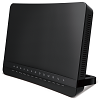
|
VX220-G2V Modem |
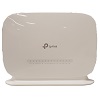
|
TP-Link VR1600v |
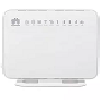
|
TPG modem not listed here? See Guides for older modems. |
|
Don't have a TPG modem? See our BYO modem guide. |
How to plug in your Wi-Fi Max Modem for nbn FTTC
- Plug in your Wi-Fi Max Modem
- Find your nbn® Connection Box (NCB) and unplug any old modem
- Leave the NCB plugged into the phone wall socket.
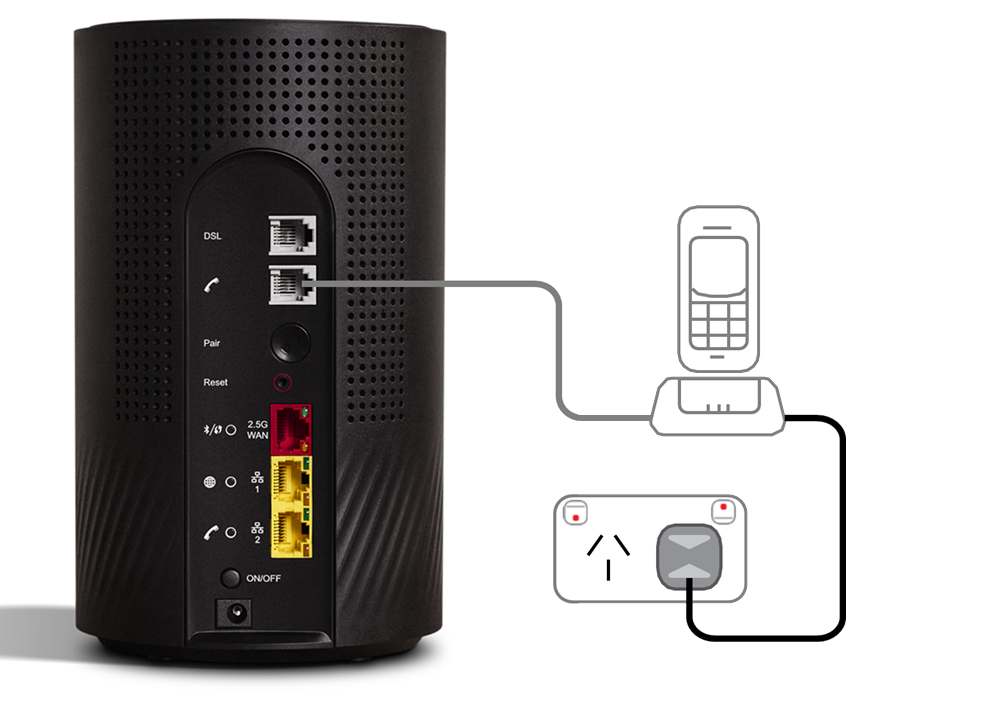
- Use the red Ethernet cable to connect your modem’s red 2.5G WAN port to the yellow GATEWAY port.
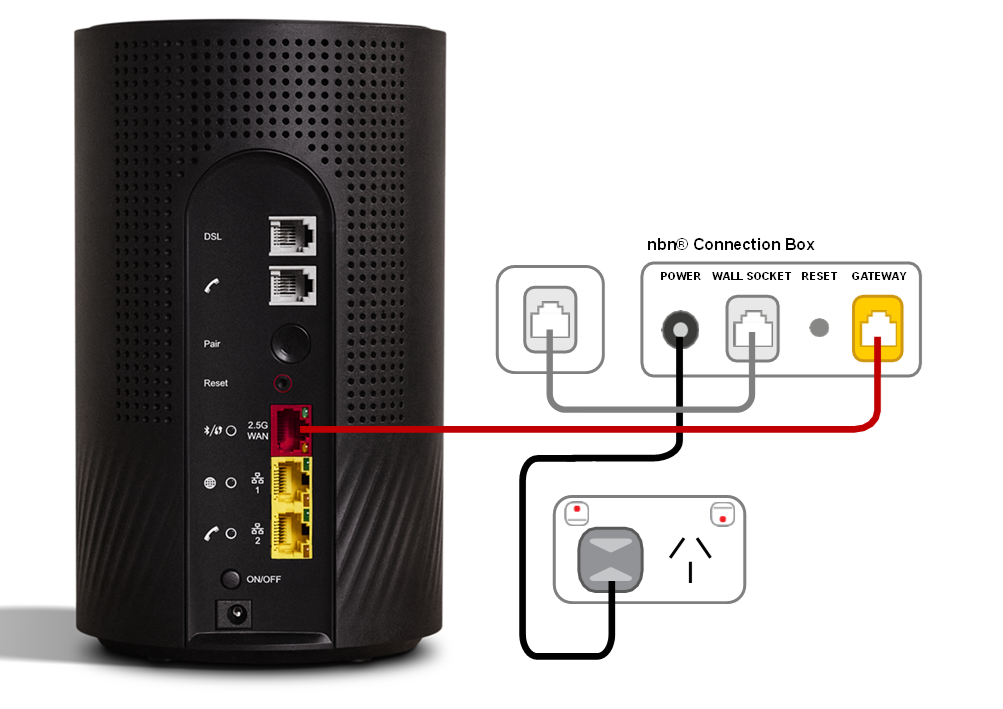
- Power on your Wi-Fi Max modem.
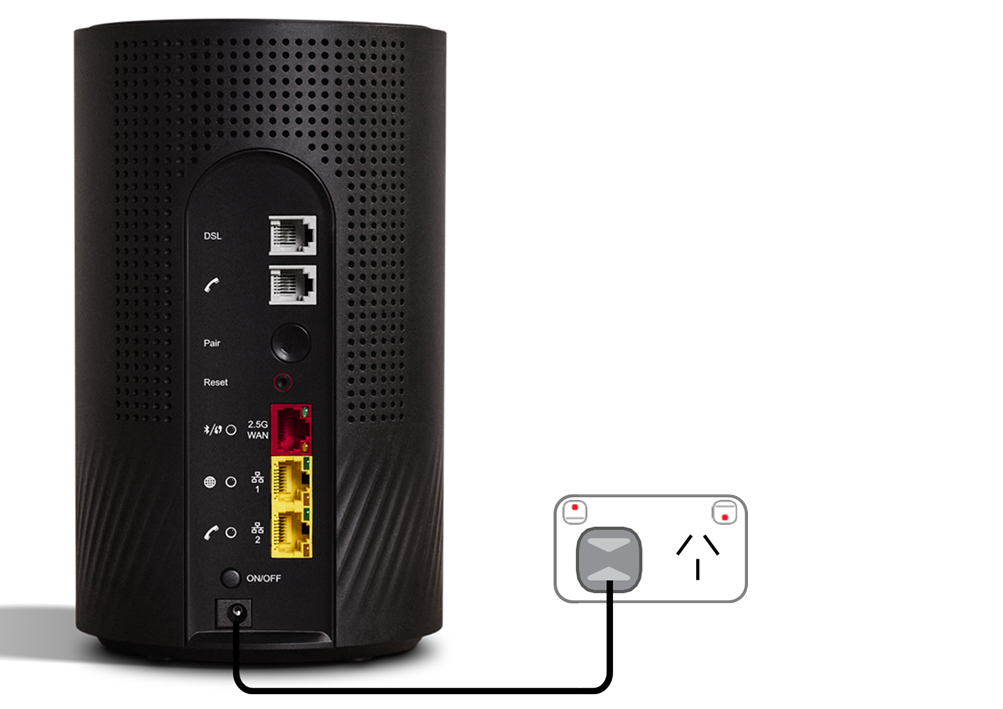
- Use the power cable to connect your Wi-Fi modem to a power outlet, then press the ON/OFF button.
- Wait 20 minutes for the automatic setup to complete.
- You should have a green light on the front of your Wi-Fi modem. If it’s red, call 1300 997 271 for help.
- Connect devices via Ethernet.
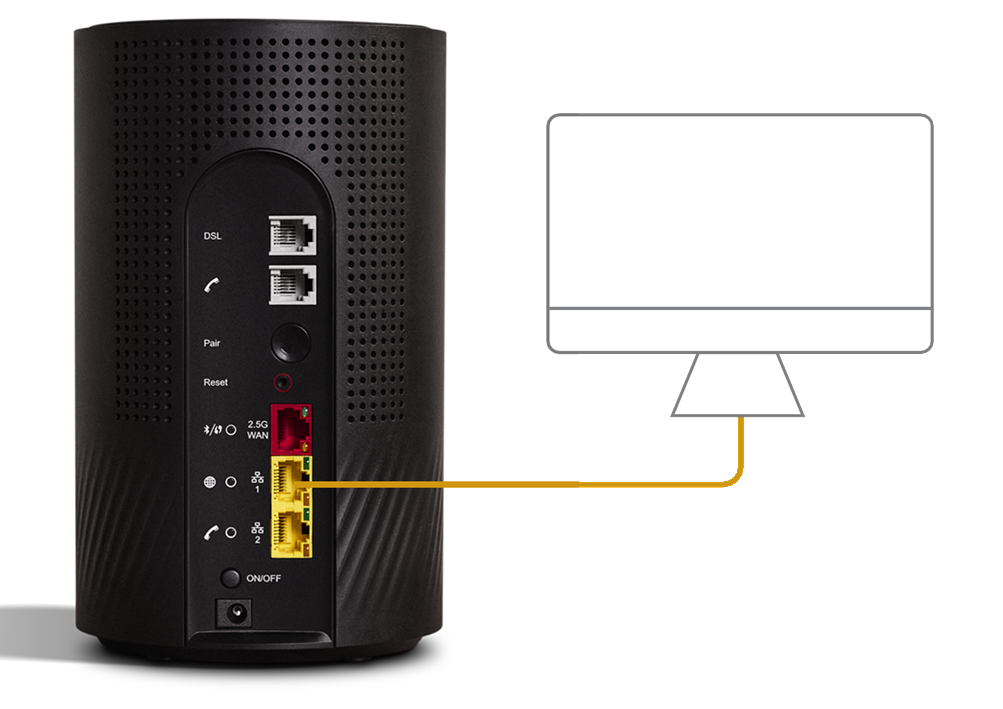
- For online gaming and HD/4K streaming, Ethernet is better than Wi-Fi. Use Ethernet for desktop PCs, gaming consoles or TVs if you can.
- You can use additional Ethernet cables to connect up to 2 devices to the yellow LAN ports.
- You can connect more devices over Wi-Fi.
- Connect your Wi-Fi devices.
- Find the default name of your Wi-Fi network printed next to “Wi-Fi Name” on your modem’s barcode sticker.
- Select your Wi-Fi Name on your device, then enter the password printed next to “Wi-Fi Password” on your modem’s barcode sticker.
- If you’re using a smartphone, you can just scan the QR code on your modem’s barcode sticker.
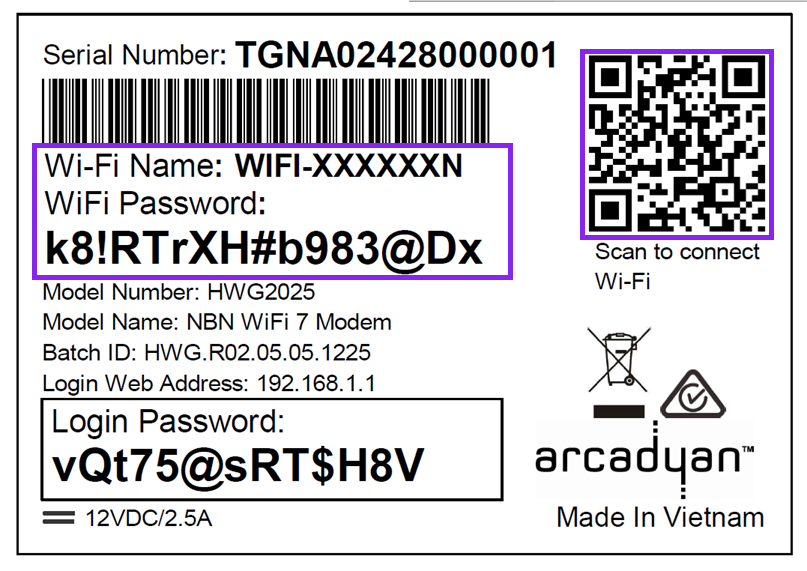
Want to customise your Wi-Fi name and password? You can use the My Internet Connect app.
- Plug in your phone.
- Got a TPG Voice service? Use a phone cable to plug your VoIP-ready phone into the grey Phone port.
- Make sure your phone is plugged into a power outlet.
- You should have a green Phone light on the back of your modem. If it’s off or flashing blue, call us for help.
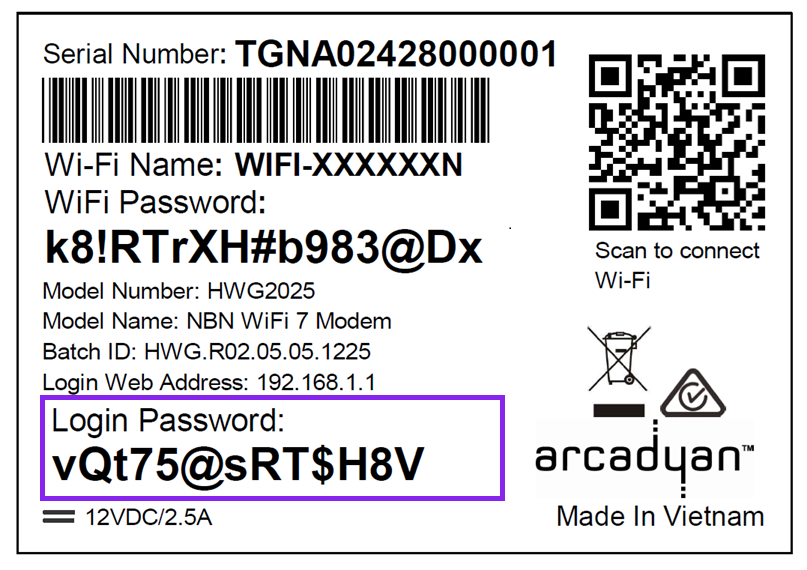
- Download the My Internet Connect app.
It’s easy to manage your home network with the My Internet Connect app.- Make sure your device is connected to your modem’s Wi-Fi network.
- Enter the Login Password on your modem’s barcode sticker.
- Need help? Call our team using these numbers:
- 13 14 23 in Australia.
- +61 2 9007 3023 from overseas.
- National Relay Service for hearing impaired customers.
How to plug in your VX420-G2V Modem for nbn FTTC
- First, make sure you’ve got a message from us asking you to plug in your nbn modem. We need to get your connection ready on our side before you plug in.
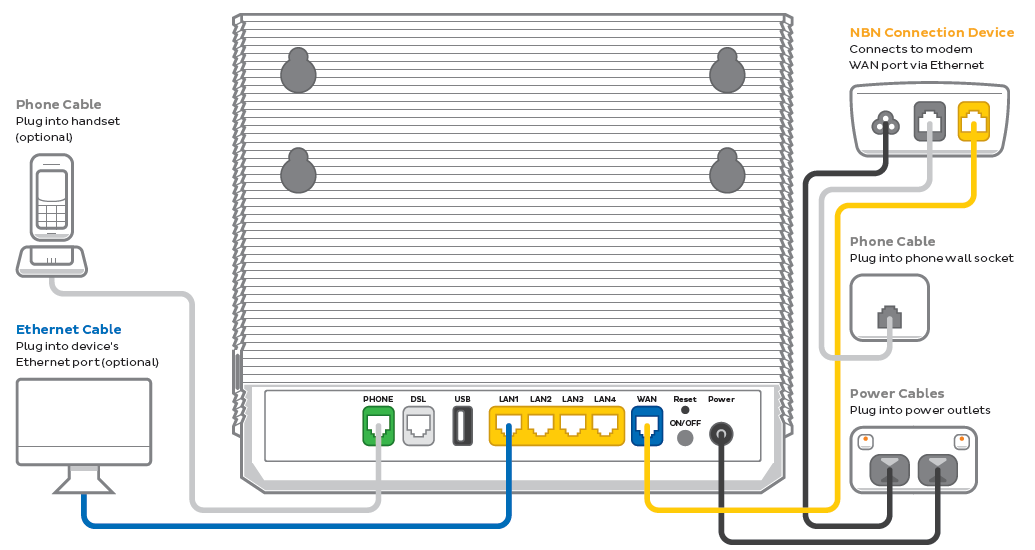
- Find your phone wall socket and nbn Connection Box (NCB) – you probably already have a modem plugged in from your last internet service. Unplug any old modem from the NCB and power outlet.
If your NCB is missing, please call us on 1300 023 575. - Use the power cables to connect the Power ports on your modem and NCB to power outlets, then press your modem’s ON/OFF button.
- Use the phone cable to connect your NCB’s grey Phone port to your phone wall socket.
- Use the Ethernet cable to connect your modem's blue WAN port to your NCB's yellow Gateway port.
- Leave your modem alone for 30 minutes while it runs through its automatic setup.
- Check the Internet light on your modem. If it’s green, you’re online and you can start connecting your devices.
No green light? Call us on 1300 997 271 and we can help you out.
-
You'll find the default Wi-Fi name (SSID) and Wireless Password/PIN on your modem's barcode sticker. If you want to change your Wi-Fi name or password, use this guide.

- Your devices will automatically connect to the best Wi-Fi possible. If your Wi-Fi’s running slow, check out Improving Wi-Fi Signal.
- For online gaming or HD/4K streaming, Ethernet is better than Wi-Fi. If you have extra Ethernet cables, you can connect up to 4 devices to your modem’s yellow LAN ports.
- To use your TPG Voice phone service, just plug a handset into your modem’s green Phone port.

- You’re now good to go.
If you don’t want to keep your old modem, see if your local council has any eWaste recycling facilities.
How to plug in your VX420-G2H Modem for nbn FTTC
- First, make sure you’ve got a message from us asking you to plug in your nbn modem. We need to get your connection ready on our side before you plug in.
- Find your phone wall socket and nbn Connection Box (NCB) – you probably already have a modem plugged in from your last internet service. Unplug any old modem from the NCB and power outlet.
If your NCBD is missing, please call us on 1300 023 575. - Use the power cables to connect the Power ports on your modem and NCB to power outlets, then press your modem’s ON/OFF button.
- Use the phone cable to connect your NCB’s grey Phone port to your phone wall socket.
- Use the Ethernet cable to connect your modem's blue WAN port to your NCB's yellow Gateway port.
- Leave your modem alone for 30 minutes while it runs through its automatic setup.
- Check the Internet light on your modem. If it’s green, you’re online and you can start connecting your devices.
No green light? Call us on 1300 997 271 and we can help you out.
-
You'll find the default Wi-Fi name (SSID) and Wireless Password/PIN on your modem's barcode sticker. If you want to change your Wi-Fi name or password, use this guide.

- Your devices will automatically connect to the best Wi-Fi possible. If your Wi-Fi’s running slow, check out Improving Wi-Fi Signal.
- For online gaming or HD/4K streaming, Ethernet is better than Wi-Fi. If you have extra Ethernet cables, you can connect up to 4 devices to your modem’s yellow LAN ports.
- To use your TPG Voice phone service, just plug a handset into your modem’s green Phone port.
- You’re now good to go.
If you don’t want to keep your old modem, see if your local council has any eWaste recycling facilities.
How to plug in your VX220-G2V Modem for nbn FTTC
- First, make sure you’ve got a message from us asking you to plug in your nbn modem. We need to get your connection ready on our side before you plug in.
- Find your phone wall socket and nbn Connection Box (NCB) – you probably already have a modem plugged in from your last internet service. Unplug any old modem from the NCB and power outlet.
If your NCB is missing, please call us on 1300 023 575. - Use the power cables to connect the Power ports on your modem and NCB to power outlets, then press your modem’s ON/OFF button.
- Use the phone cable to connect your NCB’s grey Phone port to your phone wall socket.
- Use the Ethernet cable to connect your modem's blue WAN port to your NCB's yellow Gateway port.
- Leave your modem alone for 30 minutes while it runs through its automatic setup.
- Check the Internet light on your modem. If it’s blue, you’re online and you can start connecting your devices.
No blue light? Call us on 1300 997 271 and we can help you out.
-
You'll find the default Wi-Fi name (SSID) and Password on your modem's barcode sticker. If you want to change your Wi-Fi name or password, use this guide.
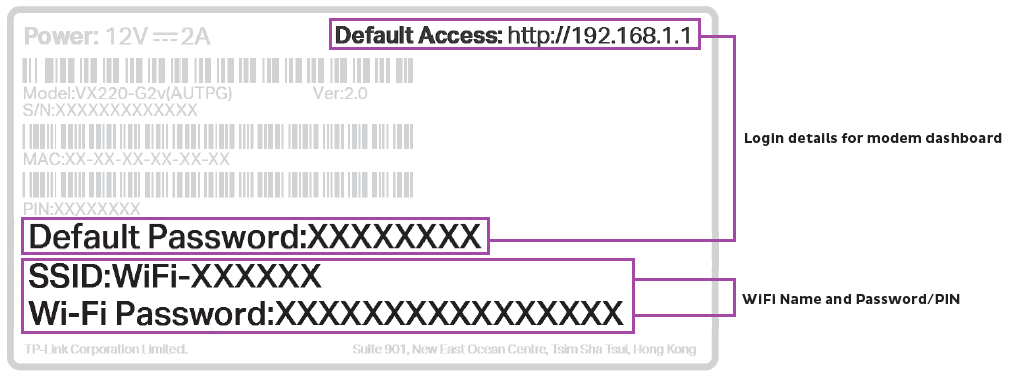
- Your devices will automatically connect to the best Wi-Fi possible. If your Wi-Fi’s running slow, check out Improving Wi-Fi Signal.
- For online gaming or HD/4K streaming, Ethernet is better than Wi-Fi. If you have extra Ethernet cables, you can connect up to 4 devices to your modem’s yellow LAN ports.
- To use your TPG Voice phone service, just plug a handset into your modem’s green Phone port.

- You’re now good to go.
If you don’t want to keep your old modem, see if your local council has any eWaste recycling facilities.
How to plug in your TP-Link VR1600v for nbn FTTC
- First, make sure you’ve got a message from us asking you to plug in your nbn modem. We need to get your connection ready on our side before you plug in.
- Find your phone wall socket and nbn Connection Box (NCB) – you probably already have a modem plugged in from your last internet service. Unplug any old modem from the NCB and power outlet.
If your NCB is missing, please call us on 1300 023 575. - Use the power cables to connect the Power ports on your modem and NCB to power outlets, then press your modem’s Power button.
- Use the phone cable to connect your NCB’s grey Phone port to your phone wall socket.
- Use the Ethernet cable to connect your modem's blue WAN port to your NCB's yellow Gateway port.
- Leave your modem alone for 30 minutes while it runs through its automatic setup.
- Check the Internet light on your modem. If it’s green, you’re online and you can start connecting your devices.
No green light? Call us on 1300 997 271 and we can help you out.
- You'll find the default Wi-Fi name (SSID) and Wireless Password/PIN on your modem's barcode sticker. If you want to change your Wi-Fi name or password, use this guide.
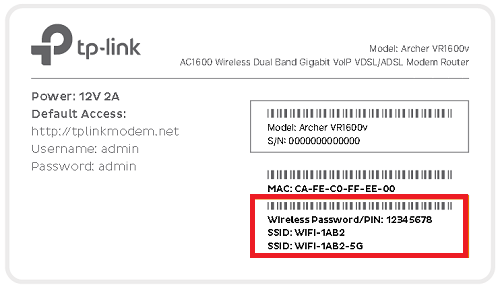
- Your devices will automatically connect to the best Wi-Fi possible. If your Wi-Fi’s running slow, check out Improving Wi-Fi Signal.
- For online gaming or HD/4K streaming, Ethernet is better than Wi-Fi. If you have extra Ethernet cables, you can connect up to 4 devices to your modem’s yellow LAN ports.
- To use your TPG Voice phone service, just plug a handset into your modem’s grey Phone 1 port.
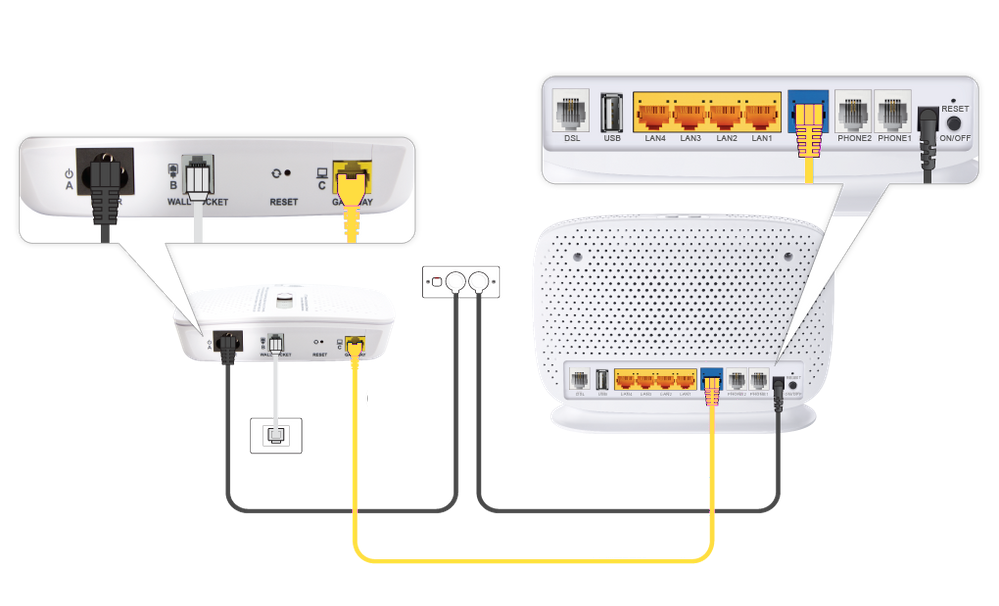
- You’re now good to go.
If you don’t want to keep your old modem, see if your local council has any eWaste recycling facilities.
Here's everything you need to know about TPG nbn.
Select one of the links below to jump to a query:
- How to get nbn®
- How do I get connected to the nbn®?
- I already have nbn®. How do I switch to TPG nbn®?
- Can I keep my existing phone number to use on the nbn®?
- nbn® Fees and Plans
- nbn® Installation and Hardware
- How long does it take to get connected to nbn®?
- What type of nbn® equipment do I need?
- What type of wall sockets will I need for nbn®?
- Can I use smart wiring with the nbn®?
- Will my modem work with TPG nbn®?
- More about the nbn®
How to get nbn®
How do I get connected to the nbn®?
Check your address on our website. If nbn is available, you can sign up online or call us on 1300 720 016.
Already with TPG? You can check if nbn is available in My Account - just hit Change your Plan under Internet Account Management and confirm your address.
I already have nbn®. How do I switch to TPG nbn®?
Easy - just sign up online or call us on 1300 720 016. Most nbn service transfers can be done in 2 business days.
Important: After switching, contact your old nbn provider to make sure your old services are cancelled so you won't keep getting billed for them.
Can I keep my existing phone number to use on the nbn®?
In most cases, you can keep your existing phone number to use with an nbn Phone service. We'll check this when you sign up online or call us on 1300 720 016.
nbn® Fees and Plans
What is the New Development Fee?
From 1 April 2016, the $300 New Development Fee (NDF) is charged by nbn® for all nbn connections that:
- Are the first connection(s) at a premises in a newly developed area with no pre-existing telecommunications infrastructure; or
- Are the first connection(s) at a premises in an established area where a developer has increased the number of dwellings on the same plot of land.
An NDF is a one-off charge. It won't be charged again for subsequent connections at the same address, as long the number of dwellings hasn't increased.
If an NDF applies to your order, you'll see it in your order summary or be told about it by our sales rep. The charge is also listed in any Critical Information Summary for nbn plans sold after 1 April 2016.
Can I change my nbn® plan after I've signed up?
Yes, you can switch between our current nbn plans at any time. See Changing your internet plan in My Account.
nbn® Installation and Hardware
How long does it take to get connected to nbn®?
Most nbn connections are done within 2-20 business days. Connection times are usually on the longer side if an nbn installer needs to come to your place and install nbn equipment.
If you do need an installation, we'll book the earliest available appointment by default - or you can choose a later date if it's more convenient.
What type of nbn® equipment do I need?
This depends on the type of nbn you're getting. Check out Connecting to the nbn for all the details.
What type of wall sockets will I need for nbn®?
nbn FTTB/FTTN and nbn FTTC will use the same RJ11 socket that you previously used for ADSL internet and landline phone services.

nbn HFC uses a Coaxial Cable socket. If you don't have the right type of cable socket at your place, an nbn installer can come install one. This can usually by done by upgrading an existng wall socket.
nbn FTTP and nbn Wireless connections don't have a wall socket - your modem will plug into an nbn Connection Box.

Can I use smart wiring with the nbn®?
Smart wiring is internal Ethernet cabling at your house. It means you have Ethernet wall sockets to connect devices to your nbn modem without running Ethernet cables along the floor or under doors. It's a good investment for heavy internet uses, or larger homes that don't get enough coverage from a standard Wi-Fi signal.
You can use smart wiring with the nbn, but it won't be included with your nbn installation. You'll need to hire a registered cabler to have smart wiring installed.
Will my modem work with TPG nbn®?
Most modems will work on TPG nbn, but there are some exceptions. Check out nbn BYO modem requirements for more info.
If you need an nbn modem, you can get one from us when your order TPG nbn.
More about the nbn®
How fast is nbn®?
For everything you need to know, see nbn Speeds Explained.
Will my medical alarm, security alarm, EFTPOS machine or fax machine work on the nbn®?
Many devices that work over phone lines can work on the nbn, but you need to contact your service provider to make sure before you switch to nbn. You may need to get a different type of product that will work on nbn.
Important: TPG does not offer a Priority Assistance service. If you have Priority Assistance or believe you may be eligible, please consider this before you order.
If your TPG nbn FTTP service is having dropouts, it means your internet will go offline and come back online intermittently. These steps will help you identify the issue.
-
Your service may just be affected by an outage or planned maintenance. You can check your address on nbn®'s Network status and outages page and our Network Status page.
If there is an outage or planned maintenance, the results will give you an estimated fix time. -
Log into My Account and run an nbn service test.
If the nbn service test identifies an issue, we’ll contact you.
-
Do you have any devices connected to your modem with an Ethernet cable? If these devices stay connected when devices on WiFi drop out, switch to troubleshooting WiFi Dropouts.
-
Find your nbn modem and make sure the cables are plugged in securely and not damaged. Our setup guide will show you how to plug in.
You’ll need to replace any broken or chewed cables.
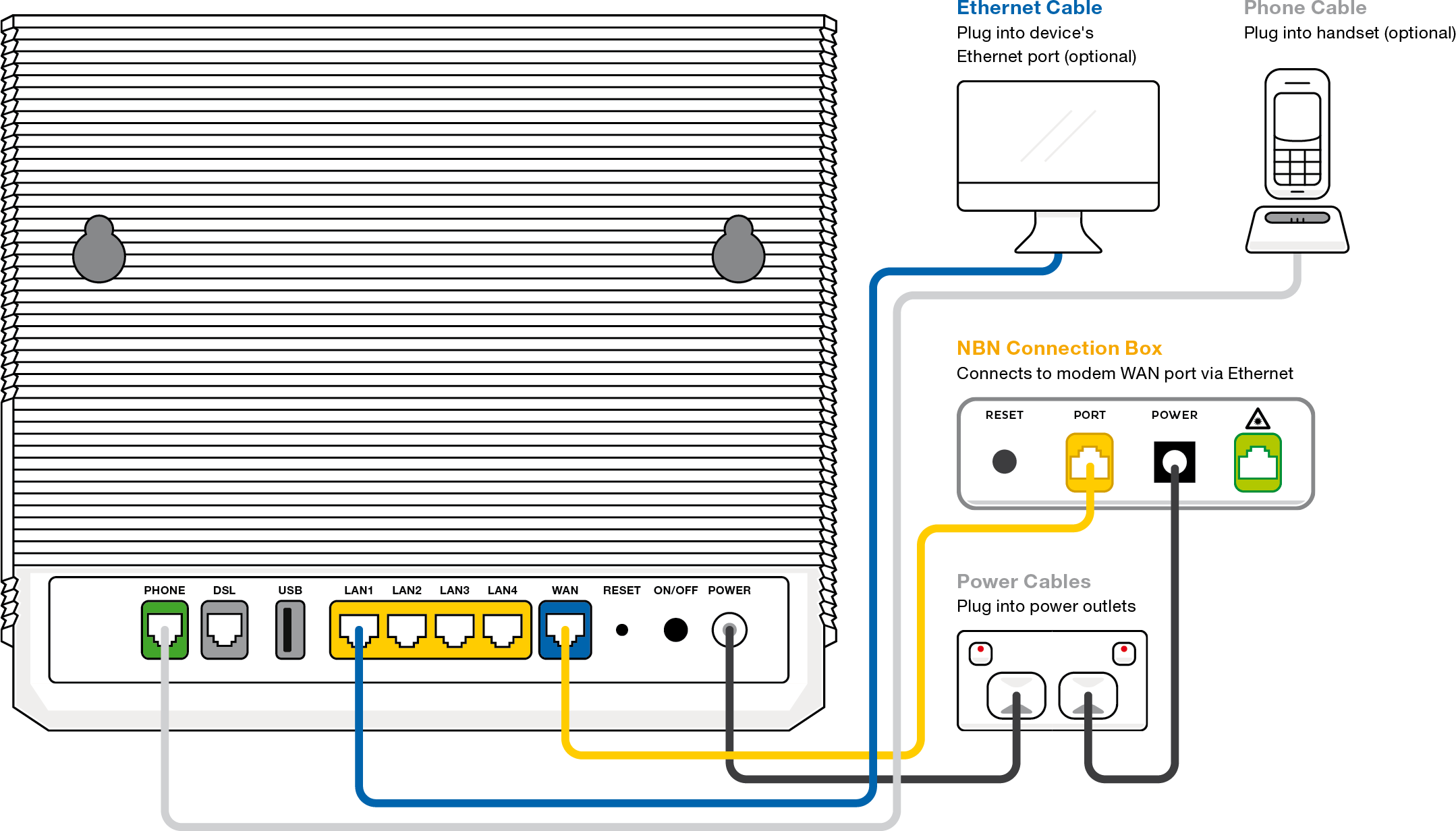
-
Still getting dropouts? Please call us on 1300 997 271 and we’ll help you.
If your TPG nbn FTTP service is offline, you won’t be able to visit a website, browse, stream, or download. Email and any other services that use the internet will not work. These steps will help you identify the issue.
-
Your service may just be affected by an outage or planned maintenance. You can check your address on nbn®'s Network status and outages page and our Network Status page.
If there is an outage or planned maintenance, the results will give you an estimated fix time. -
If you have a phone with mobile data, use it to run an nbn service test in My Account.
If the nbn service test identifies an issue, we’ll contact you.
-
Find your nbn modem and make sure the cables are plugged in securely and not damaged. Our setup guide will show you how to plug in.
You’ll need to replace any broken or chewed cables.
-
Turn off the power outlets for your modem and nbn Connection Box (NCB) for at least 10 seconds.
-
Turn the outlets back on and wait for your modem’s Internet light to come on, then see if you can visit a website.

- Check your nbn Connection box's status lights. If any lights are off or red, please call us on 1300 997 271 and we’ll help you.
Are all the lights off? Press the LIGHTS ON/OFF button to turn the NCB lights back on.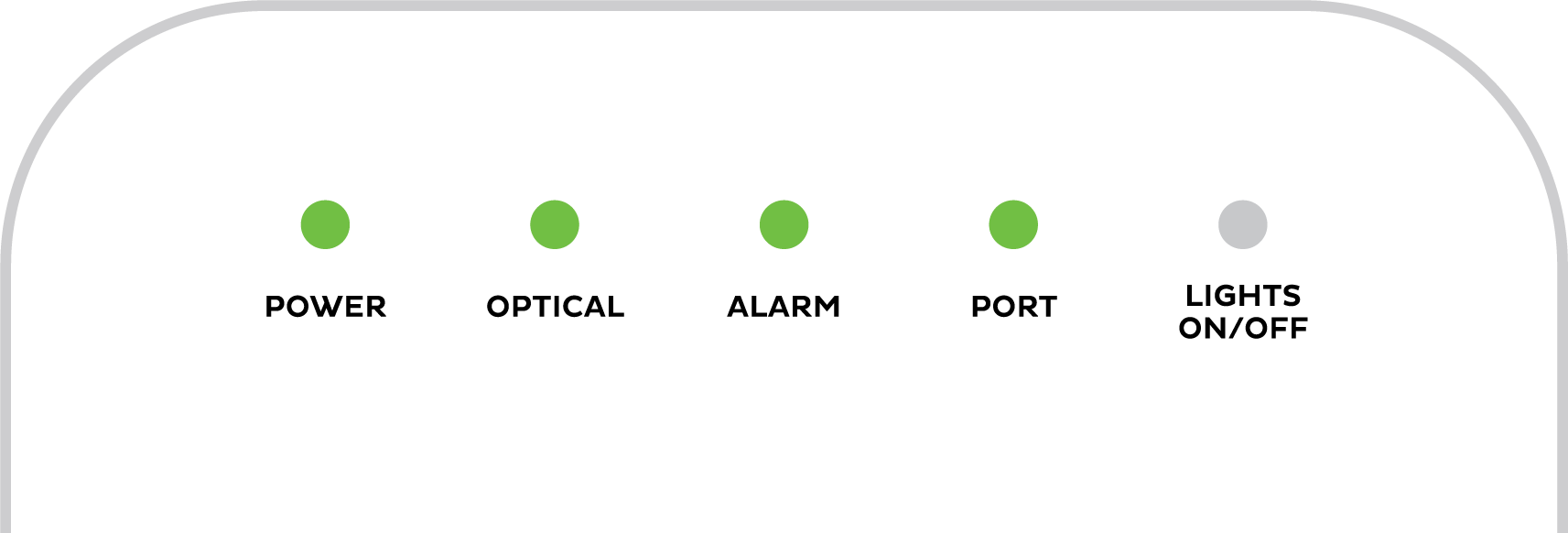
- Do you have any devices connected to your modem with an Ethernet cable? If these devices can visit a website but devices on Wi-Fi can’t, switch to troubleshooting Wi-Fi No Connection.
- If you can view websites on some devices but not others, even when they’re both connected the same way, you may need to fix some browser settings. Check out our guide on Browsing issues.
-
Still can't get online? Please call us on 1300 997 271 and we’ll help you.
If your TPG nbn FTTP service is running slowly, these steps will help you identify the issue.
-
Your service may just be affected by planned maintenance. You can check your address on nbn®'s Network status and outages page and our Network Status page.
If there is planned maintenance, the results will give you an estimated fix time. -
If you have a phone with mobile data, use it to run an nbn service test in My Account.
If the nbn service test identifies an issue, we’ll contact you.
-
Find your nbn modem and turn off its power outlet for at least 10 seconds.
-
Turn the outlet back on and wait for your modem’s Internet light to come on, then run a speed test.
-
Do you have any devices connected to your modem with an Ethernet cable? If speeds on these devices are fine but devices on Wi-Fi are slow, switch to Troubleshooting Wi-Fi speed.
-
Make sure your modem’s Ethernet cables are in good condition, with “CAT6” or “CAT5e” printed on them.
Older Cat5 Ethernet cables are not recommended for nbn services. You’ll need to replace any broken or chewed cables.
-
Your speed may temporarily slow down if you’re running more devices or apps than your connection can handle at the same time. For example, if a device is downloading a large file or running a 4K streaming app, your speed should improve when it’s finished.
If you need to run more devices or apps at the same time, you can change your plan in My Account or call us on 13 14 23 for support. -
Run a scan on your antivirus/anti-malware software. If any infections are detected, make sure they are quarantined and removed.
Contact your software’s Customer Support if you need help. -
Still getting slow speeds? Please call us on 1300 997 271 or lodge a fault with the My TPG App (iOS or Android) and we’ll help you.
Log in to the My TPG app and hit Your Internet Speed, then Test Your Speed. If your speed is below the acceptable range, you can hit Lodge Fault and submit the form.
Your modem will take care of the hard stuff like internet settings, but we’ll need your help to plug it in. The main cables you need will come in the box, and you can grab extra Ethernet cables from the shops if you need them.
Choose your modem to get started:
| Picture | Modem |
|---|---|
|
|
Wi-Fi Max Modem |
|
|
VX420-G2V Modem |
|
|
VX420-G2H Modem |
|
|
VX220-G2V Modem |
|
|
TP-Link VR1600v |
|
|
TPG modem not listed here? See Guides for older modems. |
|
|
Don't have a TPG modem? See our BYO modem guide. |
How to plug in your Wi-Fi Max Modem for nbn FTTP
- Plug in your Wi-Fi Max modem.
- Find your nbn® Connection Box (NCB) and unplug any old modem.
- Use the red Ethernet cable to connect your modem’s red 2.5G WAN port to the yellow PORT port.
Does your NCB have 4 yellow ports? Plug into the UNI-D1 or PORT 1 port first. If that doesn’t work, try each other port and wait a few minutes to see if the Connection Box gets a green OPTICAL light.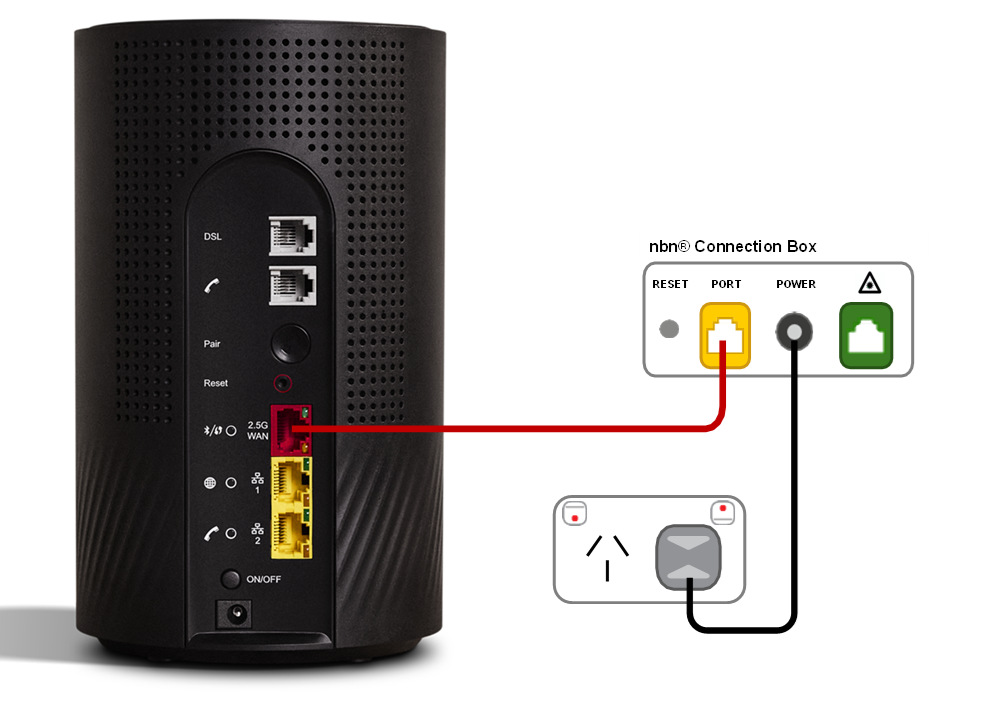
- Power on your Wi-Fi Max modem.
- Use the power cable to connect your Wi-Fi modem to a power outlet, then press the ON/OFF button.
- Wait 20 minutes for the automatic setup to complete.
- You should have a green light on the front of your Wi-Fi modem. If it’s red, call 1300 997 271 for help.
- Connect devices via Ethernet.
- For online gaming and HD/4K streaming, Ethernet is better than Wi-Fi. Use Ethernet for desktop PCs, gaming consoles or TVs if you can.
- You can use additional Ethernet cables to connect up to 2 devices to the yellow LAN ports.
- You can connect more devices over Wi-Fi.
- Connect your Wi-Fi devices.
- Find the default name of your Wi-Fi network printed next to “Wi-Fi Name” on your modem’s barcode sticker.
- Select your Wi-Fi Name on your device, then enter the password printed next to “Wi-Fi Password” on your modem’s barcode sticker.
- If you’re using a smartphone, you can just scan the QR code on your modem’s barcode sticker.
Want to customise your Wi-Fi name and password? You can use the My Internet Connect app.
- Plug in your phone.
- Got a TPG Voice service? Use a phone cable to plug your VoIP-ready phone into the grey Phone port.
- Make sure your phone is plugged into a power outlet.
- You should have a green Phone light on the back of your modem. If it’s off or flashing blue, call us for help.
- Download the My Internet Connect app.
It’s easy to manage your home network with the My Internet Connect app.- Make sure your device is connected to your modem’s Wi-Fi network.
- Enter the Login Password on your modem’s barcode sticker.
- Need help? Call our team using these numbers:
- 13 14 23 in Australia.
- +61 2 9007 3023 from overseas.
- National Relay Service for hearing impaired customers.
How to plug in your VX420-G2V Modem for nbn FTTP
Note for video: If your nbn Connection Box (NCB) doesn’t have UNI-D ports, you’ll need to plug into the yellow PORT or PORT 1 instead.
- Wait for a message from us asking you to plug in your nbn modem. We need to get your connection ready on our side first.
- Find your nbn Connection Box (NCB) – it's usually installed on the inside of an exterior wall, sometimes in the garage. Unplug any old modem from the NCB and power outlet.
- Use the power cable to connect your modem's Power port to a power outlet, turn it on, then press your modem’s ON/OFF button.
- Use the Ethernet cable to connect your modem's blue WAN port to your NCB's yellow PORT.
NCB has 4 ports? Plug into UNI-D1 or PORT 1 first. If that doesn’t work, try each other port and wait a few minutes to see if your NCB gets a green Optical light. If all NCB lights are off, press the LED ON/OFF button to turn them back on. - Take a break for 30 minutes while your modem runs an automatic setup.
- Check your modem's Internet light. If it’s green, you’re online and you can start connecting devices.
No green light? Call us on 1300 997 271 and we can help you out.
-
You'll find the default Wi-Fi name (SSID) and Wireless Password/PIN on your modem's barcode sticker. If you want to change your Wi-Fi name or password, use this guide.
- Your devices will automatically connect to the best Wi-Fi possible. If your Wi-Fi’s running slow, check out Improving Wi-Fi Signal.
- For online gaming or HD/4K streaming, Ethernet is better than Wi-Fi. If you have extra Ethernet cables, you can connect up to 4 devices to your modem’s yellow LAN ports.
- To use your TPG Voice phone service, just plug a handset into your modem’s green Phone port.
If your service was connected before 23 May 2024 (excluding nbn Fibre upgrades) then plug your handset into your NCB's UNI-V1 port instead.
-
You’re now good to go.
If you don’t want to keep your old modem, see if your local council has any eWaste recycling facilities.
How to plug in your VX420-G2H Modem for nbn FTTP
- Wait for a message from us asking you to plug in your nbn modem. We need to get your connection ready on our side first.
- Find your nbn Connection Box (NCB) – it's usually installed on the inside of an exterior wall, sometimes in the garage. Unplug any old modem from the NCB and power outlet.
- Use the power cable to connect your modem's Power port to a power outlet, turn it on and press your modem’s ON/OFF button.
- Use the Ethernet cable to connect your modem's blue WAN port to your NCB's yellow PORT.
NCB has 4 ports? Plug into UNI-D1 or PORT 1 first. If that doesn’t work, try each other port and wait a few minutes to see if your NCB gets a green Optical light. If all NCB lights are off, press the LED ON/OFF button to turn them back on. - Take a break for 30 minutes while your modem runs an automatic setup.
- Check your modem's Internet light. If it’s green, you’re online and you can start connecting your devices.
No green light? Call us on 1300 997 271 and we can help you out.
-
You'll find the default Wi-Fi name (SSID) and Wireless Password/PIN on your modem's barcode sticker. If you want to change your Wi-Fi name or password, use this guide.
- Your devices will automatically connect to the best Wi-Fi possible. If your Wi-Fi’s running slow, check out Improving Wi-Fi Signal.
- For online gaming or HD/4K streaming, Ethernet is better than Wi-Fi. If you have extra Ethernet cables, you can connect up to 4 devices to your modem’s yellow LAN ports.
- To use your TPG Voice phone service, just plug a handset into your modem’s green Phone port.
If your service was connected before 23 May 2024 (excluding nbn Fibre upgrades) then plug your handset into your NCB's UNI-V1 port instead.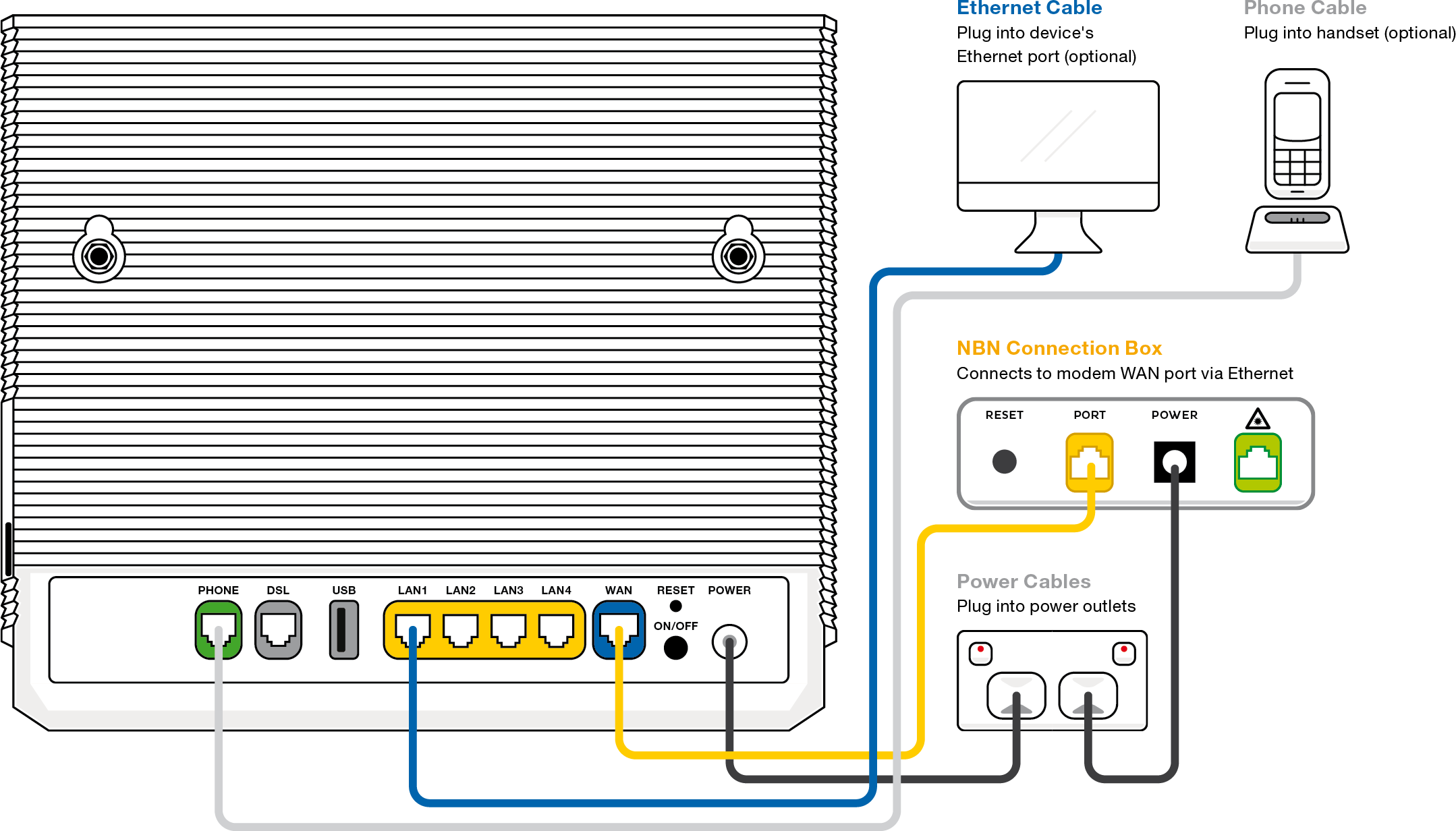
-
You’re now good to go.
If you don’t want to keep your old modem, see if your local council has any eWaste recycling facilities.
How to plug in your VX220-G2V Modem for nbn FTTP
Note for video: If your nbn Connection Box (NCB) doesn’t have UNI-D ports, you’ll need to plug into the yellow PORT or PORT 1 instead. After 15 May 2024, you'll need to plug your handset into your modem's green Phone port instead of the UNI-V port on the nbn Connection Box.
- Wait for a message from us asking you to plug in your nbn modem. We need to get your connection ready on our side first.
- Find your nbn Connection Box (NCB) – it's usually installed on the inside of an exterior wall, sometimes in the garage. Unplug any old modem from the NCB and power outlet.
- Use the power cable to connect your modem's Power port to a power outlet, turn it on, then press your modem’s ON/OFF button.
- Use the Ethernet cable to connect your modem's blue WAN port to your NCB's yellow PORT.
NCB has 4 ports? Plug into UNI-D1 or PORT 1 first. If that doesn’t work, try each other port and wait a few minutes to see if your NCB gets a green Optical light. If all NCB lights are off, press the LED ON/OFF button to turn them back on. - Take a break for 30 minutes while your modem runs an automatic setup.
- Check your modem's Internet light. If it’s blue, you’re online and you can start connecting devices.
No blue light? Call us on 1300 997 271 and we can help you out.
-
You'll find the default Wi-Fi name (SSID) and Password on your modem's barcode sticker. If you want to change your Wi-Fi name or password, use this guide.
- Your devices will automatically connect to the best Wi-Fi possible. If your Wi-Fi’s running slow, check out Improving Wi-Fi Signal.
- For online gaming or HD/4K streaming, Ethernet is better than Wi-Fi. If you have extra Ethernet cables, you can connect up to 4 devices to your modem’s yellow LAN ports.
- To use your TPG Voice phone service, just plug a handset into your modem’s green Phone port.
If your service was connected before 23 May 2024 (excluding nbn Fibre upgrades) then plug your handset into your NCB's UNI-V1 port instead.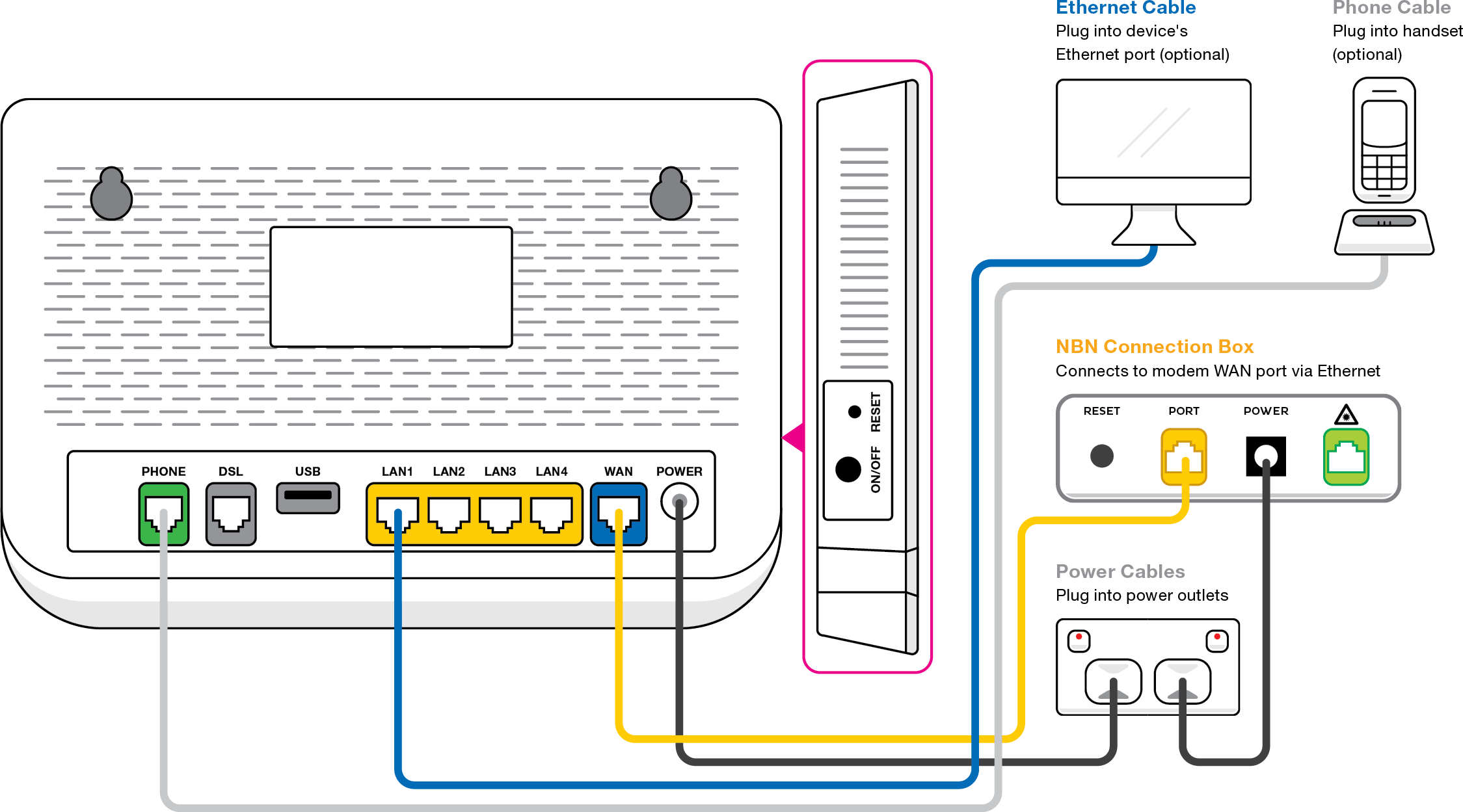
-
You’re now good to go.
If you don’t want to keep your old modem, see if your local council has any eWaste recycling facilities.
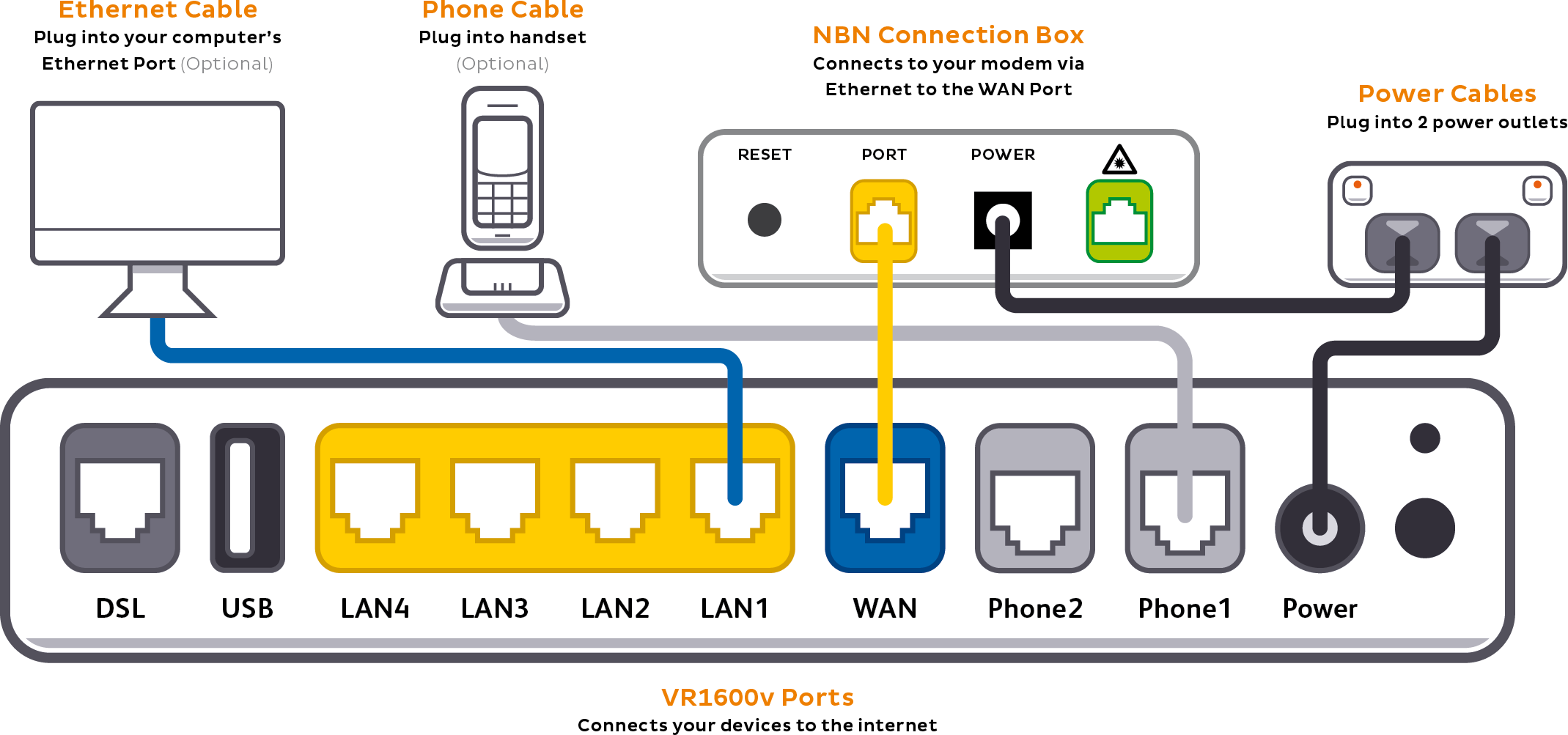
How to plug in your TP-Link VR1600v for nbn FTTP
- Wait for a message from us asking you to plug in your nbn modem. We need to get your connection ready on our side first.
- Find your nbn Connection Box (NCB) – it's usually installed on the inside of an exterior wall, sometimes in the garage. Unplug any old modem from the NCM and power outlet.
- Use the power cable to connect your modem's Power port to a power outlet, turn it on, then press your modem’s ON/OFF button.
- Use the Ethernet cable to connect your modem's blue WAN port to your NCB's yellow PORT.
NCB has 4 ports? Plug into UNI-D1 or PORT 1 first. If that doesn’t work, try each other port and wait a few minutes to see if your NCB gets a green Optical light. If all NCB lights are off, press the LED ON/OFF button to turn them back on. - Take a break for 30 minutes while your modem runs an automatic setup.
- Check your modem's Internet light. If it’s green, you’re online and you can start connecting devices.
No green light? Call us on 1300 997 271 and we can help you out.
- You'll find the default Wi-Fi name (SSID) and Wireless Password/PIN on your modem's barcode sticker. If you want to change your Wi-Fi name or password, use this guide.
- We recommend connecting over the 5GHz Wi-Fi channel for faster performance. If your Wi-Fi’s running slow, check out Improving Wi-Fi Signal.
- For online gaming or HD/4K streaming, Ethernet is better than Wi-Fi. If you have extra Ethernet cables, you can connect up to 4 devices to your modem’s yellow LAN ports.
- To use your TPG Voice phone service, just plug a handset into your modem’s grey Phone 1 port.
If your service was connected before 23 May 2024 (excluding nbn Fibre upgrades) then plug your handset into your NCB's UNI-V1 port instead.
- You’re now good to go.
If you don’t want to keep your old modem, see if your local council has any eWaste recycling facilities.
Here's what to do if you’re getting unwanted phone calls to your home phone number.
Select one of the links below to jump to a query:
- Are the callers telemarketers?
- Phone harassment and other malicious calls
- What do I need to do to stop unwanted calls?
Are the callers telemarketers?
If the calls are unsolicited telemarketers from businesses you haven’t dealt with before, then you should register on the Do Not Call Register.
This register is managed by the Australian Communications and Media Authority (ACMA) on behalf of the Australian Government. Once you've registered, Australian telemarketers and fax marketers must not contact you.
Please do not reply to any messages from telemarkers and do not provide them with any personal information.
Phone harassment and other malicious calls
If you’re getting threatening or otherwise unwelcome calls that:
- Total 10 or more unwelcome calls spread over a 24 hour period;
- Total 3 or more unwelcome calls over a 48 to 120 hour period; or
- Are unwelcome calls made at consistent and/or regular intervals (e.g. every Thursday night for 3 weeks in a row, or calls every 2 days).
Then please call us on 13 14 23 as soon as possible. We can help you by:
- Investigating trace logs for VoIP internet phone services (e.g. nbn Phone).
- Setting up a Malicious Call Trace for landline phone services.
- Changing your phone number (if you want to).
Note: The most recent unwelcome call must have happened within the last 4 weeks.
What do I need to do to stop unwanted calls?
-
Write down the time and date of each unwelcome call, using the exact date and time in your phone's call history.
-
Once you have recorded enough unwelcome calls according to the list below, please call us on 13 14 23 and we'll investigate.
- 10 or more times within 24 hours; or
- 3 or more times within 48 to 120 hours; or
- Any number of calls made at consistent and/or regular intervals (e.g. every Thursday night for 3 weeks in a row, or calls every 2 days) and where there are special circumstances.
Special circumstances may include threats against your personal safety, vulnerable situations like domestic or family violence, or a result of your financial, employment or other circumstances. -
If we find that there's been a pattern of unwelcome calls, a Warning Letter (Cease and Desist) will be sent to the malicious caller by their phone provider. At no point is the malicious caller's identity supplied to TPG or to you.
Note: A Warning Letter can't be sent if the caller is using an international number, multiple different phone numbers, or a payphone. -
If the calls are threatening or criminal in nature, please contact your local police department and tell them about the malicious calls. The police can contact TPG to get the trace logs.
-
Once a trace has been requested, please record the date and time of any further unwelcome calls and send the details to us. The ticket will be closed if no further reports are received after 30 days.
There is a wide variety of methods that scammers can use to impersonate legitimate businesses to try and gain access to your personal information. This is known as phishing and can be difficult to spot.
"Warning Suspected Scam" banner
Scammers often use a method called call spoofing, which means they falsify the caller ID to hide their identity. The call may look like it’s coming from a local or trusted number, but it is not.
Call spoofing is common and while it can't be fully stopped, we have added a new feature where a "Warning Suspected Scam" banner will appear on some calls which we think look suspicious.
Some flagged calls may be legitimate but letting them go to voicemail is a safer choice. This warning system will not catch every spoofed or scam call. To stay safe, do not share personal details during unexpected or unsolicited calls.
If you believe you’ve been targeted by a scam, report it at https://www.scamwatch.gov.au.
Common tricks:
Scammers may ask you for things like login details, your date of birth or ID numbers and banking information. These requests can come in a text, call, or email and usually include a link to click on or a number to call back.
If you receive any communication asking for you to call a number back, we recommend first checking the number on the company’s website. TPG will never call you and ask for your PINs, passwords or send you a one-time passcode to complete verification.
You can find out more about how we protect your information here: Privacy Policy
If you have been a victim of a scam and have provided any financial information, contact your financial institution as soon as possible.
If you receive a call, letter, email, text message or other communication that claims to be from TPG and you suspect it may be a scam or hoax, give us a call on 13 14 23.
To learn more about how to spot and avoid scams, or report that you have been impacted by a scam visit: Scamwatch
Select one of the links below to jump to a query:
- What to do if you receive suspicious correspondence or calls claiming to be from TPG
- Latest known scams
- Vehicle History Report Scam
- Gambling Scam
- nbn® appointment scams
- Email closure phishing email
- “Hi mum” scam
- nbn® Robocaller Scam
- Flubot Scam
- COVID-19 Scams
- COVID-19 SMS Scam
- Wangiri Fraud (missed call scam)
- SMS Phishing Scam
- Fake TPG mail
- Scammers threatening Chinese communities in Australia
- Browser Pop Up Scam
- How to protect your device
What to do if you receive suspicious correspondence or calls claiming to be from TPG
If you receive a call, letter, email, text message or other communication that claims to be from TPG and you suspect it may be a scam or hoax, give us a call on 13 14 23.
Scam Emails and Text Messages
If you receive an email or text message that is unknown, unsolicited or you suspect to be fraudulent including messages with a one-time code that you didn’t initiate, this is what we advise:
- Don’t reply to the SMS or email.
- Don’t provide any personal details.
- Don’t click on any links.
- Don’t open any attachments.
- Don’t call any numbers associated with the SMS or email.
- Don’t share any content of the SMS or email with anyone.
- Email a screenshot of the message to customer-relations@tpg.com.au.
- Report the email or SMS to Scamwatch.
- Email customer-relations@tpg.com.au and provide a screenshot of the suspected fraud message, the date and time you received it, how many times you received it and your mobile number.
Scam Phone Calls
Scammers often use a method called call spoofing, which means they falsify the caller ID to hide their identity. The call may look like it’s coming from a local or trusted number, but it is not.
Call spoofing is common and while it can't be fully stopped, we have added a new feature where a "Warning Suspected Scam" banner will appear on some calls which we think look suspicious.
Some flagged calls may be legitimate but letting them go to voicemail is a safer choice. This warning system will not catch every spoofed or scam call. To stay safe, do not share personal details during unexpected or unsolicited calls.
If you receive a phone call that you suspect is fraudulent, this is what we advise:
- Don’t give the caller any personal details and hang up.
- Check that the call is coming from a number that’s not a number that we use.
- Block the caller/sender’s number using your phone’s built-in call rejection features or by downloading an app to restrict incoming calls and messages.
- Let the call go to voicemail and then listen to any message left to ascertain if this might be a genuine call. For more information on how to set up and manage voicemail, head to our support page.
- Report the call to Scamwatch.
- Report the email or SMS to Scamwatch.
- Email customer-relations@tpg.com.au and provide the date and time you received the call, how many calls you received in total and your mobile number.
How to tell whether a call you’ve received is legitimate
- When we call you, we will not ask for a one-time passcode sent to your mobile or email, to verify you.
- We will never call you and ask for your credit card details for refunds, reimbursements, or compensation.
- Any refunds or reimbursements will only be provisioned through your original method of payment.
- We will never call you from a private number.
- If you order a device over the phone or online, we will send you a confirmation SMS with the details of your order including your preferred delivery address.
- We will never proactively reach out to you on social media, we will only ever respond to you, if you contact us.
Latest known scams
Vehicle History Report Scam
We’re aware of scammers targeting people selling cars, motorbikes, and caravans with fake vehicle history report requests.
These fraudsters pose as interested buyers and insist you use a specific website to purchase a report, claiming it’s the only one they’ll accept.
The site is fake, and once you enter your credit card and personal details, your money and information are stolen.
How to spot this scam:
- Genuine buyers will usually get and pay for a vehicle history report themselves.
- It’s the buyer’s responsibility to check the vehicle, not yours.
- The official government site for vehicle checks is ppsr.gov.au, and it only costs $2.
If someone insists you use their link or pay for a report, stop immediately and report the scam directly to us on 13 14 23.
Gambling Scam
We’ve seen an increase in scammers sending unsolicited messages posing as online gambling sites and casinos. These messages invite the recipient to click a link promising bonuses and the potential to win money. While the website and SMS may look like it is from a gambling site, the websites are used to harvest personal information by requesting sign up information and banking credentials and may infect your device with malware.
If you receive an unsolicited SMS inviting you to a gambling site, do not click the link or provide personal information.
nbn® appointment scams
TPG is aware of a scam targeting customers relating to nbn faults or works in their area.
The scammers may contact consumers in person or over the phone to offer either a new nbn connection or support in setting up an existing connection. The scammers will then try to gain payment details or access computers either remotely or in person. Scammers may also send a fake SMS posing as TPG offering or confirming an nbn appointment.
TPG will never contact you and ask for your payment details relating to an nbn appointment or fault and will never request to access your computer or devices in person or ask you to load a website that gives them access remotely.
- If someone contacts you in person or over the phone and requests access to your computer or devices, close the door or hang up on them.
- If you are ever contacted by someone posing as TPG and you are uncomfortable or unsure if it is a scam, hang up and call us back on 13 14 23.
- If you ever receive an SMS from TPG confirming an nbn installation appointment that you haven’t requested, do not respond, and report it.
- Always request identification before allowing technicians to enter your home.
- Never allow anyone to access your personal computer or device either in person or over the phone.
- TPG technicians will never request payment or payment details from customers.
Report any suspicious behaviour to Scamwatch. If you think you have been a victim of fraud, or a scammer has gained access to your banking information contact your financial institution immediately.
Email closure phishing email
We are aware of a phishing campaign targeting TPG customers.
We may have emailed you recently, asking you to express interest in retaining the email account you hold with TPG. We have observed examples of scammers attempting to replicate these emails, with the intent to phish personal information from our customers.
TPG will not ask you to provide your My Account login details, personal information, or payment details as part of this campaign.
If you receive an email relating to this campaign with a link asking for your personal or TPG login information, please report it to us at customer-relations@tpg.com.au.
If you have clicked on a link and filled in your personal, TPG login, or payment information, please change any related passwords immediately and report this to scamwatch.gov.au. If you have been a victim of fraud, you should immediately contact your financial services provider.
For further support, please call us on 13 14 23.
“Hi mum” scam
Some of our customers have reported receiving WhatsApp or text messages from scammers alleging to be children in need of funds. The scammers are targeting parents and the messages generally start by claiming the child has lost or broken their phone, or it has been stolen so they insist the parent does not contact them on their old number. The messages will then develop into the scammer requesting money for things like bills or emergency funds as they have been locked out of their internet banking accounts.
If you receive an SMS or WhatsApp message from an unknown number asking for money or claiming to be a loved one, do not transfer any funds. If you are ever unsure of the legitimacy of a message, it’s always best to pick up the phone and contact the sender to be sure.
If you receive any SMS relating to this scam, please report it to Scamwatch.
nbn® Robocaller Scam
Some customers have reported receiving a call with a recorded message claiming to be nbn®, telling the customer that their account will be terminated.
If you receive a call like this:
- Do not confirm any personal information to the caller.
- Hang up the phone.
- Report the call to Scamwatch.
In the event of any legitimate service disconnections, you will receive at least 30 days' written notice from us.
For more scam and hoax information, monitor the Scamwatch website.
Flubot Scam
You may have recently received an SMS message, claiming that you have had a missed call or voicemail. These messages are generated by Malware called Flubot, which spreads via SMS messages and can infect customers with Android devices on any mobile network. We have also seen variants of the Flubot message, purporting to be from a courier service asking the end user to install a tracking app through a link which will infect the device with malware. If a user clicks the link and installs the app, the malware will take over the device and send texts to the infected user’s contacts.
Known examples include:
- I want to send you a voicemail on Zello! Click to download.
- my86 Your service provider zas sent you a nee notice: <LINK>
- wfq5cm Voicemail: You have 1 new Voicemaill (s). Go to: <LINK>
If you receive an SMS like this:
- Do not click on the link.
- Report the SMS to Scamwatch.
- Delete the SMS a soon as possible.
It is important to point out that just because you have received the message, this does not mean your device has become infected.
If you click on the link, you will be taken to a web page that may look like a genuine site with branding that you are familiar with. You may be prompted to install an app, so you can listen to the voicemail message. If you give permission to install the app, the Flubot malware will be installed onto your device. The malware may be able to access your contacts list and access your personal information if you use your device while infected. You may also receive texts or calls from random numbers stating that you have sent them an SMS, which you will have no knowledge of.
What should you do if you have become infected?
If you have become infected, don’t enter any passwords or log into any accounts until you have cleaned your device using the below steps.
How to clean your device
Cleaning your device using the steps below will remove the malicious software from your device.
To clean your device, you can:
- contact an IT professional.
- download official Android anti-virus software through the Google Play Store.
- perform a factory reset of the device.
Performing a factory reset of your device will delete all of your data including photos, messages, and authentication applications.
At this time Apple devices are not affected, but we are aware that customers with Apple devices have been also receiving these Flubot messages.
For more information, head to the Scamwatch website.
COVID-19 Scams
Unfortunately, during these difficult times it is business as usual for fraudsters and scammers who are using the spread of COVID-19 to take advantage of people across the country. These scams can include spam messages impersonating the Government or the ATO, and there has also been an emergence of scams related to people’s superannuation.
You can find lots of useful information regarding the latest COVID-19 scams on the Scamwatch page.
If you receive any emails or messages that you think are suspicious, please report them to Scamwatch here.
COVID-19 SMS Scam
Some of our customers have reported receiving an SMS from a source claiming to be the ‘Australian Government Department of Health’ stating that ‘You’ve received a new message regarding the COVID-19 safetyline symptoms and when to get tested in your geographical area’.
This SMS contains a link to a fake government website.
This SMS was not sent by the Australian Government Department of Health. Please do not click on any link or reply to the SMS.
If you receive this SMS, please follow the below directions:
- Don’t reply to the SMS.
- Don’t click on any links/attachments.
- Report the email to Scamwatch.
Wangiri Fraud (missed call scam)
Wangiri fraud is when you receive missed calls from international numbers you don’t recognise on either a mobile or a fixed-line phone. The fraudsters generating the missed calls hope that their expensive international numbers will be called back so that they can profit. This type of fraud is not specific to TPG and appears to be on the rise.
If you receive calls like this, be assured that you haven’t been specifically targeted. It’s likely that the fraudster has generated a missed call to a whole range of mobile numbers that happens to include yours.
What should you do if you get a suspected Wangiri call?
We recommend that you don’t return calls to international numbers that you don’t recognise. Calls to Wangiri numbers will often result in a charge being incurred and only encourages the fraudster to generate more missed calls to customers who choose to call back.
- Do not answer a call from an overseas number unless you recognise the number or are expecting the call.
- Do not return a call to an overseas number unless you recognise it.
- Do not give out any personal or business information such as banking or credit card details, pin numbers, birth dates or personal names and addresses.
If you think you’ve had a missed call from an international number that may be involved in this scam, let us know. Just send an email to customer-relations@tpg.com.au and provide us with your mobile number and the international number you received the nuisance call from plus the date & time of that call.
What’s being done to address this issue?
We proactively monitor our network for Wangiri activity and shut down new fraudulent international numbers and number ranges as we find them.
This is an issue affecting customers of mobile and fixed line operators around the globe, and we’re working with a number of different operators and industry groups to reduce Wangiri fraud levels.
SMS Phishing Scam
Some of our customers have reported receiving an SMS claiming to be from TPG, asking them to verify personal information. The message states you have ‘been selected as one of our lucky winners for a brand new iPhone’ and requests for you to reply to a number with your full birth date.
This message is not sent by TPG. Please do not reply to the message.
If you receive this message (or any other spam SMS), please follow the below directions:
- Email a screenshot of the message to customer-relations@tpg.com.au.
- Don’t reply to the SMS.
- Don’t provide any personal details.
- Don’t click on any links.
- Don’t call any numbers associated with the SMS.
- Don’t share any content of the SMS with anyone.
- Report the SMS to Scamwatch.
Fake TPG mail
TPG are aware of an increase in falsified letters and statements from telecommunication companies. The falsified letters use the companies branding to appear legitimate and will be either sent via post or email.
The letters could be either a threatening invoice, request to update details or congratulate you on winning a prize. It will ask you to call a number or visit a website to update details, pay a sum of money or claim your prize.
If you receive any mail from TPG, whether it be paper or electronic, please ensure you do not follow any links to websites or call any numbers that are unfamiliar to you. If you receive a letter and suspect it may be a scam, please contact us on 13 14 23.
Scammers threatening Chinese communities in Australia
TPG is aware of a scam targeting our customers in Chinese communities. The calls are in Mandarin and the scammers are often posing as Chinese authorities.
The scammer will accuse the customer of either being directly involved in a crime relating to fake passports, or a victim who has had their bank details compromised. They will threaten the customer with jail time or deportation and will request the customer pay them in large sums of money to clear their name or have their issue investigated.
The scammers will try to intimidate the customer into either providing money or other personal details such as passport number. They do this using scare tactics in hope that the customer will not ask any questions and will instead provide requested details or pay them.
Once money has been paid to scammers, it is often unable to be recovered.
If you receive a call from someone threatening you with arrest or deportation in relation to fake passports, it is a scam. Do not send any money or provide any personal details. End the call immediately and report it to Scamwatch.
For further information, including information in Chinese languages, please visit the Scamwatch website.
Browser Pop Up Scam
TPG is aware of a current browser pop up scam that is targeting TPG customers.
The pop up asks you to click on a link to perform certain activities such as filling out a survey or choosing a gift box to win a “prize” (such as phones, electronic devices or accessories).
The link then directs you to a payment page where it requires you to pay small amount via credit card to redeem the “prize” or directs you to a page where you are required to enter your personal details or bank details.
TPG will never ask you to fill out forms with personal details to win a prize. If you are browsing the web and receive this pop up, please close the browser. If you have been a victim of this scam, please visit the Scamwatch website or call us on 13 14 23.
If you see this pop-up while browsing, please do the following:
- Close the browser.
- Email a screenshot of the pop-up to customer-relations@tpg.com.au as well providing details of which website you were on when the pop-up occurred.
- Don’t click on any links or fill in any details.
- Report the email to Scamwatch.
How to protect your device
- Make sure to use strong PINs and passwords and change them regularly. Avoid easy to guess PINs and passwords like ‘1234’, ‘0000’ and ‘password’.
- Lock your mobile handset and voicemail with strong PINs.
- Think carefully before clicking on a link or opening suspicious emails and attachments.
- Pay attention to your app permissions (what your apps are allowed to do and access, e.g. location, call history, etc). Only allow necessary permissions.
You can check the call history for your TPG phone service at any time.
-
Log in to My Account.
Never used My Account before? Check out An Introduction to My Account. -
Under TPG Home Phone Services, hit View TPG Home Phone Service Account or View NBN Home Phone Service Account.

-
Hit Home Phone Usage.

-
Choose the billing period you wan to check calls for.
The most recent billing period will be at the bottom of the list. -
Your call history will be listed with the call date and time, type of call, duration, number called, and cost.
If a call used your plan's included minutes, that will also be listed.