If your phone isn't automatically detecting TPG or Vodafone as the network carrier, you can select the network carrier manually.
Don't see a guide for your phone? Please check the manufacturer's website for a guide.
Select one of the links below to jump to a query:
How to set the network carrier on an iPhone
-
Open the Settings app.
-
Select Carrier.
-
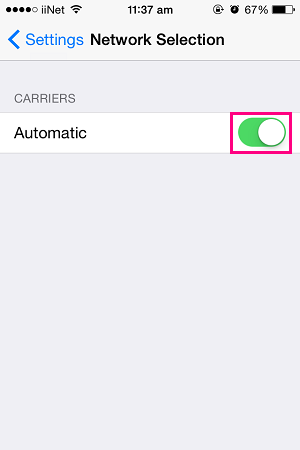
Turn off the Automatic switch, then wait while your iPhone searches for available networks in the area.
-
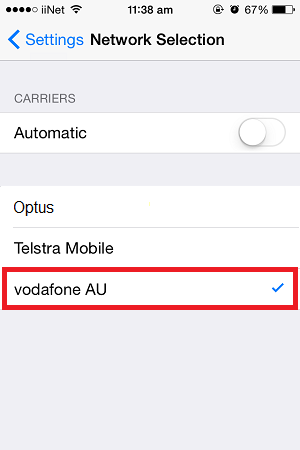
Tap Vodafone AU, then exit the Settings app to finish.
How to set the network carrier on Android OS
Android OS looks different depending on your phone and software version. If these steps don't work for you, please check the manufacturer's website for a guide.
-
Open the Settings app.
-
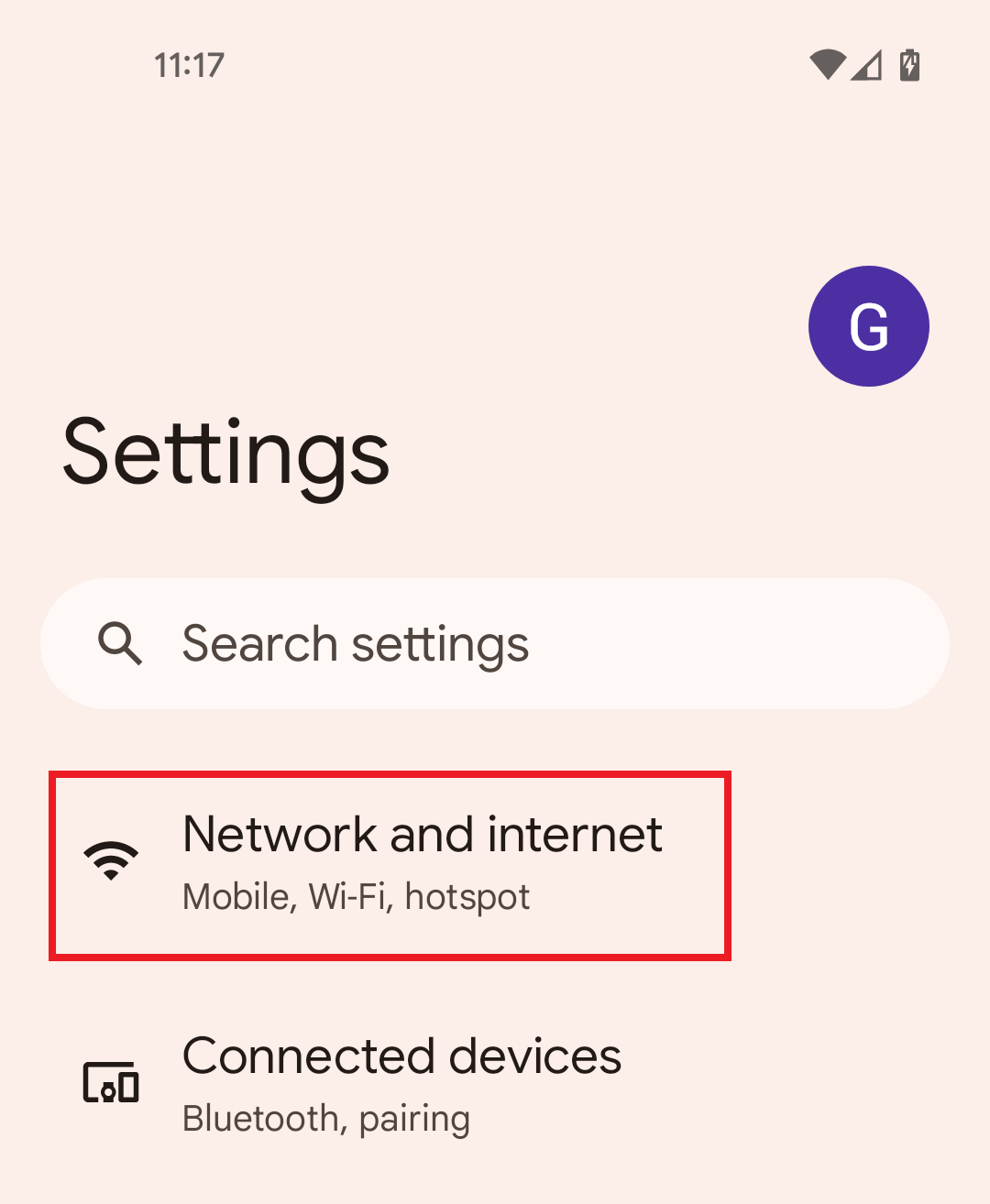
Tap Network and Internet.
-
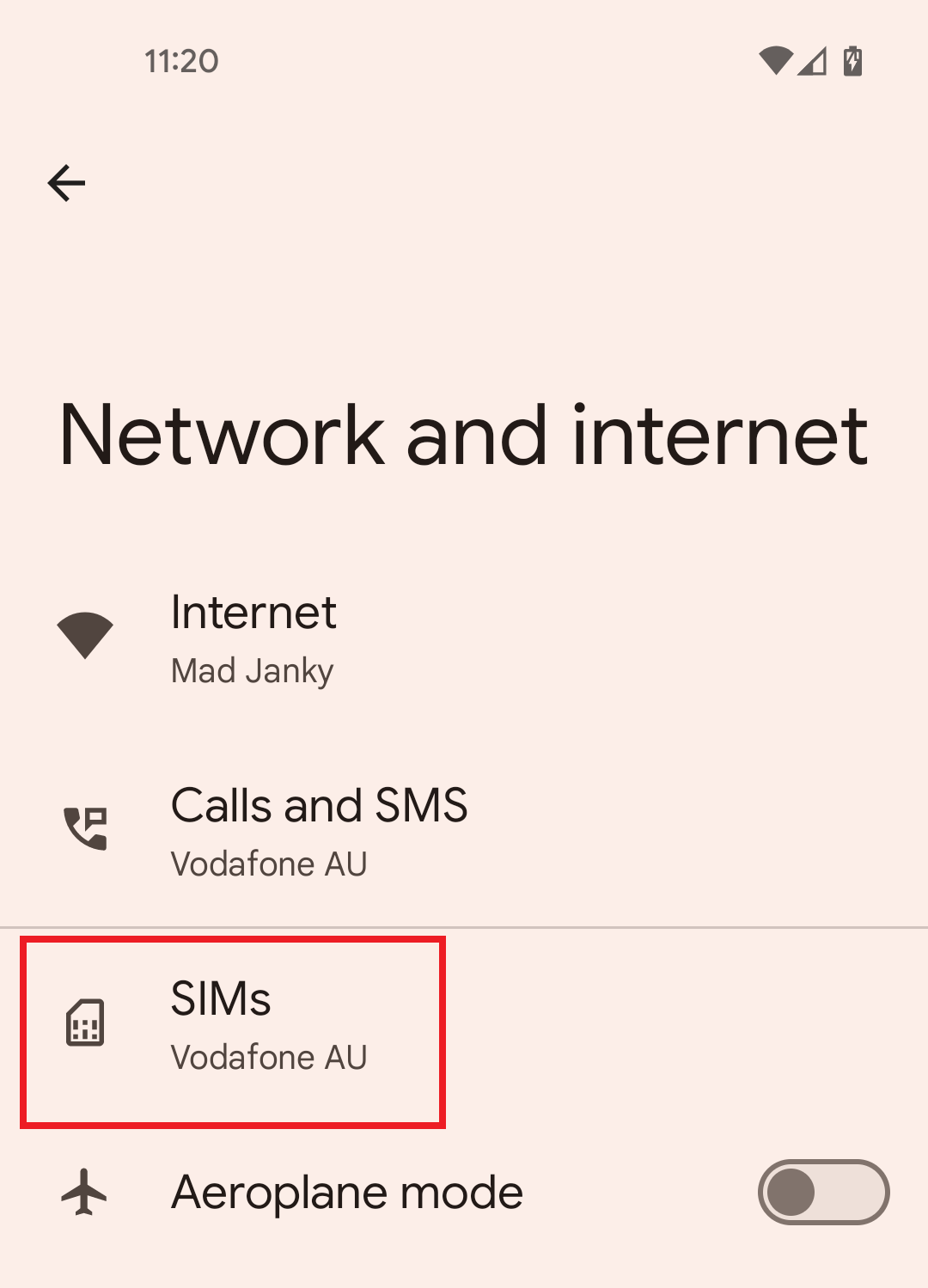
Tap SIMs, then select your TPG SIM.
-
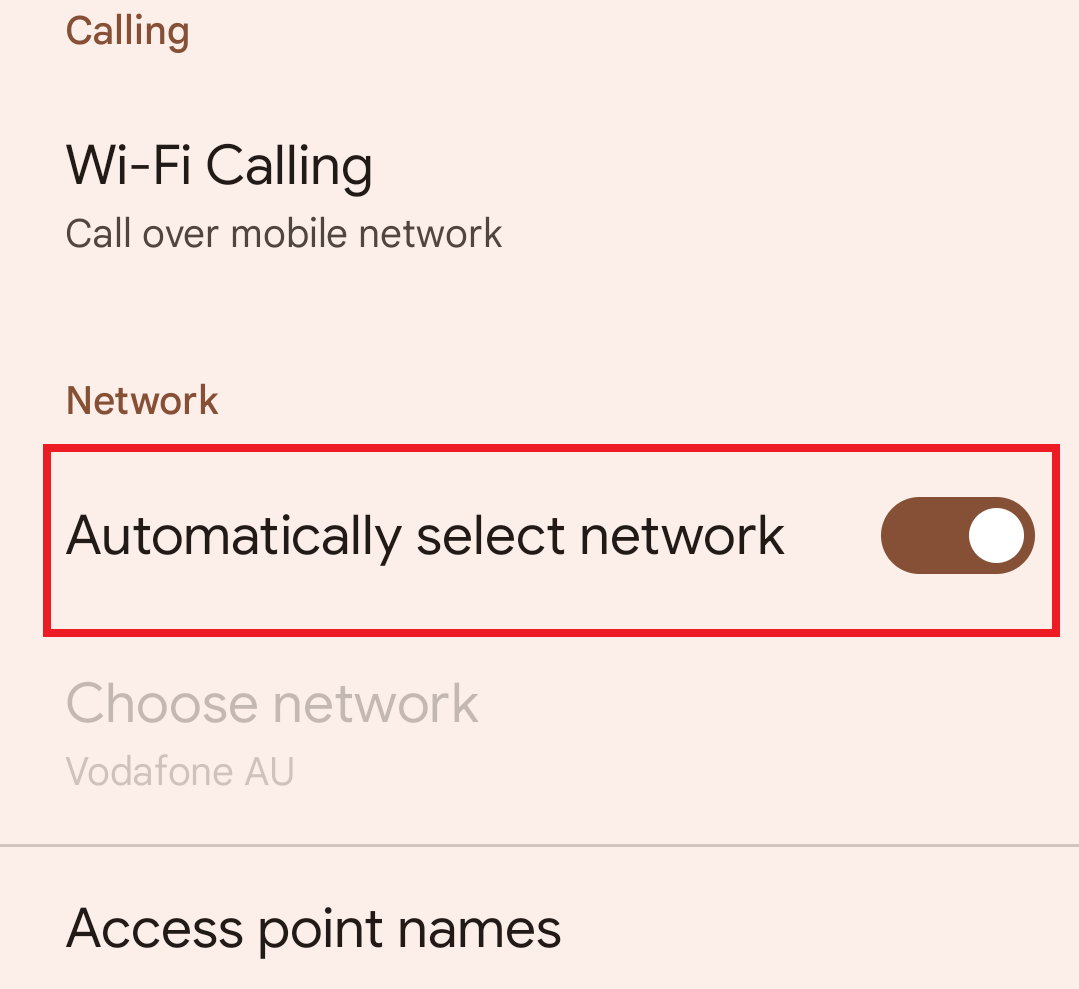
Scroll down and turn off the Automatically select network switch, then wait while your phone searches for available networks in the area.
-
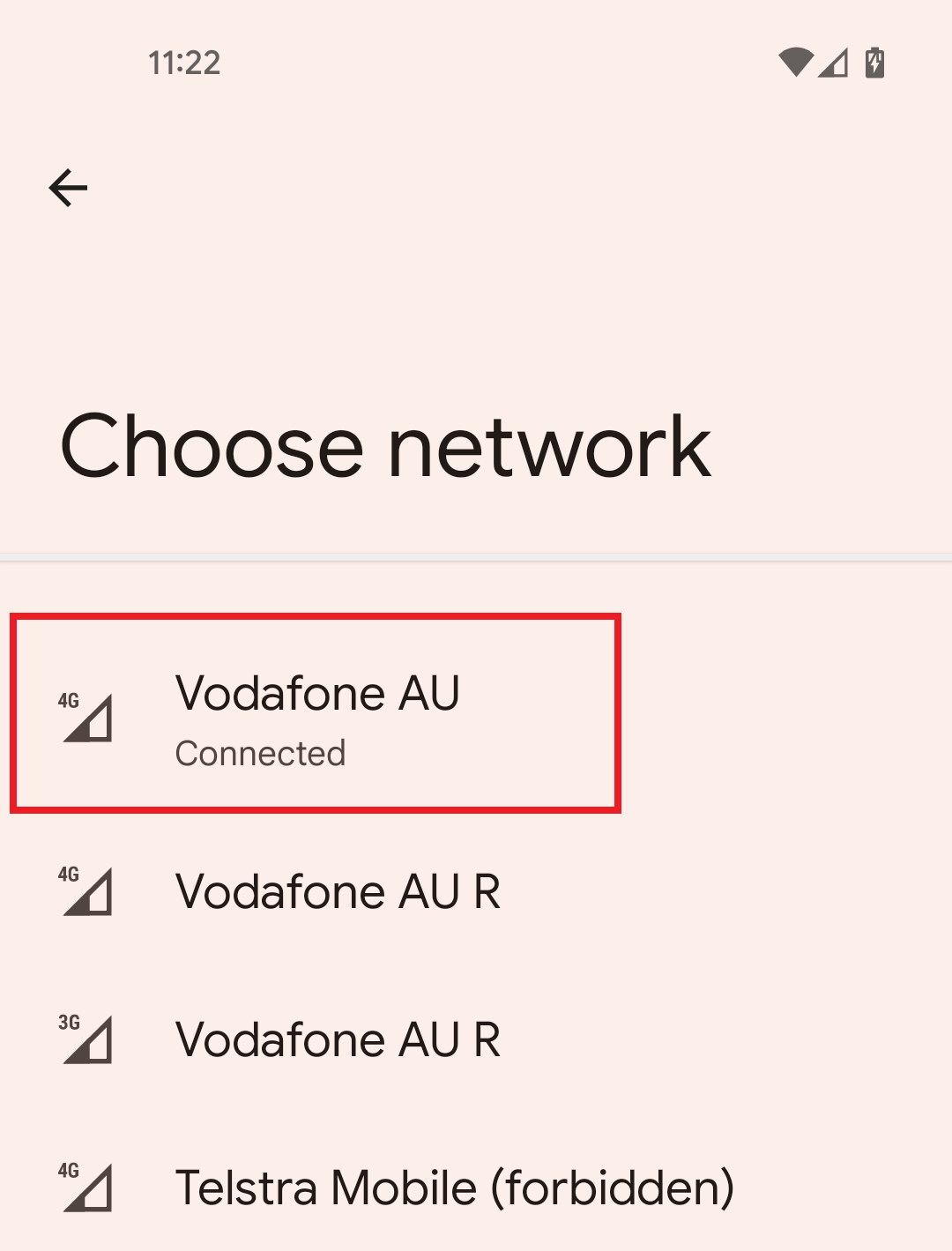
Tap Vodafone AU, then exit the Settings app to finish.
If there's no communication betwen your modem and your device, then you won't be able to view websites or browse to your modem's default gateway. These steps will help identify the issue.
-
Make sure your computer is connected to your modem by Ethernet cable or Wi-Fi.
Wi-Fi connections can't be over Guest Wi-Fi or Wi-Fi Protected Setup (WPS). -
Turn off your modem and your device and leave them off for at least 60 seconds.
-
Turn them back on and wait for them to reboot. When you modem's Internet light is back on, try to browse to your modem’s default gateway.

-
Do you have any devices connected to your modem with an Ethernet cable? If these devices can visit your modem's default gateway but devices on Wi-Fi can’t, switch to troubleshooting Wi-Fi No Connection.
-
Do you have multiple devices to test? If some devices can get to your modem's default gateway but others can't, the devices that can't may be faulty.
Faulty devices with a faulty wireless adapter may need to be repaired or replaced. If the device is a computer running Windows, a winsock reset may help. -
Still can't get to your modem's default gateway? Call us on 13 14 23 and we'll help you.
In most cases, your computer will get your DNS settings automatically. DNS may need to be set manually if you're having some browsing issues.
Select one of the links below to jump to a query:
Set DNS server in Windows
-
Log in to Windows with an Administrator account.
If your account doesn’t have Administrator privileges, you can't change your DNS server settings. -
Hit Search and search for "Control Panel".
-
Open the Control Panel app and select Network and Sharing Centre.
You may need to hit Network and Internet before you see Network and Sharing Centre.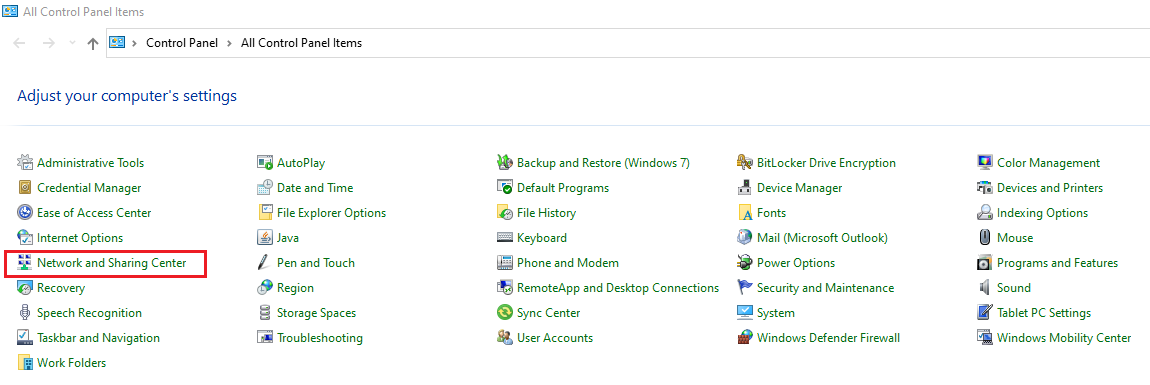
-
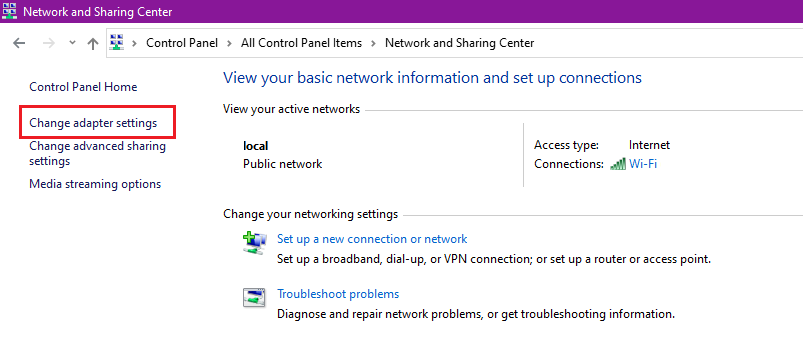
Hit Change adapter settings.
-
Right-click on your active internet connection and select Properties.
Your active internet connection may be Ethernet, Wireless Network Connection or Local Area Connection depending on how your computer is set up.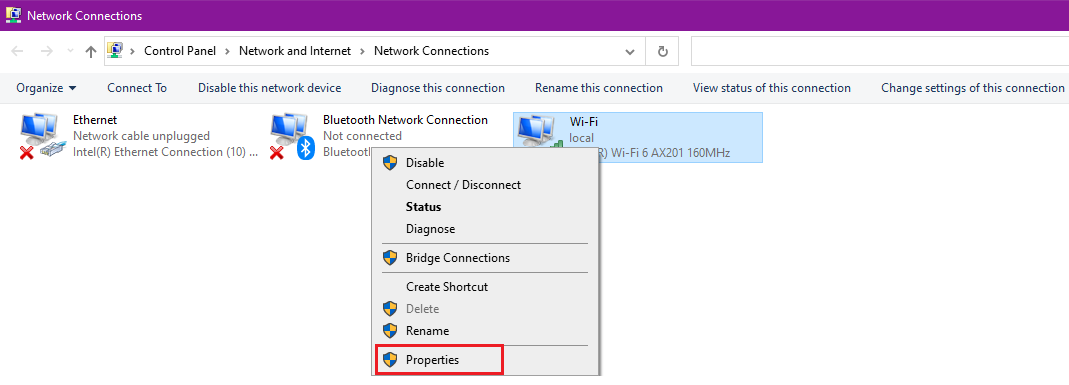
-
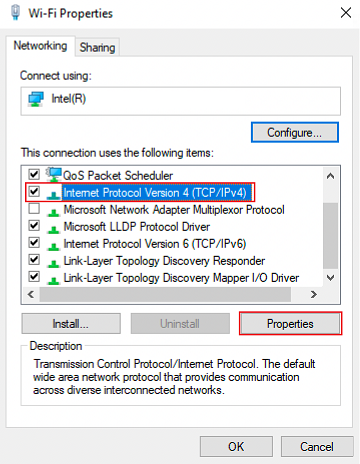
In the Networking tab, select Internet Protocol (TCP/IP), then hit Properties.
-
Select Use the following DNS server addresses and enter these settings:
Preferred DNS server: 203.12.160.35
Alternate DNS server: 203.12.160.36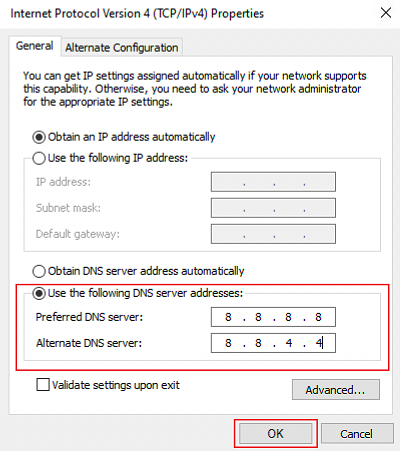
-
Hit OK to finish.
Set DNS server in macOS
-
Hit the Apple icon in the top right-hand corner and select System Preferences.
-
Select Network.
-
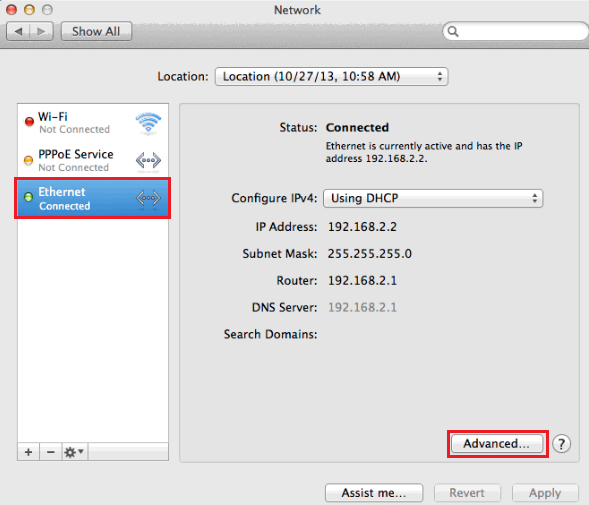
Select your connected network (Ethernet or Wi-Fi) and then hit Advanced.
-
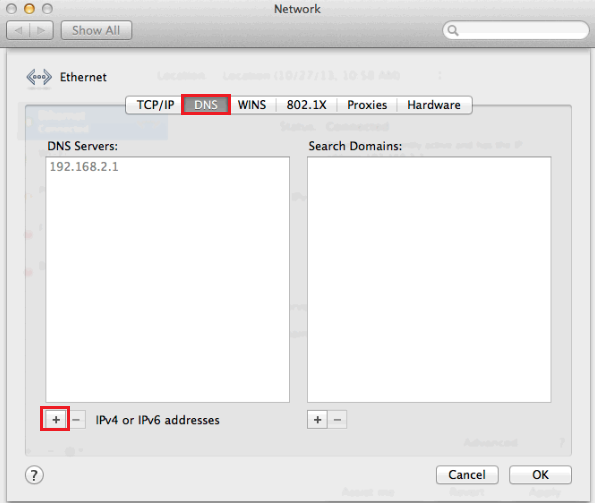
Select the DNS tab and then click the plus (+) icon in the lower left-hand corner.
-
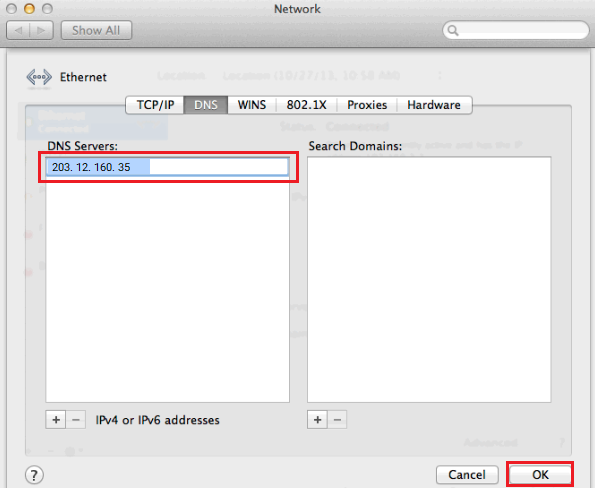
For DNS Servers, enter "203.12.160.35" and then hit OK to finish.
A TCP/IP reset can fix some browsing issues, particularly if your modem's default gateway address is starting with “169.254”.
Select one of the links below to jump to a query:
TCP/IP Reset in Windows
-
Hit Search and type "cmd" into the search bar.
-
Right-click on the Command Prompt app and select Run as administrator.
You may need to enter an administrator password before you can continue.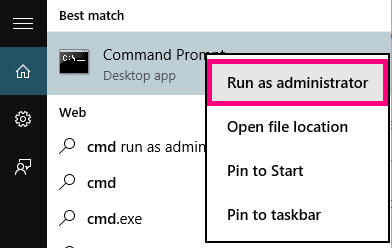
-
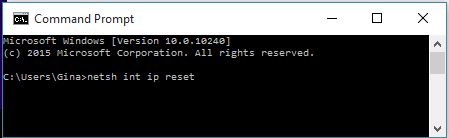
Type “netsh int ip reset” and then hit Enter on your keyboard.
-
Once the reste is complete, restart your computer to finish.
TCP/IP Reset in macOS
-
Hit the Apple icon in the top right-hand corner and select System Preferences.
-
Select Network.
-
Select your connected network (Ethernet or Wi-Fi) and then hit Advanced.

-
Select the TCP/IP tab and then hit Renew DHCP Lease.
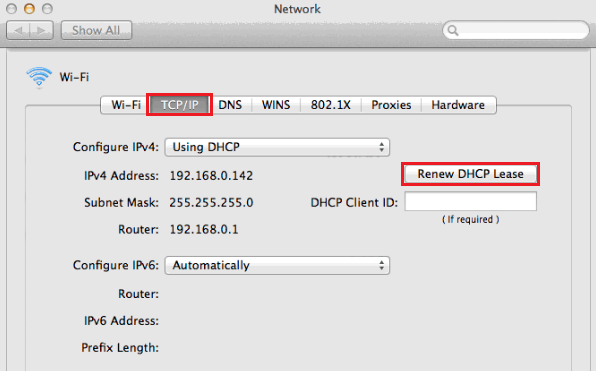
-
Click OK to finish.
Every modem has a default gateway, which is a web page where you can log in and change your modem settings. You'll find the default gateway address on your modem's barcode sticker, but if it's not working, then these steps can help you find the default gateway or identify the issue.
Common default gateway addresses include 192.168.0.1, 192.168.1.1, 192.168.20.1, and 10.1.1.1.
Select one of the links below to jump to a query:
- How to find your default gateway address on Windows
- How to find your default gateway address on macOS
How to find your default gateway address on Windows
-
Make sure your computer is connected to your modem by Ethernet cable or Wi-Fi.
Wi-Fi connections can't be over Guest Wi-Fi or Wi-Fi Protected Setup (WPS). -
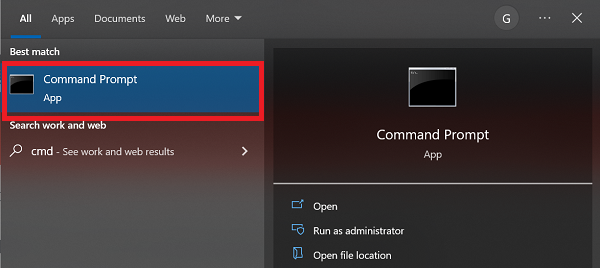
Hit Search and type "cmd" into the search bar, then open the Command Prompt app.
-
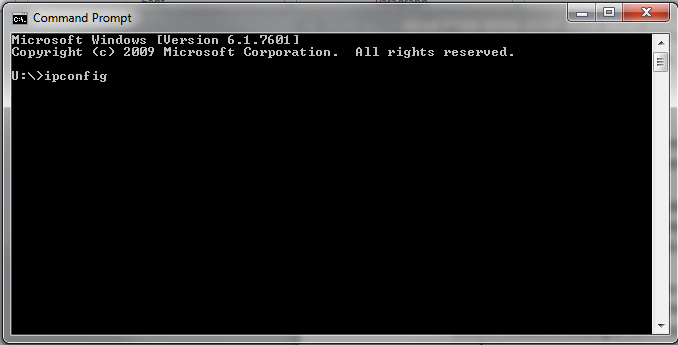
Type “ipconfig” and then hit Enter on your keyboard.
-
Scroll through the test results. If your computer is connected to your modem by Ethernet cable, look for a heading that says Ethernet adapter Local Area Connection.
If you're on Wi-Fi, look for Wireless LAN Local Area Connection.
Ignore any results that say “Media Disconnected” - these are saved settings for adapters that aren't currently being used. Default Gateway, e.g. "192.168.0.1" means your default gateway address is "http://192.168.0.1".
Important: If the default gateway begins with “169.254”, then your modem isn't getting a response from the DHCP server. You should reset your TCP/IP settings and if the issue persists, reset your network adapter.
-
Open your web browser and go to your default gateway address. You should see a login page - you can find the default username and/or password on your modem's barcode sticker. If you have custom login details, you'll need to use those instead.
Don't see a login page? Check out Troubleshoot no communication between your modem and device.
Forgotten your custom login details? You'll need to factory reset your modem and set it up again.
How to find your default gateway address on macOS
-
Make sure your computer is connected to your modem by Ethernet cable or Wi-Fi.
Wi-Fi connections can't be over Guest Wi-Fi or Wi-Fi Protected Setup (WPS). -
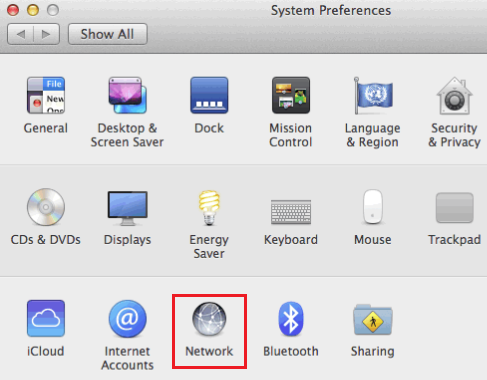
Hit the Apple icon in the top left-hand corner and choose System Preferences.
-
Select Network.
-
If your computer is connected to your modem by Ethernet cable, select Ethernet and your default gateway address will be listed next to Router, e.g. "192.168.2.1" means your default gateway address is "http://192.168.2.1".
If you're on Wi-Fi, select Wi-Fi, then hit Advanced and select TCP/IP. Your default gateway address will be listed next to Router, e.g. "192.168.2.1" means your default gateway address is "http://192.168.2.1".
Important: If the default gateway begins with “169.254”, then your modem isn't getting a response from the DHCP server. You should reset your TCP/IP settings and if the issue persists, restart Wi-Fi/Airport.
-
Open your web browser and go to your default gateway address. You should see a login page - you can find the default username and/or password on your modem's barcode sticker. If you have custom login details, you'll need to use those instead.
Don't see a login page? Check out Troubleshoot no communication between your modem and device.
Forgotten your custom login details? You'll need to factory reset your modem and set it up again.
A ping test checks how data packets are sent to a specific address using your internet connection, including how long it took and whether any packets were lost.
If you use PingPlotter, it will run a ping test and a traceroute at the same time.
Select one of the links below to jump to a query:
- Common addresses to ping
- PingPlotter on Windows
- PingPlotter on macOS
- PingPlotter on iOS (iPhone/iPad)
- Ping test in Windows
- Ping test in macOS
- Understanding ping test results
Common addresses to ping
| Address to ping | What is it? | Why ping it? |
|---|---|---|
| tpg.com.au | TPG's web address | To check that DNS is working on your computer. |
| 203.12.160.35 | One of TPG’s DNS servers | To check that TCP/IP settings are working on your computer. |
| 127.0.0.1 | A loopback test to your own computer | To check that there’s no issue with your computer’s network adapter or connection settings. |
PingPlotter on Windows
-
Download PingPlotter at: http://pingplotter.com/download
You don't need to buy a subscription, you can use the Free version. -
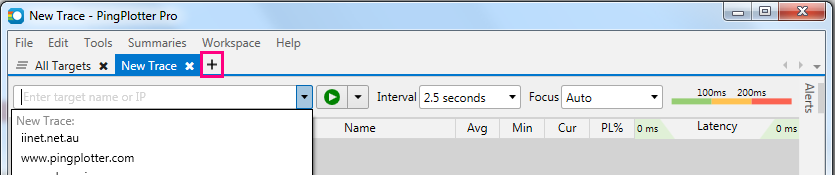
Open PingPlotter and hit the + (plus) icon to open a New Trace tab.
-
Type tpg.com.au or another address you want to to ping or traceroute, then hit Start.

-
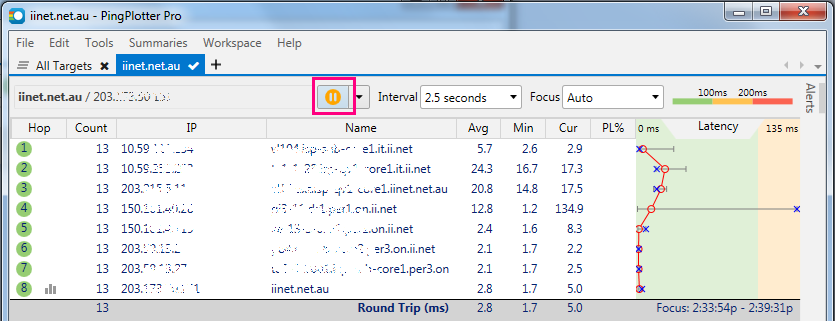
Let the test run for at least 60 seconds, then hit Pause.
-
Hit the Print Screen (PrntScr) key on your keyboard to screenshot your test results. You can use CTRL+V to paste your screenshot into any text editor, image editor or email app.
PingPlotter on macOS
-
Download PingPlotter at: http://pingplotter.com/download
You don't need to buy a subscription, you can use the Free version. -
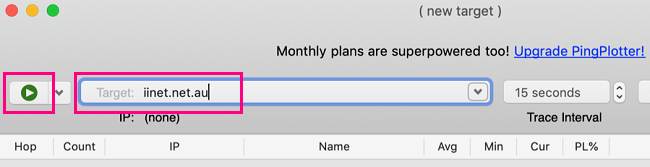
Open PingPlotter and type tpg.com.au or another address you want to ping or traceroute, then hit the Start.
-
Let the test run for at least 60 seconds, then hit Pause.

-
Use the Command ⌘+Shift+3 keys on your keyboard to screenshot your test results. You can use Command ⌘+V to paste your screenshot into any text editor, image editor or email app.
PingPlotter on iOS (iPhone/iPad)
-
Open the App Store and search for 'PingPlotter" to install PingPlotter.
You don't need to buy a subscription, you can use the Free version.
-
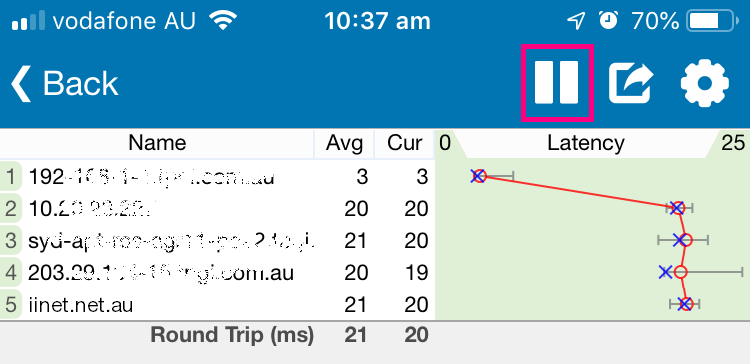
Open PingPlotter and type tpg.com.au or another address you want to ping or traceroute, then hit Start.

-
Let the test run for at least 60 seconds, then hit Pause.
-
Hit the Share icon and select Screenshot.
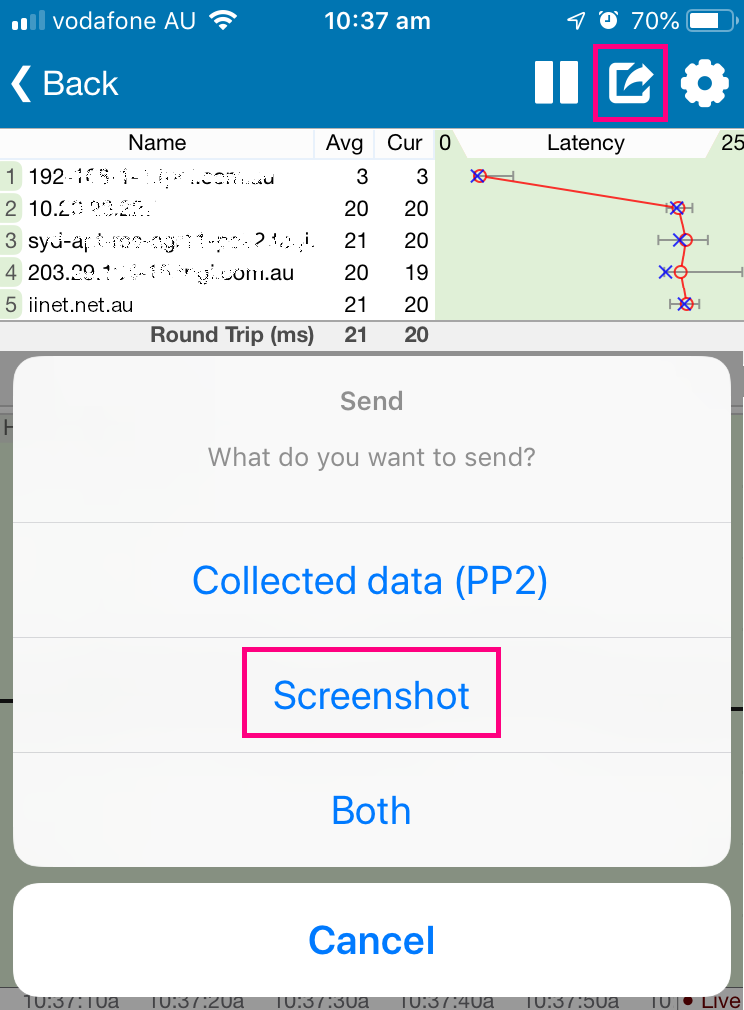
-
You can choose to save your screenshot to Pictures, or share it by Mail.
Ping test in Windows
-
Hit Search and type "cmd" into the search bar.
-
Open the Command Prompt app.
-
Type “ping” then hit Space on your keyboard.
-
Type the address you want to ping, e.g. "ping tpg.com.au" then hit Enter on your keyboard.
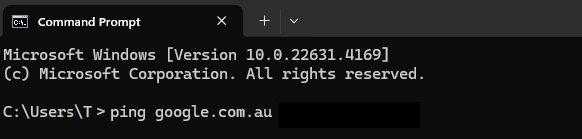
-
Wait for the ping results.

If a ping test fails, you'll get a "Request timed out", "Destination host unreachable", or "Transmit failed, error code #" messge instead of ping results. You may need to troubleshoot your internet if a ping test fails.
With some browsing issues, you may be able to ping a DNS server, but not a web address. If this is the case, you should try manually setting your DNS server.
-
To copy-paste your ping results: Highlight the text results and simply press the Enter key.
Note: For Windows 10, right-click in the Command Prompt window and select Mark to turn on the cursor. You can use the up/down arrow keys on your keyboard to move the cursor to the start of the text you want to copy.
Hold the Shift key and use the down/right arrow keys to highlight the text you want to copy, then hit the Enter key to copy the text.
Open Word, Notepad or any other text editor or email app and use CTRL+V to paste the copied text.
Ping test in macOS
-
Hit Search and type “network utility” in the search bar.
-
Open the Network Utility app.
You can also find this app at /System/Library/CoreServices/Applications.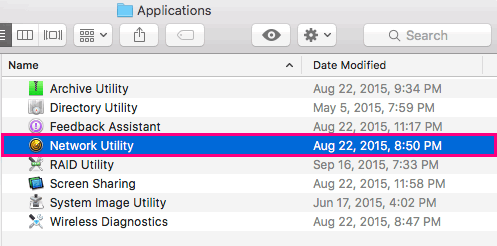
-
Select the Ping tab and type the address you want to ping, e.g. "google.com", then hit Ping.
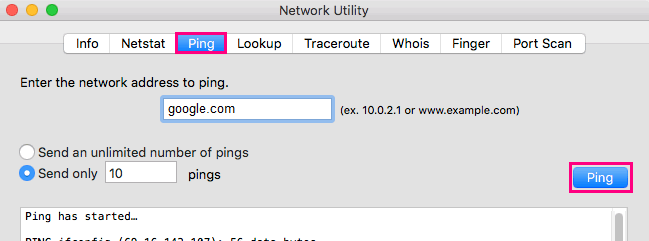
-
Wait for the ping results.
If a ping test fails, you'll get a "Request timed out", "Destination host unreachable", or "Transmit failed, error code #" messge instead of ping results. You may need to troubleshoot your internet if a ping test fails.
With some browsing issues, you may be able to ping a DNS server, but not a web address. If this is the case, you should try manually setting your DNS server.
-
To copy-paste your ping results: Click and drag the cursor to select the text you want to copy, then right-click and select Copy, or hit Command ⌘+C on your keyboard.
Open TextEdit or any other text editor or email app and use Command ⌘+V to paste the copied text.
Understanding ping test results
Ping test results are similar for both Windows and macOS.
-
If a ping test is successful, it means that your computer was able to connect to that address.
-
You’ll see a "reply" listed for each data packet sent in the ping test, and how long it took, e.g:
"Pinging google.com.au [142.251.221.67] with 32 bytes of data:
Reply from 142.251.221.67: bytes=32 time=53ms TTL=119
Reply from 142.251.221.67: bytes=32 time=53ms TTL=119
Reply from 142.251.221.67: bytes=32 time=56ms TTL=119
Reply from 142.251.221.67: bytes=32 time=57ms TTL=119"
A Windows ping test will typically send 4 packets; a macOS ping test may send more.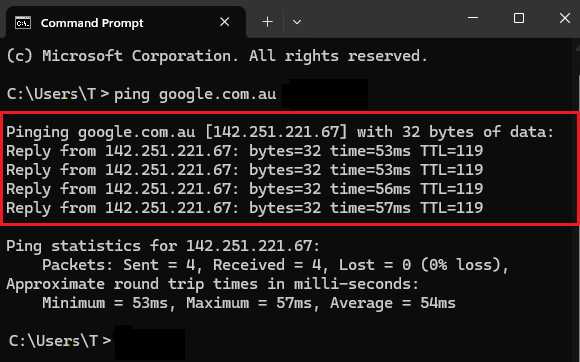
-
The statistics will show if any data packets were lost during the ping test , e.g:
"Ping statistics for 142.251.221.67:
Packets: Sent = 4, Received = 4, Lost = 0 (0% Loss)
Approximate round trip times in milli-seconds:
Minimum = 53ms, Maximum = 57ms, Average = 54ms".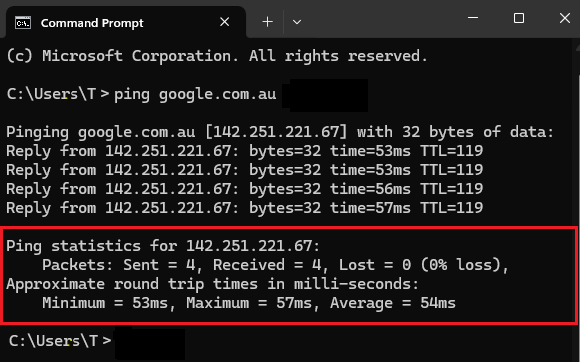
"Connect Outstanding" means your TPG order is blocked because there's already an active phone or internet service at your address.
To get the service transferred from the previous owner, we'll need you to send us Proof of Occupancy.
Can't provide Proof of Occupancy? This could result in connection delays, or we may be unable to complete your order. Please call us on 1300 023 575 to discuss your options.
- Scan or take a photo of one the following Proof of Occupancy documents, which must include your name and the same address as your internet order:
- A fixed utility bill (e.g. water, electricity, gas); or
- An insurance document (e.g. Business or Home & Contents); or
- A Certificate of Title of the land; or
- A Council Rates notice; or
- A signed lease/rental agreement (must include the lease start date).
- Open a new email and attach your Proof of Occupancy.
- Enter a subject line of "nbn Proof of Occupancy", followed by your TPG account number.
You can find your TPG account number on emails from us about your TPG order. - In the body of the email, include your name and the address for your internet order, including the suburb and postcode.
- Send the email to: nbnpod@tpg.com.au
Once your Proof of Occupancy is accepted, we'll proceed with your TPG order. Most services can be activated within 48 hours.
You can get your invoices at any time from My Account. This includes all previous invoices if you need them for tax purposes.
-
Log in to My Account and hit Your Invoices.
Never used My Account before? Check out An Introduction to My Account.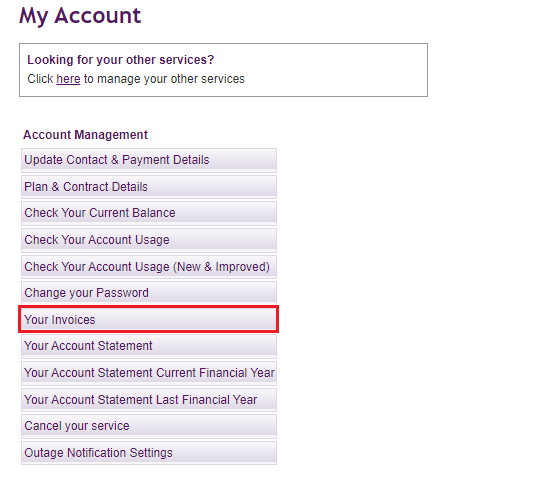
-
You'll see a list of all your TPG invoices. To download any invoice as a PDF file, hit the Invoice Number.
To view PDF files, install Adobe Reader on your device.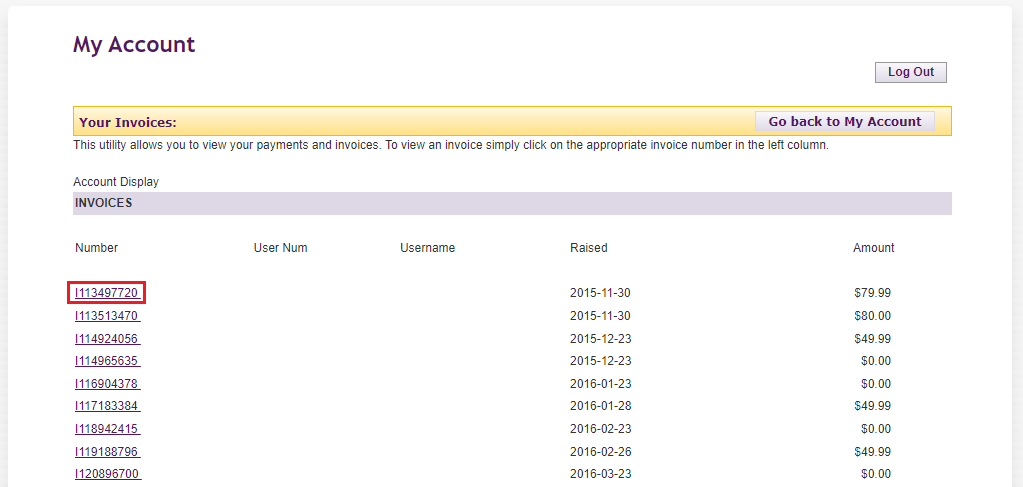
Here's what you need to know about the different types of SIMs available for TPG Mobile, and how to order a replacement SIM.
Select one of the links below to jump to a query:
Lost or stolen phones
If your phone, tablet or other mobile device has been lost or stolen, please call us on 1300 993 019 and we can help you with IMEI Blocking and a replacement SIM.
How to order a replacement SIM
If you have locked or lost your SIM, or you have a new phone that needs a new SIM, you have the following options:
- Physical SIM - Call us on 1300 993 019 to order a new physical SIM for $10 (price includes delivery).
- eSIM - If you have an eSIM compatible device, you can log in to My Account and select eSIM Swap to order a new eSIM. No fees apply. Learn more.
Physical SIM sizes
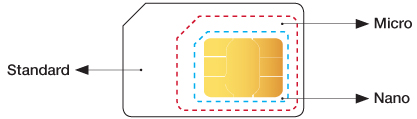
When a physical SIM is ordered, we supply a triple-cut Standard/Micro/Nano SIM so you can pop out the size you need.
Not sure which SIM size you need? Check the manufacturer's website for your phone's tech specs.
Here's what you need to know about TPG usernames.
Select one of the links below to jump to a query:
What is a TPG username?
Your TPG username helps us identify your TPG service. You also use it to log into My Account.
Usernames are 8-15 characters long, lower case and must contain at least one letter.
If your TPG service was created before 28 June 2011, your username will be 6-8 characters long.
TPG usernames can't be changed.
Where can I find my TPG username?
Your TPG username will be included in any emails and/or SMS we send you about your TPG service, and on your TPG invoices.
How do I get access to a lost account?
If you can't access your account due to a forgotten username or password, or you need to take over an account via Power of Attorney, please call us on 13 14 23.