Page not found
This page may have been removed, made temporarily unavailable, or had its name changed.
Please try searching from our TPG Support home page to find what you need.
Please click the links below for handy information relating to orders & installations.
A technician will need to visit your place if they need to install equipment, connect wiring, or investigate a fault for your internet service. Here's everything you need to know about installation appointments.
All appointments have a 4-hour window, e.g. 8AM to 12PM.
Select one of the links below to jump to a query:
When we confirm your appointment, we'll let you know if someone aged 18+ needs to be home. If someone else will be home in your place, let us know their name and phone number so we can contact them.
Before your appointment, make sure your modem and any phone sockets or HFC cable sockets can be reached.
If you live in an apartment or block of units, contact strata to make sure the Main Distribution Frame (MDF) will be unlocked during your appointment.
Keep your modem plugged in and turned on duirng your appointment.
Let the technician know if you have a back-to-base alarm system, Medical Alert equipment or another internet connection on the property.
Make sure the technician knows about any safety hazards on your property like asbestos, trip hazards, or recent pest treatments. Keep any animals away from the space where the technician will be working.
If you can't be home for your appointment, you can reschedule for a later date.
Visit https://tpg.com.au/install and enter your TPG username.
Don't know your username? Check the email/SMS from us about your TPG order.
Hit Reschedule Appointment.
Enter the postcode for your billing address.
Choose your new appointment, then hit Reschedule Appointment to confirm.
We'll also send you an email/SMS with your new appointment details.
If you can't be home for your appointment, you can reschedule for a later date with at least 4 working days' notice.
Visit https://tpg.com.au/install and enter your TPG username.
Don't know your username? Check the email/SMS from us about your TPG order.
Hit Reschedule Appointment.
Fill out the form and choose your new appointment, then hit Submit.
We'll contact you to reschedule your appointment within 24 hours.
Appointments are subject to availability from our wholesaler.
If your appointment window has passed and no one's showed up, please call us on 13 14 23 and we can help find out what's happened.
In some cases, the technician may have been able to do all the work outside your property. We'll send you an email/SMS when your internet service is ready to use.
This page may have been removed, made temporarily unavailable, or had its name changed.
Please try searching from our TPG Support home page to find what you need.
Different types of nbn are available in different areas. Here's what you need to know about each one.
Select one of the links below to jump to a query:

Fibre optic cable will run all the way to your premises, connected to an nbn Premises Attachment Point or Utility Box installed on the outer wall of your home. This will be wired to an indoor nbn Connection Box (NCB).
From 16 April 2026, some installations may use a Premises Attachment Point instead of an nbn Utility Box. It works in the same way, it just looks like a pipe instead of a box. Older nbn FTTP installations may also have a Power Supply Unit connected to the NCB. Learn more about the different NCBs.
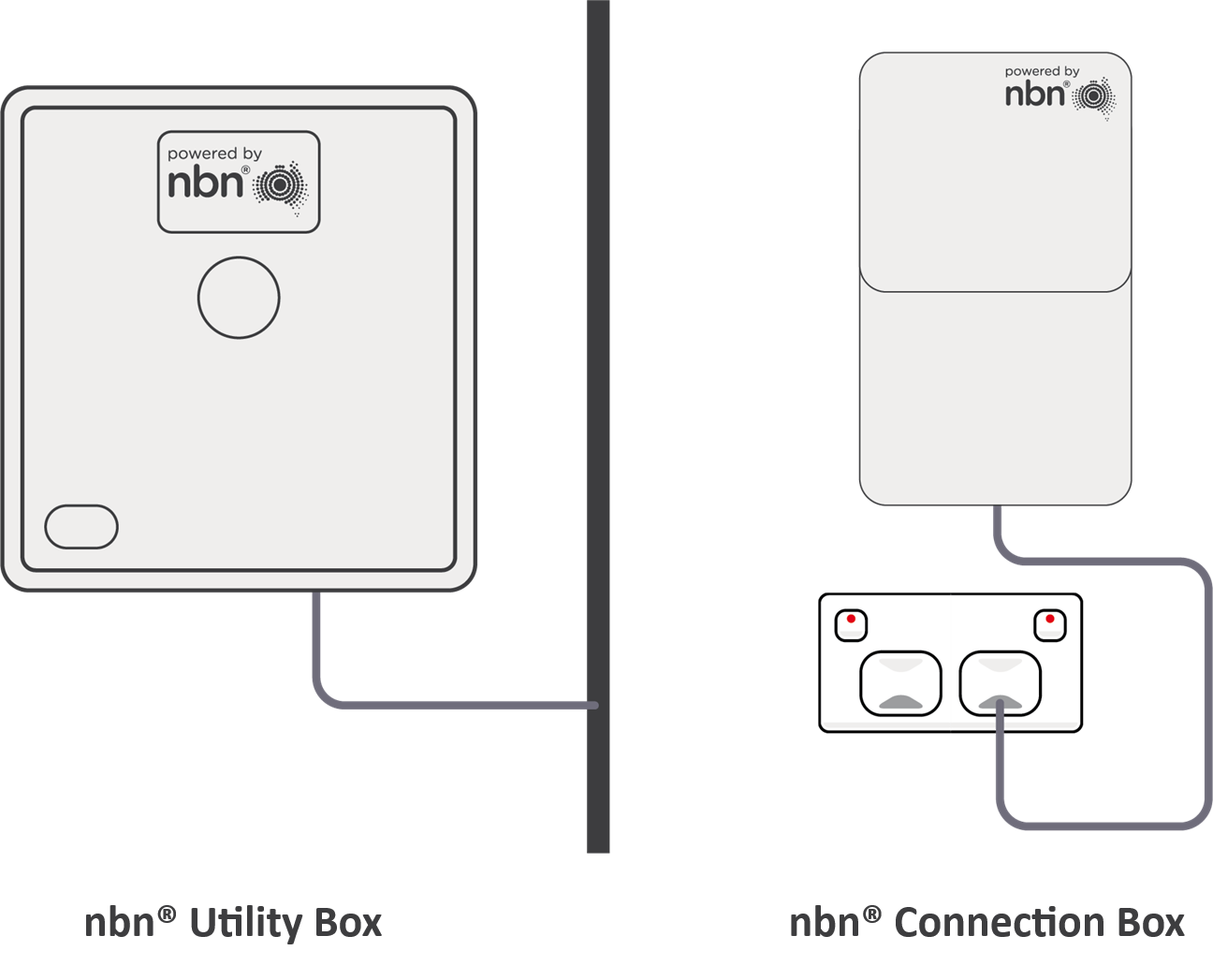
If your home hasn't been connected to the nbn before, an nbn installer will need to come install the equipment. Someone over the age of 18 must be home during the installation.
The best spot for your indoor nbn Connection Box equipment is:
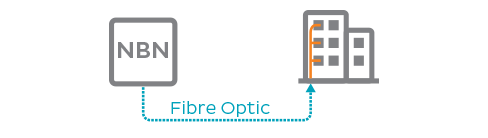

nbn FTTB: Fibre optic cable will run to your building's Main Distribution Frame (MDF), which is typically in the basement or a locked telecommunications cabinet. From there, copper wiring will run to a wall socket in each unit within the building.
nbn FTTN: Fibre optic cable will run to an underground or above-ground Node in your street or a street nearby. From there, copper wiring will run to a wall socket in each property.
nbn wall sockets are typically the same ones you used previously for ADSL internet or landline phones.

In most cases, an nbn installer won’t need to come to your house – any installation work will be done in the street. We'll let you know if an installer needs to come install a new copper line or wall socket.

Fibre optic cable will run to a reverse-powered Distribution Point, typically underground or mounted on a pole in your street. From there, copper wiring will run to a wall socket in your home. An nbn Connection Device will be plugged into the wall socket.
In apartment complexes, this copper wiring may run to the building's Main Distribution Frame (MDF) before going to each unit.
nbn wall sockets are typically the same ones you used previously for ADSL internet or landline phones.

If your home hasn't been connected to the nbn before, an nbn Connection Device will be delivered to you.
In most cases, an nbn installer won’t need to come to your house – any installation work will be done in the street. We'll let you know if an installer needs to come install a new copper line or wall socket.

Fibre optic cable will run an underground or above-ground Node in your street or a street nearby. From there, HFC wiring will run to a wall socket in your home. An nbn Connection Device will be plugged into the wall socket. An nbn Connection Box will be connected to the wall socket.
nbn wall sockets are typically the same ones you used previously for cable internet or cable TV services. If an nbn wall socket needs to be shared with a cable TV service, it may be fitted with a splitter so two cables can plug into one wall socket.

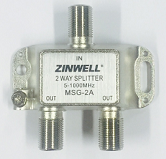
If your home hasn't been connected to the nbn before, an nbn Connection Box will be delivered to you.
In most cases, an nbn installer won’t need to come to your house – any installation work will be done in the street. We'll let you know if an installer needs to come install a new HFC line or wall socket.

An outdoor antenna will be installed on your roof, gutter or a nearby free-standing pole mount so it can get a wireless signal from your local nbn Wireless tower. The outdoor antenna will be wired to an indoor nbn Connection Box.
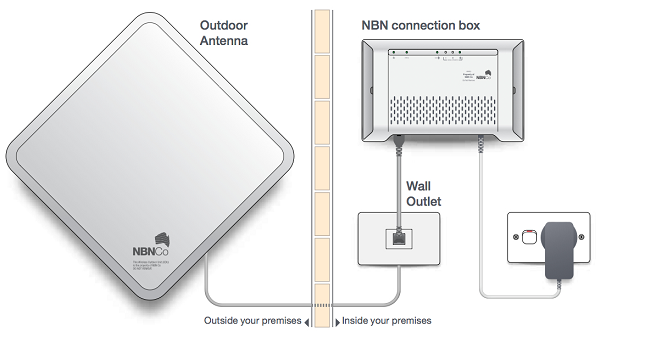
If your home hasn't been connected to the nbn before, an nbn installer will need to come install the equipment. Someone over the age of 18 must be home during the installation.
The nbn installer will recommend the best location for the outdoor antenna to ensure Line of Sight with your local nbn Wireless tower.
The best spot for your indoor nbn Connection Box equipment is:
All nbn FTTB/FTTN, nbn FTTC, nbn FTTP, nbn HFC & nbn Wireless services include a TPG Voice service if you choose a TPG modem. TPG Voice is not available if you choose to BYO modem.
TPG Voice is a VoIP (Voice over Internet Protocol) phone service that uses your internet connection to make phone calls.
nbn FTTP services connected before 23 May 2024 may have nbn Fibre Phone instead.
Note: Home Phone landline services are no longer sold by TPG. If you have an existing landline number, we can check if it's possible to transfer this number to a TPG Voice service.
"High risk" international destinations are commonly used for phone fraud, so they're blocked by default.
If you want to call high risk destinations, please call us on 1300 993 019. After an ID check, we can turn off high risk call blocking. The change will apply within 2 business days.
Note: High risk call blocking cannot be removed on destinations marked with * in the list below.
To look up a specific destination, press CTRL + F on your keyboard or long-press your phone screen and hit Find to open the Find tool. Type the name of the destination in the Find tool's search bar.
| Destination | Dialling code |
|---|---|
| ALGERIA | +213 |
| ASCENSION ISLAND | +247 |
| AUSTRIA SHARED COST* | +43820 |
| AUSTRIAN SERVICE | +438 |
| BENIN | +229 |
| BOLIVIA | +591 |
| BOSNIA AND HERZEGOVINA | +387 |
| CAMEROON | +237 |
| CAPE VERDE* | +238 |
| CENTRAL AFRICAN REPUBLIC | +236 |
| CHAD | +235 |
| COMORO ISLAND | +269 |
| CUBA | +53 |
| DEMOCRATIC REPUBLIC OF THE CONGO | +243 |
| DIEGO GARCIA | +246 |
| DJIBOUTI | +253 |
| ECUADOR | +593 |
| EQUATORIAL GUINEA* | +240 |
| ESTONIA | +372 |
| GABON | +241 |
| GAMBIA | +220 |
| GUINEA | +224 |
| GUINEA BISSAU* | +245 |
| HAITI | +509 |
| HONDURAS | +504 |
| LATVIA | +371 |
| LIBERIA | +231 |
| LITHUANIA | +370 |
| MACEDONIA | +389 |
| MADAGASCAR | +261 |
| MALAWI | +265 |
| MALDIVES | +960 |
| MALI | +223 |
| MARTINIQUE* | +596 |
| MAURITANIA | +222 |
| MONACO | +377 |
| MOLDOVA | +373 |
| MOROCCO | +212 |
| NICARAGUA | +505 |
| PALESTINE | +970 |
| REPUBLIC OF THE CONGO | +242 |
| SAINT PIERRE & MIQUELON* | +508 |
| SAO TOME & PRINCIPE* | +239 |
| SATELLITE SYSTEM | +882 |
| SATELLITE 881 | +881 |
| SENEGAL | +221 |
| SERBIA | +381 |
| SEYCHELLES | +248 |
| SIERRA LEONE | +232 |
| SOMALIA | +252 |
| SURINAME* | +597 |
| TIMOR-LESTE* | +670 |
| TUNISIA | +216 |
| UGANDA | +256 |
| UK SHARED COST* |
+44844 +44845 |
| UK SPECIAL* |
+4474172 +4474184 +44745222 |
| USA HIGH COST* | +1712432 |
| WALLIS & FUTANA* | +681 |
| ZAMBIA | +260 |
| ZIMBABWE | +263 |
*Call blocking to these destinations cannot be removed.
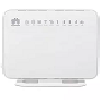
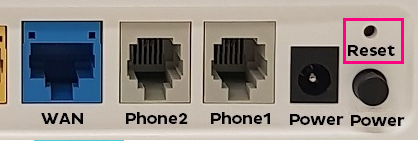
A factory reset is a last resort to fix a problem with your modem settings, or if you can't remember the modem password. You'll lose all your custom settings including any custom Wi-Fi name and password, so be ready to set up your modem again afterwards.
Don't have a TPG modem? Check the manufacturer's website for a guide.
| Picture | Modem |
|---|---|

|
Wi-Fi Max Modem |
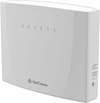
|
NetComm NL20 Modem |
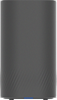
|
Wi-Fi Max 5G Modem |
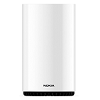
|
Nokia FastMile 3.2 5G Modem |

|
VX420-G2H Modem |
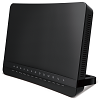
|
VX220-G2V Modem |
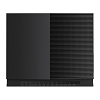
|
VX420-G2V Modem |
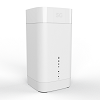
|
Sagemcom 5866 5G Modem |
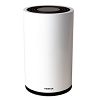
|
Nokia FastMile R1 5G Modem |
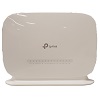
|
TP-Link VR1600v Modem |
|
Modem not listed here? Check for a user manual on Older TPG modems |
Via device settings (Recommended)
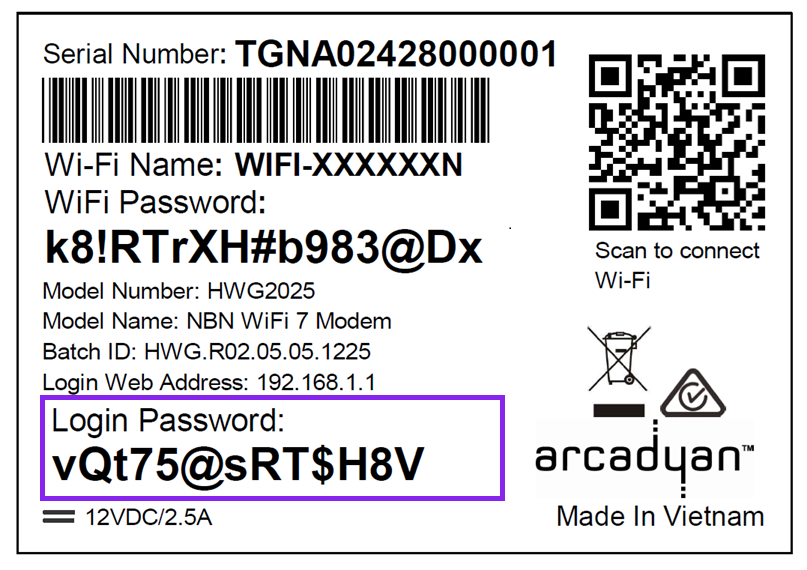
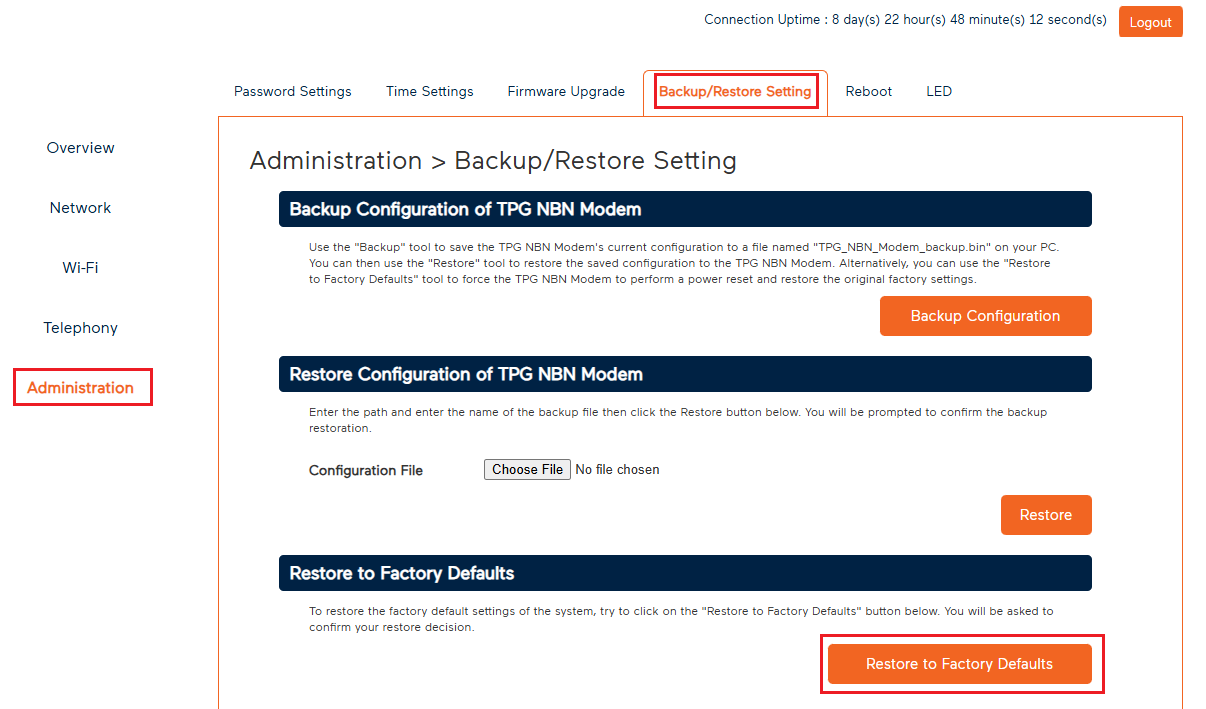
Factory reset in modem settings (recommended)
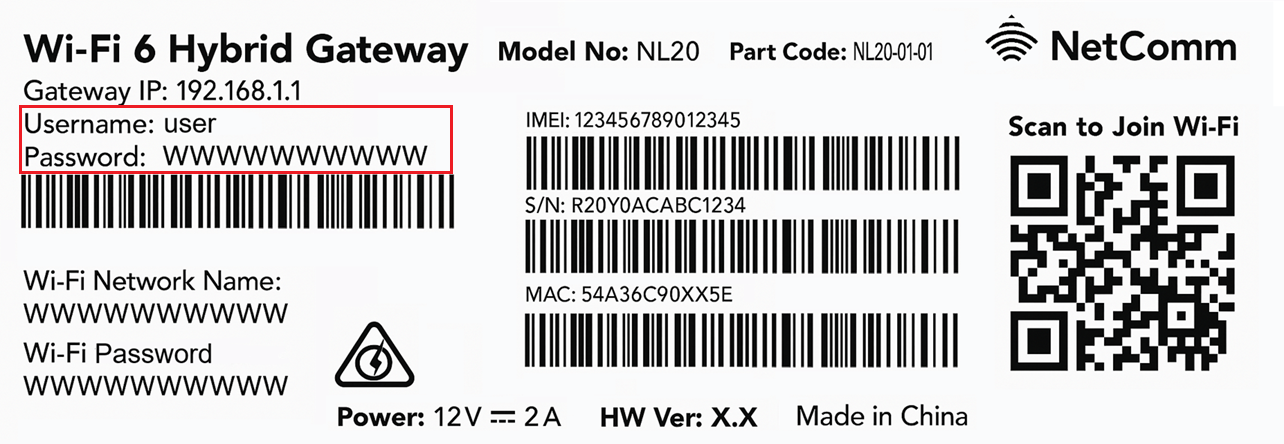
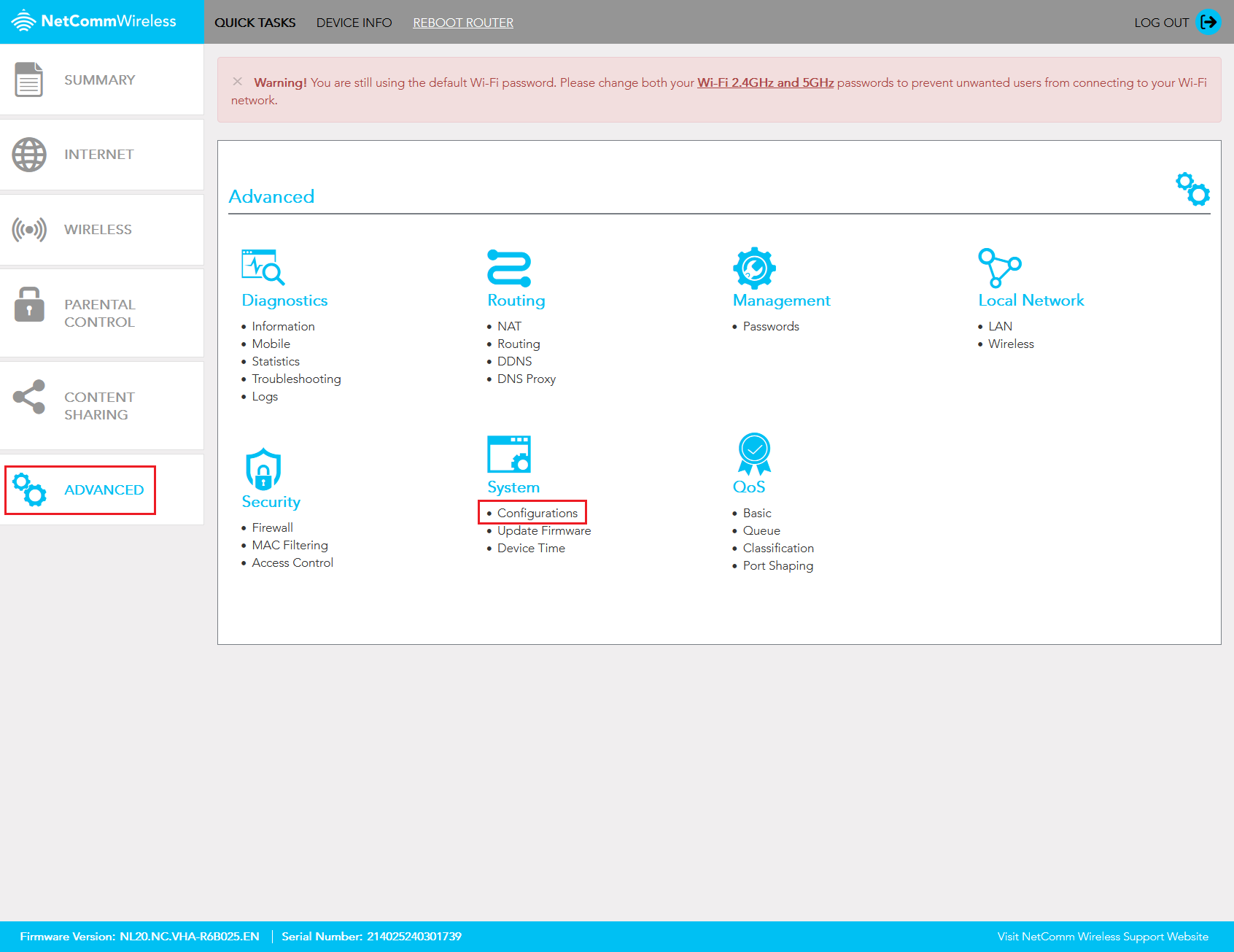
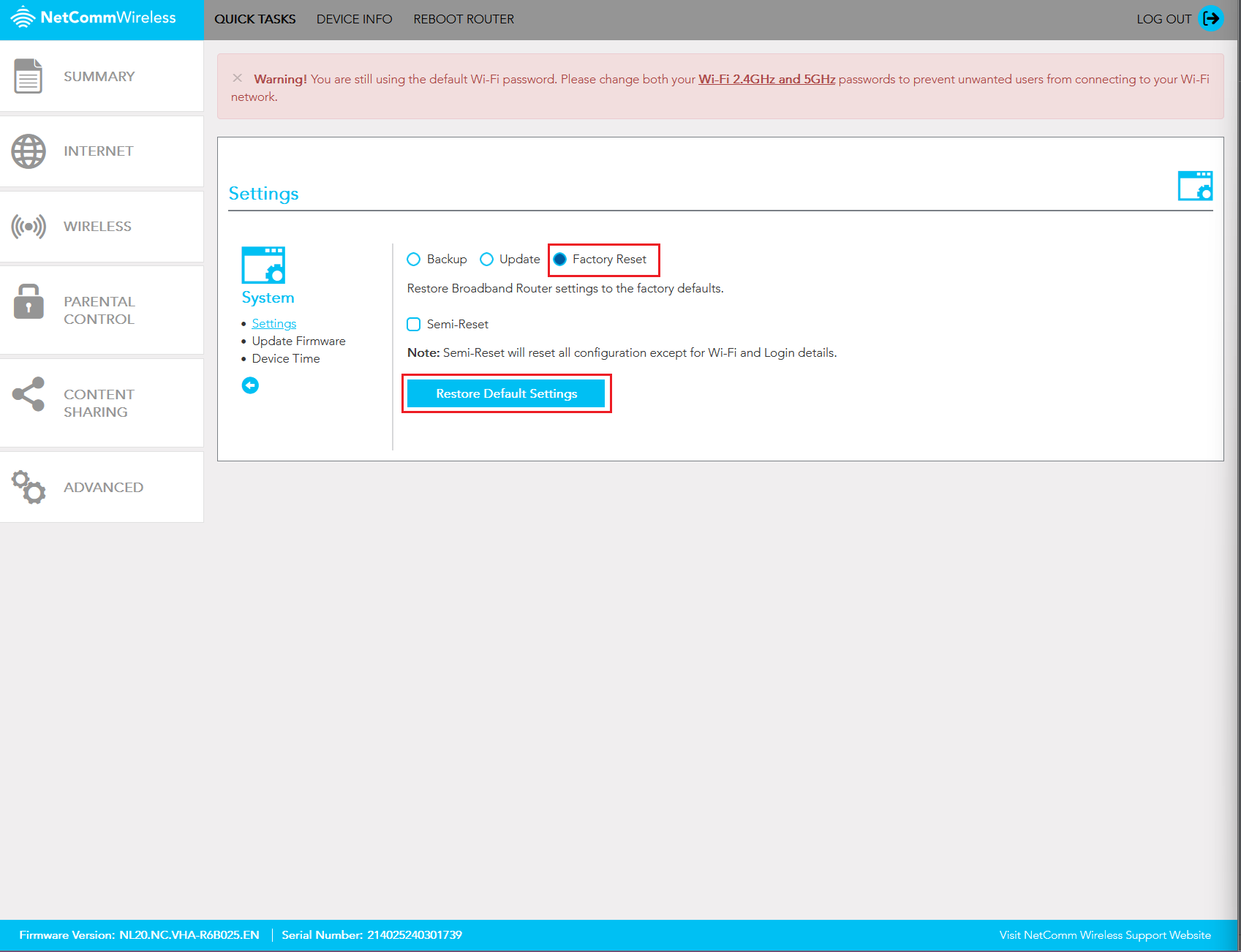
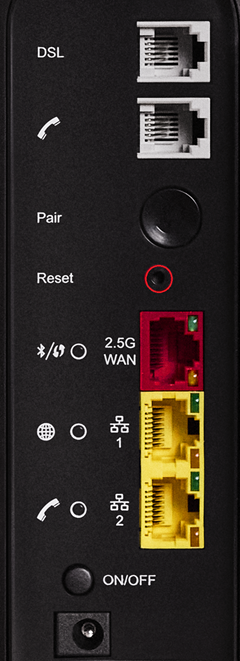
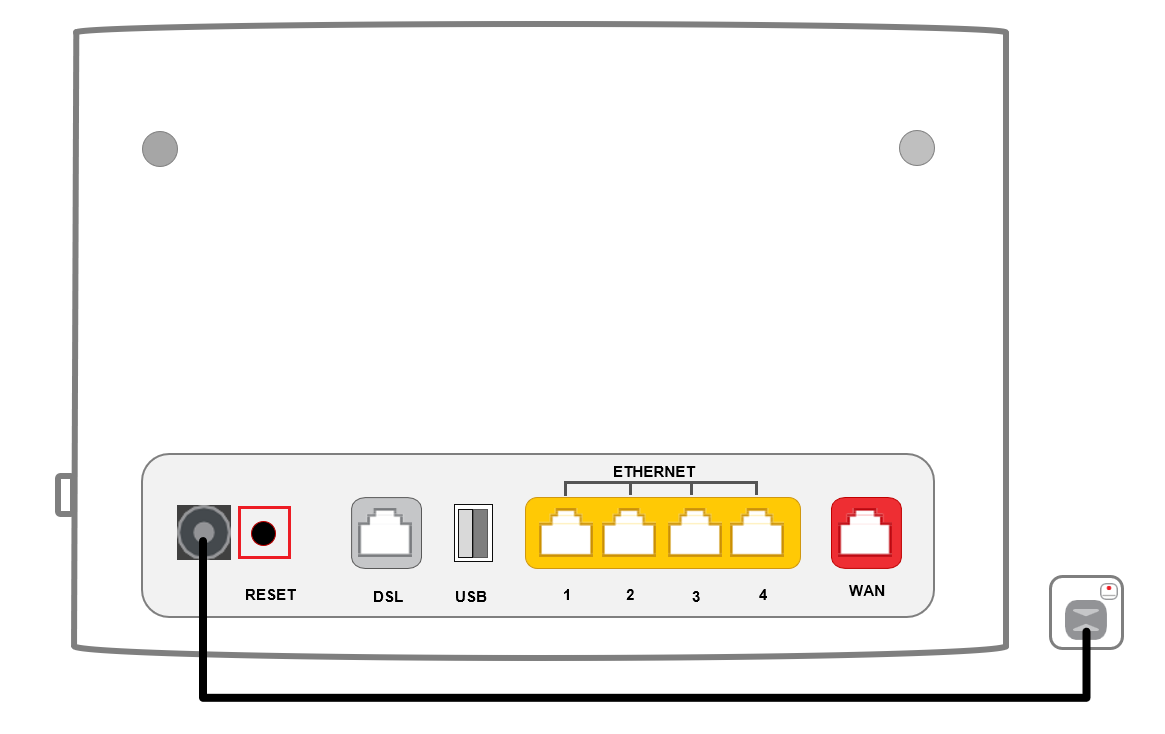
Factory reset with the Reset button
Factory reset in modem settings (recommended)
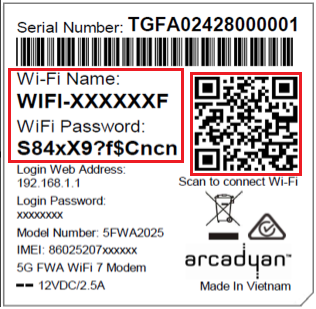
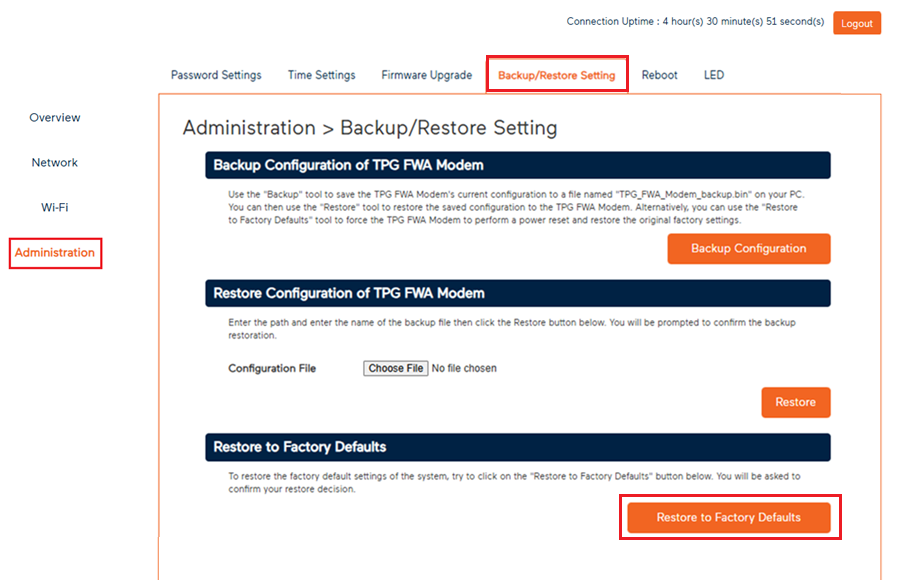
Factory reset with the Reset button
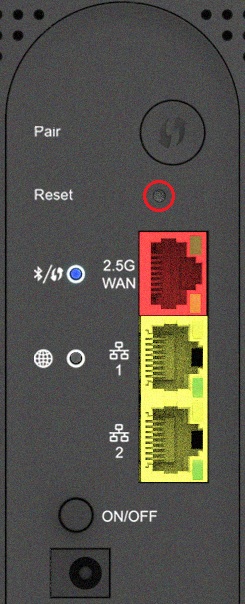
Factory reset in modem settings (recommended)

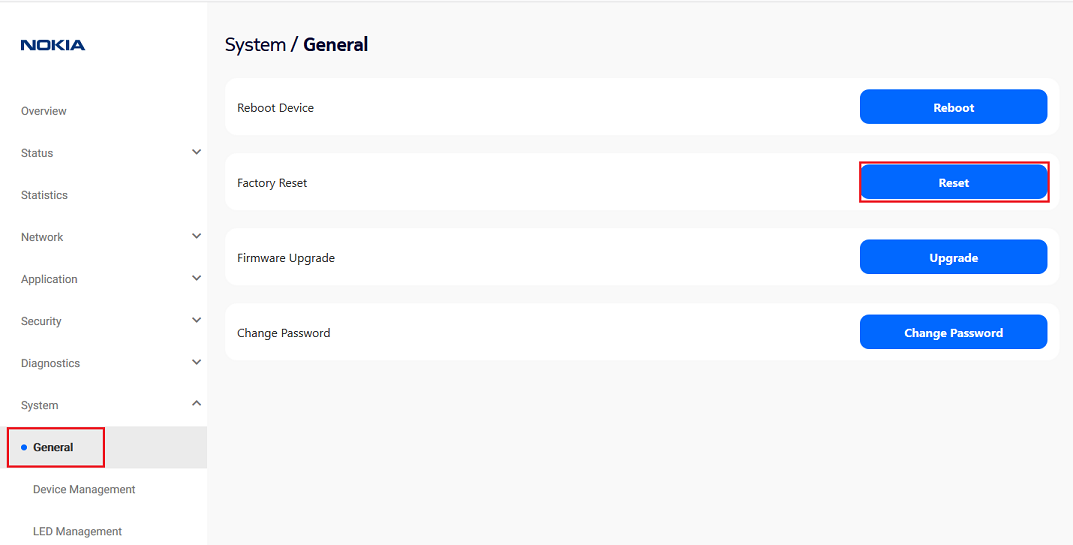
Factory reset with the RESET button
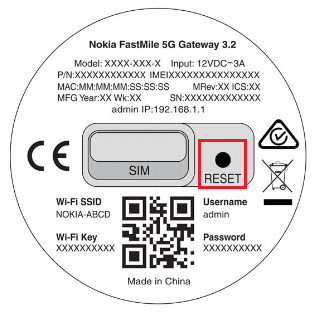
Factory reset in modem settings (recommended)
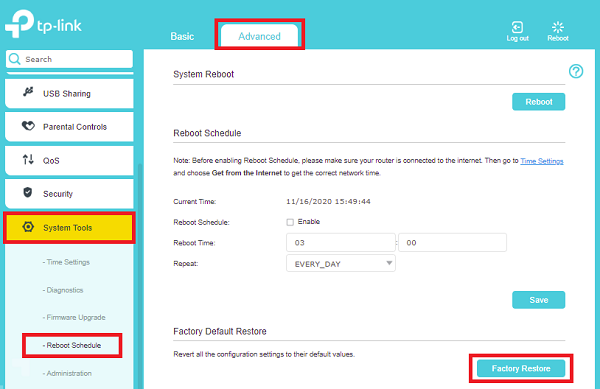
Factory reset with the RESET button

Factory reset in the modem settings (recommended)


Factory reset with the RESET button

Factory reset in modem settings (recommended)
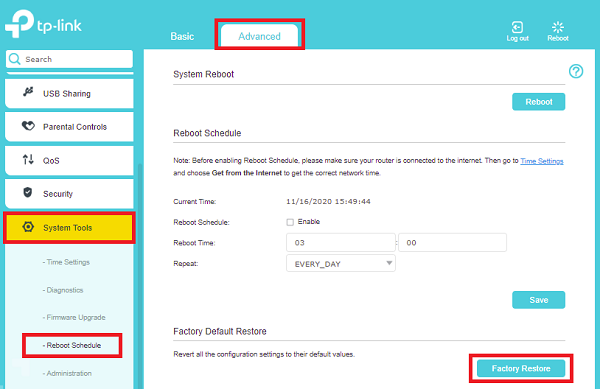
Factory reset with the RESET button

Factory reset in the modem settings (recommended)


Factory reset with the RESET button

Factory reset in the modem settings (recommended)
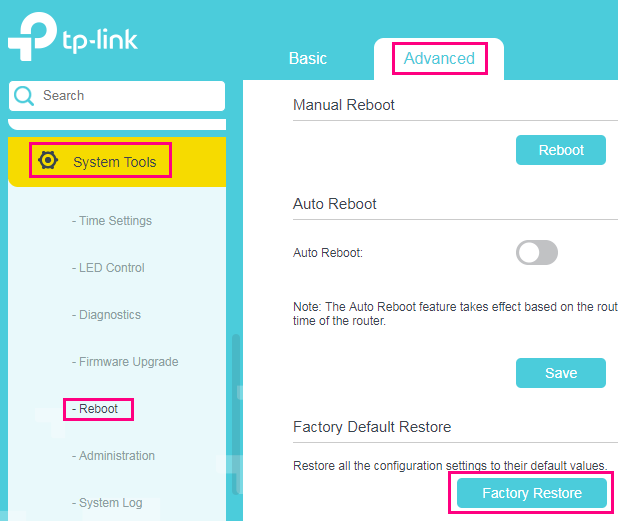
Factory reset with the RESET button
If your BYO modem is still offline after you've plugged it in, you may need to update some settings. All other settings should be left as default.
Not sure how to update your modem's settings? We've got some nbn setup guides for popular modems here. If your modem isn't listed, please check the manufacturer's website for a guide.
Select one of the links below to jump to a query:
| Internet Service Provider (ISP): | Other |
|---|---|
| Mode/Modulation: | WAN |
| Connection Type/Mode/WAN Type: | PPPoE |
| Username: | Enter your TPG username e.g. username@tpg.com.au |
| Password: | Enter your password (Forgot your password?) |
| DNS: | 203.12.160.35 or 203.12.160.36 |
Important: Your modem must support VDSL2.
| Internet Service Provider (ISP): | Other |
|---|---|
| DSL Standard/Mode/Modulation: | VDSL2 |
| Connection Type/Mode/WAN Type: | PPPoE |
| VDSL Profile: | 17a Multi Mode |
| VDSL Connection Type: | PTM |
| VLAN: | BYO Modem or unbundled service: OFF or Disabled Bundled nbn and Phone service: ON or Enabled (or you may need to set the VLAN networking standard, 802.1q) |
| VLAN ID: | BYO Modem or unbundled service: N/A Bundled nbn and Phone service: 2 |
| VLAN 802.1p/VLAN Priority: | BYO Modem or unbundled service: N/A Bundled nbn and Phone service: 0 (or set VLAN Priority to Disable) |
| Username: | Enter your TPG username e.g. username@tpg.com.au |
| Password: | Enter your password (Forgot your password?) |
| G.INP: | Enabled |
| G.Vector: | Enabled |
| DNS: | 203.12.160.35 or 203.12.160.36 |
| SOS (Save Our Showtime): | Supported* |
| ROC (Robust Overhead Channel): | Supported* |
*If your modem doesn't currently support SOS-ROC, please check the manufacturer's website to see if a firmware upgrade to support SOS-ROC is available. You'll find the make and manufacturer of your modem on its barcode sticker.
| Internet Service Provider (ISP): | Other |
|---|---|
| Mode/Modulation: | WAN |
| Connection Type/Mode/WAN Type: | PPPoE |
| VLAN: | BYO Modem or unbundled service: OFF or Disabled Bundled nbn and Phone service: ON or Enabled (or you may need to set the VLAN networking standard, 802.1q) |
| VLAN/802.1q Tagging: | BYO Modem or unbundled service: OFF or Disabled Bundled nbn and Phone service: ON or Enabled |
| VLAN ID: | BYO Modem or unbundled service: N/A Bundled nbn and Phone service: 2 |
| VLAN 802.1p/VLAN Priority: | BYO Modem or unbundled service: N/A Bundled nbn and Phone service: 0 (or set VLAN Priority to Disable) |
| Username: | Enter your TPG username e.g. username@tpg.com.au |
| Password: | Enter your password (Forgot your password?) |
| DNS: | 203.12.160.35 or 203.12.160.36 |
| Internet Service Provider (ISP): | Other (Do not select "TPG") |
|---|---|
| Mode/Modulation: | WAN |
| Connection Type/Mode/WAN Type: |
PPPoE |
| Username: | Enter your TPG username e.g. username@tpg.com.au |
| Password: | Enter your password (Forgot your password?) |
| DNS: | 203.12.160.35 or 203.12.160.36 |
There are two technology types:
If you choose to BYO modem, the included phone service will not be available.
For G.Fast FTTB
Your modem must support Ethernet WAN. Your NTU (Network Termination Unit) will have G.Fast and LAN ports.
| Internet Service Provider (ISP): | Other (Do not select "TPG") |
|---|---|
| Mode/Modulation: | WAN |
| Connection Type/Mode/WAN Type: |
PPPoE |
| Username: | Enter your TPG username e.g. username@tpg.com.au |
| Password: | Enter your password (Forgot your password?) |
| DNS: | 203.12.160.35 or 203.12.160.36 |
For VDSL FTTB
Your modem must support VDSL2. Your NTU (Network Termination Unit), if you have one, will show either LINE + POWER and LINE ports, or MODEM and UPLINK ports.
| Internet Service Provider (ISP): | Other (Do not select "TPG") |
|---|---|
| DSL Standard/Mode/Modulation: | VDSL2 |
| Connection Type/Mode/WAN Type: | PPPoE |
| VDSL Profile: | 17a Multi Mode |
| VDSL Connection Type: | PTM |
| VLAN ID: | 2 |
| VLAN 802.1p/VLAN Priority: | 0 (or set VLAN Priority to Disable) |
| Username: | Enter your TPG username e.g. username@tpg.com.au |
| Password: | Enter your password (Forgot your password?) |
| G.INP: | Enabled |
| G.Vector: | Enabled |
| DNS: | 203.12.160.35 or 203.12.160.36 |
You can't use a BYO modem with a Home Wireless Broadband or 5G Home Broadband service, and the SIM won't work in other modems. You'll need to use your TPG modem.
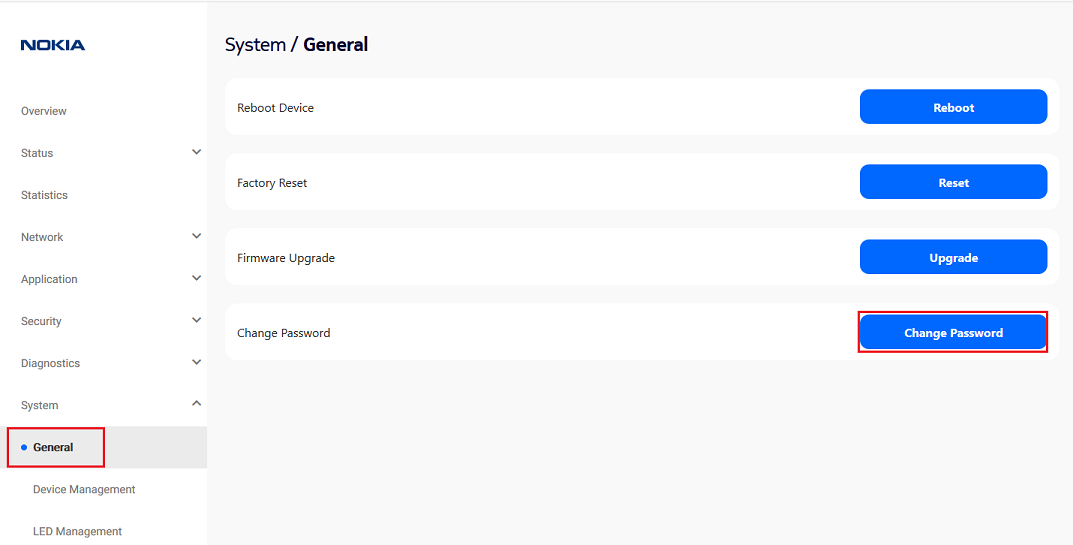
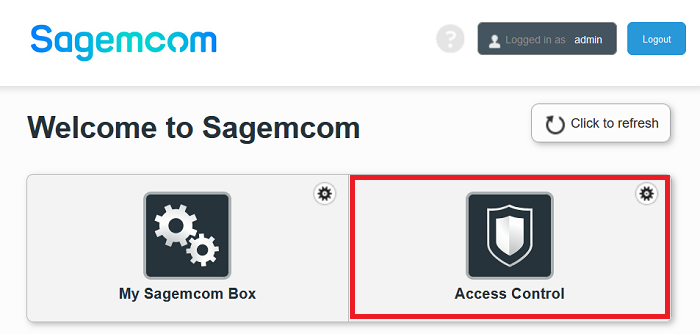
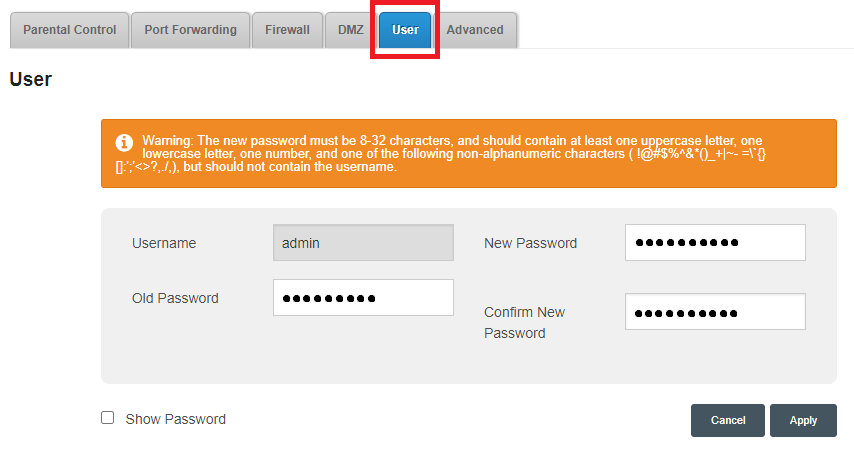
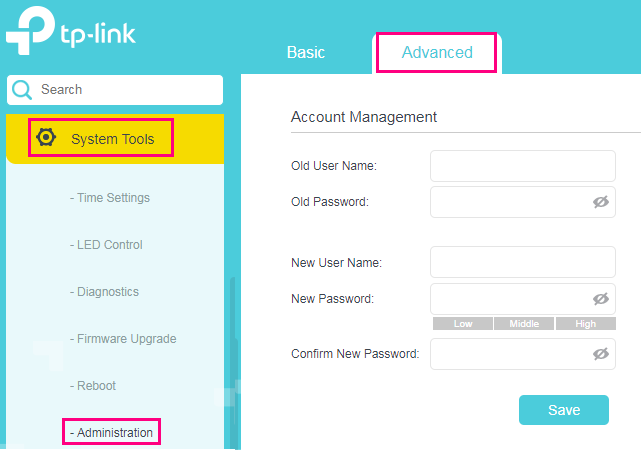
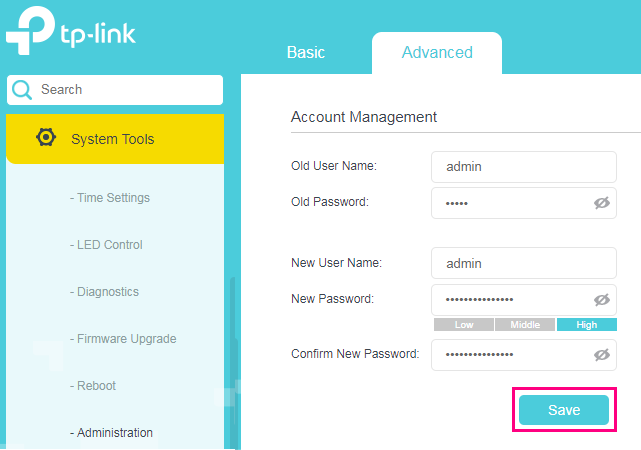
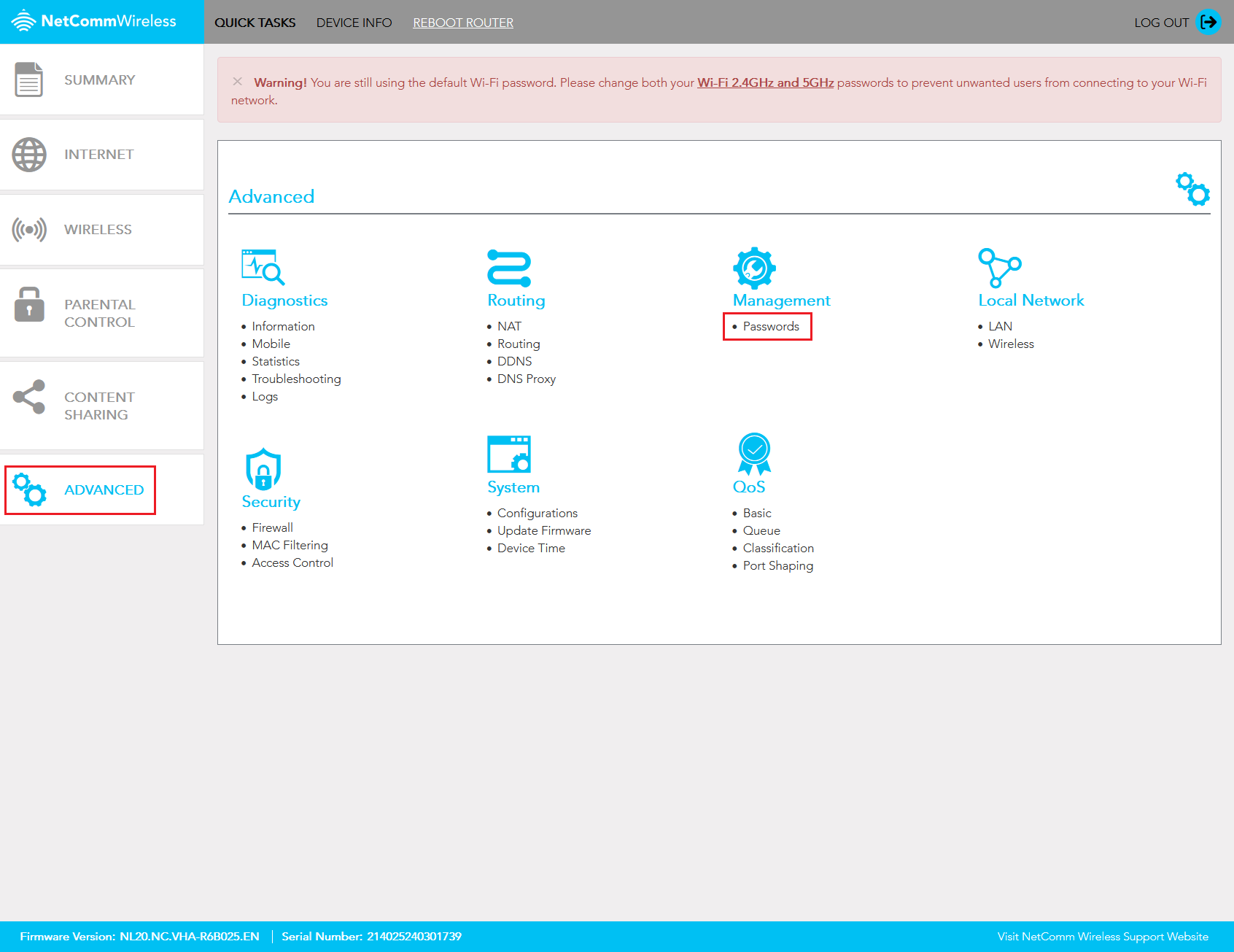
Your modem password is used to log in to the modem's default gateway to change your modem settings.
You'll need a strong custom password if you're going to use Remote Access on your modem. It's also useful to stop guests from being able to access your modem settings if you give them your WiFi password.
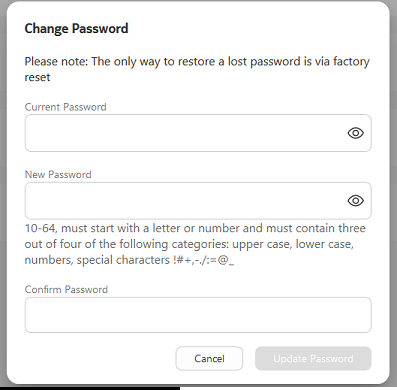
Important: If you forget a custom modem password, you'll need to factory reset your modem.
Don't have a TPG modem? Check the manufacturer's website for a guide.
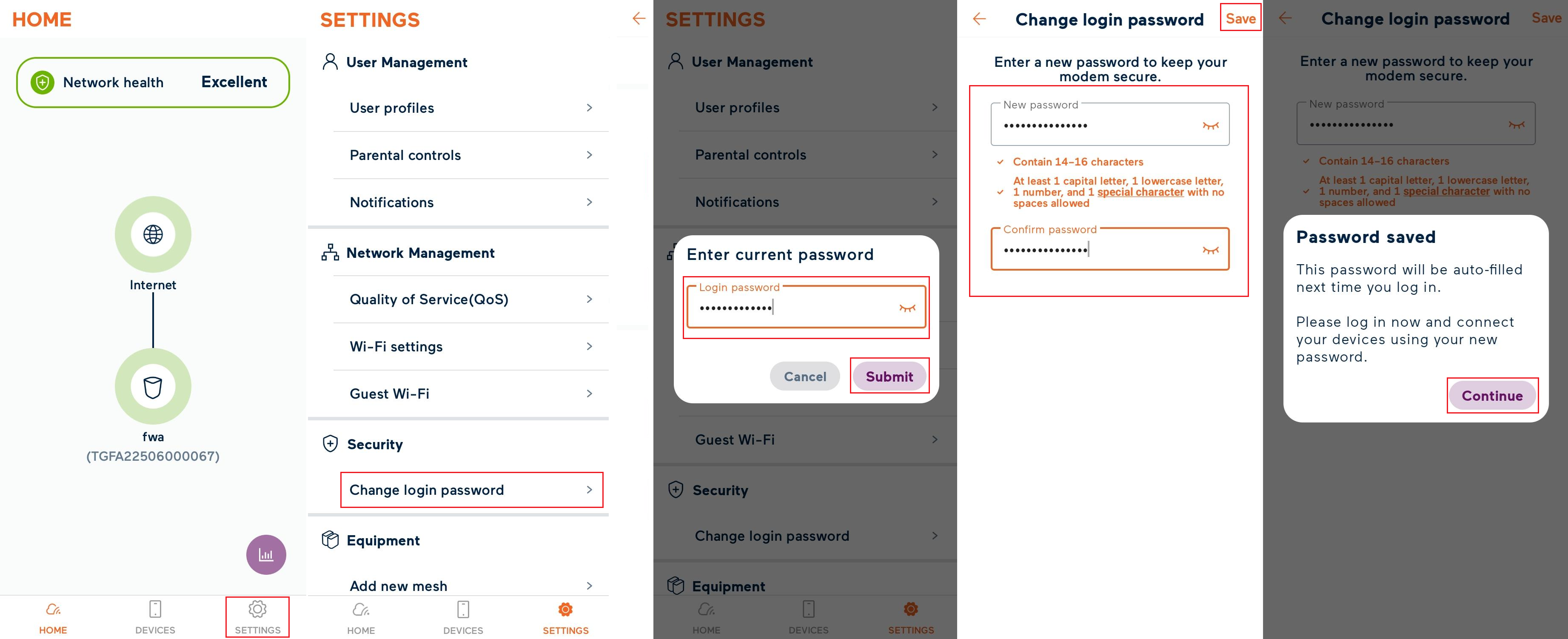
Don't want to use the app? You can change the Modem password in your web browser.
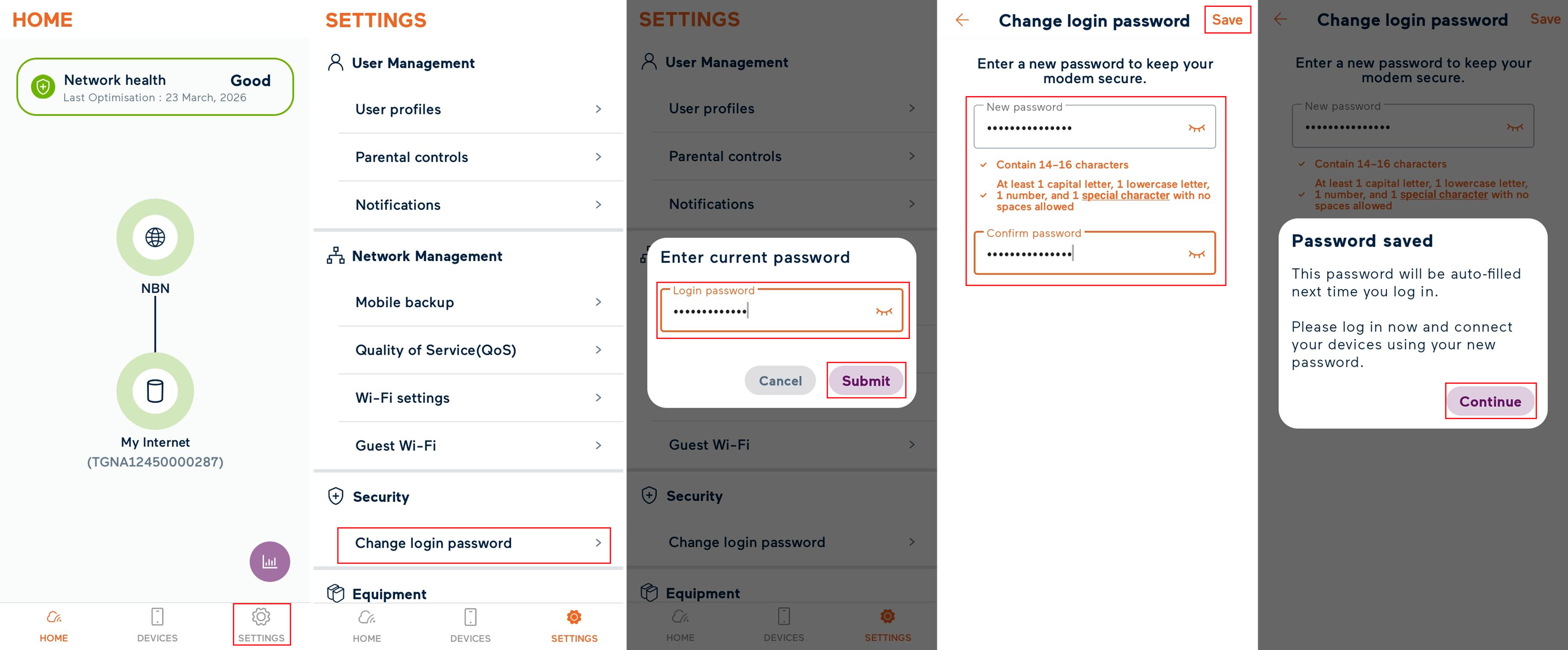
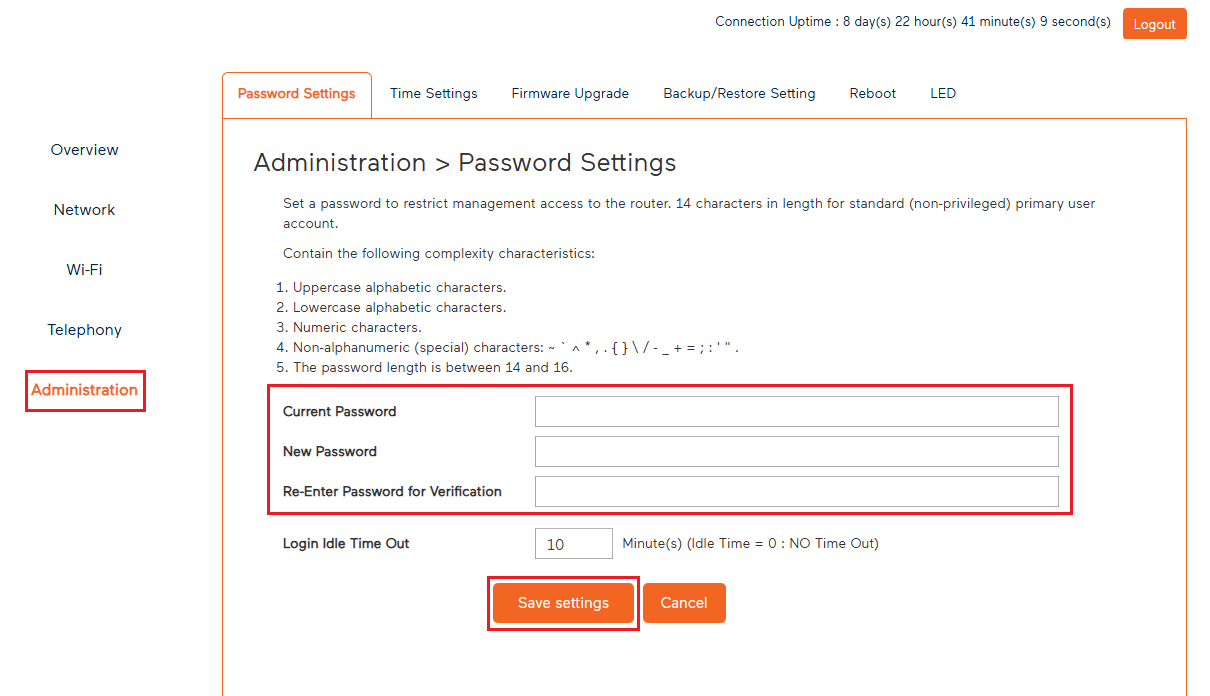
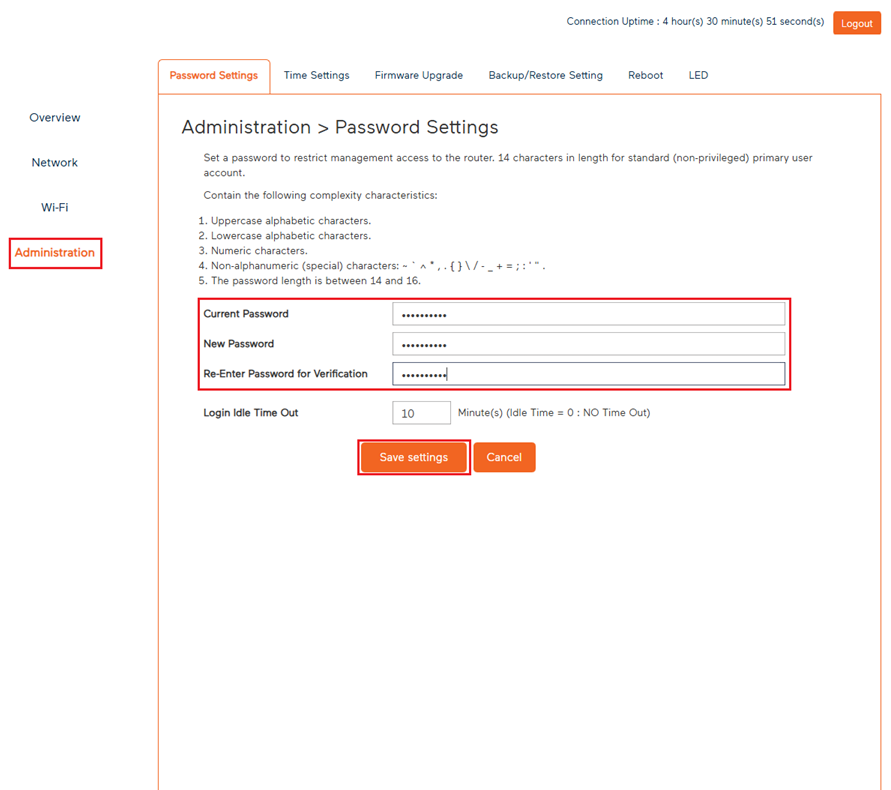
Password Requirements:
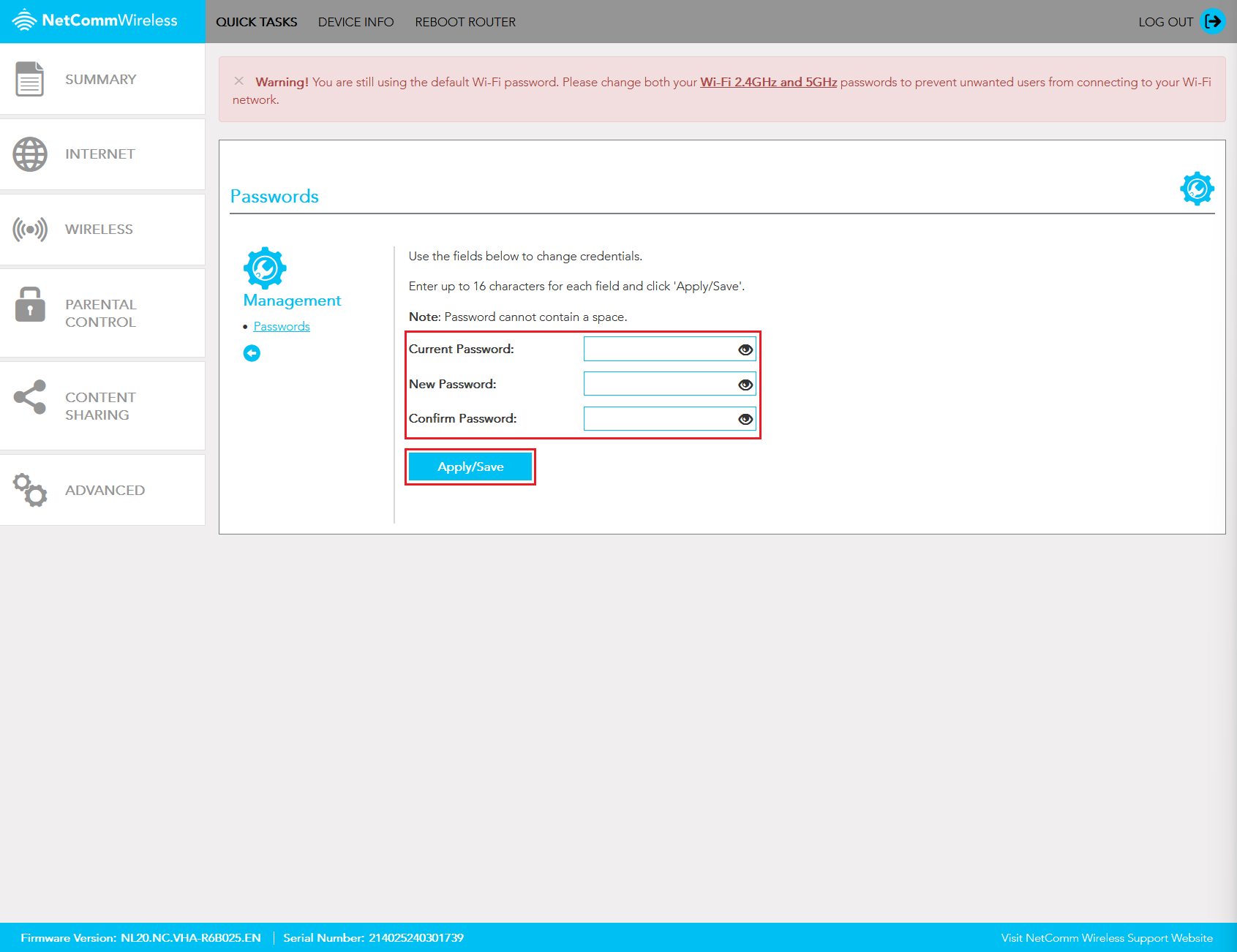
You’ll use this password to log in to both the app and the modem dashboard.
Don't want to use the app? You can change the Modem password in your web browser.