A VoIP service is compromised when a third party obtains your VoIP phone number and password. Compromised VoIP services are commonly used for phone fraud, where the VoIP service is used to make calls to expensive international destinations. The calls may be made using a machine to make as many calls as possible.
Select one of the links below to jump to a query:
- What happens if a VoIP service is compromised
- What to do if your VoIP service is compromised
- Tips for better account security
What happens if a VoIP service is compromised
- Your VoIP call history is monitored, but it can take up to 48 hours for call records to reach us.
- If we detect any suspicious call activity then your VoIP service will be suspended to stop the calls.
- An email and SMS about the suspension will be sent to the contact details listed on your account.
- We'll try to contact you within 48 hours to help secure your account again, or you can call us on 13 14 23.
What to do if your VoIP service is compromised
- Run an antivirus and anti-malware scan on your computer and remove any infections found.
If your computer is severely infected and you have trouble using it, you may need to hire a computer technician to help.
- Make sure any Remote Management/Remote Connect feature is turned off in your modem settings.
- Change your modem password and Wi-Fi password.
Check out TPG Modem Guides for guides on how to change the modem password or Wi-Fi password on your TPG modem. If you don't have a TPG modem, check the manufacturer's website for a guide.
- Change the password for your email address(es).
- Once you're done, you can call us on 13 14 23 to ask for your VoIP service to be unsuspended. Unsuspension may take up to 2 business days.
As always, you are accepting the risk that failure to keep your home network secure may lead to further exploitation of your services and you are liable for any charges resulting from a security breach outside of the TPG network.
Tips for better account security
- Regularly scan your computer for viruses and malware.
- Make sure your modem and Wi-Fi has a secure password, and don’t share the passwords with anyone you don’t want to have access to your network.
- Never share your passwords over email, instant messengers or social media. If you need to record any password, write it down on a piece of paper and keep it somewhere safe.
- Never enable remote management on your modem without setting it to a static IP address of a secure computer that is also owned by you. If you don’t set a static IP address for remote management, then any computer can access your modem remotely and potentially compromise your services.
- Make sure your modem is running the latest version of firmware.
Here's what you need to know about White Pages listings for TPG phone services.
Note: White Pages listings may not be available for TPG Voice VoIP services.
Select one of the links below to jump to a query:
- When is my phone service listed in the White Pages?
- How can I change my listing?
- What's the difference between a Full and a Suppressed listing?
- What if I move house?
When is my phone service listed in the White Pages?
If you've transferred a phone service to TPG from another provider, your directory listing may not be carried across to TPG.
By default, we won't list your number. You can choose to list your number in My Account once your TPG phone service is active.
How can I change my listing?
-
Log into My Account and hit View TPG Home Phone Service Account.
Never used My Account before? Check out An Introduction to My Account. -
Hit Home Phone Service Control Panel.
-
Under Directory Listing, select listed to turn on the listing, or silenced to turn off the listing.

-
Hit Update at the bottom of the page to finish.
Changes will take approximately 5 working days to show on whitepages.com.au. Closing dates for printed White Pages can be found in the White Pages Print Listing FAQ.
What's the difference between a Full and a Suppressed listing?
A Full listing will show the customers name, phone number and full address like the following example:
02 1234 1234
F Fakename
123 Fake Street Sydney NSW 2000
A Suppressed listing will show only the suburb and not the full street address, such as the example below:
02 1234 1234
F Fakename
Sydney 2000
Suppressed or customised listings may attract fees directly from Sensis. For more information, contact White Pages.
What if I move house?
If you relocate your TPG phone service to a new address, your listing should update automatically about 5 working days after your phone service is active at your new address.
Here's what you need to know about TPG SIM-Only Mobile plans.
Select one of the links below to jump to a query:
- Getting TPG Mobile
- Can I sign up to TPG Mobile without having any other TPG services?
- What do I need for TPG Mobile?
- Which SIM types are available?
- How do I check mobile coverage in my area?
- Can I keep my existing mobile number?
- TPG Mobile billing
- Is TPG Mobile a prepaid service or a post-paid service?
- What is a Prepaid Balance?
- When do I get charged for my mobile plan fee?
- What happens if I don't pay to renew my TPG mobile plan?
- Can you suspend my mobile service while I'm on holiday?
- Managing and using your TPG Mobile service
Getting TPG Mobile
Can I sign up to TPG Mobile without having any other TPG services?
Yes, you can.
What do I need for TPG Mobile?
We'll bring a TPG Mobile SIM, you bring the phone. Use an unlocked phone from our list of Approved Devices for the best experience.
Note: We can't unlock phones for you.
To use mobile data, your phone must support these frequencies:
- 4G: 850MHz, 1800MHz and 2100MHz
- 5G: 700MHz and 3600MHz
Which SIM types are available?
You can choose a triple-cut Standard/Micro/Nano physical SIM, or en eSIM. eSIMs can be downloaded and installed on eSIM-compatible phones.
Learn more about SIM types and how to order a replacement SIM here.
How do I check mobile coverage in my area?
You can check your location on our coverage map.
Can I keep my existing mobile number?
Yes, you can port your mobile number to TPG. To help things go smoothly, you'll need to give us these details about your current mobile service:
- Post-paid mobile services: we need the account number for your current mobile service, which can typically be found on an invoice from your current mobile provider.
- Prepaid mobile services: we need date of birth of the account holder for your current mobile service.
Important: Don't cancel your current mobile service - it needs to be active to port your number to us. You can cancel your old mobile service after your number has moved to TPG.
TPG Mobile billing
Is TPG Mobile a prepaid service or a post-paid service?
TPG Mobile is a prepaid service. Your monthly mobile plan fee is renewed automatically using your nominated payment details.
What is a Prepaid Balance?
You can choose to top up your Prepaid Balance to pay for any calls/texts or data that isn't part of your plan's included value.
The Prepaid Balance helps protect you from bill shock. You choose if and when to top up your Prepaid Balance, so you're in complete control of your spending and there's no nasty surprises for excess usage on your invoice.
To top up your Prepaid Balance, log into My Account and hit Add Prepaid Balance.
When do I get charged for my mobile plan fee?
TPG Mobile is a prepaid month-to-month subscription that's automatically renewed each month. Each month is billed in advance. You'll be charged for your next monthly plan fee 7 days before your next billing period begins. For example, if your billing period usually starts on the 10th of each month, you'll be charged on the 3rd.
What happens if I don't pay to renew my TPG mobile plan?
If your payment fails, we'll send you an email and SMS to let you know so you can arrange payment. If your mobile plan renewal fee isn't paid, your mobile plan will be suspended on the date advised in our email/SMS.
If you pay the monthly plan renewal fee, your mobile service will be suspended within 1 business day after payment has cleared. We recommend credit card payment for the fastest resolution as Direct Debit payments can take up to 3 business days to clear.
Please note: If your mobile plan renewal fee remains unpaid for 30 days, your mobile plan will be disconnected. It may not be possible to recover your mobile number if you leave your service disconnected for a long time.
Can you suspend my mobile service while I'm on holiday?
Sorry, we can't do this. If you're going on an extended holiday and you don't want to lose your mobile number by cancelling your mobile service, we recommend changing to our cheapest mobile plan while you're not using it.
Managing and using your TPG Mobile service
How can I track my call and data usage?
You can check your usage in My Account.
What happens if I use all my monthly data?
If you have $10 in your Prepaid Balance, a 2GB data block will be automatically purchased for $10.
If you don't have enough Prepaid Balance for a data block, mobile data will be unavailable until your next billing period unless you top up your Prepaid Balance in My Account.
Note: Data blocks don't roll over to the next billing period.
How do I change my mobile plan?
You can change your TPG Mobile plan at any time in My Account for no additional fee.
If you requested a plan change at least 7 days before your next billing period, your plan change will happen at the start of your next billing period.
If less than 7 days' notice was given for the plan change, then the plan change will happen at the start of the following billing period. For example, if your next billing period starts on 1 January and you submit a plan change request on 29 December, your new plan will start on 1 February.
How do I manage my mobile service?
You can check your usage, change your plan, top up your prepaid balance, adjust your mobile settings, request your PUK code and more in My Account.
How do I enable international roaming?
-
Log in to My Account.
-
Under the Mobile Service, select Settings
-
Set the International Roaming ON/OFF switch to ON.
Can I use premium services on TPG Mobile?
No. Premium call/SMS services like 19/1900 numbers can't be used on TPG Mobile.
Can I tether my phone?
Tethering lets your phone act as a Wi-Fi hotspot to let other devices use your mobile data. You can choose to tether your TPG Mobile, but keep in mind that all data usage comes out of your monthly mobile data.
At TPG, we’re committed to helping you stay connected.
We understand life can change unexpectedly. If you’re having difficulty paying your bill, our team is here to understand your situation and offer tailored support.
Life can take unexpected turns
If you’re having trouble keeping up with your payments, we’re here to help. Applying for financial hardship is free.
Financial difficulties can happen for many reasons, including:
- Illness or injury
- Loss of employment or reduced work hours, low or reduced work hours
- Changes in personal, family or caring responsibilities
- Natural disasters or emergency events
- Unexpected expenses or financial commitments
- Other unforeseen circumstances affecting your ability to pay.
If you’re experiencing domestic or family violence, support is available. Visit our Domestic and Family Support Page or let our team know when you contact us.
How can TPG help?
Depending on your situation, assistance may include:
- Payment arrangements
- Applying restrictions on your services
- Moving you to a lower cost contract or plan (subject to your contract)
- Spend controls
- Payment moratorium
- Waiving late payment fees
- Manual payment
Every situation is different, so we’ll take the time to understand your needs and work with you to find a suitable solution that helps you stay connected.
How can I get help?
Once you get in touch, we’ll take the time to understand your situation and discuss the support options available.
Contact us
To apply or check your application, please contact us on 1300 056 356 (8AM-8PM AET Mon-Fri) or via web form.
We’ll assess your application within 5 business days of receiving all the required information and advise you of the outcome, typically within 2 business days of completing the assessment.
If your circumstances change during the term of the arrangement, you must inform us within 14 days of the change in your situation. We will review your arrangement accordingly.
Need more support?
The National Debt Helpline offers professional counsellors who can offer free and independent advice.
At TPG, we are committed to providing accessibility for all customers whether that be the way you contact us or the products we develop.
If we cannot reach an agreed outcome, you can lodge a complaint.
If you’d like to seek a review or lodge a complaint, you can contact us.
Alternatively, you can make a complaint or contact the TIO for support and advice.
More information
For more information, please download our Financial Hardship Policy PDF.
To view PDF files, install Adobe Reader on your computer, tablet or smartphone.
If your internet plan has monthly data instead of unlimited data, your internet speed may be "shaped" if you use all your monthly data.
This information does not apply to TPG Mobile.
Select one of the links below to jump to a query:
Speed shaping
If your internet plan has monthly data instead of unlimited data, your internet speed may be "shaped" if you use all your monthly data.
A "shaped" service has a slower download and upload speed. You can look up your plan's shaped speed in your plan's Critical Information Summary.
Shaping is automatically removed at the start of your next billing period when your monthly data resets.
How to check your data usage
You can check your data usage in My Account. Data usage is not available in My Account for unlimited data services.
My Account will also tell you:
- If your plan has anytime data or peak/off-peak data (and when the peak/off-peak periods start and end)
- When your monthly data resets
Anytime data vs. Peak/Off-peak data
Anytime data can be used at any time.
Peak/Off-peak data means you have two separate types of monthly data - one that can be used during the peak period, and one that can used during the off-peak period.
Peak/Off-peak data is also shaped separately. If you use all your Peak data, you'll be shaped during the peak periods but not during the off-peak period.
Data usage guide
As a rough guide, 1GB of data usage will let you:
- Receive 1000 emails
- Surf the web for 20 hours
- Watch 5 four-minute YouTube videos
- Download 20 four-minute music tracks
- Download 40 photos.
Your usage may vary. This guide assumes 100KB per email, web browsing at 30MB per hour, YouTube videos at 24MB per video (360p quality), music at 4MB per track, and 2MB per photo.
Are websites not loading properly? If your modem seems to be online but you're having trouble browsing the web, these steps will help identify the issue.
-
Is the problem with all websites, or just one? If you can't browse to a single website but others work fine, switch to Troubleshoot a single website.
-
Make sure the device you're using is connected to your modem by Ethernet cable or Wi-Fi.
-
Check your modem's barcode sticker for a default gateway address, e.g. "http://192.168.1.1". Some modems have vanity addresses that include the manufacturer's name, like "http://tplinkmodem.net".
Can't find the default gateway address? Try this guide for Windows or Mac computers.
-
Enter your modem's default gateway address in your web browser and see if a login screen comes up. If you see a login screen, this means your device is definitely connected to your modem.
Can't browse to your modem's default gateway? Switch to No Communication Between Modem and Device. -
Clear your browser cache, then try to view a website. Here are guides for popular browsers:
- Mozilla Firefox Clear cache
- Google Chrome Clear cache & cookies
- Apple Safari Clear history, cache & cookies
- Microsoft Edge Manage and clear cache -
Run a scan on your antivirus/anti-malware software.
If any infections are detected, make sure they are quarantined and removed. Contact your software’s Customer Support if you need help. -
Does your antivirus/anti-malware software use a firewall? Temporarily disable the firewall and try to go to a website.
Contact your software’s Customer Support if you need help to disable a firewall, or changing your firewall settings to allow web browsing.
-
Follow this guide to ping the address "google.com".
If the ping test worked, try resetting your browser:
- Mozilla Firefox Refresh to default settings
- Google Chrome Reset to default
- Apple Safari Remove all website data
- Microsoft Edge currently can't be reset, please use a different browser. -
Couldn't ping "google.com"? Try pinging "203.12.160.35" instead.
If you can ping "203.12.160.35", your device probably has the wrong DNS server. Try manually setting your DNS server. -
Can't ping "203.12.160.35"? There may be an issue with the TCP/IP settings in your computer. Try resetting your TCP/IP settings.
-
Still can't view websites? Call us on 13 14 23 and we'll help you.
If your modem's default gateway address is starting with “169.254”, then resetting your network adapter to default settings may help fix the issue.
This process may also be known as a "winsock reset", or "comms reinstall".
Select one of the links below to jump to a query:
Winsock Reset for Windows
-
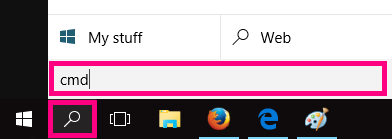
Click the Search icon (magnifying glass) in the bottom left-hand corner of the screen and type "cmd" into the search bar.
-
Right-click on the Command Prompt app and select Run as administrator.
You may need to enter an administrator password before you can continue.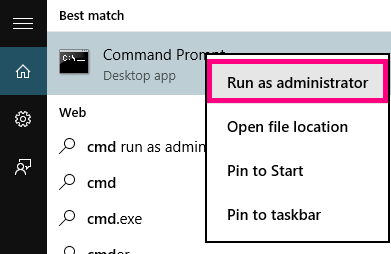
-
Type “netsh winsock reset” and then hit Enter on your keyboard.
You’ll see the message “Winsock reset completed successfully” when it's done.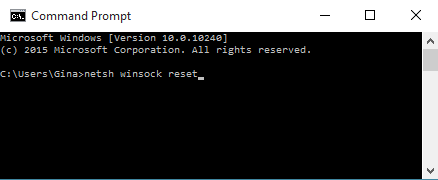
-
Restart your computer to finish.
Network restart for macOS
Mac OSX and macOS don't have Winsock, but you can try restarting your network.
-
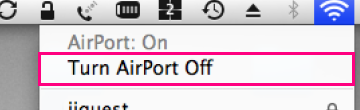
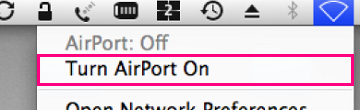
Hit the Network icon in the top right-hand corner, then select Turn Wi-Fi/Airport Off.
-
Wait 1-2 minutes, then hit Network > Turn Wi-Fi/AirPort On.
If you’re plugging in a telephony device into a socket without a modem, skip steps 1 and 2.
-
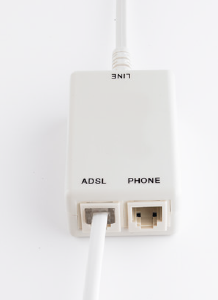
Take one end of a phone cable and plug it into your modem’s ADSL socket.

-
Plug the other end of the phone cable into the port labelled ADSL on your line filter.
-
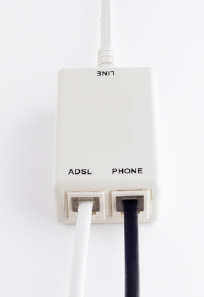
Using another phone cable, plug one end into the appropriate socket on your telephony device (please consult the device’s manual if you’re not sure which socket this is).
-
Plug the other end of the phone cable into the port labelled PHONE on your line filter.
-
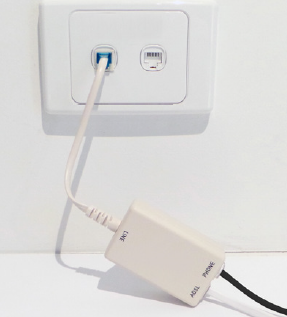
Plug the filter into your wall socket to finish.
Appendix - More information
Which devices need to be filtered?
- A modem that’s sharing a wall socket with any of the devices listed below
- All telephony devices including telephones and fax machines
- Foxtel Digital units (these are plugged into a coaxial socket AND a telephony socket)
- EFTPOS machines
Modems that aren’t sharing the same wall socket with another telephony device should not be filtered. Simply connect the ADSL port straight into the wall socket using an RJ-11 phone cable.
Does the plug fit?
If your home has the older 600-series wall sockets (typical plug is a yellow square with 3 prongs), you’ll need to purchase an adapter that allows you to plug in a modern RJ11 phone cable. These adapters can be bought at all good electronics and computer stores.
Do I need a Central Splitter?
- If you have more than three telephony devices or a Monitored/Back to Base Alarm system, you’ll need a central splitter.
- Please contact an licensed cabler who is registered with an ACMA-accredited registrar about installing a central splitter. This is an electrician who is properly licensed to work on telecommunications cables.
- Without a central splitter, it is likely that you will suffer phone and/or internet dropouts caused by interference between your modem and telephony devices.
Here's everything you need to know about the different features available for nbn Home Phone, a VoIP phone service exclusive to nbn FTTP. VoIP phone services work over the internet.
This product was only available to select nbn FTTP customers as of 23 August 2017. It is no longer sold as of 23 May 2024.
Select one of the links below to jump to a query:
- Call Barring
- Number Display/Number Block
- Directory Listing
- Call Forwarding/Diverting
- Call Waiting
- Caller ID
Call Barring
Call Barring stops your TPG Voice service from making specific types of calls.
All Call Barring types are turned off by default, but you have these options:
- Bar outgoing long distance (STD) calls
- Bar outgoing calls to Australian mobile phones
- Bar outgoing International calls
-
Log in to My Account and hit View nbn Home Phone Service Account.
Note: You may see a View nbn Digital Voice Service Account button instead.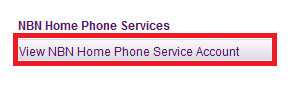
-
Hit nbn Home Phone Service Control Panel.
-
Under "Call Barring", you can change each type of call barring to barred if you want to turn it on, or not barred if you want to turn it off.

Number Display/Number Block
Number Display/Number Block blocks your phone number from being shown to the person you’re calling.
Number Display/Number Block is turned off by default.
-
Log in to My Account and hit View nbn Home Phone Service Account.
Note: You may see a View nbn Digital Voice Service Account button instead.
-
Hit nbn Home Phone Service Control Panel.
-
Under "Number Display/Number Block", you can change the option to blocked if you want to turn it on, or displayed if you want to turn it off.

Directory Listing
Directory Listing changes the way your TPG phone number is listed in public directories like the White Pages and Directory Assisted Services:
- Listed: Your name, phone number and address are listed in directories.
- Silenced: Your phone number is not listed in directories.
Directory Listing is set to Silenced by default.
-
Log in to My Account and hit View nbn Home Phone Service Account.
Note: You may see a View nbn Digital Voice Service Account button instead.
-
Hit nbn Home Phone Service Control Panel.
-
Under "Directory Listing", you can change the option to listed if you want your phone number to be listed in directories, or silenced if you don't want to be in directories.
Any changes may take up to 5 business days to show on directories.
Call Forwarding/Diverting
Call Forwarding lets you divert calls to TPG Voice number to a different Australian phone number. Standard rates apply for all forwarded calls.
Note: You can't forward calls to an international number.
All Call Forwarding/Diverting types are turned off by default, but you have these options:
- Divert all incoming calls
- Divert if no reply (after 4-39 seconds)
- Divert if busy
-
Log in to My Account and hit View nbn Home Phone Service Account.
Note: You may see a View nbn Digital Voice Service Account button instead.
-
Hit nbn Home Phone Service Control Panel.
-
Under "Call Forwarding/Diverting", enter a destination phone number to turn that type of call forwarding on.
For Divert if no reply, you'll also need to enter a Delay time between 4-39 seconds.
Call Waiting
If someone calls you while you’re already on a call, Call Waiting lets you to put them on hold. To use Call Waiting your phone needs to have a "Recall" of "Flash" button.
Call Waiting is turned on by default and currently, it can't be turned off in My Account.
Caller ID
Caller ID lets you see the phone number of the person who's calling you. It's included by default.
nbn Home Phone is a VoIP phone service that works over the internet.
Note: This product was only available to select nbn FTTP customers as of 23 August 2017. It is no longer sold as of 23 May 2024.
Select one of the links below to jump to a query:
- Set up nbn® Home Phone
- Troubleshoot your nbn® Home Phone calls
- Troubleshoot call dropouts on your nbn® Home Phone
Set up nbn® Home Phone
- First, make sure you’ve got a message from us asking you to plug in your nbn modem. We need to get your connection ready on our side before you plug in.
- Find your nbn Connection Box (NCB) – this is usually installed on the inside of an exterior wall in your home, sometimes in the garage.
- Use a phone cable to plug your phone into the NCB's UNI-V1 port.
If you need you use the UNI-V2 port instead, we'll let you know.
- (Optional) Some homes have smart wiring, where internal Ethernet cables have been installed by an ACMA-approved electrician. If this is the case, you'll have Ethernet sockets on the wall near your NCB, and in other rooms of your home.
You can use additional RJ11 phone cables to connect your NCB's UNI-V1 port to the Ethernet wall socket near your NCB, then plug your phone into the corresponding Ethernet wall socket in another room.
Note: The UNI-V port should never be connected to a network switch or router.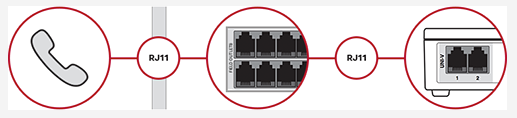
Troubleshoot your nbn® Home Phone calls
If you can't make or get calls on your nbn Home Phone service, these steps will help you identify the issue.
-
Is your internet working? Your phone service can't work without internet.
You can check your address for an internet outage or planned maintenance on nbn®'s Network status and outages page and our Network Status page. - Find your nbn Connection Box (NCB) and make sure your phone and all cables are plugged in securely and not damaged.
You’ll need to replace any broken or chewed cables. If your phone is damaged, please replace it or contact the seller for a warranty claim.
-
Make sure your phone has power.
Wireless phones may have batteries that need to be recharged or replaced. -
Does your home have smart wiring? Some homes have smart wiring, where you'll have Ethernet sockets on the wall near your NCB, and in other rooms of your home.
If your phone is plugged in via smart wiring, unplug it and plug it directly into your NCB's UNI-V1 port, then make a test call.
Note: If your nbn Home Phone is already set up to use the UNI-V2 port, use that port instead.
If calls work when your phone is plugged into the nbn Connection Box but not when it's plugged in via smart wiring, there may be a problem with your smart wiring that needs to be repaired by an ACMA-licensed electrician.
-
Turn off your NCB’s power outlet for at least 5 minutes.
- Turn the outlet back on and wait for your nbn modem’s Internet light to come on, then make a test call.

-
Still can’t make or get calls? Use another phone to call us on 1300 997 271 or contact us on our Live Chat and we'll help you.
Troubleshoot call dropouts on your nbn® Home Phone
If your nbn Home Phone is having call dropouts, it means your calls will disconnect unexpectedly. These steps will help you identify the issue.
-
Is your internet dropping out? Your phone service can't work without internet.
You can check your address for an internet outage or planned maintenance on nbn®'s Network status and outages page and our Network Status page. -
Find your nbn Connection Box (NCB) and make sure your phone and all cables are plugged in securely and not damaged.
You’ll need to replace any broken or chewed cables. If your phone is damaged, please replace it or contact the seller for a warranty claim.
-
Are you using a wireless phone? Make sure that your phone's battery is charged, and that you're staying within range of the phone's base station during the call.
-
Does your antivirus/anti-malware software use a firewall? Temporarily disable the firewall and make a test call. If the dropouts stop, then the firewall may be blocking the internet traffic for your VoIP phone calls.
Contact your software’s Customer Support if you need help to disable a firewall, or changing your firewall settings to allow VoIP calls.
-
Does your home have smart wiring? Some homes have smart wiring, where you'll have Ethernet sockets on the wall near your NCB, and in other rooms of your home.
If your phone is plugged in via smart wiring, unplug it and plug it directly into your NCB's UNI-V1 port, then make a test call.
Note: If your nbn Home Phone is already set up to use the UNI-V2 port, use that port instead.
If calls are fine when your phone is plugged into the nbn Connection Box but they drop out when it's plugged in via smart wiring, there may be a problem with your smart wiring that needs to be repaired by an ACMA-licensed electrician.
-
Still getting call dropouts? Use another phone to call us on 13 14 23 or contact us on our Live Chat and we'll help you.