Some TPG modems have Parental Control features - here's how to set them up. For more info about online safety, check out Parental safety advice.


Choose your modem:

Picture Modem
Wi-Fi Max Modem Thumbnail
Wi-Fi Max Modem
Netcomm NL20 Modem
NetComm NL20 Modem
 Wi-Fi Max 5G Modem
Wi-Fi Max 5G Modem
VX420-G2H Modem
VX420-G2H Modem


Set up Parental Controls on a Wi-Fi Max Modem

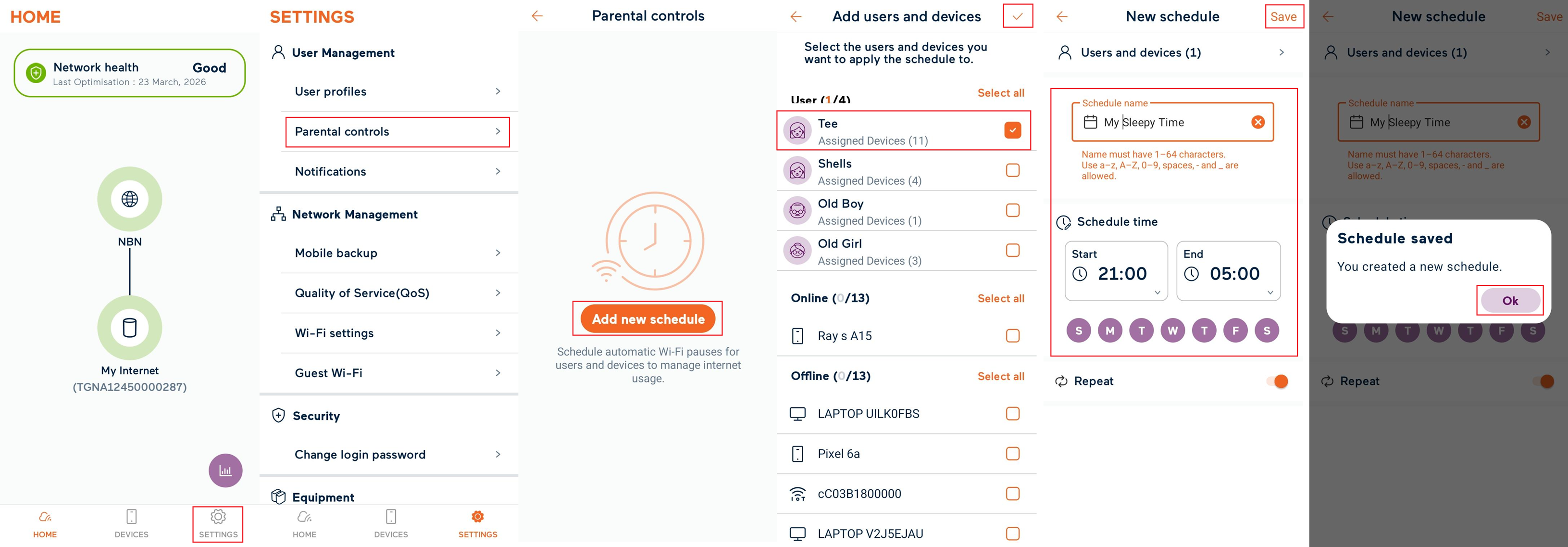
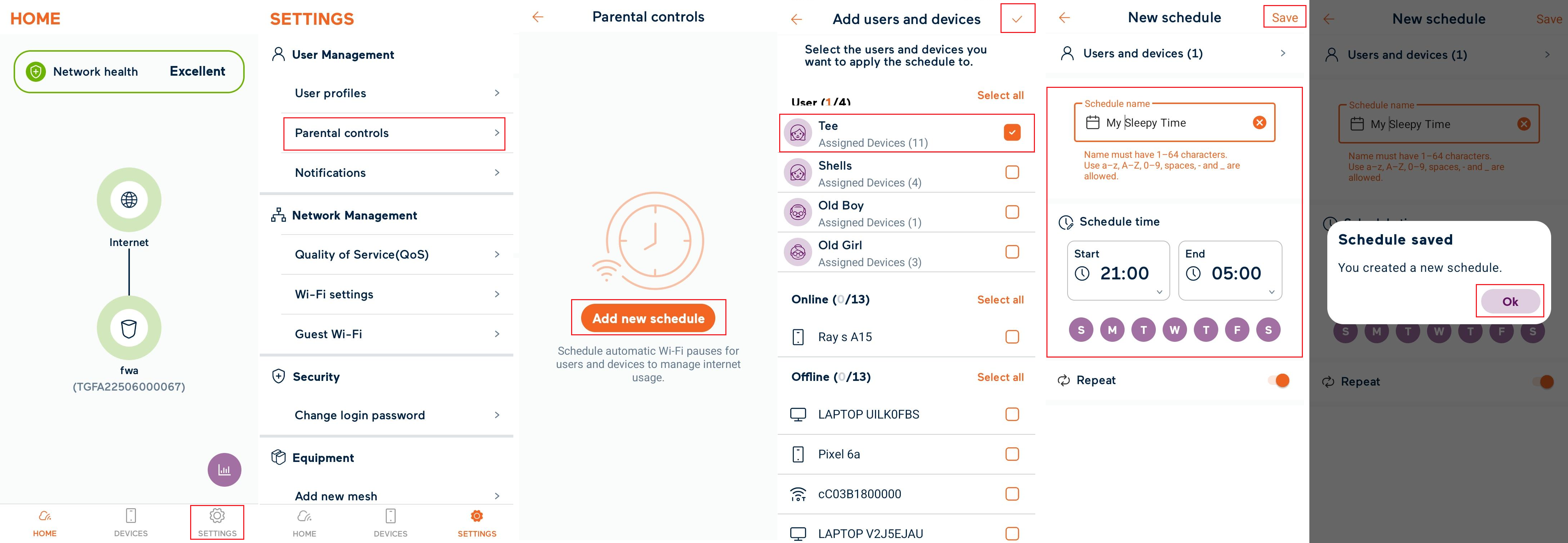
  1. Open the My Internet Connect App and go to Settings.
  2. Under User Management, select Parental controls.
  3. Select Add new schedule.
  4. Select the User(s) or Device(s) you want to control and hit the tick at the top right of the screen.
  5. Enter a Schedule name and then set the Schedule Time and Days.
  6. Tap Save at the top right of the screen then OK.
    Note: You can pause/resume a Schedule at any time by toggling the switch on/off.
     
    My Internet Connect app Parental controls


Set up Parental Controls on a NetComm NL20 Modem

  1. Open your web browser and go to: http://192.168.1.1.
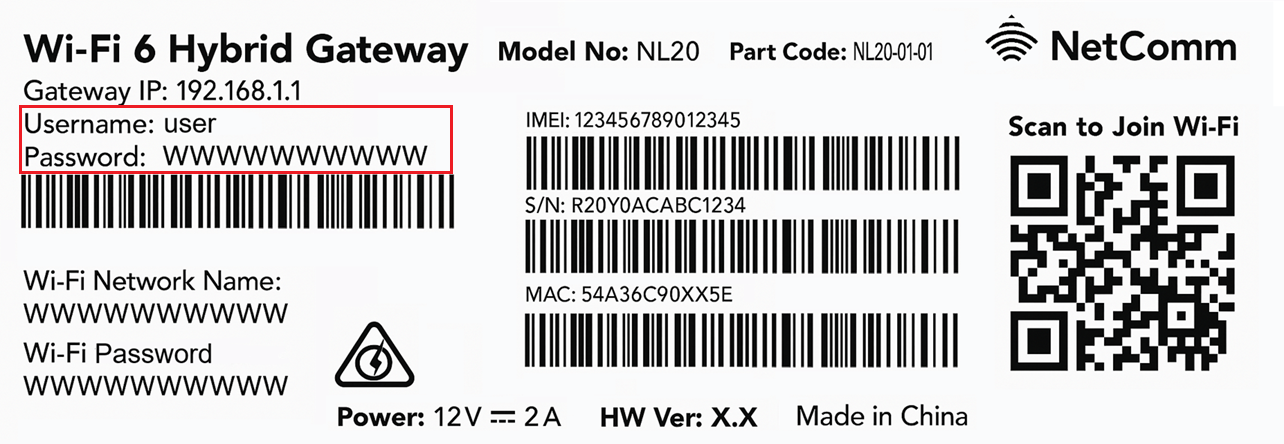
  2. Log in with the Username and Password found on the modem's barcode sticker or use your custom password.
    NetComm NL20 Modem Barcode Sticker
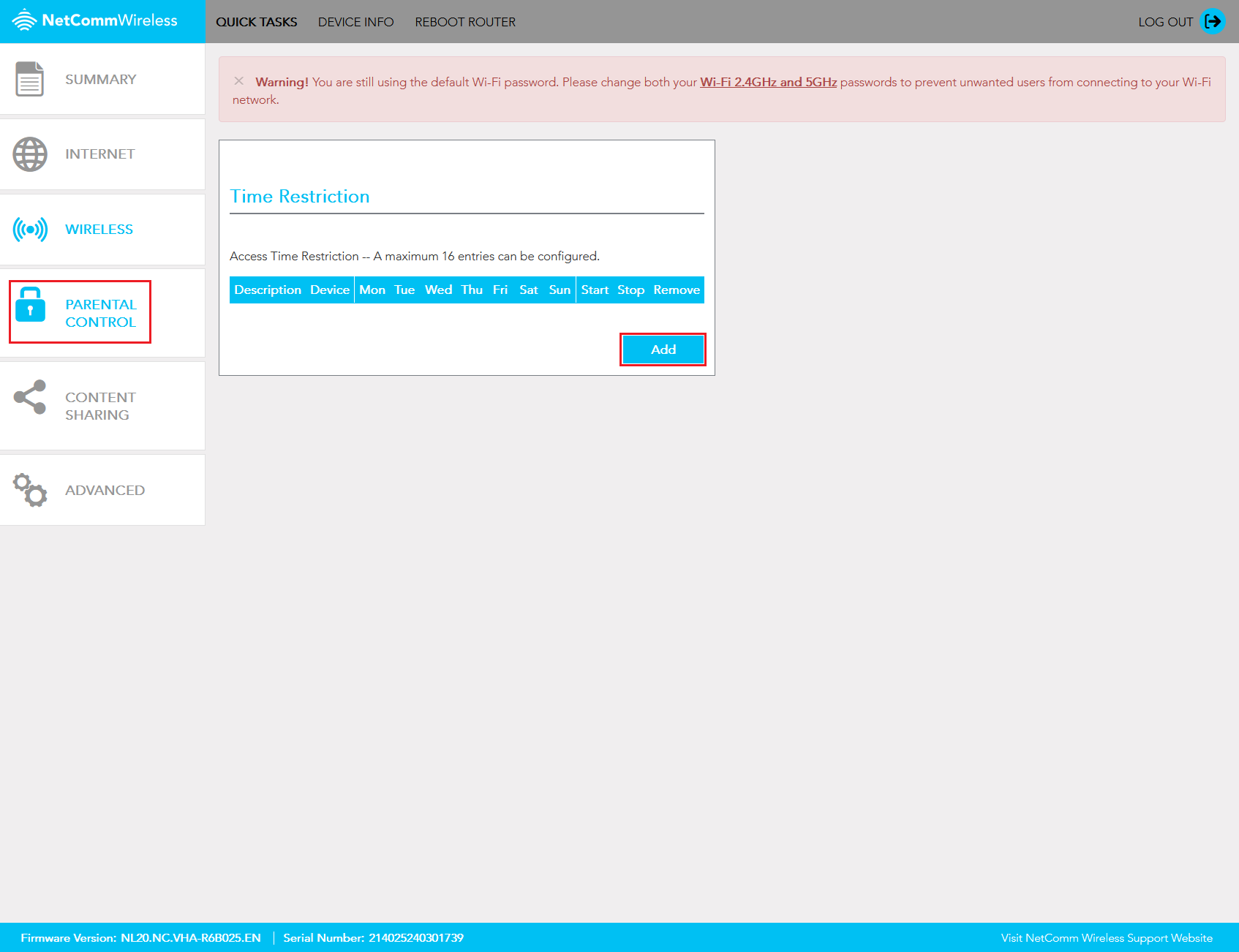
  3. In the left pane, click Parental Control.
  4. Click Add to create a Time Restriction.
    Netcomm NL20 Parental Control Settings
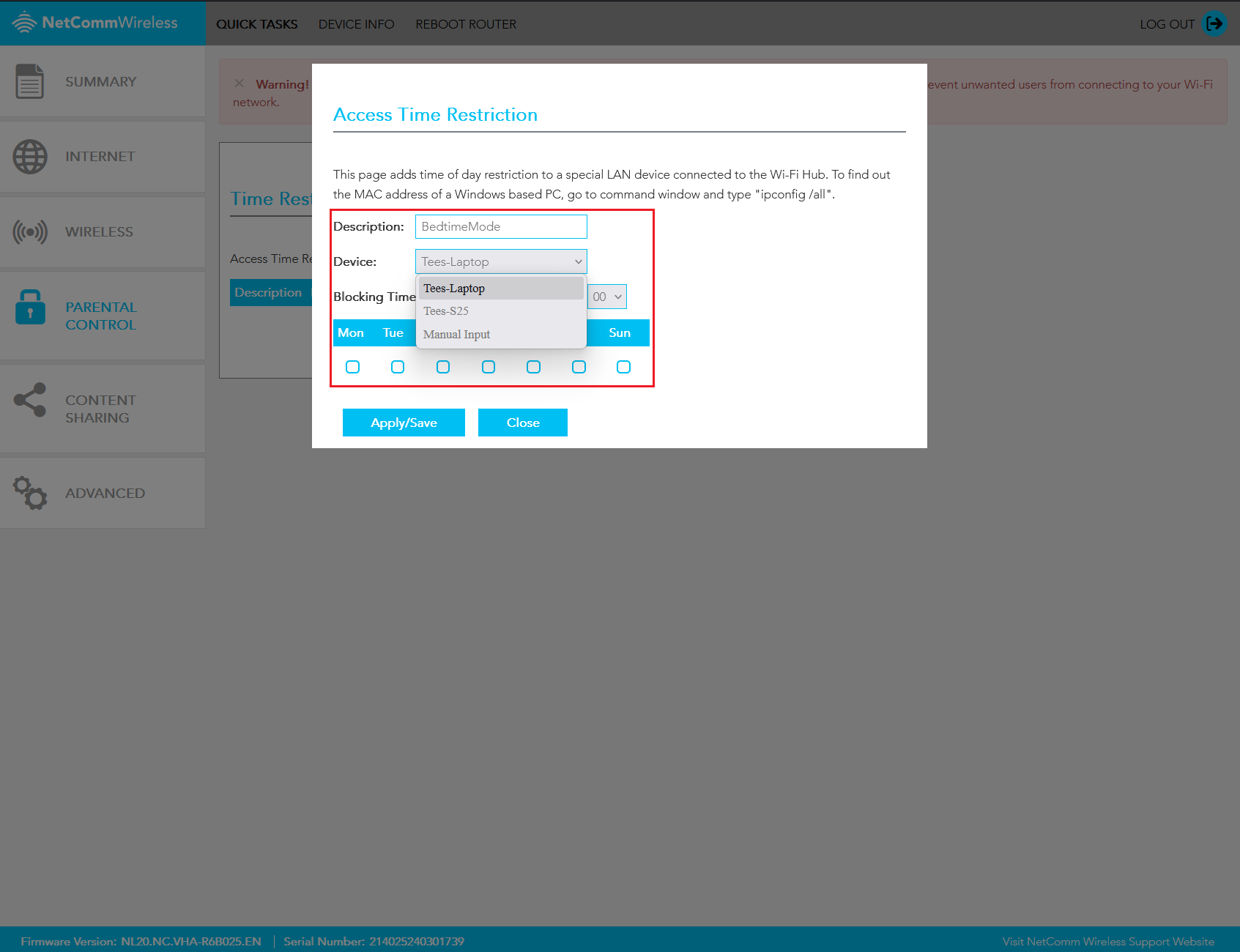
  5. In the Description field, enter rule description. 

    Note: This field may not have spaces.
  6. In the Device field, you can select any devices currently connected to the network or complete a Manual Input to add a specific MAC Address. 
    Netcomm NL20 Parental Control Settings
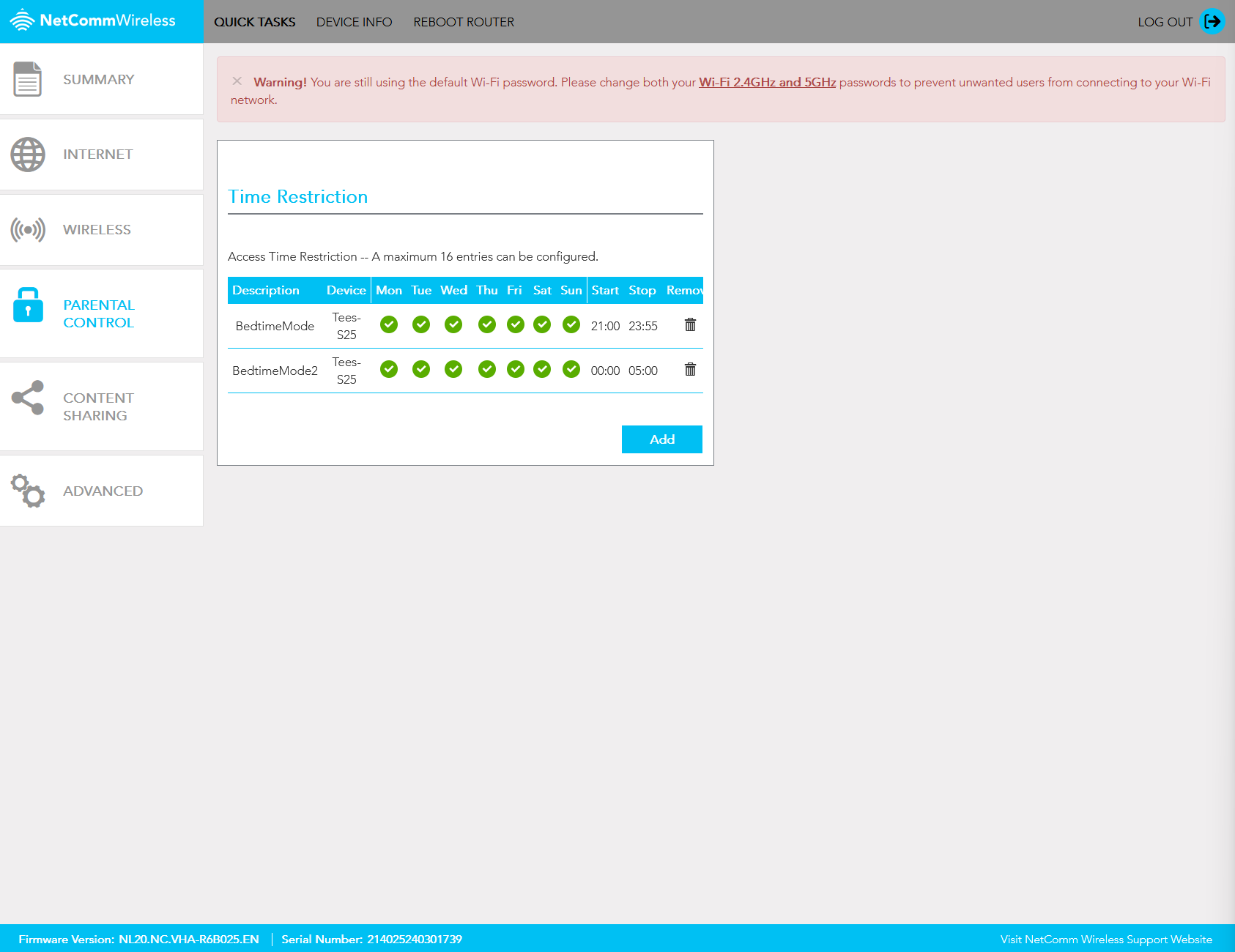
  7. Use the Blocking Time drop down fields to specify the time the restriction should be applied, then check the days the restriction should be applied.
  8. Hit Apply/Save to finish

    Tip: To block a full overnight period (e.g., 9 PM to 5 AM), you may need to create two rules.
    Netcomm NL20 Parental Control Settings


Set up Parental Controls on a Wi-Fi Max 5G Modem

You can only do this using the My Internet Connect App (Android / iOS).


  1. Open the My Internet Connect App and go to Settings.
  2. Under User Management, select Parental controls.
  3. Select Add New Schedule.
  4. Select the User(s) or Device(s) you want to control.
  5. Enter a Schedule name and then set the Schedule Time and Days.
  6. Hit Save at the top right of the screen then OK.
    Note: You can pause/resume a Schedule at any time by toggling the switch on/off.
    My Internet Connect app Parental controls


Set up Parental Controls on a VX420-G2H Modem

  1. Open your web browser and and go to: https://192.168.1.1
  2. Log in with the default password found on the on your modem's barcode sticker.. If you have a custom password, use that instead.
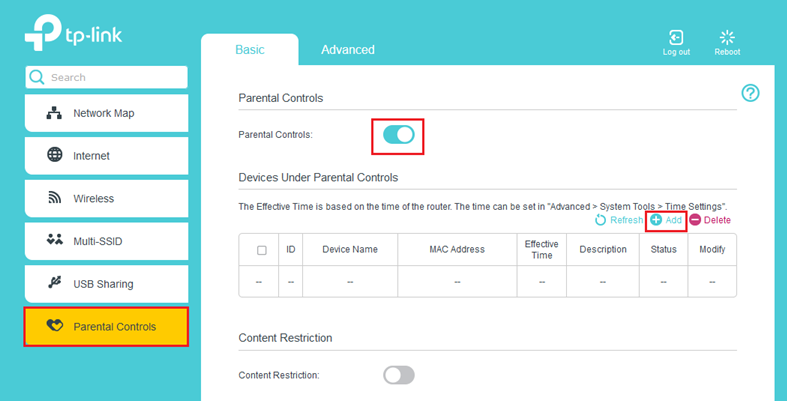
  3. Hit Parental Controls.
  4. Set the Parental Controls toggle to On, then click Add.
    • Select View Existing Devices, then under Operation, click the plus icon (+) next to the devices you want to restrict.
    • Select the clock icon beside Effective Time and click and drag to highlight the days and hours. Once done, click OK.
    • Enter a Description, then click OK.
  5. Set the Content Restriction toggle to On.
    • If you want to restrict all access or only allow a few websites, select Whitelist and click the plus icon (+) next to Add a New Keyword. Don’t add keywords if you want everything restricted.
    • If you only want to restrict a few websites, select Blacklist and click the plus icon (+) next to Add a New Keyword.
  6. Click Save.
    VX420-G2H Modem Parental Control settings


Here's what the status lights mean on your Wi-Fi Max Modem.

There's one light on the front of the modem to quickly check the modem status, and a column of 3 lights on the back of the modem. From top to bottom, they are: Bluetooth/WPS Connectivity, Internet, and Phone.


Light State and meaning
Front Off = Modem has no power.
Orange = Modem has power. This light flashes during startup.
Solid green = Modem is connected.
Flashing green = Session is down.
Solid red = Modem is unable to connect.
Flashing red = Modem has no connection to internet service provider.
Solid blue = Mobile connection via Bluetooth is active.
Flashing blue = Phone is off the hook.
Bluetooth / WPS Connectivity
Rear top
Off = No Bluetooth or WPS connection request in progress.
Solid blue = Bluetooth connection is active.
Flashing blue = Bluetooth connection in progress.
Solid green = WPS connection is active.
Flashing green = WPS connection in progress.
Flashing orange = Bluetooth or WPS connection failed.
Internet
Rear middle
Solid green = Modem is connected.
Flashing green = Session is down.
Solid red = Modem is unable to connect.
Flashing red = Modem has no connection to internet service provider.
Phone
Rear bottom
Off = No Phone service has been activated.
Solid green = Phone successfully registered.
Flashing green = Phone service initial setup in progress.
Solid blue = Phone service initial setup failed.
Flashing blue = Phone is off the hook.

Here’s how you can set up a compatible bring-your-own (BYO) modem for TPG Fibre to the Home (FTTH) on the Vision network.

Your TPG Voice phone service and included calls are not available if you use a BYO modem.


Select one of the links below to jump to a query:


Modem compatibility

To work on TPG FTTH, your modem must support PPPoE connections by Ethernet WAN.


General FTTH setup guide for any modem

All modems are different. If this advice doesn’t work for your modem, check the manufacturer’s website for a guide on how to plug in and enter the TPG settings.


  1. Find your FTTH Connection Box – this is usually installed on the inside of an exterior wall in your home, sometimes in the garage. Some older installations may be in a cabinet on an outside wall. Unplug any old modem from the Connection Box and power outlet.
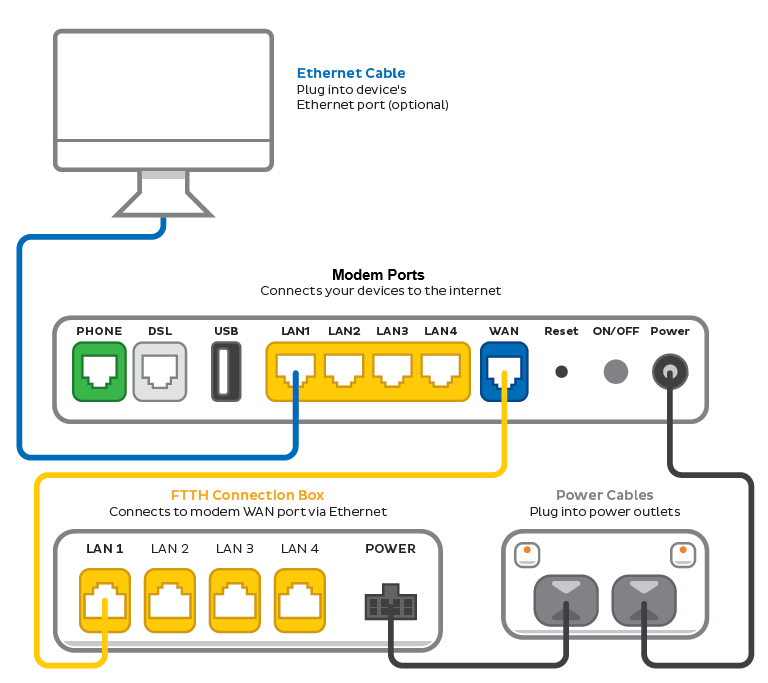
  2. Use an Ethernet cable to connect your modem's WAN or LAN/WAN port to the LAN1 or Ethernet 1 port on your Connection Box.
  3. Use the power cable to connect your modem's Power port to a power outlet, then turn it on.

    If your modem has a power button or switch, turn it on.
    FTTH modem plugin example
  4. Connect a device to your modem. You can use an Ethernet cable to connect a device to one of the LAN or Ethernet ports, or connect via WiFi.

    The default WiFi name (SSID) and password can be found on your modem’s barcode sticker.
    Example barcode sticker
  5. On your connected device, open your web browser and go to your modem’s gateway address (e.g. http://192.168.1.1). The gateway address and login details can be found on the barcode sticker.

    Modems may have a login username and password, or just a password.
    Example barcode sticker
  6. Make sure your modem has the following settings. If you’re not sure how to do this, check the manufacturer’s website for a guide.
     
    Mode/Modulation: WAN
    Connection Type: PPPoE
     
  7. You’ll need to enter your TPG username and password for the PPPoE connection. Your username is in emails from us about your TPG order, and on your TPG invoice.

    If you forgot your password, you can reset it.
  8. Save your settings and wait 5-10 minutes for your modem to connect.
  9. You should now be online. If you can’t view a website or notice a red or unlit Internet light on your modem, call us on 1300 997 274 for help.

    We’re fully trained on TPG modems, but please note that there may be limited support for your BYO modem.
    Example Internet light


If your TPG Fibre to the Home (FTTH) service on the Vision network is offline, you won’t be able to visit a website, browse, stream, or download. Email and any other services that use the internet will not work. These steps will help you identify the issue.


  1. Your service may just be affected by an outage or planned maintenance. You can check your address on Network Status page.
     
    If there is an outage or planned maintenance, the results will give you an estimated fix time.
  2. Find your FTTH modem and make sure the cables are plugged in securely and not damaged. Our setup guide will show you how to plug in.
     
    You’ll need to replace any broken or chewed cables.
  3. Find your FTTH Connection Box – this is usually installed on the inside of an exterior wall in your home, sometimes in the garage. Some older installations may be in a cabinet on an outside wall. 
  4. Turn off the Connection Box using the power button or power outlet for at least 10 seconds.
     
    If an outdoor Connection Box has no visible power button or power outlet, skip this step as a restart is not possible.
  5. Turn off the power outlet for your modem for at least 10 seconds.
  6. Turn both devices back on and wait for your modem's Internet light to come on, then see if you can visit a website.
    VX420-G2V lights - from left to right: Power, DSL, Internet, 2.4GHz, 5GHz, WAN, LAN1, LAN2, LAN3, LAN4, Phone, WPS, USB.
  7. Do you have any devices connected to your modem with an Ethernet cable? If these devices can visit a website but devices on Wi-Fi can’t, switch to troubleshooting Wi-Fi No Connection.
  8. If you can view websites on some devices but not others, even when they’re both connected the same way, you may need to fix some browser settings. Check out our guide on Browsing issues.
  9. Still can't get online? Please call us on 1300 997 274 and we’ll help you.


If your TPG Fibre to the Home (FTTH) service on the Vision network is running slowly, these steps will help you identify the issue.


  1. Your service may just be affected by planned maintenance. You can check your address on our Network Status page.

    If there is planned maintenance, the results will give you an estimated fix time.
  2. Find your FTTH Connection Box – this is usually installed on the inside of an exterior wall in your home, sometimes in the garage. Some older installations may be in a cabinet on an outside wall. 
  3. Turn off the Connection Box using the power button or power outlet for at least 10 seconds.
     
    If an outdoor Connection Box has no visible power button or power outlet, skip this step as a restart is not possible.
  4. Turn off the power outlet for your modem for at least 10 seconds.
  5. Turn both devices back on and wait for your modem's Internet light to come on, then run a speed test.
    VX420-G2V lights - from left to right: Power, DSL, Internet, 2.4GHz, 5GHz, WAN, LAN1, LAN2, LAN3, LAN4, Phone, WPS, USB.
  6. Do you have any devices connected to your modem with an Ethernet cable? If speeds on these devices are fine but devices on Wi-Fi are slow, switch to Troubleshooting Wi-Fi speed.
  7. Make sure your modem’s Ethernet cables are in good condition, with “CAT6” or “CAT5e” printed on them.
     
    Older Cat5 Ethernet cables are not recommended for FTTH services. You’ll need to replace any broken or chewed cables.
  8. Your speed may temporarily slow down if you’re running more devices or apps than your connection can handle at the same time. For example, if a device is downloading a large file or running a 4K streaming app, your speed should improve when it’s finished.

    If you need to run more devices or apps at the same time, you can change your plan in My Account or call us on 13 14 23 for support.
  9. Run a scan on your antivirus/anti-malware software. If any infections are detected, make sure they are quarantined and removed.

    Contact your software’s Customer Support if you need help.
  10. Still getting slow speeds? Please call us on 1300 997 274 and we'll help you.

Your modem will take care of the hard stuff like internet settings, but we’ll need your help to plug it in. The main cables you need will come in the box, and you can grab extra Ethernet cables from the shops if you need them.

These instructions will work for TPG Fibre to the Home (FTTH) services on the Vision network.


Choose your modem to get started:

Picture Modem
VX420-G2V Modem
VX420-G2V Modem
VX420-G2H Modem
VX420-G2H Modem
BYO Modem
Don't have a TPG modem?
See our BYO modem guide.


How to plug in your VX420-G2V Modem for TPG Fibre (FTTH)

  1. First, make sure you’ve got a message from us asking you to plug in your modem. We need to get your connection ready on our side first.
  2. Find your FTTH Connection Box – this is usually installed on the inside of an exterior wall in your home, sometimes in the garage. Some older installations may be in a cabinet on an outside wall. Unplug any old modem from the Connection Box and power outlet.
  3. Use the power cable to connect your modem's Power port to a power outlet and press your modem’s ON/OFF button.
  4. Use the Ethernet cable to connect your modem's blue WAN port to your Connection Box's LAN1 or Ethernet 1 port.
  5. You'll find the default Wi-Fi name (SSID) and Wireless password/PIN on your modem's barcode sticker. If you want to change your Wi-Fi name or password, use this guide.
    VX420-G2V barcode sticker
  6. Your devices will automatically connect to the best Wi-Fi possible. If your Wi-Fi’s running slow, check out Improving Wi-Fi Signal.
  7. For online gaming or HD/4K streaming, Ethernet is better than Wi-Fi. If you have extra Ethernet cables, you can connect up to 4 devices to your modem’s yellow LAN ports.
  8. To use your TPG Voice phone service, just plug a handset into your modem’s green Phone port.
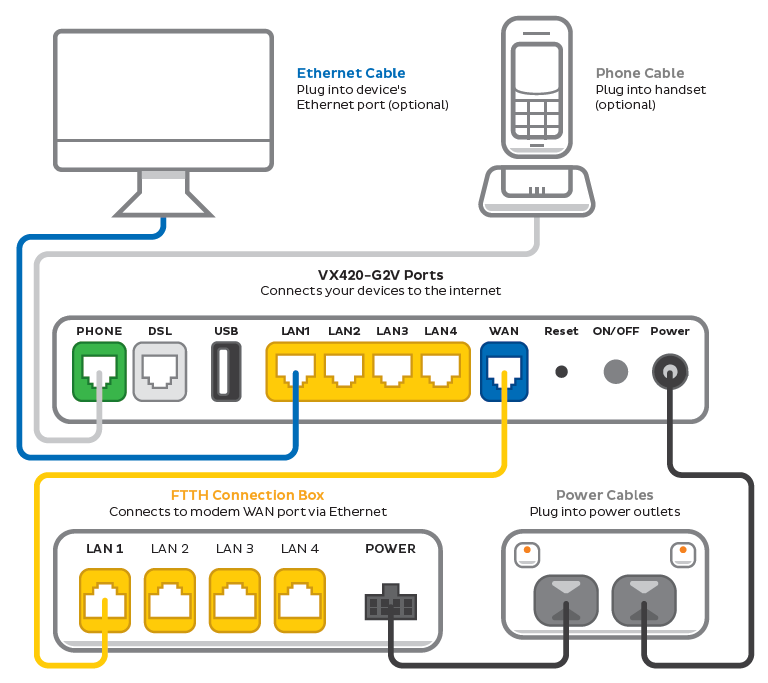
    VX420-G2V FTTH plugin - from left to right, modem ports are Phone, DSL, USB, LAN1, LAN2, LAN3, LAN4, WAN, Reset button, ON/OFF button, Power.
  9. Now it's time to enter your modem settings. On a device that's connected to your modem via Ethernet or Wi-Fi, visit http://192.168.1.1 and log in with the default username admin and default password admin.
     
    If you have custom login details, use those instead.
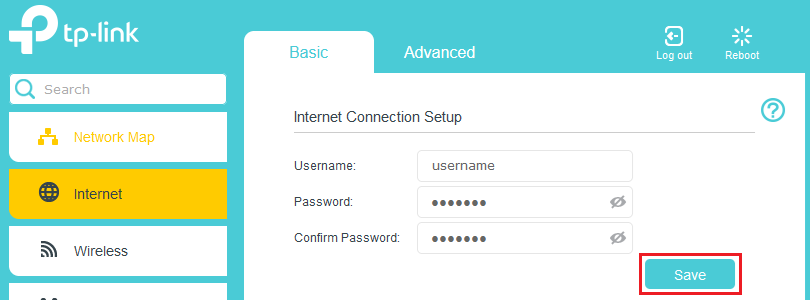
  10. Select Internet, enter the following settings and hit Save. Allow up to 5 minutes for the new settings to apply.
     
    Username: Your FTTH username (you'll find this in emails about your FTTH service)
    Password: Your FTTH password (please use our password reset tool if you've forgotten your password)
    Confirm Password: Your FTTH password 
     
    PPPoE settings
  11. Check your modem's Internet light. If it's green, you're online!

    No green light? Call us on 1300 997 274 and we can help you out.
    VX420-G2V lights - from left to right: Power, DSL, Internet, 2.4GHz, 5GHz, WAN, LAN1, LAN2, LAN3, LAN4, Phone, WPS, USB.


How to plug in your VX420-G2H Modem for TPG Fibre (FTTH)

  1. First, make sure you’ve got a message from us asking you to plug in your modem. We need to get your connection ready on our side first.
  2. Find your FTTH Connection Box – this is usually installed on the inside of an exterior wall in your home, sometimes in the garage. Some older installations may be in a cabinet on an outside wall. Unplug any old modem from the Connection Box and power outlet.
  3. Use the power cable to connect your modem's Power port to a power outlet and press your modem’s ON/OFF button.
  4. Use the Ethernet cable to connect your modem's blue WAN port to your Connection Box's LAN1 or Ethernet 1 port.
  5. You'll find the default Wi-Fi name (SSID) and Wireless password/PIN on your modem's barcode sticker. If you want to change your Wi-Fi name or password, use this guide.
    VX420-G2H Barcode sticker
  6. Your devices will automatically connect to the best Wi-Fi possible. If your Wi-Fi’s running slow, check out Improving Wi-Fi Signal.
  7. For online gaming or HD/4K streaming, Ethernet is better than Wi-Fi. If you have extra Ethernet cables, you can connect up to 4 devices to your modem’s yellow LAN ports.
  8. To use your TPG Voice phone service, just plug a handset into your modem’s green Phone port.
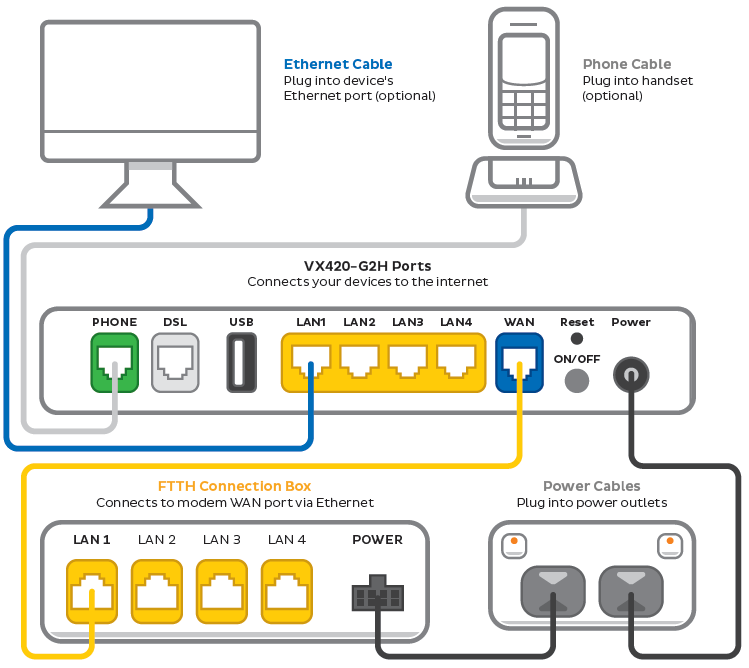
    VX420-G2H Modem FTTH plugin - from left to right, modem ports are Phone, DSL, USB, LAN1, LAN2, LAN3, LAN4, WAN, Reset button above ON/OFF button, Power.
  9. Now it's time to enter your modem settings. On a device that's connected to your modem via Ethernet or Wi-Fi, visit http://192.168.1.1 and log in with the default username admin and default password admin.
     
    If you have custom login details, use those instead.
  10. Select Internet, enter the following settings and hit Save. Allow up to 5 minutes for the new settings to apply.
     
    Username: Your FTTH username (you'll find this in emails about your FTTH service)
    Password: Your FTTH password (please use our password reset tool if you've forgotten your password)
    Confirm Password: Your FTTH password 
     
    PPPoE settings
  11. Check your modem's Internet light. If it's green, you're online!

    No green light? Call us on 1300 997 274 and we can help you out.
    VX420-G2H Modem lights - from left to right: Power, DSL, 4G, Internet, 2.4GHz, 5GHz, WAN, LAN1, LAN2, LAN3, LAN4, Phone, WPS, USB.


Network Status Checker - Pls dont update this page - Naya

Something didnt go as planned

Looks like there might be a technical issue impacting the network coverage checker. Please refresh this page or try again later.

You may have received a notice about moving to a new plan for your TPG service.

Due to a number of factors, including recent changes in wholesale pricing, the pricing of our current plans has been updated.

We’re working to move all TPG customers onto these current plans to provide a better experience for our customers. This simplification also helps us focus on more important aspects of delivering your service.


Select one of the links below to jump to a query:


When will my plan change?

Plan changes will happen automatically in the month advised in your notice. Notices will be sent at least 30 days before the change.

If you have multiple TPG services affected by this change, you’ll get one notice per service, and the change for each plan may happen at different times.

Note: It’s not possible to complete your scheduled plan change sooner – please wait for it to happen automatically.


How will plans change?

  • The monthly price of your plan may increase, decrease, or stay the same (after any applicable discounts).
  • Your internet speed may change.
  • If you have a Voice plan, new optional add-on Call packs will be available. The included value of any existing Call Pack may change – please refer to your notice or the Critical Information Summary for your new plan for details.
  • The name of your plan will be updated to the name of your new plan.
  • Your username and any phone numbers linked to your internet service will stay the same.


Can I change my internet plan?

We’ve chosen your new plan based on the price and features of your old plan.

If you’d prefer a different plan, you can switch to any of our current plans in My Account.

Important: If you change your plan, your scheduled plan change will not happen and the plan we’ve selected for you may not be available later.


Can I change the add-on Call Pack on my phone plan?

Once you’re on your new phone plan, you can add, switch or remove an add-on Call Pack in My Account.


What happens if I cancel my plan?

To cancel your TPG plan, please call us on 13 14 23. You won’t be charged a cancellation fee.


What are my options if I’m experiencing financial hardship?

We know that life can take unexpected turns, so if you’re experiencing financial hardship, we’re here to help.

See our financial hardship policy to find out more about your options.


More information

If you have any questions about this change, please call us on 13 14 23 and we’ll be happy to help.

For full Terms & Conditions, see your internet plan’s Service Description at: https://www.tpg.com.au/terms_conditions


Here's what the status lights mean on your Wi-Fi Max 5G Modem.

There's one light on the front of the modem to quickly check the modem status, and a column of 2 lights on the back of the modem. From top to bottom, they are: Bluetooth/WPS Connectivity and Internet.


Light State and meaning
Front Off = Modem has no power.
Solid green = Modem has power, or is connected to a non-4G/5G internet service.
Flashing green = Modem is powering up, or session is down.
Solid blue = Modem is connected to 5G.
Flashing blue = Modem is connected to 5G, but no connection to internet service provider.
Solid orange = Modem is connected to 4G.
Flashing orange = Modem is connected to 4G, but no connection to internet service provider.
Solid red = Modem is unable to connect.
Bluetooth / WPS Connectivity
Rear top
Off = No Bluetooth or WPS connection request in progress.
Solid blue = Bluetooth connection is active.
Flashing blue = Bluetooth connection in progress.
Solid green = WPS connection is active.
Flashing green = WPS connection in progress.
Flashing orange = Bluetooth or WPS connection failed.
Internet
Rear middle
Solid blue = Modem is connected to 5G.
Flashing blue = Modem is connected to 5G, but no connection to internet service provider.
Solid orange = Modem is connected to 4G.
Flashing orange = Modem is connected to 4G, but no connection to internet service provider.
Solid green = Modem is connected to a non-4G/5G internet service.
Flashing green = Session is down.
Solid red = Modem is unable to connect.

You may have received a notice about a plan change for your TPG mobile service.

We’re simplifying our product range to provide a better experience for our customers. As part of that, we’re working to move all customers onto our latest mobile plans. This helps us focus on more important aspects of delivering your service, such as handling an increasing amount of usage on our network.


Select one of the links below to jump to a query:


What does this mean for customers?

If your mobile service is affected by the change, you’ll get a notice from us explaining how your new mobile plan compares to your current plan.

  • The monthly price of your mobile plan may increase, decrease, or stay the same (after any applicable discounts).
  • The monthly data included with your plan may increase.
  • Your mobile plan’s monthly included value for international calls and SMS may increase.
  • The call rates for some International destinations may change. You can look up International rates on our website.
  • If you have a 5G plan, your mobile data speed cap may increase to 250Mbps. Our 5G network is available when you use a 5G-ready phone inside our 5G coverage area.
  • The name of your mobile plan will be updated to the name of your new plan.
  • Your mobile number and monthly billing period for your mobile service will stay the same.
  • Any existing promotional discount you have will continue until the promotion is complete.


When will my plan change?

Plan changes will happen automatically when your mobile plan next renews at least 30 days after your initial notice.

To see when your mobile plan next renews, log in to My Account. and hit Mobile Usage. You’ll see a line that says, “Your quota resets in XX days”, followed by the date.


Will this affect my Prepaid Balance?

Any Prepaid Balance you have will carry over to your new mobile plan.

You may find you don’t need to top up your Prepaid Balance as often as before, depending on your new plan’s included value.


Can I change my mobile plan?

We’ve chosen your new plan based on the price and value of your old plan.

If you’d prefer a different plan, you can switch to any of our current mobile plans in My Account.

Important: If you change your mobile plan, your scheduled plan change will not happen and the plan we’ve selected for you, including any promotional discounts, may not be available later.

Selected customers have been offered a “Classic” plan, which is available by invitation only. If you change or cancel your Classic mobile plan, you cannot return to the Classic plan in the future.


How are international call rates changing?

International flagfall will change from 40c to 35c. For many destinations, call rates will become cheaper – you can look up International rates on our website.

Please note that four destinations will have an increased call rate as follows:

Destination Old call rate New call rate
Cook Islands $0.40 flagfall + $2.52 per 60 secs $0.35 flagfall + $2.60 per 60 secs
Niue Island $0.40 flagfall + $1.26 per 60 secs $0.35 flagfall + $1.72 per 60 secs
Vanuatu $0.40 flagfall + $7.75 per 60 secs $0.35 flagfall + $11.00 per 60 secs
Samoa $0.40 flagfall + $6.10 per 60 secs $0.35 flagfall + $7.70 per 60 secs


What happens if I cancel my plan? 

If you want to cancel your mobile plan due to this change, you can call us on 13 14 23, and you won’t be charged a cancellation fee.

To keep your mobile number, you’ll need to transfer it to another provider before cancelling with us.


What are my options if I’m experiencing financial hardship?

We know that life can take unexpected turns, so if you’re experiencing financial hardship, we’re here to help.

See our financial hardship policy to find out more about your options.


More information

If you have any questions about your plan change, please call us on 13 14 23 and we’ll be happy to help.

For full Terms & Conditions, see our Mobile Service Description at: https://www.tpg.com.au/terms_conditions