You can customise your Wi-Fi name and password in your TPG modem settings.
Don't have a TPG modem? Check the manufacturer's website for a guide.
Choose your modem:

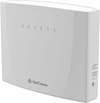
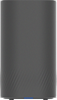
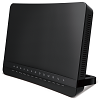
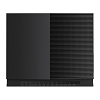

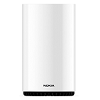
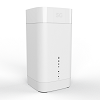
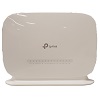
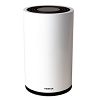

Change your Wi-Fi password on a Wi-Fi Max Modem
From the My Internet Connect App
Don't want to use the app? You can change the Wi-Fi password in your web browser.
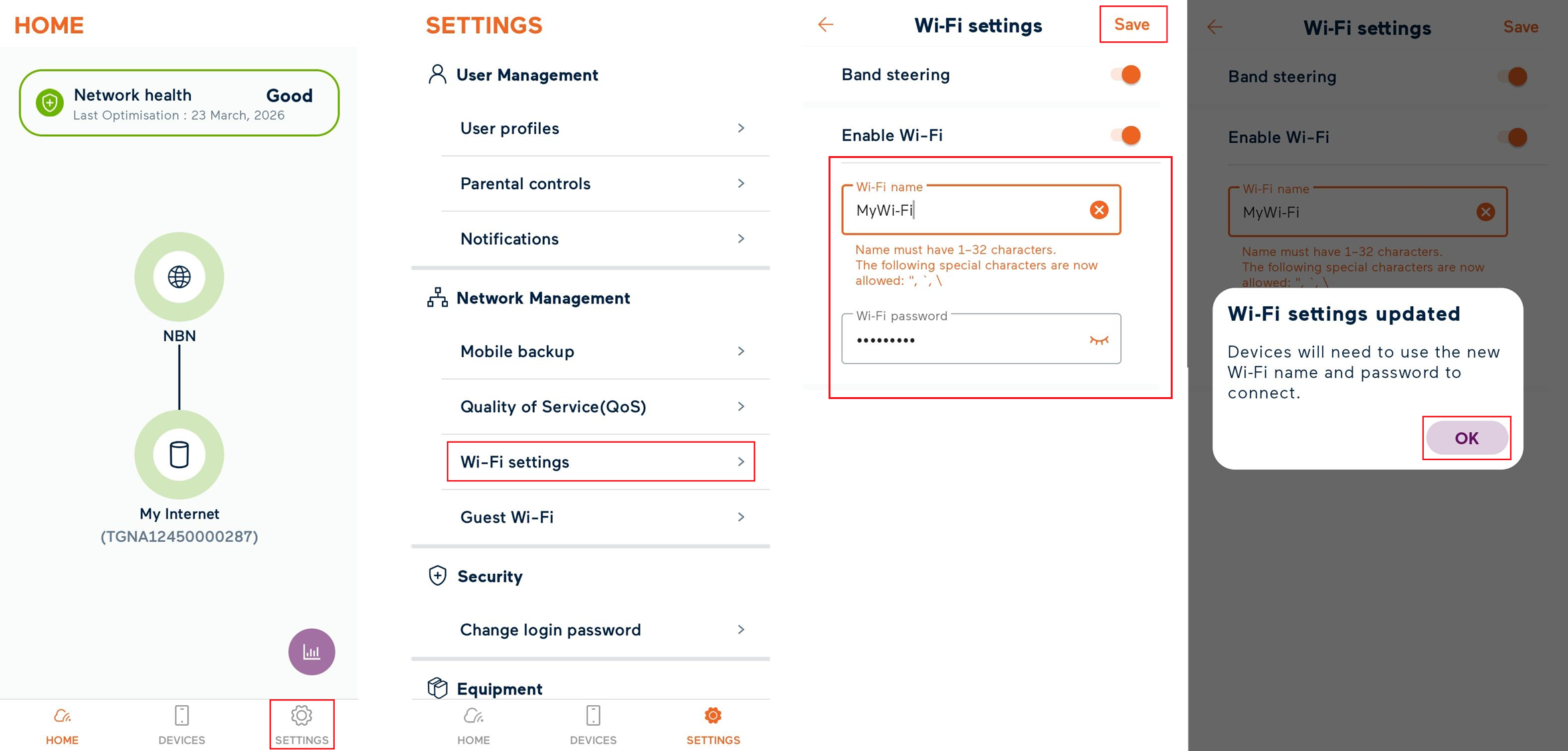
- Open the My Internet Connect App and tap Settings.
- Under Network Management, select Wi-Fi Settings.
- Enter your desired Wi-Fi name and Wi-Fi password then click the Save at the top right of the screen.
Note: If Band Steering is toggled OFF, you will need to update the password for both 2.4GHz and 5GHz Wi-Fi. We recommend you use the 5GHz Wi-Fi unless your devices are too old to connect to the 5GHz network. - The app will start to update the network details. This may take 2-3 minutes to complete.
- Select OK, then reconnect your Wi-Fi devices using your new password.
Using your web browser
- Open your web browser and go to: https://192.168.1.1
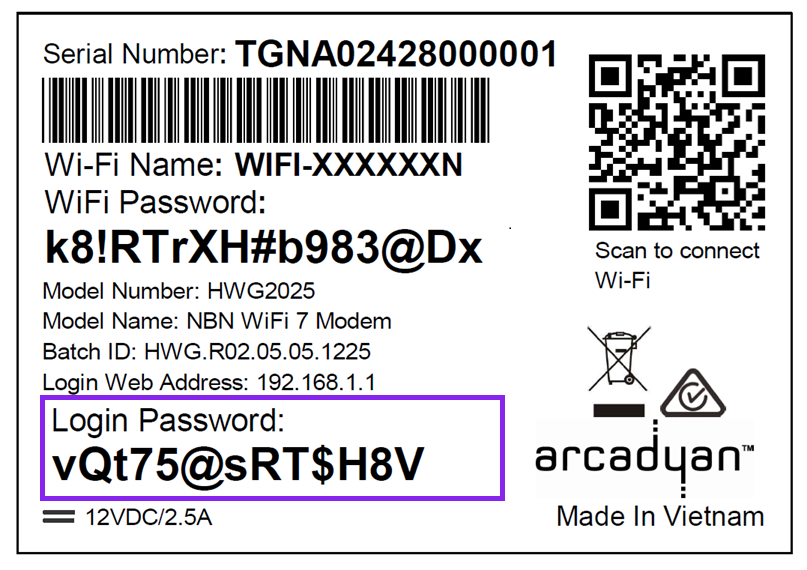
- Log in with the Login Password found on the modem's barcode sticker or use your custom password.
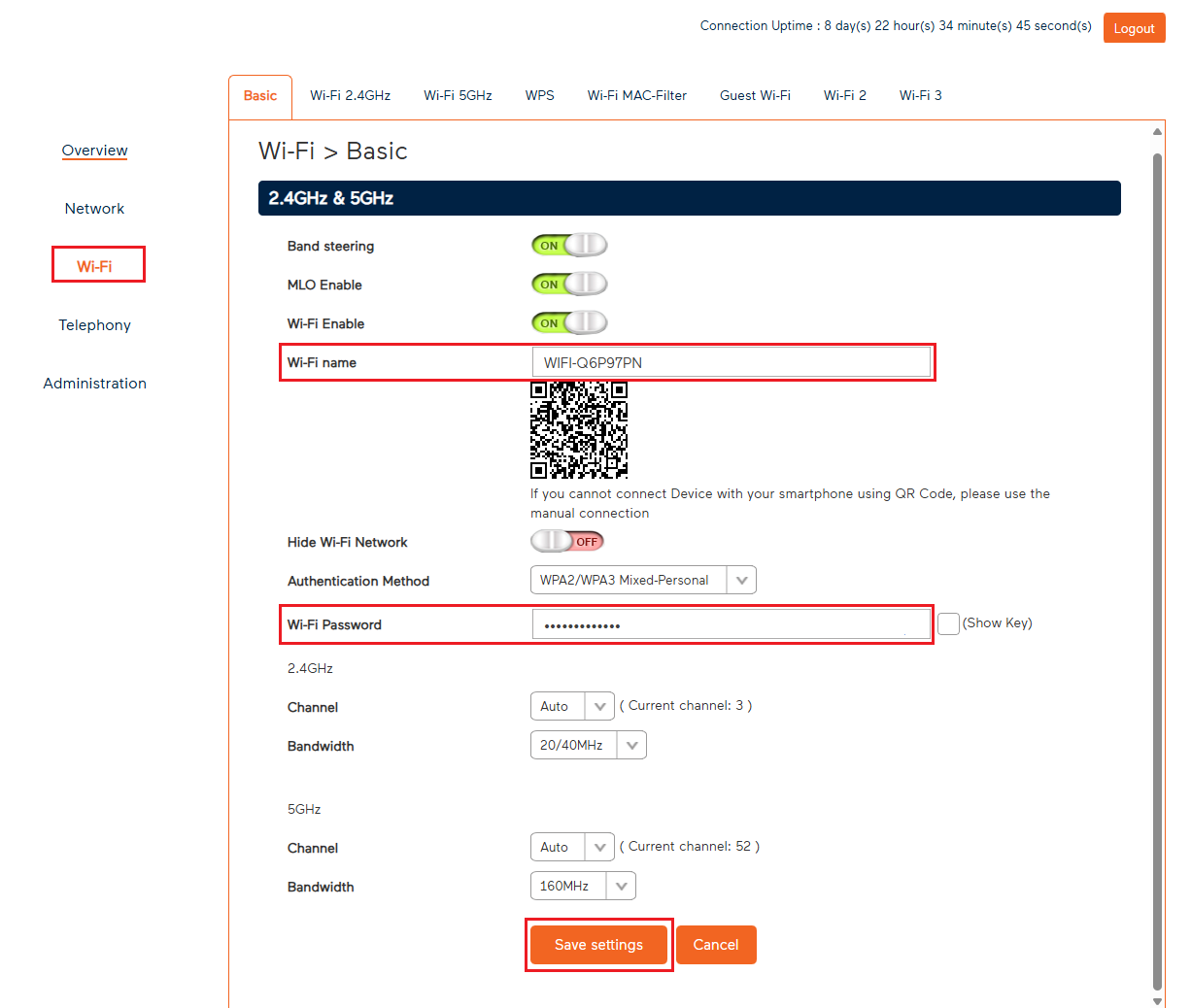
- From the left pane, click Wi-Fi.
- Under Basic, enter your desired new password in the Wi-Fi Password field.
Note: If Band Steering is toggled OFF, you will need to update the password for both 2.4GHz and 5GHz Wi-Fi. We recommend you use the 5GHz Wi-Fi unless your devices are too old to connect to the 5GHz network. - Enter your Wi-Fi name and Password as desired.
- Hit Save Settings, then reconnect your Wi-Fi devices using your new password.
Change your Wi-Fi password on a NetComm NL20 Modem
- Open your web browser and go to: http://192.168.1.1.
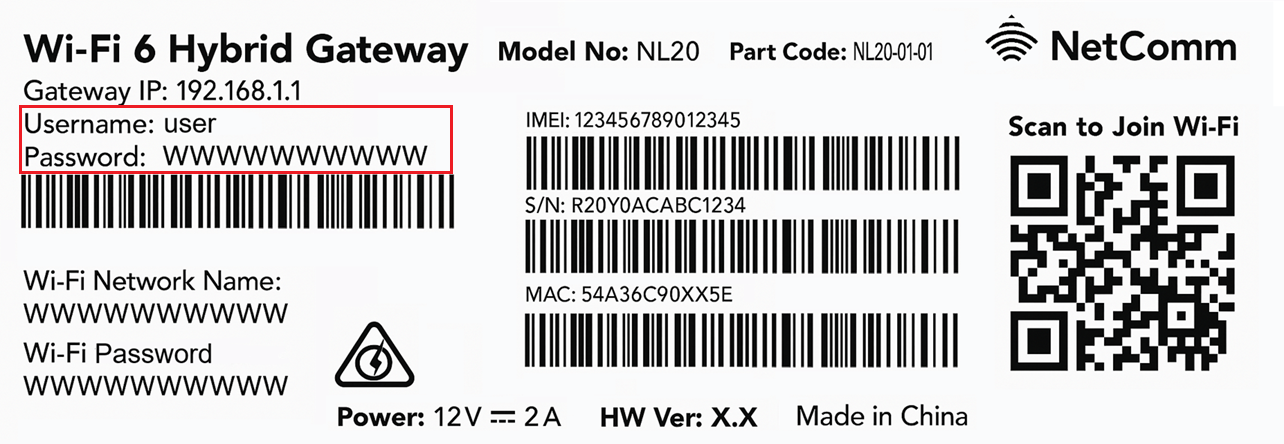
- Log in with the Username and Password found on the modem's barcode sticker or use your custom password.
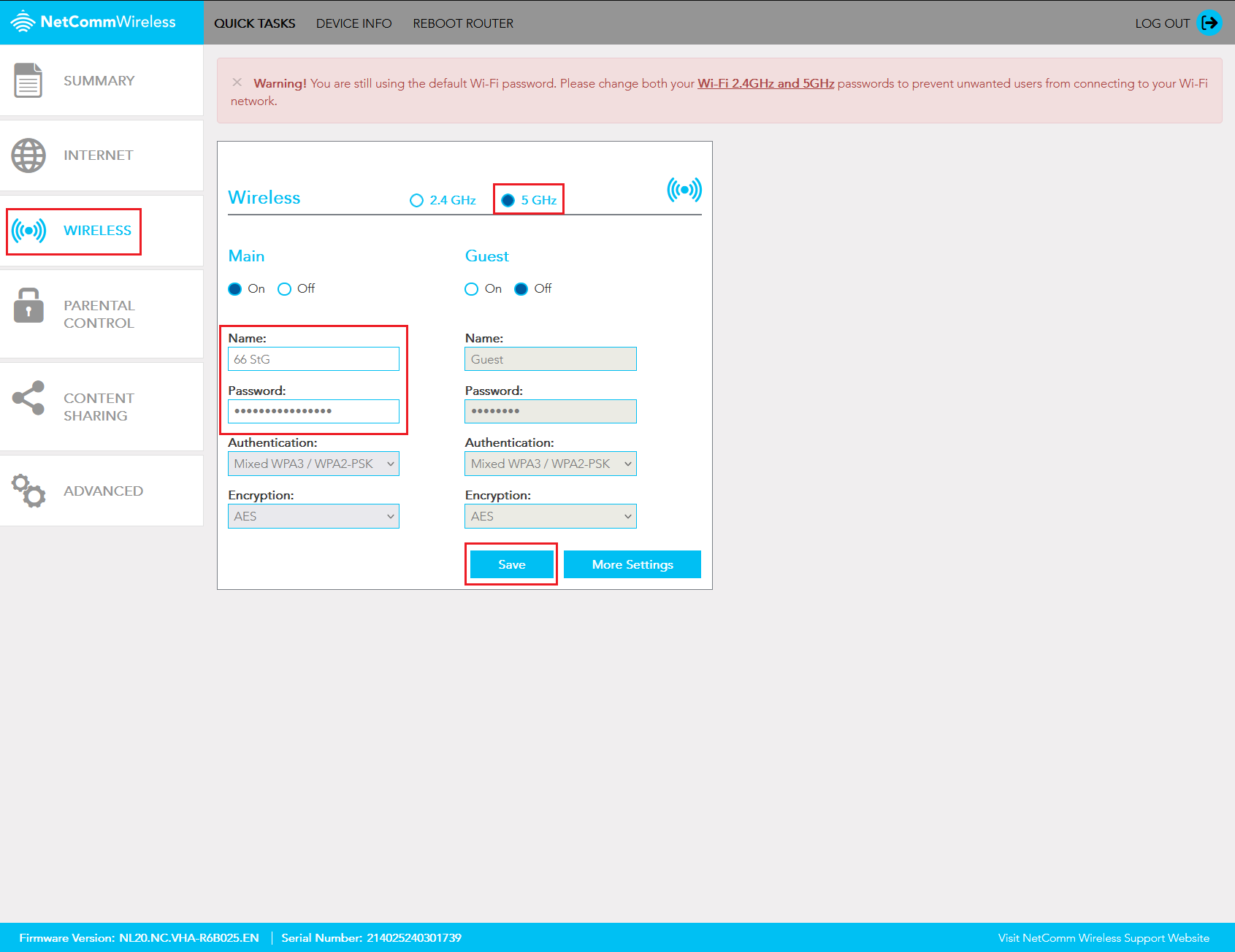
- In the left pane, click Wireless.
- Select the 2.4GHz or 5GHz radio button, depending on which Wi-Fi password you'd like to change.
Important: Make sure the names and passwords match for both 2.4GHz and 5GHz – this lets devices automatically switch between networks for the best Wi-Fi signal. We recommend you use the 5GHz Wi-Fi instead of the slower 2.4GHz Wi-Fi unless your devices are too old to connect with the 5GHz Wi-Fi. - If you want to change your Wi-Fi name, type it in the Name box.
- Type your new Wi-Fi password in the Password box.
- Hit Save to finish.
Change your Wi-Fi password on a Wi-Fi Max 5G Modem
From the My Internet Connect App
Don't want to use the app? You can change the Wi-Fi password in your web browser.
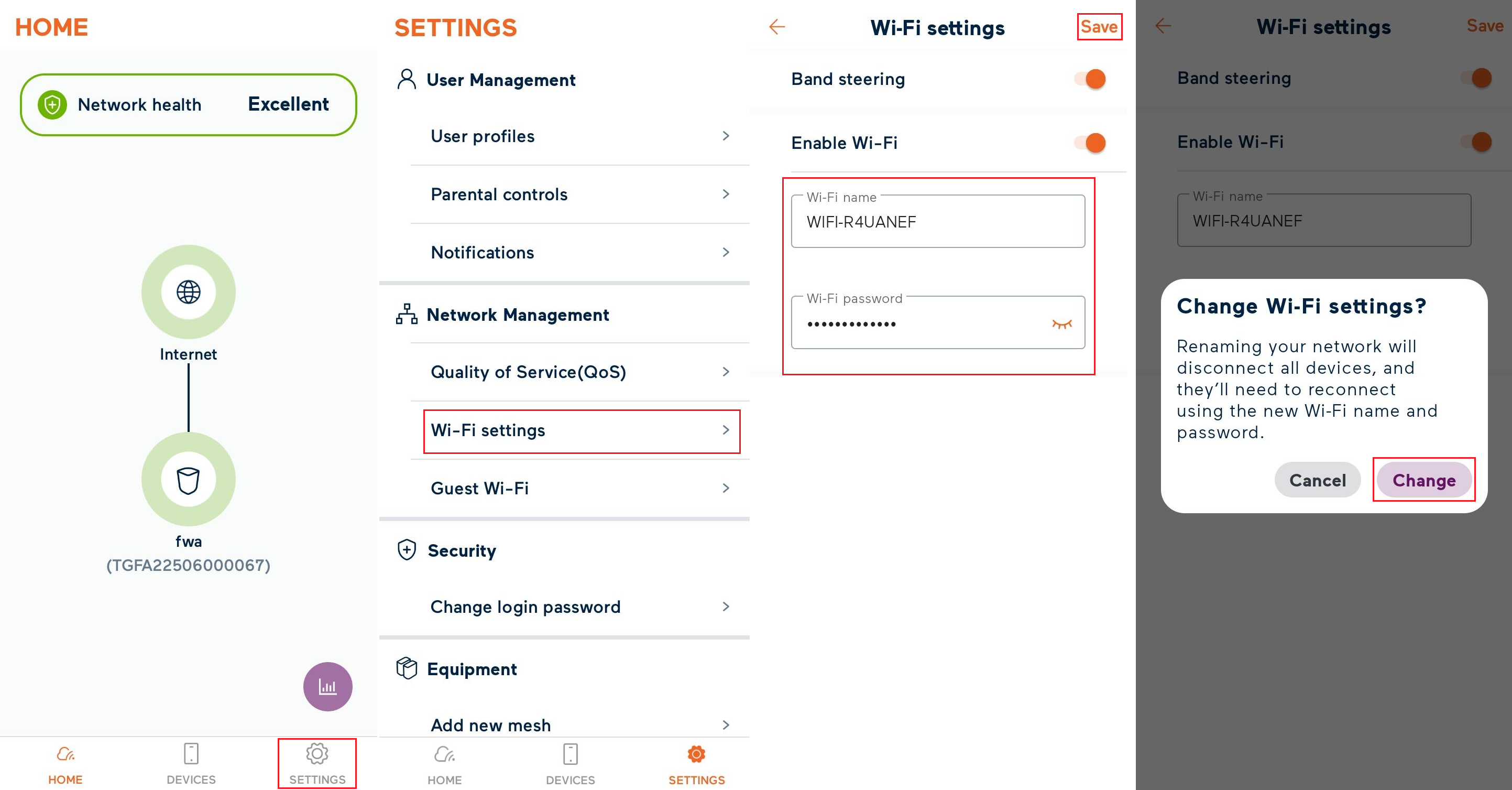
- Open the My Internet Connect App and tap Settings.
- Under Network Management, select Wi-Fi settings.
- Enter your Wi-Fi name and Wi-Fi password as desired then click Save at the top right of the screen.
Note: If Band Steering is toggled OFF, you will need to update the password for both 2.4GHz and 5GHz Wi-Fi. We recommend you use the 5GHz Wi-Fi unless your devices are too old to connect to the 5GHz network. - The app will start to update the network details. This may take 2-3 minutes to complete.
- Select Change, then reconnect your Wi-Fi devices using your new password.
Using your web browser
- Open your web browser and go to: https://192.168.1.1
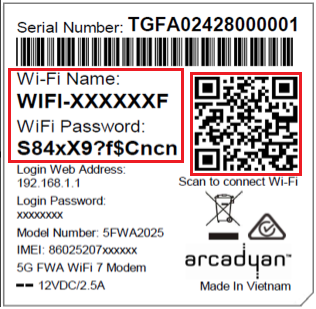
- Log in with the Login Password found on the modem's barcode sticker, or use your custom password.
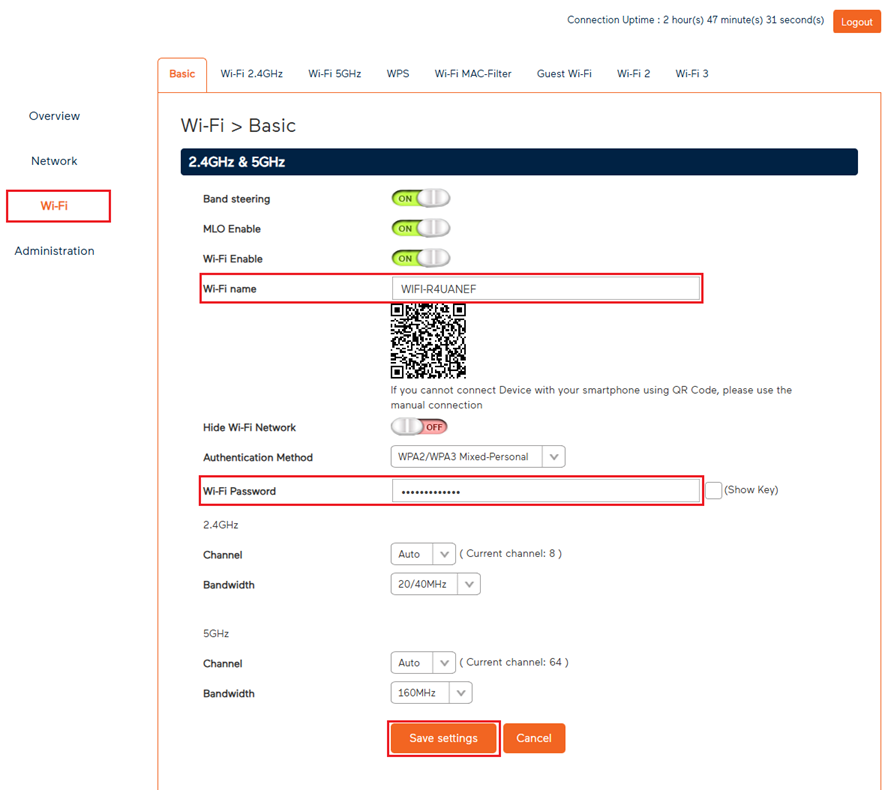
- From the left pane, click Wi-Fi.
- Under Basic, enter your desired new password in the Wi-Fi Password field.
Note: If Band Steering is toggled OFF, you will need to update the password for both 2.4GHz and 5GHz Wi-Fi. We recommend you use the 5GHz Wi-Fi unless your devices are too old to connect to the 5GHz network. - Enter your Wi-Fi name and Password as desired.
- Hit Save Settings, then reconnect your Wi-Fi devices using your new password.
Change your Wi-Fi password on a VX220-G2V Modem
- Open your web browser and go to: https://192.168.1.1
- Log in with the default password found on your modem's barcode sticker. If you have a custom password, use that instead.

- Select Wireless.
- Type your new password in the Password box.
Note: If Band Steering is turned off, you can set different passwords for the 2.4GHz and 5GHz Wi-Fi networks. - Hit Save, then reconnect your Wi-Fi devices using your new password.

Change your Wi-Fi password on a VX420-G2V Modem
- Open your web browser and go to: https://192.168.1.1
- Log in with the default password “admin”. If you have a custom password, use that instead.
- Select Wireless.
- Type your new password in the Password box.
Note: If Band Steering is turned off, you can set different passwords for the 2.4GHz and 5GHz Wi-Fi networks. - Hit Save, then reconnect your Wi-Fi devices using your new password.
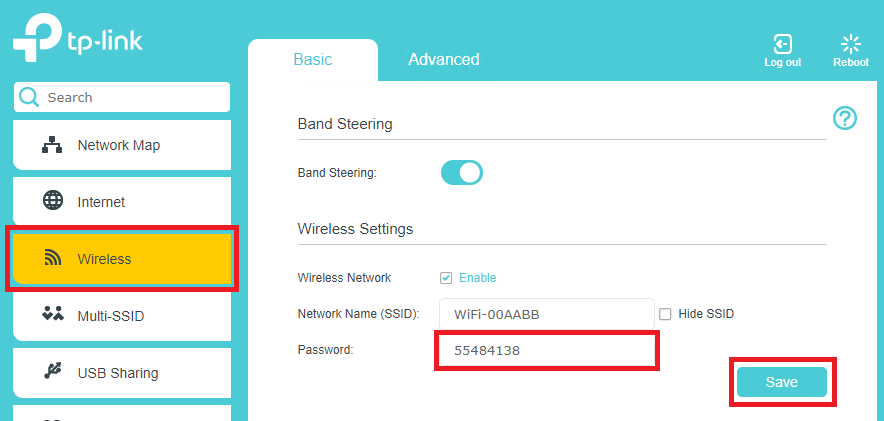
Change your Wi-Fi password on a Smart Modem Gateway (VX420-G2H)
- Open your web browser and go to: https://192.168.1.1
- Log in with the default password “admin”. If you have a custom password, use that instead.
- Select Wireless.
- Type your new password in the Password box.
Note: If Band Steering is turned off, you can set different passwords for the 2.4GHz and 5GHz Wi-Fi networks. - Hit Save, then reconnect your Wi-Fi devices using your new password.

Change your Wi-Fi password on a Nokia FastMile 3.2 5G Modem
Using the Nokia Wi-Fi App
Don't want to use the app? You can change the Wi-Fi password in your web browser.
- Open the Nokia Wi-Fi app and tap Settings.
- Under Wi-Fi Networks, tap your Wi-Fi name.
You'll find your modem's default Wi-Fi name (SSID) on its barcode sticker, e.g. "NOKIA-XXXX".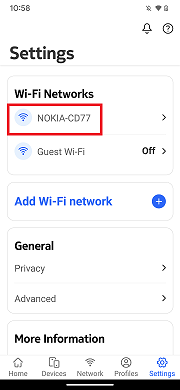
- Tap the Pencil icon in the top right-hand corner.
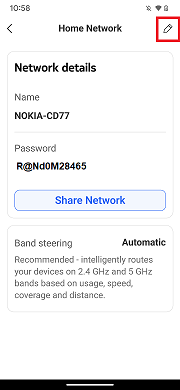
- Enter your new Wi-Fi Name and Password, then tap the Tick icon in the top right-hand corner.
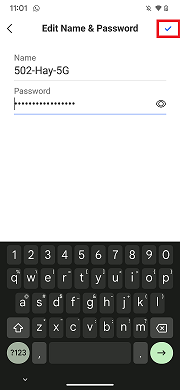
- A pop-up will remind you that you need to reconnect your devices to the Wi-Fi using the new name/password. Tap Ok, got it to finish.
- Wait 2-3 minutes, then reconnect your Wi-Fi devices using your new password.
Using your web browser
- Open your web browser and go to: https://192.168.1.1
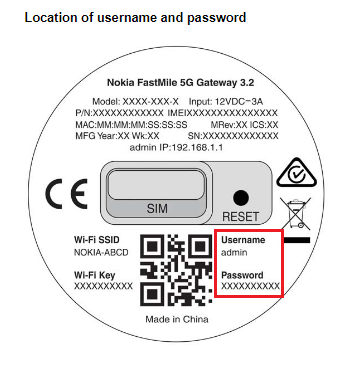
- Log in with your default username "admin" and the default password is on your modem's barcode sticker. If you have custom login details, use those instead.
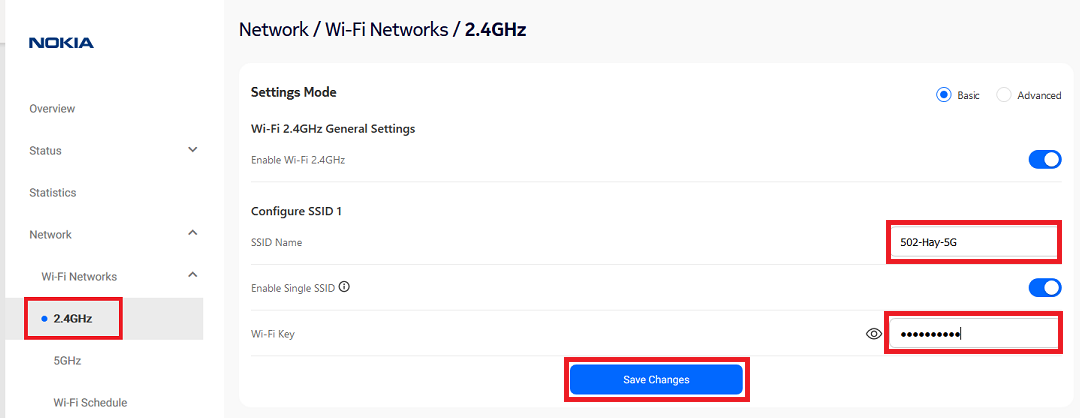
- Hit Network.
- Select Wi-Fi Networks, then 2.4GHz.
- If you want to change your Wi-Fi name, type it in the SSID Name box.
- Type your new Wi-Fi password in the Wi-Fi Key box, then hit Save Changes.
- Select 5GHz and enter your new SSID Name and/or Wi-Fi Key, then hit Save Changes.
Important: If Enable Single SSID is ON, make sure the names and passwords match for both 2.4GHz and 5GHz – this lets devices automatically switch between networks for the best Wi-Fi signal. - Reconnect your Wi-Fi devices using your new password.
Change your Wi-Fi password on a Sagemcom 5866
- Open your web browser and go to: https://192.168.1.1
- Log in with the default username “admin” and the default password on your modem's barcode sticker. If you have custom login details, use those instead.

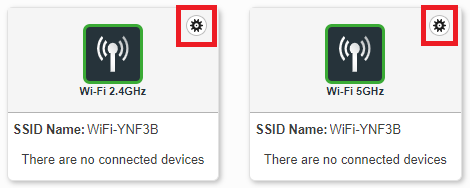
- Select the cog icon on the Wi-Fi 2.4GHz or 5GHz panel.
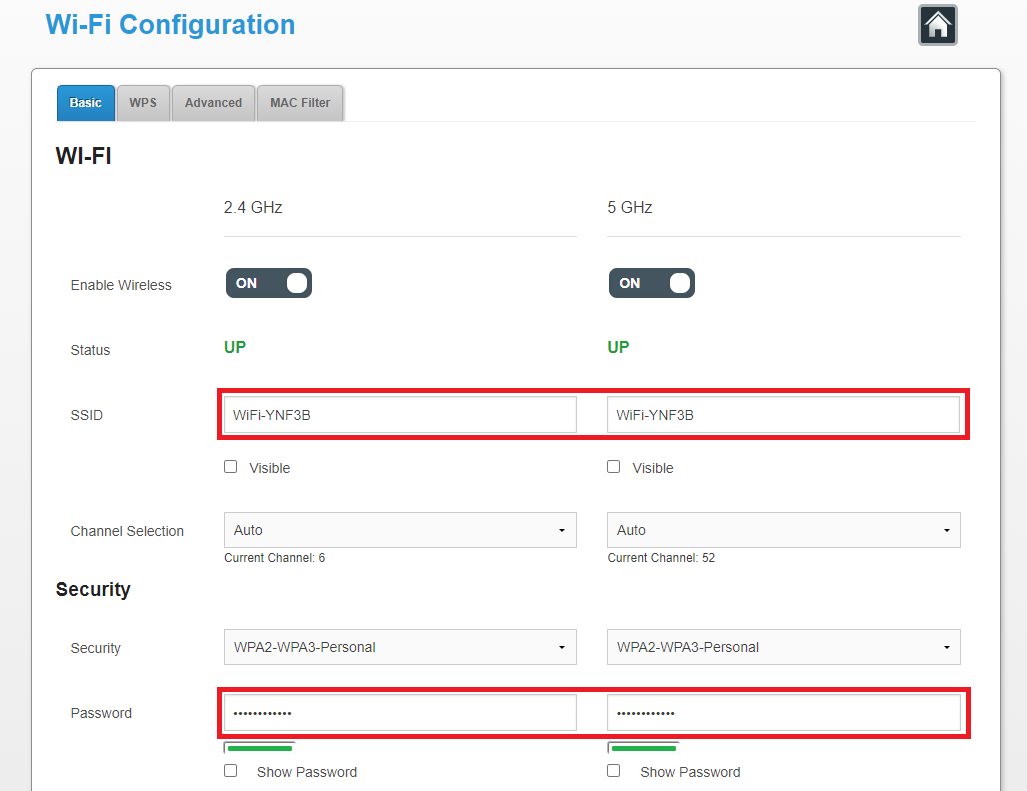
- If you want to change your Wi-Fi name, type it in both SSID boxes.
- Type your new Wi-Fi password in both Password boxes.
Important: Make sure the SSIDs and passwords match for both 2.4GHz and 5GHz – this lets devices automatically switch between networks for the best Wi-Fi signal. - Hit Apply, then reconnect your Wi-Fi devices using your new password.
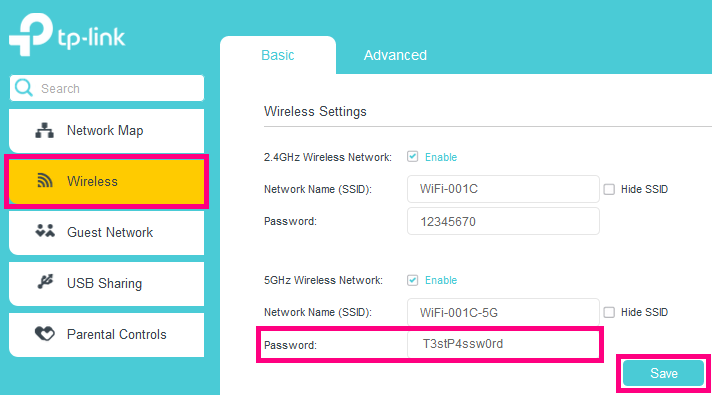
Change your Wi-Fi password on a TP-Link VR1600v
- Open your web browser and go to: https://192.168.1.1
- Log in with the default username "admin" and default password “admin”. If you have custom login details, use those instead.
- Select Wireless.
- Type your new password in the Password boxes for "2.4GHz Wiress Network" and "5GHz Wireless Network".
We recommend using the 5GHz Wi-Fi instead of the slower 2.4GHz Wi-Fi unless your devices are too old to connect to 5GHz Wi-Fi. - Hit Save, then reconnect your Wi-Fi devices using your new password.
You can check the data usage for your TPG Mobile service at any time. We'll also let you know when you've hit 50%, 85% and 100% of your monthly mobile data - the same goes for any other monthly plan inclusions, like international minutes.
Usage records in My Account may be delayed by up to 48 hours.
-
Log in to My Account and hit Mobile Usage.
Never used My Account before? Check out An Introduction to My Account.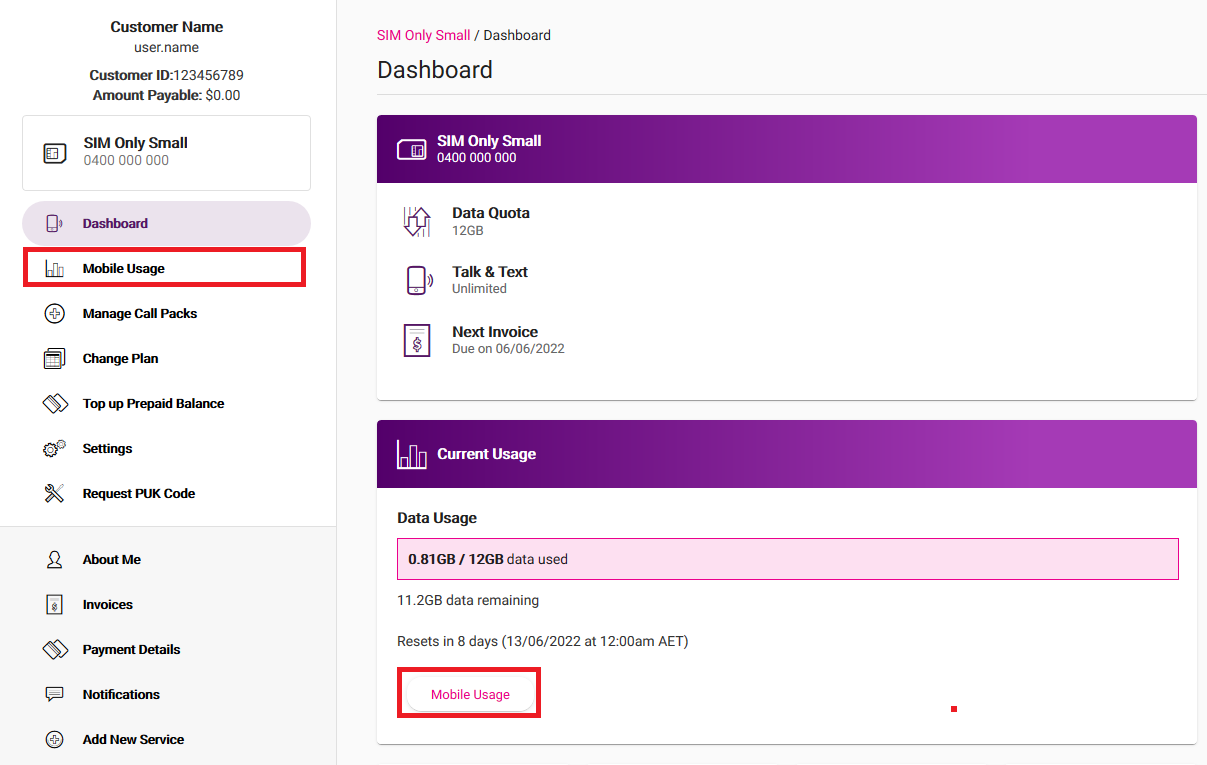
-
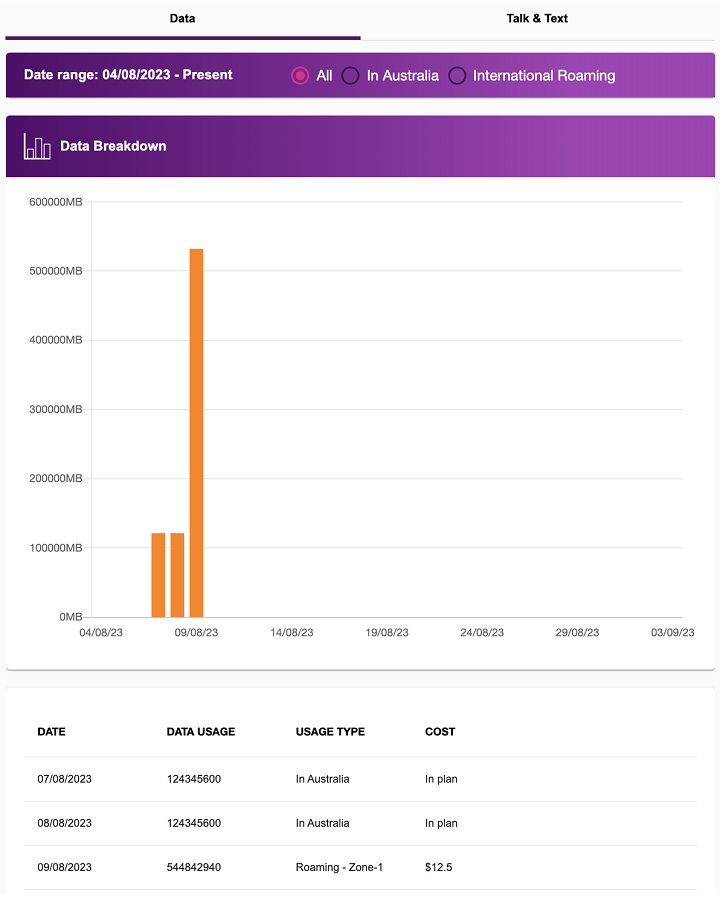
You'll see the usage for your current billing period by default. To see older usage, choose from the Date range drop-down menu.

-
You can switch between the Data and Talk & Text tabs depending on which type of mobile usage you want to check.
-
When viewing Data, you can filter by All data usage, data usage In Australia, or International Roaming.
-
The Talk & Text tab will show all your calls and texts for that billing period, including Date/Time, Called Number, Duration, Call Type, Area Called and Cost.

If you ever see a SIM Error message on your phone, here's what to do - including how to get your Personal Unlocking Key (PUK).
Select one of the links below to jump to a query:
- "Enter PUK" message
- "SIM card Rejected" message
- "Insert SIM" or "SIM error" message
- "Insert Correct SIM", "SIM card is locked" or "Enter subsidy password" message
"Enter PUK" message
- You SIM will lock if your PIN is entered wrong too many times. If you have a physical SIM, you’ll need to enter your PUK code.
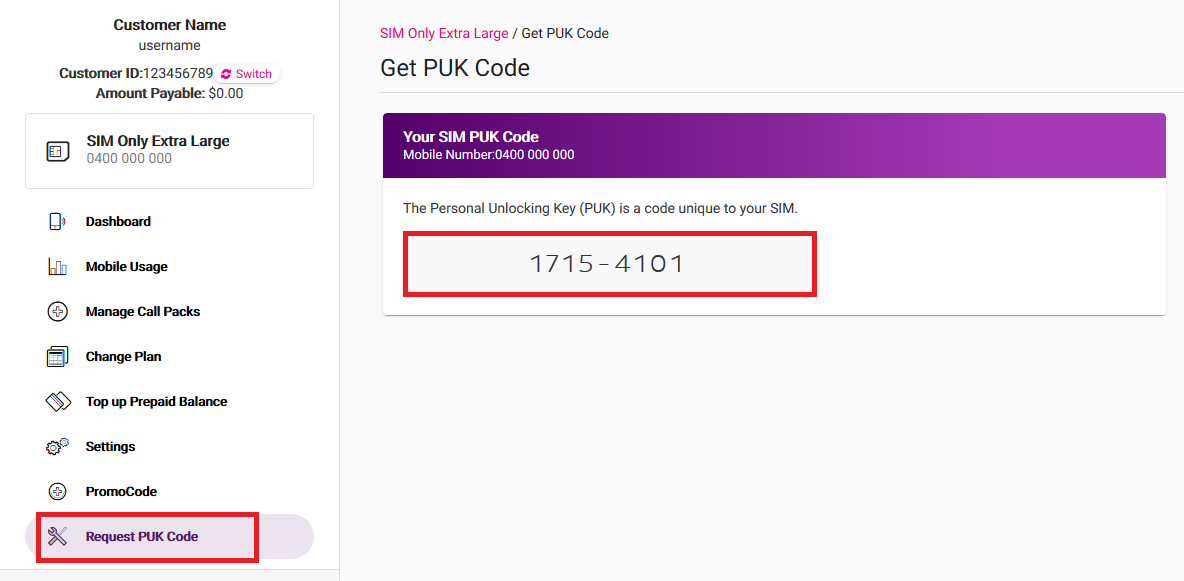
If you have an eSIM, you don't have a PUK. Order an eSIM Swap to get a new eSIM. - To find your PUK code, log in to My Account.
Important: Your one-time password to log into My Account is sent to the mobile number listed in the contact details for your TPG account. If you can’t use this mobile number because the SIM is locked, use another phone to call us on 1300 993 019 or contact us on our Live Chat and we'll help you out. - Hit Request PUK Code and enter the PUK on your phone.
"SIM card Rejected" message
Your SIM will be permanently wiped if the PUK is entered wrong more than 10 times. You’ll need to order a replacement SIM.
"Insert SIM" or "SIM error" message
- Make sure that your SIM is the correct size for your phone, and inserted correctly.
We don't recommend using a SIM adaptor to change the size of your SIM. - Remove your SIM and check the shiny part for scratches.
If your SIM is damaged or you need a different size, you'll need to order a replacement SIM.
"Insert Correct SIM", "SIM card is locked" or "Enter subsidy password" message
These messages mean that your phone is locked to a non-Vodafone carrier like Telstra or Optus. You'll need to contact the seller to get your phone unlocked.
We can't unlock phones for you.
Which type of SIM are you activating?
| Physical SIM | eSIM |
|---|---|
|

|
Important: Your mobile handset must not be locked to a specific provider. We cannot unlock handsets.
Select one of the links below to jump to a query:
Activate your physical SIM
-
Wait for your SIM to arrive before you attempt to activate.
-
Log in to My Account.
If you're activating a new Mobile number and don't have alternative mobile number to receive your passcode to log in to My Account, please call us on 1300 993 019 to verify your identity and activate your SIM. -
Click the check box and select Get Started.

-
New mobile numbers and replacement SIMs typically activate within 3 hours.
-
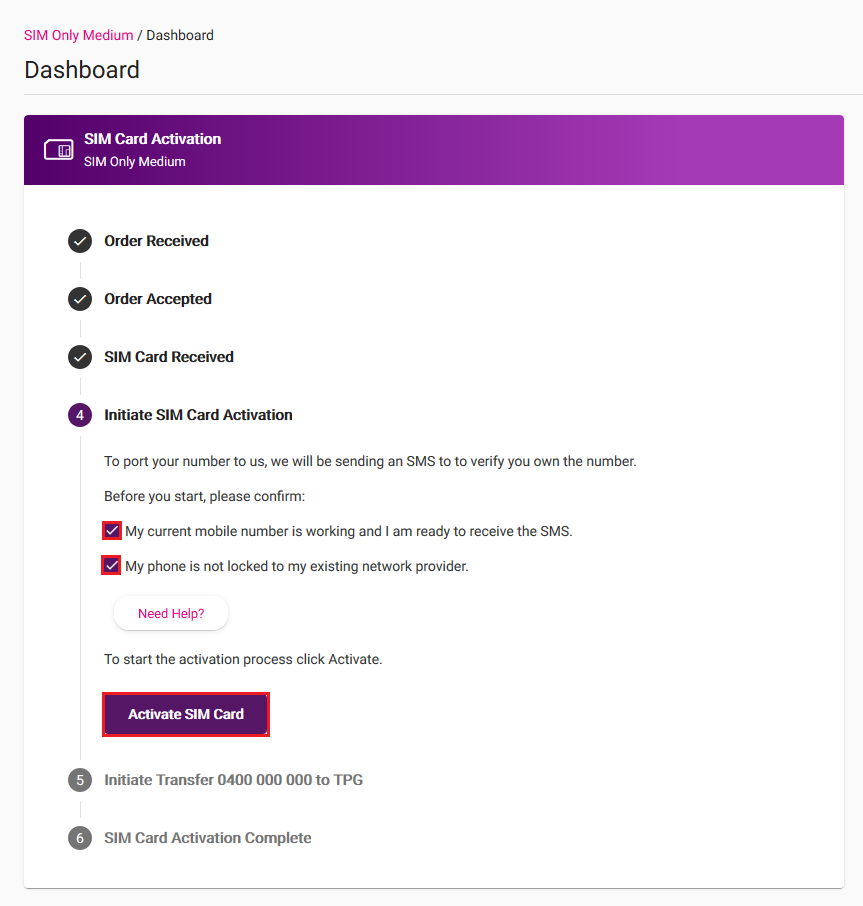
If you’re porting your mobile number to TPG from another provider, make sure your current mobile service is active and ready to receive an SMS. Tick the checkboxes and hit Activate SIM Card.
-
A porting authorisation SMS will be sent to your mobile number. Enter the code and click Verify Code.
-
The porting process will take approximately 3 hours and will only occur during these times:
Monday to Friday: 8 AM to 8 PM AET
Saturday: 10 AM to 6 PM AET - Keep using your old SIM until it stops working, then that's your cue to switch to your new TPG SIM.
If you have any issues, please call us on 1300 993 019 and we'll be happy to help.
Activate your eSIM
- Make sure you have access to:
- Your compatible mobile handset (to scan the eSIM QR code); and
- Another device such as a computer, laptop or tablet (to display the eSIM QR code).
Note: It’s best if both devices are connected to Wi-Fi. If you only have your compatible mobile handset, please see this advice.
- Use your other device to log in to My Account and select Start Activation on the dashboard, then follow the prompts.

- If you’re transferring your number to TPG, tick the checkboxes and select Transfer My Number Now. An authorisation code will be sent to your old SIM by SMS. Enter this code and select Verify Code.
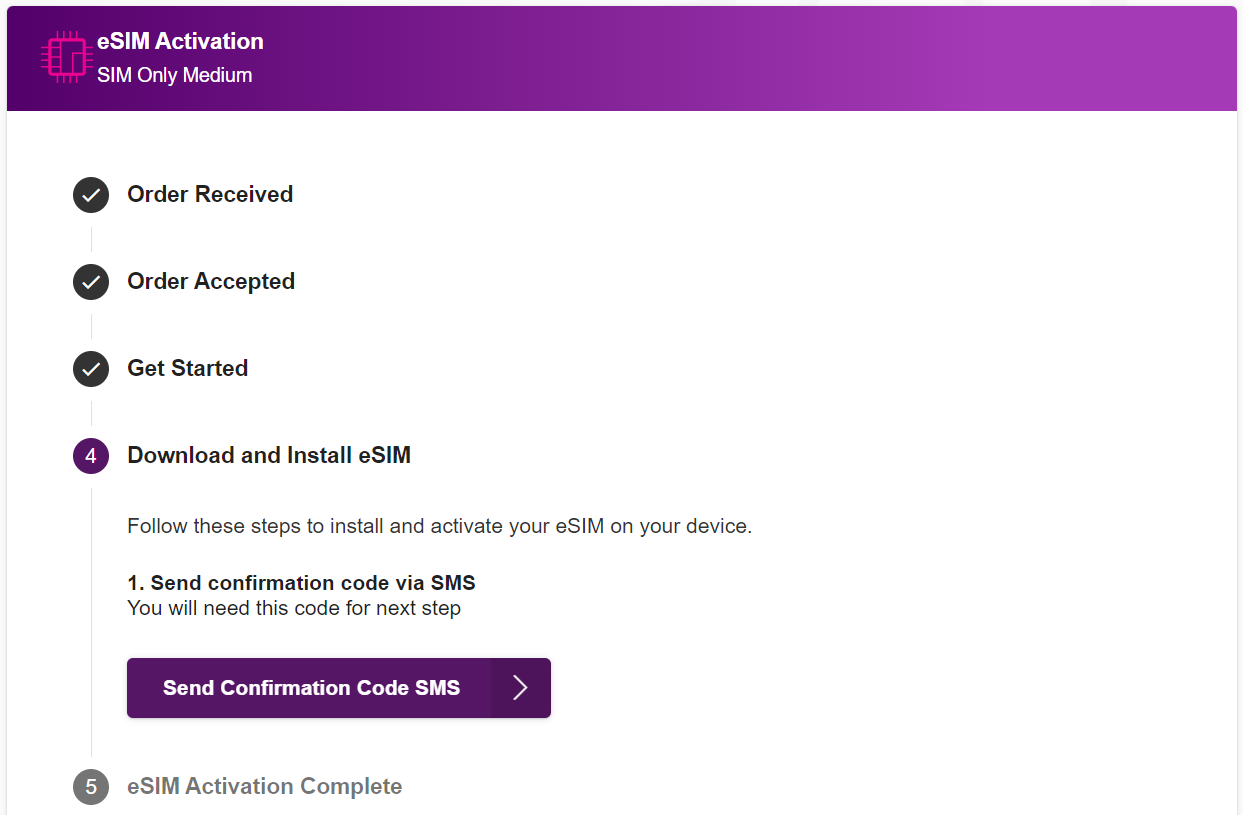
- Select Send Confirmation Code SMS, then use your mobile handset to scan the eSIM QR Code.
- Follow the prompts on your handset screen to set up your new plan and enter your confirmation code, then your new service should be ready in 15 minutes, or within 3 hours if you’re transferring your number. You may need to restart your handset afterwards.
For more information about using your eSIM once it’s activated, see eSIM Management. - If you’re transferring your mobile number to TPG:
- You may notice a different mobile number in your eSIM profile while your number transfer is still underway.
- Do not delete your eSIM profile as it will prevent a successful number transfer.
- If the correct mobile number isn’t showing after 3 hours and restarting your phone, please call us on 1300 993 019 for assistance. iPhone users can also try these steps.
- Your old SIM will stop working once eSIM activation is complete.
If you couldn’t activate your eSIM
- Follow these steps to update your mobile number in your settings:
- Refresh SIM registration in Android phone settings
- Update mobile number in iPhone settings
- If you still couldn't activate your eSIM, please find your mobile device’s EID then call us on 1300 993 019 and we'll be happy to help.
Troubleshooting
How to install an eSIM if you don’t have access to another device
If you don’t have access to another device such as a computer, laptop or tablet to display the eSIM QR code so that you can scan it using your compatible mobile handset:
- Use your handset to log in to My Account and access your eSIM details.
- You can then use one of these options:
- Select Print QR Code to print on a personal/work printer or seek printing services at your local post office or library. You can then use your handset to scan the printed QR code.
- Write down the eSIM details shown below the QR code, then enter the eSIM details manually in your handset settings. Please visit the manufacturer’s website for support information if you’re not sure how to do this.
- Select Email QR Code to send a copy of the eSIM QR code to the contact email address on your TPG account. You can then access your email on another device such as a public computer at your local library, then use your handset to scan the eSIM QR code.
Always log out of your email account at the end of your session on a public computer.
- Be sure to dispose of any printed or written eSIM details securely once you’re done.
How to refresh SIM registration in Android phone settings
- Open the Settings app and select Connections.
- Tap SIM Manager.
- Turn your SIM off, then wait 10-15 seconds.
- Turn your SIM back on again.
- Your SIM registration should now be refreshed with the correct mobile number. If the issue persists, please find your mobile device’s EID then call us on 1300 993 019 for help.
How to update the mobile number in iPhone settings
- First, make sure that Wi-Fi or Mobile data is turned on. You can check this in Settings > Wi-Fi or Settings > Cellular.
- Open the Settings app and select Phone > My Number.
- Tap Edit, enter your mobile number, and then tap Save.
- Return to the Settings app and select Messages > Send & Receive.
- Your SIM profile should now be working with the correct mobile number. If the issue persists, please find your mobile device’s EID then call us on 1300 993 019 for assistance.
How to find your mobile device’s EID
An Embedded Identity Document (EID) is a unique 32-digit number that can be found in your device settings.
iPhone
- Go to Settings > General.
- Choose About > EID and your EID will be shown.
Samsung
- Go to Settings > About Phone.
- Choose Status Information > EID and your EID will be shown.
- Go to Settings > About Phone.
- Choose SIM status > EID and your EID will be shown.
OPPO
- Go to Settings > About device.
- Choose Status > EID and your EID will be shown.
Here's everything you need to know about the different features available for TPG Mobile. You can manage these features through My Account, and Quick Codes that you can dial from your phone.
Note: Premium calls and SMS/MMS services are not available on TPG Mobile.
Select one of the links below to jump to a query:
- Voicemail
- How to get your Voicemail messages
- How to turn Voicemail on or off
- How to set up Voicemail for the first time
- How to change the way you get Voicemail notifications
- Do Voicemail messages expire?
- Call Barring
- Call Forwarding
- Manage all types of Call Forwarding in My Account
- Manage Call Forwarding Always with Quick Codes
- Manage Call Forwarding if Busy with Quick Codes
- Manage Call Forwarding if Unreachable with Quick Codes
- Manage Call Forwarding if No Reply with Quick Codes
- Caller ID
- Call Waiting
- Extend your mobile ring time
Voicemail
How to get your Voicemail messages
- Call 121 from your mobile handset.
- Alternatively, call 0414121121 from another phone and follow the prompts. Enter your mobile number and voicemail PIN.
- While overseas, call +61414121121 and follow the prompts. Enter your mobile number and voicemail PIN.
How to turn Voicemail on or off
-
Log in to My Account and hit Settings.
-
Use the Voicemail ON/OFF switch to turn Voicemail on or off. Changes will be saved automatically but may take up to 5 minutes to apply.
Note: To fully turn off Voicemail, you'll also need to dial "##002#" from your handset to disable all call forwarding to Voicemail.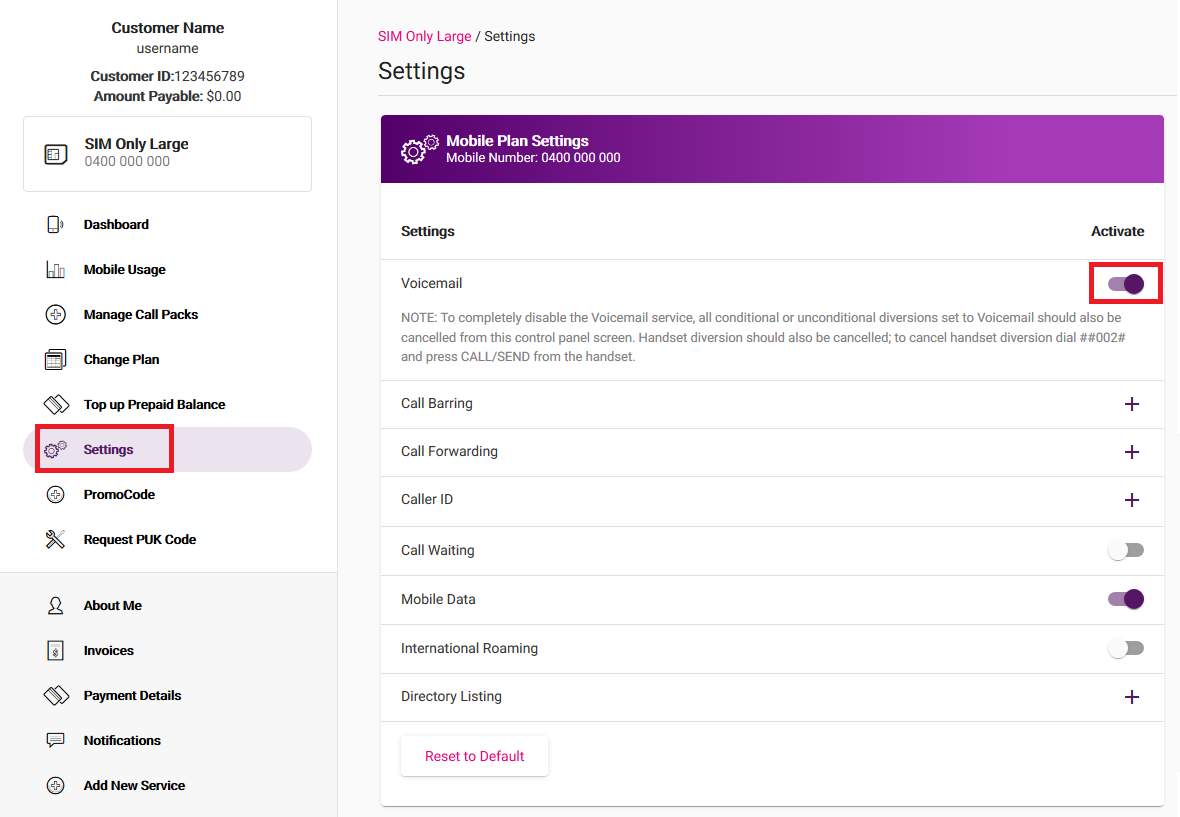
How to set up Voicemail for the first time
-
Call 121 from your mobile handset.
-
Follow the prompts to set your 4 to 10-digit voicemail PIN. You'll need this PIN to get your voicemail using another phone.
-
Record your name to personalise the standard greeting.
-
Choose your state/territory to set your time zone.
-
(Optional) Hold the line and follow the prompts to set a custom voicemail greeting or change the way your get Voicemail notifications.
SMS alerts are enabled by default. -
Hang up to finish.
How to change the way you get Voicemail notifications
- SMS Alert - Dial 1218 from your mobile handset to enable/disable.
- Ring Alert - No longer available as of 12 March 2024.
- Visual Voicemail (iPhones only) - Dial 1217 from your iPhone to enable/disable. You can manage your Visual Voicemail from your iPhone.
Do Voicemail messages expire?
Yes. New voicemail messages and messages saved in your mailbox will expire after 7 days. If you need to keep a message, you can save it for a further 7 days by pressing 2 while listening to the message. Once a message has expired it’s permanently erased and can’t be recovered.
Call Barring
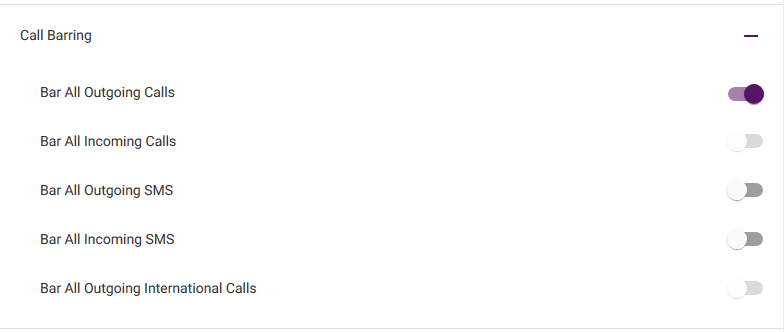
Call Barring can stop your mobile service from being able to make any calls, or just International calls.
-
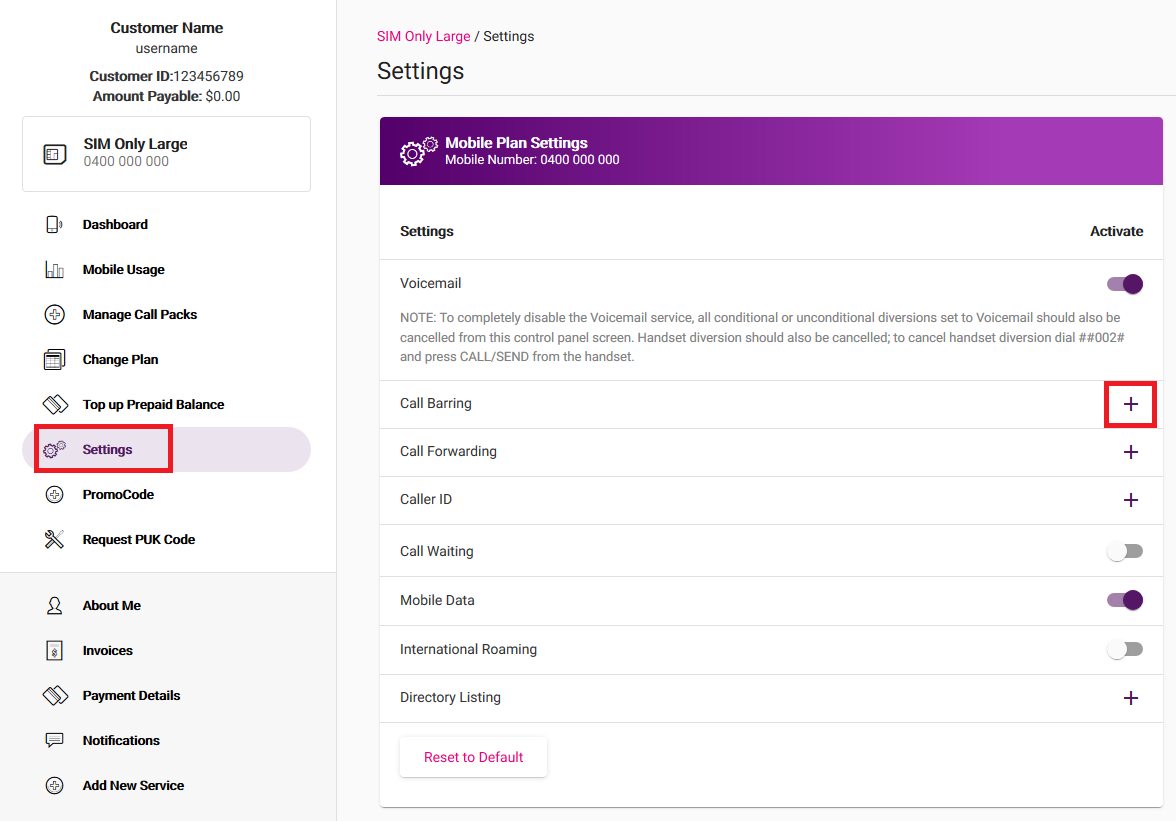
Log in to My Account and hit Settings.
-
Hit the + (plus) icon next to Call Barring.
-
Use the ON/OFF switches for Bar All Outgoing Calls or Bar All Outgoing International Calls as desired. Changes will be saved automatically but may take up to 5 minutes to apply.
Call Forwarding
Call Forwarding will forward calls to your mobile number to a different phone number according to these rules:
- Forward all calls
- Forward if busy
- Forward if no reply
- Forward if unreachable
Note: Standard call costs may apply when any call is forwarded, unless it's forwarded to Voicemail.
Manage all types of Call Forwarding in My Account
-
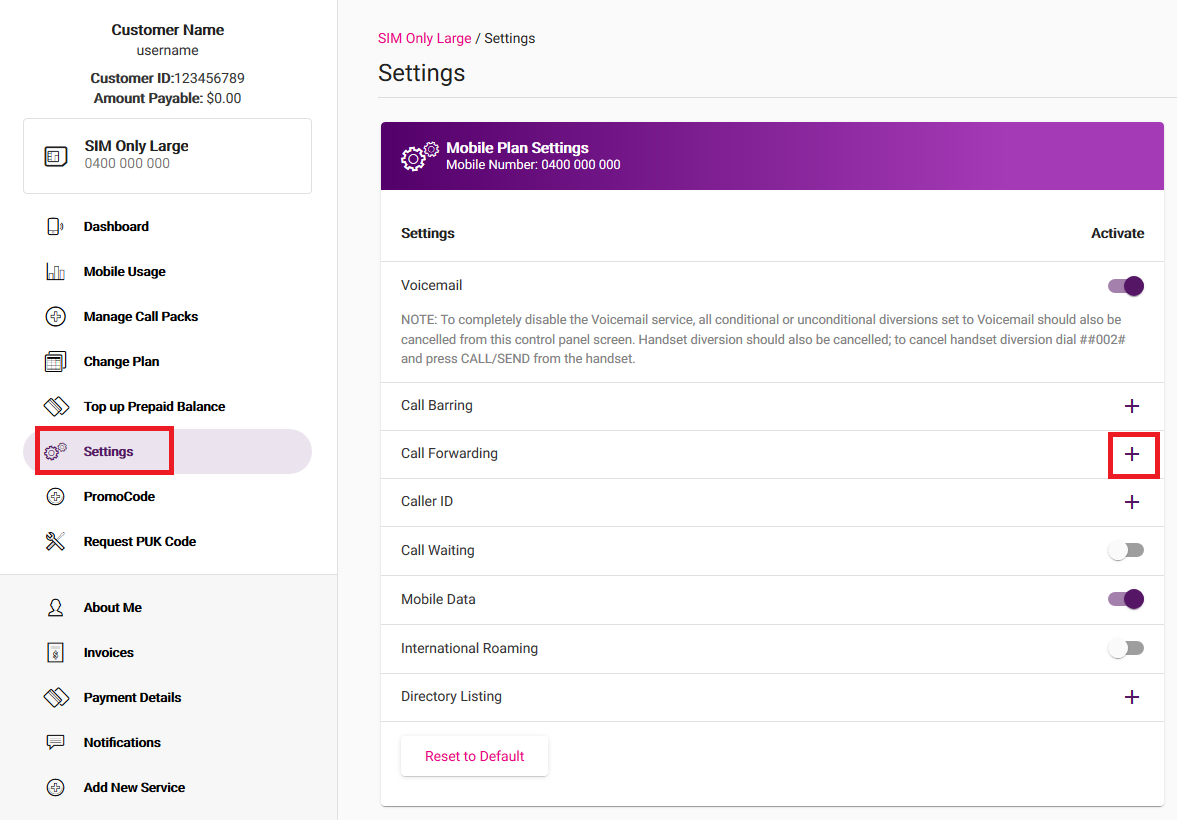
Log in to My Account and hit Settings.
-
Hit the + (plus) icon next to Call Forwarding.
-
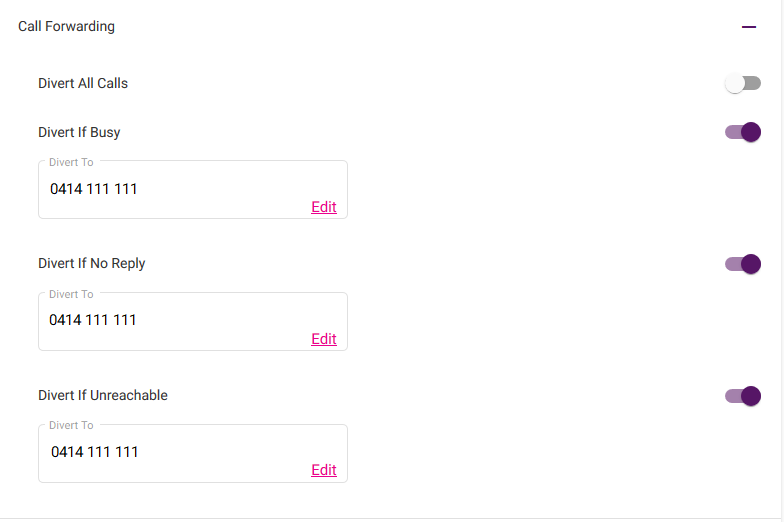
Adjust the ON/OFF switches for Divert All Calls, Divert if Busy, Divert if No Reply, or Divert if Unreachable as desired.
-
To change where calls are forwarded to for each type of call forwarding, hit Edit and enter the phone number in the Divert To text box, then hit Save. Changes may take up to 5 minutes to apply.
Manage Call Forwarding Always with Quick Codes
- To check if Call Forwarding Always is on or off, dial *#21# from your phone.
- To turn on Call Forwarding Always, dial **21* before the number you want to forward calls to, followed by #.
- To turn off Call Forwarding Always, dial #21#.
Manage Call Forwarding if Busy with Quick Codes
- To check if Call Forwarding if Busy is on or off, dial *#67# from your phone.
- To turn on Call Forwarding if Busy, dial **67* before the number you want to forward calls to, followed by #.
- To turn off Call Forwarding if Busy, dial #67#.
Manage Call Forwarding if Unreachable with Quick Codes
- To check if Call Forwarding if Unreachable is on or off, dial *#62# from your phone.
- To turn on Call Forwarding if Unreachable, dial **62* before the number you want to forward calls to, followed by #.
- To turn off Call Forwarding if Unreachable, dial #62#.
Manage Call Forwarding if No Reply with Quick Codes
- To check if Call Forwarding if No Reply is on or off, dial *#61# from your phone.
- To turn on Call Forwarding if No Reply, dial **61* before the number you want to forward calls to, followed by #.
- To turn off Call Forwarding if No Reply, dial #61#.
Caller ID
Caller ID allows you to change the way your mobile phone number is displayed when you are calling someone.
- You can turn Caller ID on or off in My Account, or by dialling 1571 from your phone.
- To hide your phone number for one call only, dial 1831 before the number you're calling.
- To show your phone number for one call only, dial 1832 before the number you're calling.
-
Log in to My Account and hit Settings.
-
Hit the + (plus) icon next to Caller ID.
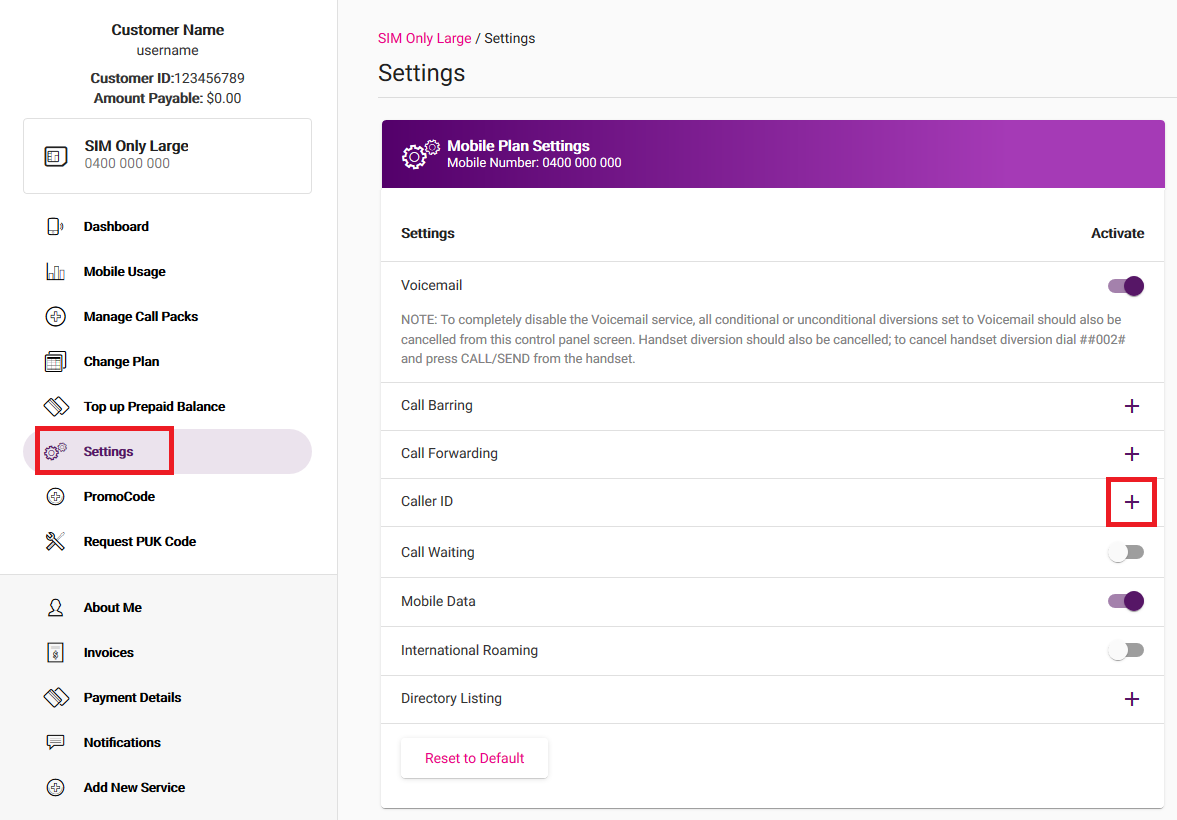
-
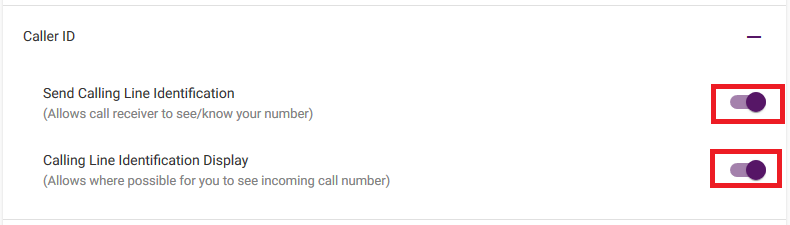
Adjust the ON/OFF switches for Send Calling Line Identification and/or Calling Line Identification Display as desired. Changes will be saved automatically but may take up to 5 minutes to apply.
Call Waiting
Call Waiting will play a tone if you get another call while you're already in a call. You can swap between two calls - if you get a third call, you'll need to hang up one of the first two calls.
- To check if Call waiting is on or off, dial *#43#.
- To turn on Call Waiting, dial *43#.
- To turn off Call Waiting, dial #43#.
Extend your mobile ring time
You can extend the ring time for incoming mobile calls to a maximum of 30 seconds, in increments of 5 seconds.
Dial **61*121** before the number of seconds to ring (e.g. 20, 25 or 30), followed by #.
When you change your TPG Mobile plan, your new plan will kick in at the start of your next billing period. If your next billing period begins in less than 7 days, your new plan will kick in at the start of the following billing period instead.
Important: If you submit multiple plan changes, you may override your previous plan change.
-
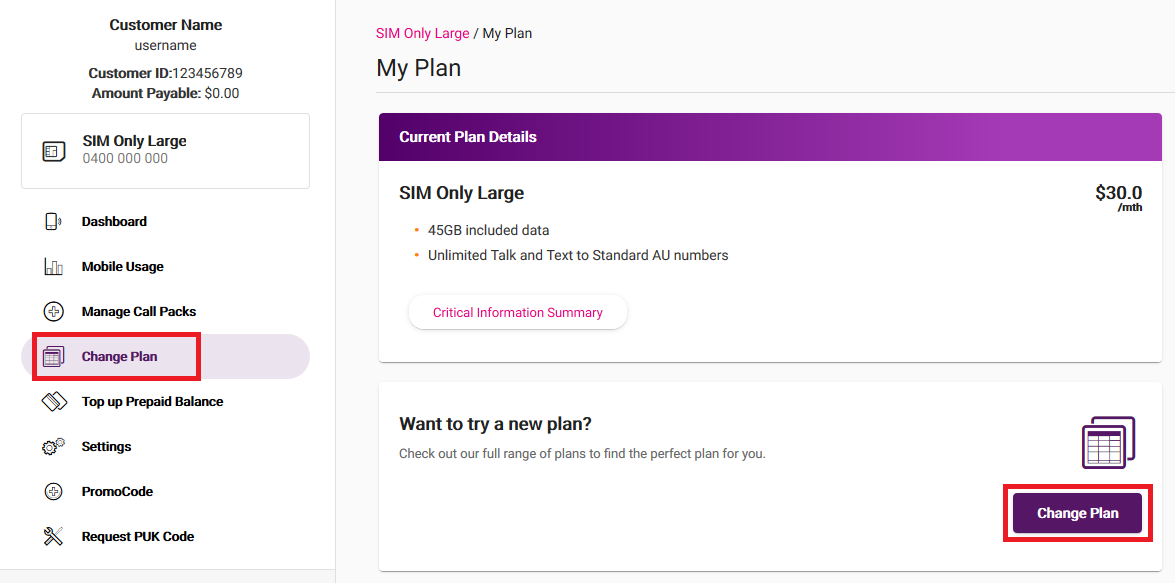
Log in to My Account and hit Change Plan.
Never used My Account before? Check out An Introduction to My Account. -
Under "Want to try a new plan?", hit Change Plan.
-
Choose your new plan from the list of available options. Take note of the date your plan change will happen, then hit Next.

-
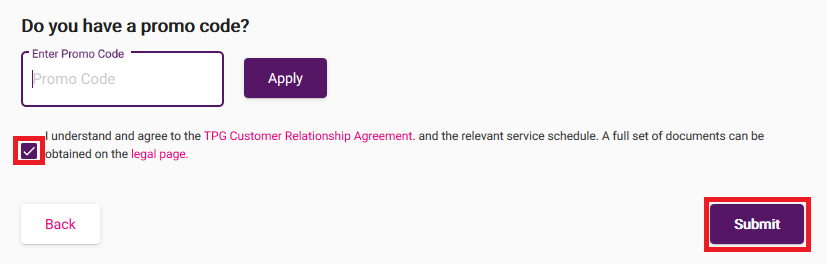
You'll see a summary of your plan change. If you have a promo code, enter it and hit Apply.
-
Tick the box to agree to the terms and conditions and then hit Submit.
-
We'll send you an email and SMS to confirm when your plan change is done.
Are most websites fine but you can't get to one website? These steps will help identify the issue.
-
The website may just be affected by an outage or planned maintenance. You can check the website on Is It Down Right Now? or Down For Everyone or Just Me.
If the website has an outage or planned maintenance, you'll need to wait until it's over. -
Clear your browser cache, then try to view the website. Here are guides for popular browsers:
- Mozilla Firefox Clear cache
- Google Chrome Clear cache & cookies
- Apple Safari Clear history, cache & cookies
- Microsoft Edge Manage and clear cache -
Try visiting the website on a different web browser, like Mozilla Firefox or Google Chrome.
If a different web browser works, try resetting your browser:
- Mozilla Firefox Refresh to default settings
- Google Chrome Reset to default
- Apple Safari Remove all website data
- Microsoft Edge currently can't be reset, please use a different browser. -
Run a PingPlotter test for the website and keep the results handy. We'll need them to investigate your issue.
-
Still can't go to the website? Call us on 13 14 23 and we'll help you.
Here’s how you can set up a compatible bring-your-own (BYO) modem for TPG nbn Wireless.
Your nbn Phone service and included calls are not available if you use a BYO modem.
Select one of the links below to jump to a query:
Modem compatibility
To work on TPG nbn Wireless, your modem must:
- Be nbn-ready and able to support your nbn plan speed
- Support PPPoE connections by Ethernet WAN
For a list of modems tested by our team, see nbn BYO modem requirements.
General nbn® Wireless setup guide for any modem
All modems are different. If this advice doesn’t work for your modem, check the manufacturer’s website for a guide on how to plug in and enter the TPG settings.
- Find your nbn Connection Box (NCB) – this will be installed near the wall socket that connects to your nbn Wireless antenna. Unplug any old modem from the nbn Connection Box and power outlet.
- Use an Ethernet cable to connect your modem's WAN or LAN/WAN port to your NCB's UNI-D1 port.
Our email/SMS will tell you if you need to use a different UNI-D port. - Use the power cable to connect your modem's Power port to a power outlet, then turn it on.
If your modem has a power button or switch, turn it on.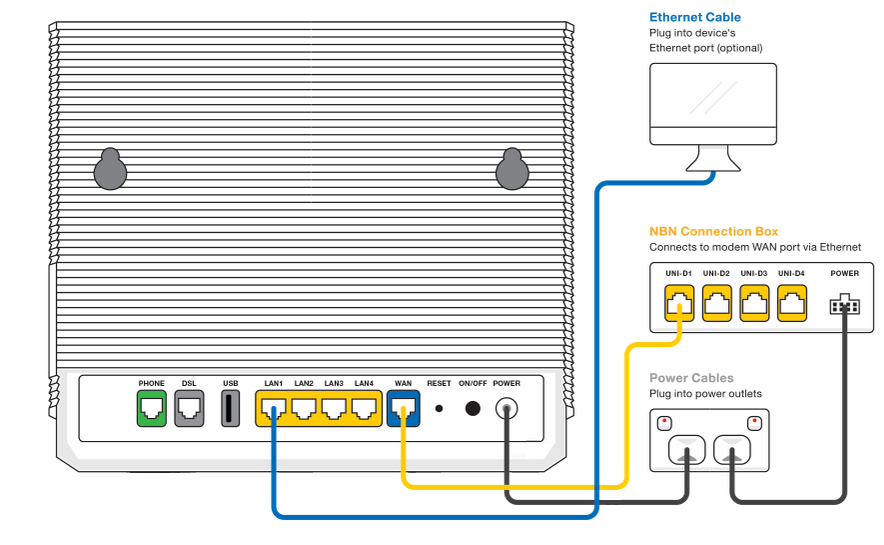
- Connect a device to your modem. You can use an Ethernet cable to connect a device to one of the LAN or Ethernet ports, or connect via WiFi.
The default WiFi name (SSID) and password can be found on your modem’s barcode sticker.
- On your connected device, open your web browser and go to your modem’s gateway address (e.g. http://192.168.1.1). The gateway address and login details can be found on the barcode sticker.
Modems may have a login username and password, or just a password.
- Make sure your modem has the following settings. If you’re not sure how to do this, check the manufacturer’s website for a guide.
Mode/Modulation: WAN
Connection Type: PPPoE
- You’ll need to enter your TPG username and password for the PPPoE connection. Your username is in emails from us about your TPG order, and on your TPG invoice.
If you forgot your password, you can reset it. - Save your settings and wait 5-10 minutes for your modem to connect.
- You should now be online. If you can’t view a website or notice a red or unlit Internet light on your modem, call us on 1300 997 271 for help.
We’re fully trained on TPG modems, but please note that there may be limited support for your BYO modem.
Check the manufacturer's website for a setup guide on how to plug in and enter the TPG Broadband Settings.
Here's how to check your basic Wi-Fi settings on a TPG modem. This will make sure Wi-Fi is turned on, confirm your Wi-Fi name and password, make sure your Wi-Fi name isn't hidden, and make sure any band steering is turned on.
Band steering is a feature that lets your devices automatically switch between 2.4GHz Wi-Fi and 5GHz Wi-Fi for the best Wi-Fi signal.
Don't have a TPG modem? Check the manufacturer's website for a guide.
Choose your modem:
Basic Wi-Fi settings on a Wi-Fi Max Modem
From the My Internet Connect App
Don't want to use the app? You can do it in your web browser.
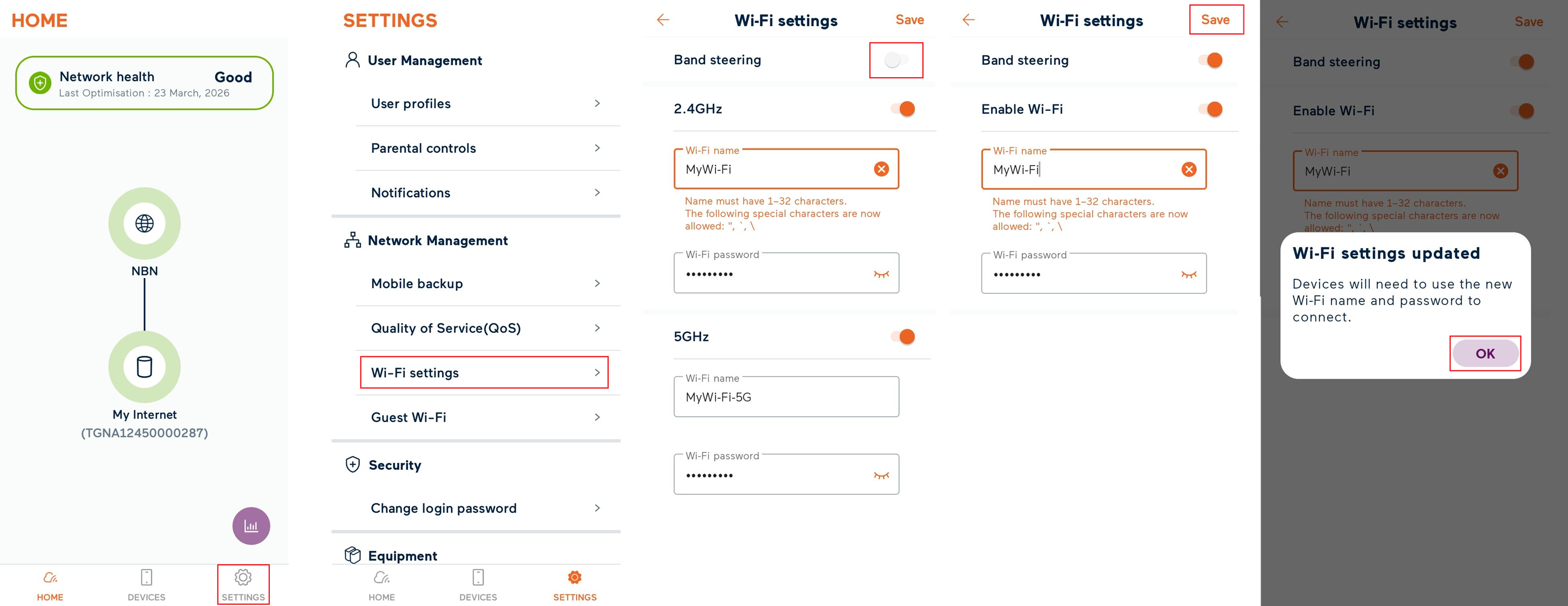
- Open the My Internet Connect App and tap Settings.
- Under Network Management, select Wi-Fi settings.
- By default, Band Steering will be toggled ON, and you'll see one set of Wireless settings which will be applied to both the 2.4GHz and 5GHz Wi-Fi networks.
Note: If Band Steering is turned OFF, you will see separate 2.4GHz and 5GHz settings, and your devices will not automatically switch between the 5GHz/2.4GHz Wi-Fi networks depending on the best available signal. - Make sure that Enable Wi-Fi or the 2.4GHz and 5GHz options are toggled ON .
- On these pages, you'll also find the Wi-Fi name and Wi-Fi password.
- If you made any changes, click Save, then OK to finish.
From the Modem Dashboard
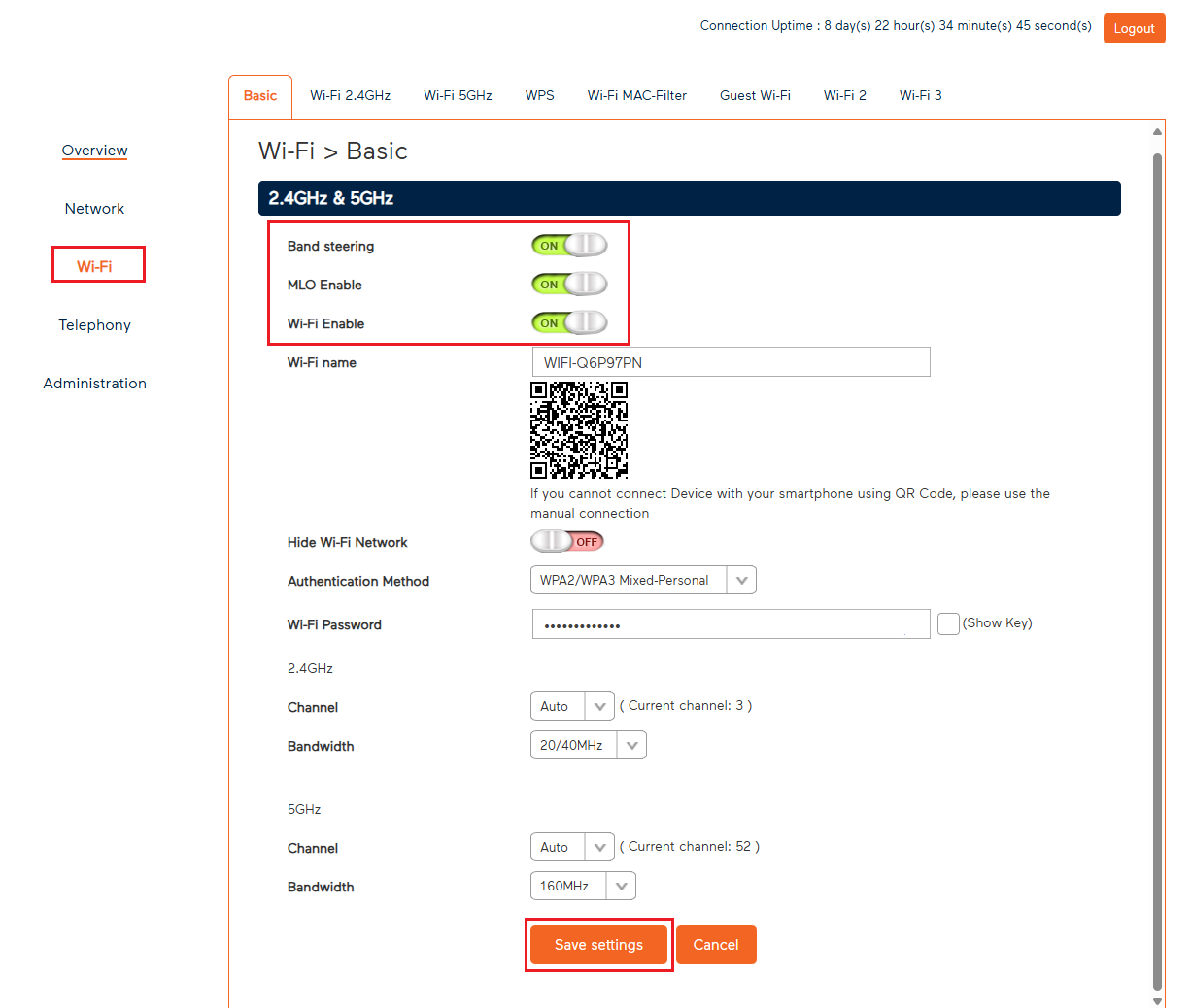
- Open your web browser and go to: https://192.168.1.1
- Log in with the Login Password found on the modem's barcode sticker or use your custom password.
- From the left pane, click Wi-Fi.
- By default, Band Steering will be toggled ON, and you'll see one set of Wireless settings which will be applied to both the 2.4GHz and 5GHz Wi-Fi networks.
If Band Steering is turned OFF, you will see separate 2.4GHz and 5GHz settings, and your devices will not automatically switch between the 5GHz/2.4GHz Wi-Fi networks depending on the best available signal. - Make sure that MLO Enable is toggled ON.
This feature allows devices to use multiple frequency bands for better performance. - Make sure that Wi-Fi Enable is toggled ON.
- Make sure that Hide Wi-Fi Network is toggled OFF. If the Wi-Fi network is hidden, then your Wi-Fi network name(s) won't show up in the list of available networks when you try to connect.
- If you made any changes, click Save to finish.
Basic Wi-Fi settings on a NetComm NL20 Modem
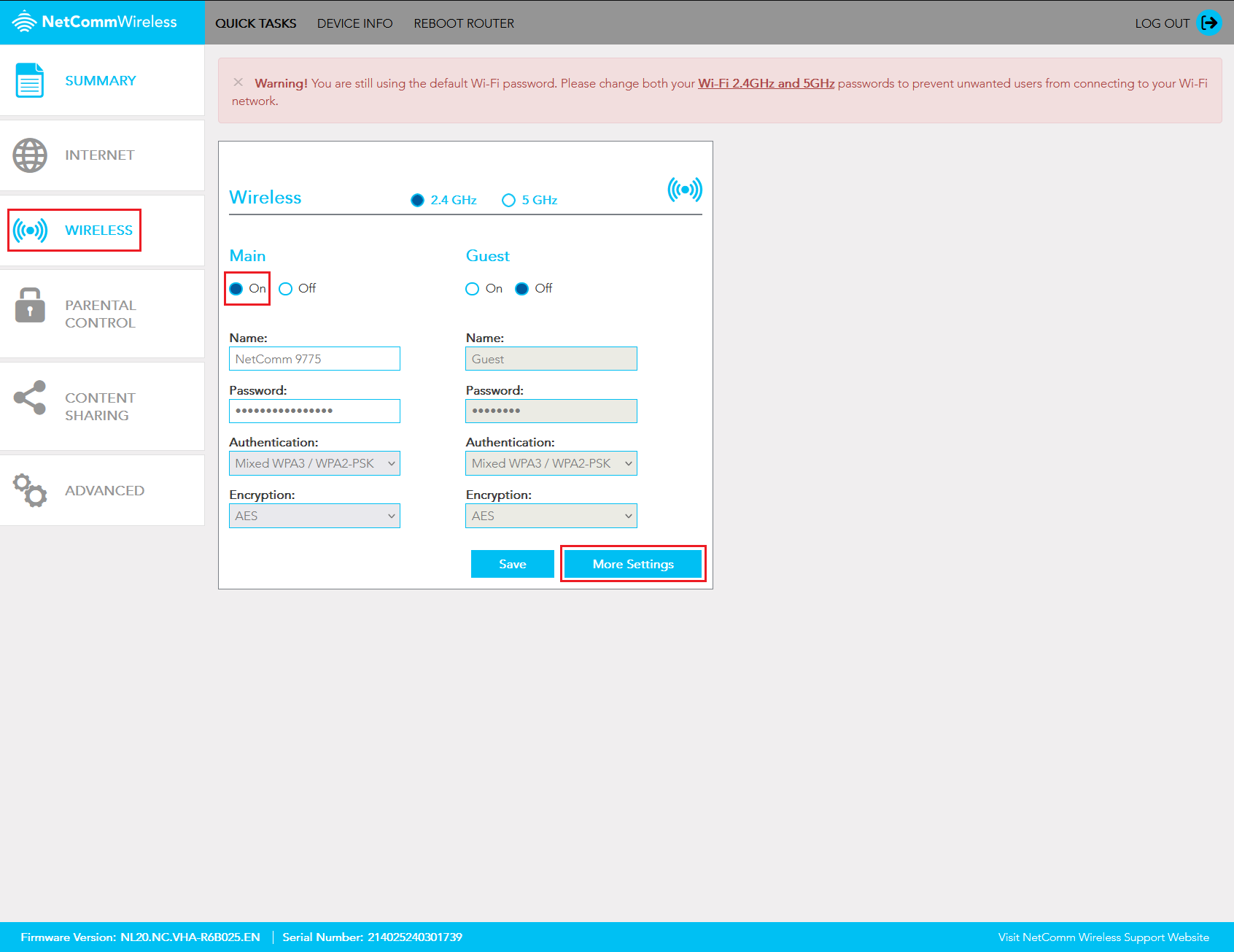
- Open your web browser and go to: http://192.168.1.1.
- Log in with the Username and Password found on the modem's barcode sticker or use your custom password.
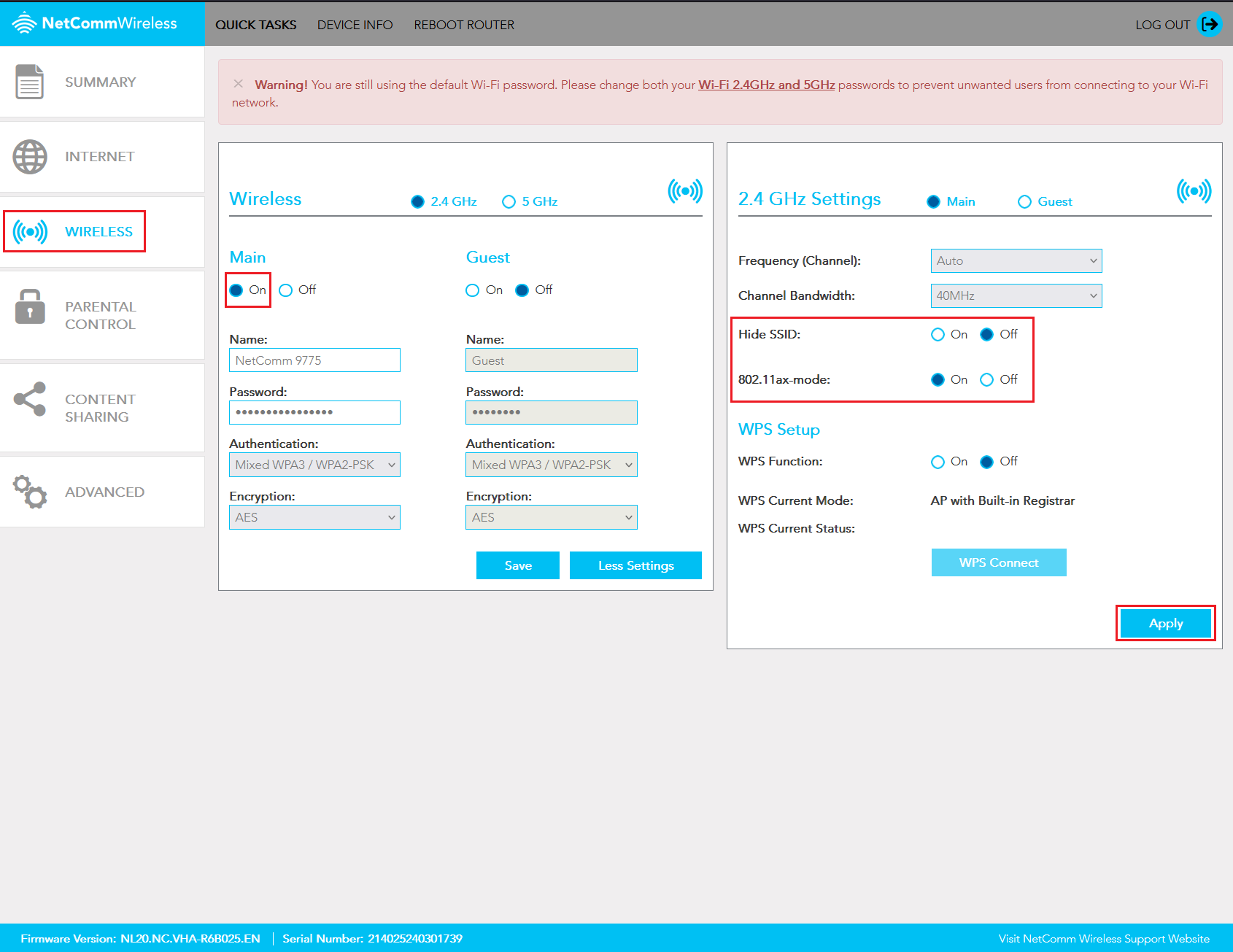
- In the left pane, click Wireless.
- Select the 2.4GHz or 5GHz radio button.
- Make sure that Main is On, then select More Settings.
- Make sure that Hide SSID is Off.
- Make sure that 802.11ax-mode is On.
Note: You can enable WPS by selecting the On radio button next to WPS Function. - If you made any changes, hit Apply.
Basic Wi-Fi settings on a Wi-Fi Max 5G Modem
From the My Internet Connect App
Don't want to use the app? You can do it in your web browser.
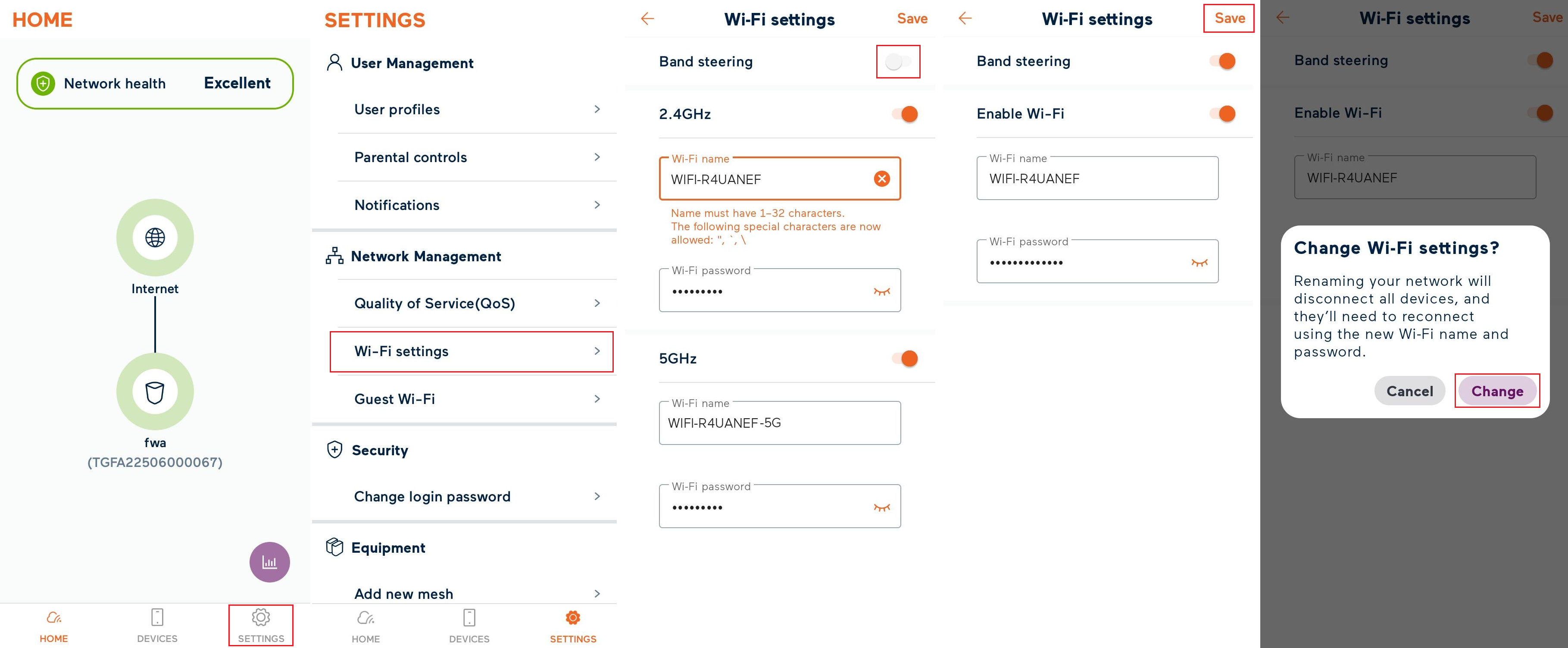
- Open the My Internet Connect App and tap Settings.
- Under Network Management, select Wi-Fi settings.
- By default, Band steering will be toggled ON, and you'll see one set of Wireless settings which will be applied to both the 2.4GHz and 5GHz Wi-Fi networks.
If Band Steering is turned OFF, you will see separate 2.4GHz and 5GHz settings, and your devices will not automatically switch between the 5GHz/2.4GHz Wi-Fi networks depending on the best available signal. - Make sure that Enable Wi-Fi or the 2.4GHz and 5GHz options are toggled ON.
- On this pages, you'll also find the Wi-Fi name and Wi-Fi password.
- If you made any changes, click Save then Change to finish.
From the Modem Dashboard
- Open your web browser and go to: https://192.168.1.1
- Log in with the Login Password found on the modem's barcode sticker or use your custom password.
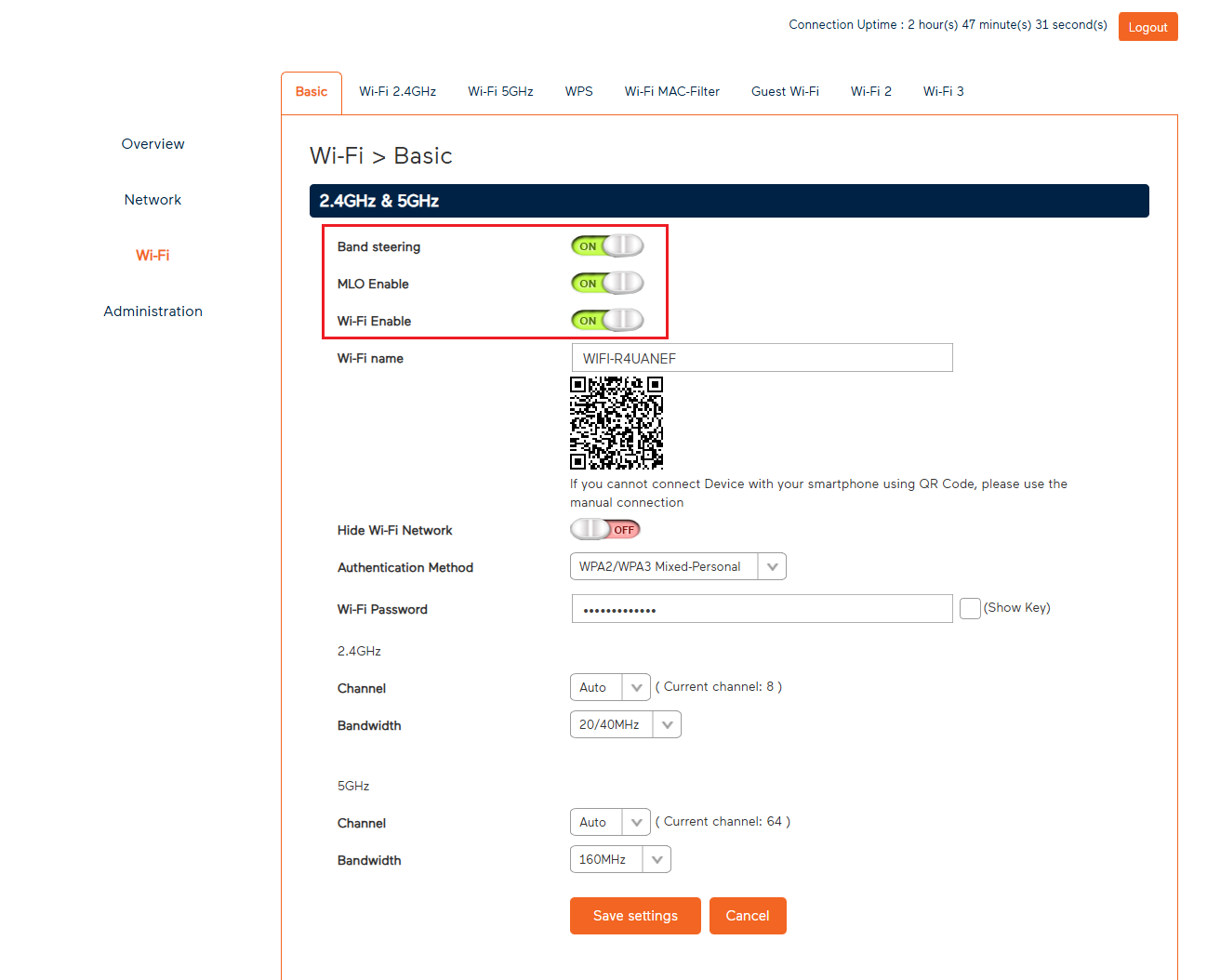
- From the left pane, click Wi-Fi.
- By default, Band Steering will be toggled ON, and you'll see one set of Wireless settings which will be applied to both the 2.4GHz and 5GHz Wi-Fi networks.
If Band Steering is turned OFF, you will see separate 2.4GHz and 5GHz settings, and your devices will not automatically switch between the 5GHz/2.4GHz Wi-Fi networks depending on the best available signal. - Make sure that Wi-Fi Enable is toggled ON.
- Make sure that MLO Enable is toggled ON.
This feature allows devices to use multiple frequency bands for better performance. - Make sure that Hide SSID is toggled OFF. If the SSID is hidden, then your Wi-Fi network name(s) won't show up in the list of available networks when you try to connect.
- If you made any changes, click Save to finish.
Basic Wi-Fi settings on a Nokia FastMile 3.2 5G Modem
Note: The Enable Single SSID (band steering) feature can't be managed in the Nokia Wi-Fi app.
- Open your web browser and go to: https://192.168.1.1
- Log in with your default username "admin" and the default password is on your modem's barcode sticker. If you have custom login details, use those instead.

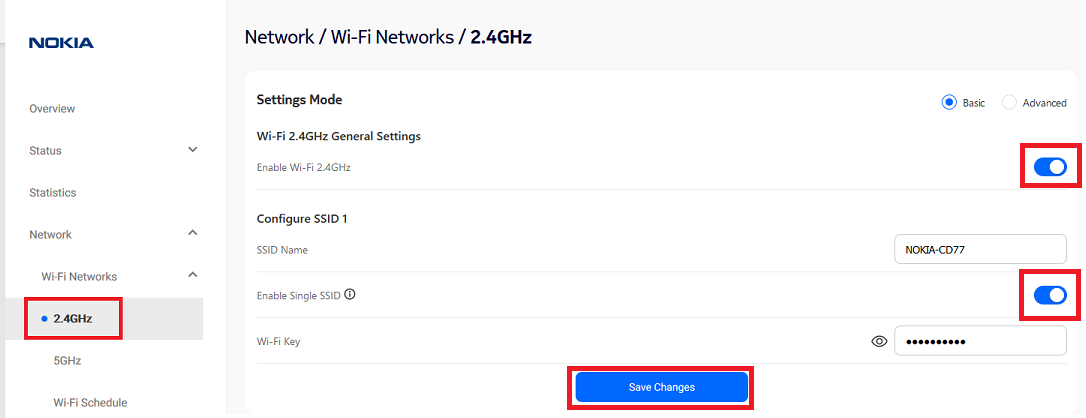
- Hit Network.
- Select Wi-Fi Networks, then 2.4GHz.
- Make sure that Enable Wi-Fi 2.4GHz is ON.
- Make sure that Enable Single SSID and is ON.
If Enable Single SSID is ON, the Wi-Fi names (SSID Name) and passwords (Wi-Fi Key) must match for both 2.4GHz and 5GHz Wi-Fi – this lets devices automatically switch between networks for the best Wi-Fi signal. - If you made any changes, hit Save Changes.
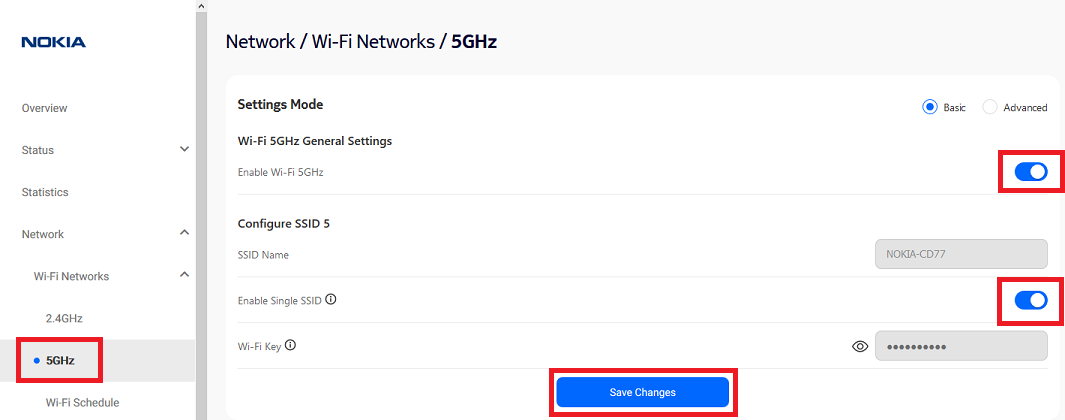
- Next, the same checks need to be made for the 5GHz Wi-Fi network. Select Wi-Fi Networks, then 5GHz.
- Make sure that Enable Wi-Fi 5GHz is ON.
- Make sure that Enable Single SSID and is ON.
- If you made any changes, hit Save Changes.
Basic Wi-Fi settings on a VX220-G2V Modem
-
Open your web browser and go to: https://192.168.1.1
- Log in with the default password found on your modem's barcode sticker. If you have a custom password, use that instead.
-
Select Wireless.
-
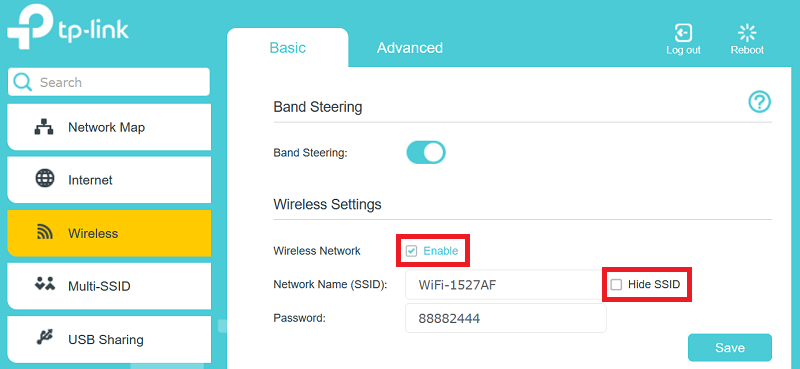
By default, Band Steering will be turned ON, and you'll see settings which that apply to both 2.4GHz and 5GHz Wi-Fi networks.
If Band Steering is turned OFF, you will see separate 2.4GHz and 5GHz settings, and your devices will not automatically switch between networks for the best Wi-Fi signal. -
Make sure that Wireless Network - Enable is ticked.
-
Make sure that Hide SSID is NOT ticked.
If the SSID is hidden, then your Wi-Fi name(s) won't show up when you try to connect devices. -
On this page, you'll also find the Wi-Fi Name (Network Name SSID) and Password.
-
If you made any changes, hit Save.
Basic Wi-Fi settings on a VX420-G2V Modem
-
Open your web browser and go to: https://192.168.1.1
-
Log in with the default password “admin”. If you have a custom password, use that instead.
-
Select Wireless.
-
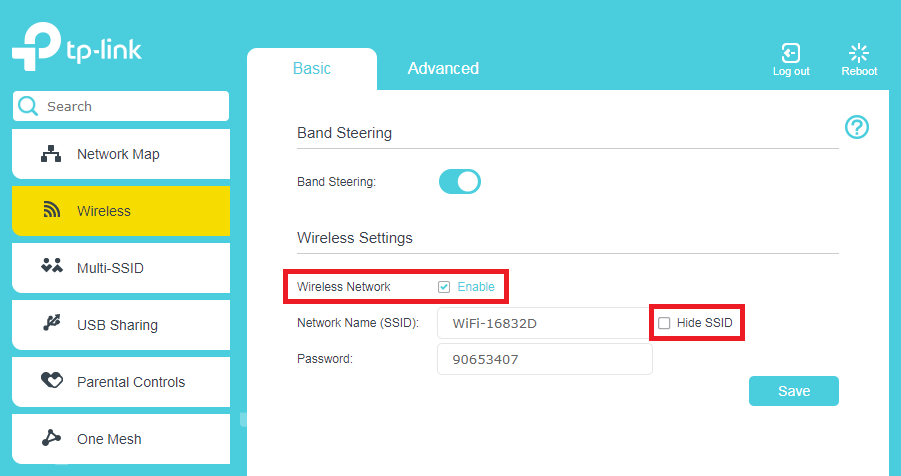
By default, Band Steering will be turned ON, and you'll see settings which that apply to both 2.4GHz and 5GHz Wi-Fi networks.
Note: If Band Steering is turned OFF, you will see separate 2.4GHz and 5GHz settings, and your devices will not automatically switch between networks for the best Wi-Fi signal. -
Make sure that Wireless Network - Enable is ticked.
-
Make sure that Hide SSID is NOT ticked.
If the SSID is hidden, then your Wi-Fi name(s) won't show up when you try to connect devices. -
On this page, you'll also find the Wi-Fi Name (Network Name SSID) and Password.
-
If you made any changes, hit Save.

Basic Wi-Fi settings on a VX420-G2H Modem
-
Open your web browser and go to: https://192.168.1.1
-
Log in with the default password “admin”. If you have a custom password, use that instead.
-
Select Wireless.
-
By default, Band Steering will be turned ON, and you'll see settings which that apply to both 2.4GHz and 5GHz Wi-Fi networks.
Note: If Band Steering is turned OFF, you will see separate 2.4GHz and 5GHz settings, and your devices will not automatically switch between networks for the best Wi-Fi signal. -
Make sure that Wireless Network - Enable is ticked.
-
Make sure that Hide SSID is NOT ticked.
If the SSID is hidden, then your Wi-Fi name(s) won't show up when you try to connect devices. -
On this page, you'll also find the Wi-Fi Name (Network Name SSID) and Password.
-
If you made any changes, hit Save.
Basic Wi-Fi settings on a TP-Link VR1600v Modem
-
Open your web browser and go to: https://192.168.1.1
-
Log in with the default username "admin" and default password “admin”. If you have custom login details, use those instead.
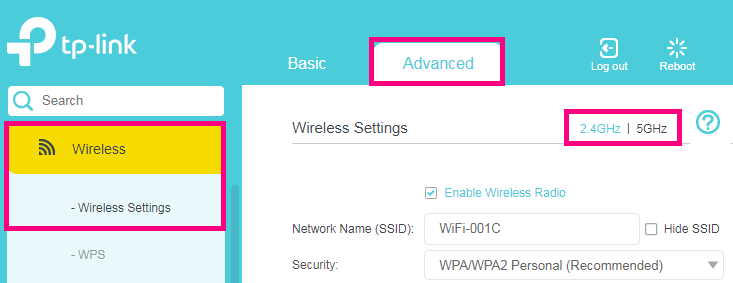
- Select Advanced, then Wireless > Wireless Settings.
- By default, you'll see the settings for the 2.4GHz Wi-Fi network. You can switch between 2.4GHz and 5GHz settings using the tabs in the upper right corner.
-
Make sure that Enable Wireless Radio is ticked for both 2.4GHz and 5GHz Wi-Fi.
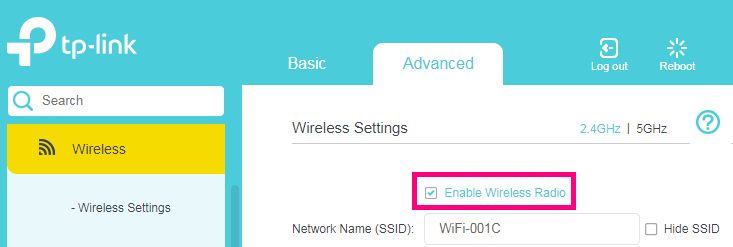
-
Make sure that Hide SSID is NOT ticked for either 2.4GHz or 5GHz Wi-Fi.
If the SSID is hidden, then your Wi-Fi names won't show up when you try to connect devices. -
On these pages, you'll also find the Wi-Fi name (Network Name SSID) and Password.
-
If you made any changes, hit Save.

Basic Wi-Fi settings on a Sagemcom 5866
-
Open your web browser and go to: https://192.168.1.1
-
Log in with the default username “admin” and the default password on your modem's barcode sticker. If you have custom login details, use those instead.
-
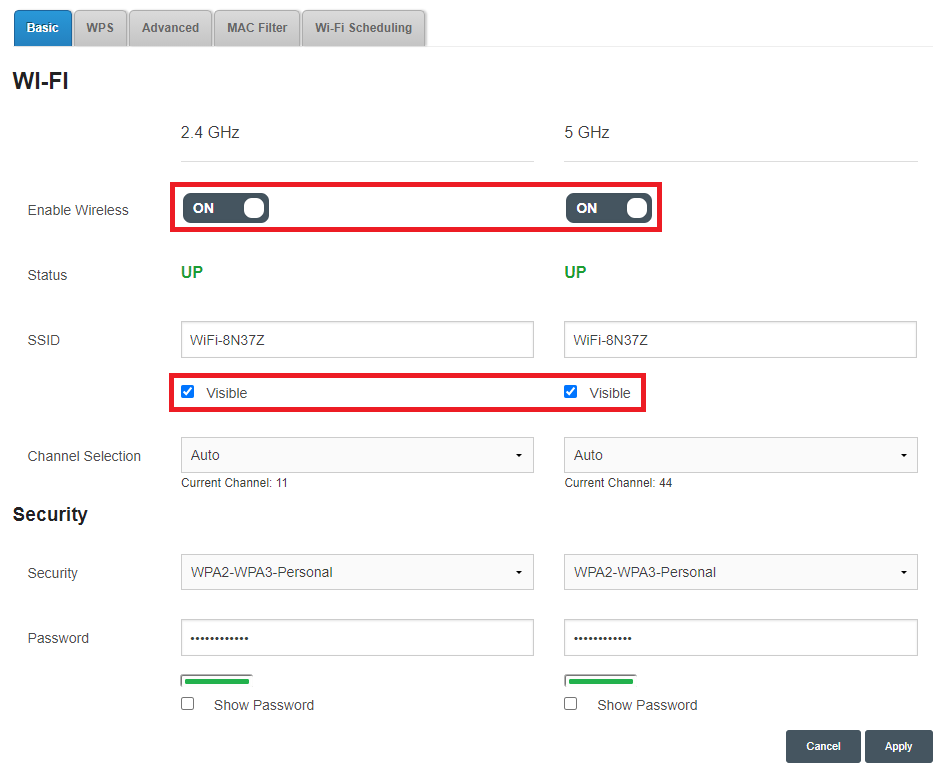
Select the cog icon on the Wi-Fi 2.4GHz or 5GHz panel.
-
Make sure that Enable Wireless is set to ON for both 2.4GHz and 5GHz Wi-Fi networks.
-
Make sure that Visible is ticked for both 2.4GHz and 5GHz Wi-Fi networks.
If this box is not ticked, then your Wi-Fi names won't show up when you try to connect devices. -
On this page, you'll also find the Wi-Fi names (SSID) and Passwords.
-
If you made any changes, hit Apply.
Basic Wi-Fi settings on a Nokia FastMile R1 5G Modem
-
Open your web browser and go to: https://192.168.1.254
-
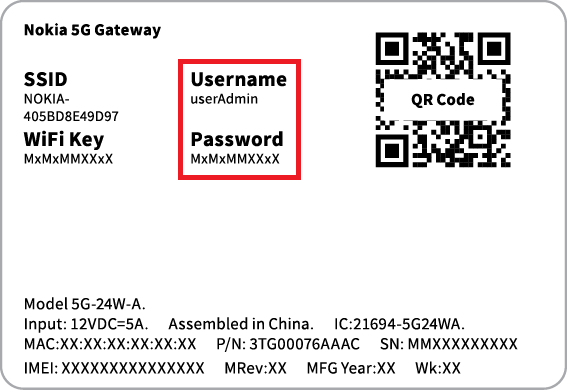
Log in with the default username “userAdmin” and the default password on your modem's barcode sticker. If you have custom login details, use those instead.
-
Hit Network, then Wireless (2.4GHz).
-
Make sure that Enable is ticked.
-
Make sure that Enable SSID and SSID Broadcast are both set to Enable.
If SSID Broadcast is disabled, then your Wi-Fi names won't show up when you try to connect devices.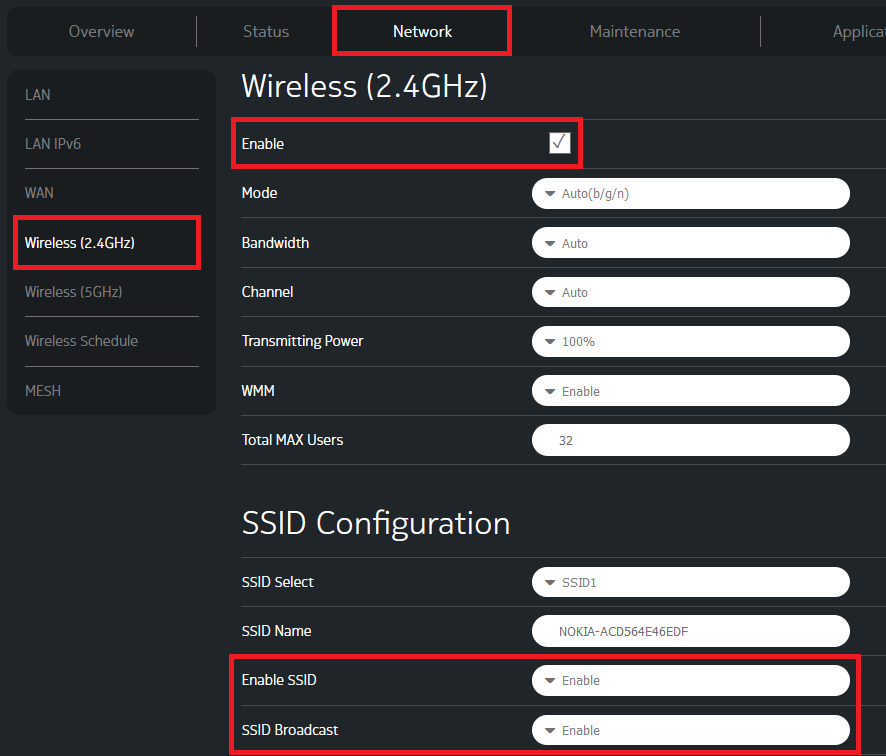
-
If you made any changes, hit Save.
-
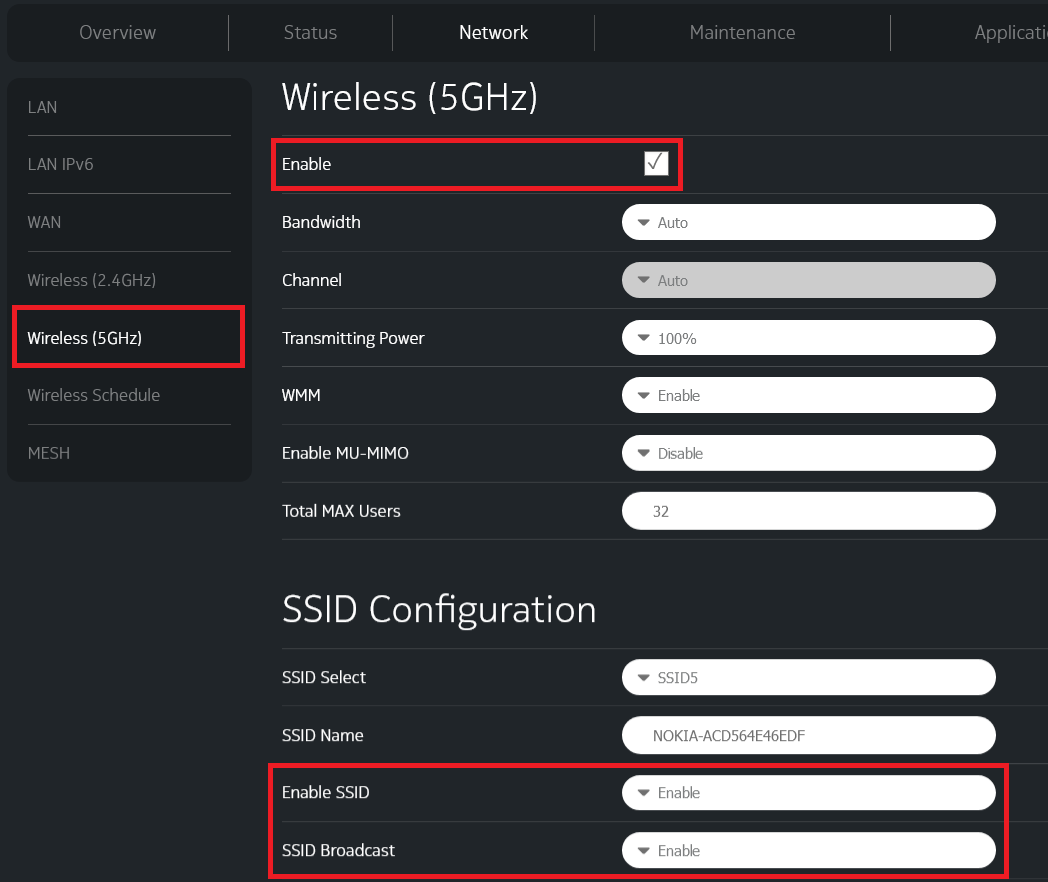
Next, the same checks need to be made for the 5GHz Wi-Fi network. Select Wireless (5GHz).
-
Make sure that Enable is ticked.
-
Make sure that Enable SSID and SSID Broadcast are both set to Enable.
-
On these pages, you'll also find the Wi-Fi names (SSID Name) and Passwords (WPA Key).
Important: Make sure the names and passwords match for both 2.4GHz and 5GHz – this lets devices automatically switch between networks for the best Wi-Fi signal. -
If you made any changes, hit Save.
If you suspect your mobile device has been lost or stolen, take action as soon as possible.
In rare cases, you may still have your device but you can’t use it because your mobile number has been stolen through an unauthorised port.
How to report a lost or stolen mobile device/number
You can report a missing device or unauthorised port by giving us a call on 1300 997 273, or +61 2 7210 2170 if you are overseas.
Once you contact us, we can bar your SIM to prevent any unauthorised charges to your account. We can also block your device’s IMEI so it cannot be used with another SIM.
If your mobile number was ported or SIM swapped without your consent, we can reverse the port (and provide a new SIM if necessary).
More info
What should I do before reporting a lost or stolen device?
Before reporting a device as lost or stolen, try calling it. Someone may answer or you might hear it ringing. You should also check whether it’s been handed into your local police station.
You could also try to track the location of the device with:
- Find My iPhone (Apple)
- Android Device Manager (Android)
- My Phone (Windows)
What happens when you bar my service?
When we bar your service, your phone will be unable to make calls except to emergency services. If someone tries to make a call, a recording will advise them that call barring is active on the phone.
Barring your service doesn’t terminate your monthly plan. You can get a replacement SIM card to use with another device.
What if I find the device after you bar my service/block my IMEI?
If you find your device, give us a call on 1300 997 273 and we’ll unbar the service and remove the IMEI block. This can take up to 24 hours to come into effect.
How do I check if a phone has been reported lost or stolen?
You can check if it has been reported lost or stolen through the Australian Mobile Telecommunications Association website and entering the IMEI of the device.
What can I do to deter mobile thieves?
- Keep your mobile out of sight when you're out and about.
- Never leave your mobile unattended.
- Keep a note of your 15-digit IMEI number.
- Use your mobile’s security features such as an unlock PIN, security pattern or thumbprint scanner.
How can someone steal my mobile number in an unauthorised port?
Multi-factor authentication methods protect mobile users from most unauthorised ports. For example, a unique verification code is sent to the affected mobile number before it is allowed to be ported to a new telco or swapped to a new SIM.
A criminal typically needs access to your unlocked mobile phone or other identity documents to complete an unauthorised port. Today, it happens in rare cases of identity theft or fraud.
What else should I do if my mobile number had an unauthorised port?
- Contact your bank or financial institution ASAP and tell them someone might be committing fraud using your details;
- Change your passwords for important accounts like your bank, email and social media;
- Report any fraud to local police or the Australian Federal Police;
- Report any cybercrime involving identity theft or online fraud to the Australian Cyber Security Centre;
- Contact IDCARE on 1300 432 273 if you want help with identity crime or cyber security;
- Report the activity to Scamwatch.