TPG has made the decision to stop providing email services in 2023 to focus on creating better experiences for our core products: internet and mobile.
Customers who opted-in have now had their TPG email addresses transferred to another Australian email provider, The Messaging Company.
Who do I contact about my TPG email address?
Please contact The Messaging Company about support for these email addresses as TPG will no longer be able to assist.
You can call The Messaging Company on 07 3497 3566 or submit a new request to their Support Centre.
Please note: The opt-in period has now closed, and any email address that was not opted-in has now been deleted and cannot be recovered. It is not possible to create new email addresses that use the “tpg.com.au” domain.
Will I need to pay anything to use my TPG email address with The Messaging Company?
If your email address was included with your TPG services: you won't need to pay anything to use your TPG email address with The Messaging Company until 15 September 2024.
At least 60 days prior to 15 September 2024, The Messaging Company will contact customers with pricing options that will apply if you wish to continue using your TPG email address with The Messaging Company.
If you paid for a TPG email address: The Messaging Company will contact you with pricing options that will apply if you wish to continue using your TPG email address with The Messaging Company.
TPG is not able to provide any information about The Messaging Company's email pricing.
Terms and Conditions of Email Transfer
By opting-in to transfer your TPG email service to The Messaging Company email platform, you acknowledge and agree that:
- We may disclose your personal information (i.e. your name, email address and contact number) to The Messaging Company for the purpose of facilitating your email transfer and you consent to this. The Messaging Company's privacy notice is available at: https://themessaging.co/privacy-notice/
- You will need to sign up with The Messaging Company as your email hosting provider and agree to their terms and conditions, and you will become a direct customer of The Messaging Company’s email service.
- Your TPG email service will be transferred to The Messaging Company email platform, and The Messaging Company will be responsible for providing your email service after the transfer.
- TPG will pay The Messaging Company email service charge until 15 September 2024. After 15 September 2024, you will be responsible for paying any charges you incur for the email service. The Messaging Company will contact customers with available pricing options at least 60 days prior to commencing charges for the email service.
- TPG grants you the right to use your current email address, which incorporates one or more domain names owned by TPG or one of our affiliates (e.g. @tpg.com.au).
- TPG may withdraw the right for you to use your current email address when you cease acquiring services from TPG or one of our affiliates.
- TPG may also revoke the right in (4) above for other reasons, but we will endeavour to give you at least 60 days’ prior notice before that happens.
- Your use of your current email address, which incorporates one or more domain names owned by TPG or our affiliates, is not transferable to another email service provider.
- When The Messaging Company begins providing your email services, TPG and its affiliates will not be responsible to you in any way in connection with your email service (e.g. providing setup or troubleshooting support; security; service quality).
- If you contact us regarding your The Messaging Company email service, we may refer your inquiry to The Messaging Company directly, including by disclosing your personal information to The Messaging Company to help facilitate their prompt response to you. You consent to us disclosing your information to The Messaging Company for this purpose. If you have any concerns regarding how we handle your personal information, please email us at privacy@tpgtelecom.com.au or refer to our privacy policy at: https://www.tpg.com.au/about-us/legal/privacy
- The Messaging Company may collect your personal information in accordance with its privacy policy and terms and conditions. You should familiarise yourself with their privacy policy and ensure that you are comfortable with how your personal information will be handled. Neither TPG or our affiliates will be responsible for any personal information you provide to The Messaging Company or their subsequent handling of such information.
You searched for
Got an issue with your nbn service? You can run a service test in My Account once every 30 minutes.
Tip: You don't need to use a device that's connected to your nbn service to run the test. You can use your phone or any other device that's connected to another internet service.
- Make sure that the modem for your nbn service is turned on. We recommend checking for outages and turning your modem off for 60 seconds then turning it back on again before running the test.
- Log in to My Account and select your nbn service.
- On the main My Account Dashboard, select Test My Connection.
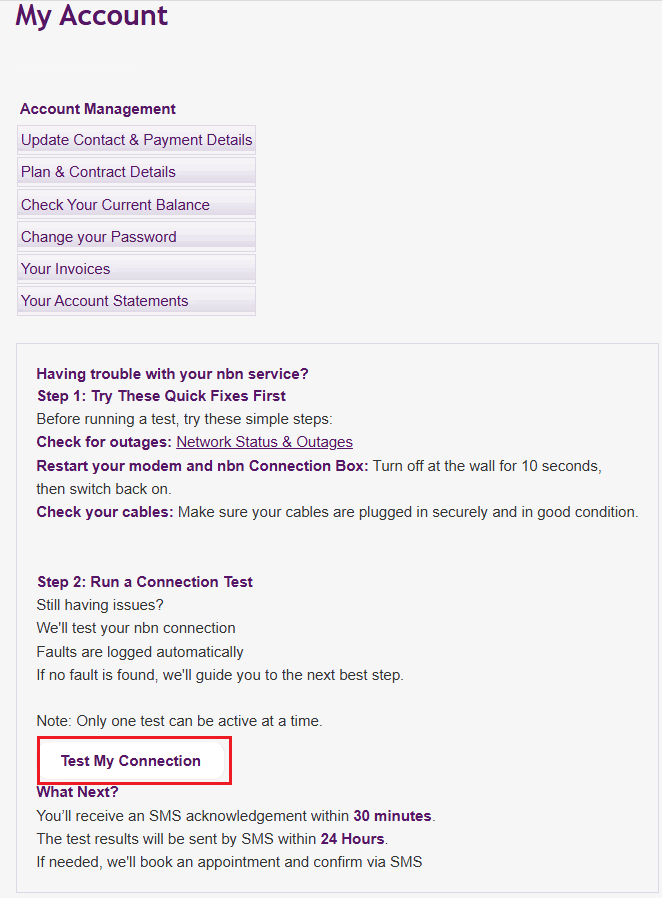
- An SMS will be sent to the contact mobile number on your TPG account with information about the results of the test and the next steps to take.
Here's how to manage your TPG mobile plan(s) on various eSIM-compatible phones.
Select one of the links below to jump to a query:
- How do I move my eSIM to a new phone?
- How many mobile plans can I have using eSIM on one phone?
- What happens to incoming calls to a mobile plan that isn’t currently active?
- How do I manage calls with multiple mobile numbers?
- How do I choose which number to use mobile data with?
- How do I choose which number to send SMS and MMS from?
- How do I choose which number to send iMessages from?
- How do I factory reset my phone without removing my eSIM?
- What happens if I delete my eSIM profile?
- How do I cancel my mobile plan?
How do I move my eSIM to a new phone?
An eSIM can only be active on one phone at a time. To move your eSIM to another phone, you'll need to do an eSIM Swap.
How many mobile plans can I have using eSIM on one phone?
You can have up to 5 different mobile plans on one phone but only 1 plan can be active at any time.
Once you have more than one plan installed on your phone, you can label each plan (e.g. Personal, Work, Primary, Secondary) to help tell them apart and switch between them as needed.
What happens to incoming calls to a mobile plan that isn’t currently active?
The call will automatically divert to voicemail. You won’t receive any alert message until the next time that plan is active on your phone.
How do I manage calls with multiple mobile numbers?
iPhone
- If you’re calling a contact in your Favourites list, tap the information symbol, then tap the current phone number and choose the mobile number to use.
- If you’re making a call using the keypad, enter the phone number you want to call, then tap the phone number near the top of the screen and choose the mobile number to use.
Samsung
- Go to Settings > Connections.
- Hit SIM card manager.
- Hit Calls and choose the mobile number to use.
- When calling an existing contact, you can select the contact and then choose the mobile number to use.
- When making a call using the keypad, you can choose the mobile number to use at the bottom of the screen.
Google Pixel
- Go to Settings > Network & Internet.
- Choose the SIM to manage call settings for.
- Hit Call preference and choose the mobile number to use.
OPPO
- When making a call, a pop-up will ask you to choose the mobile number to use.
- This pop-up will always show if the default “Always ask” setting is turned on.
How do I choose which number to use mobile data with?
iPhone
- Go to Settings.
- Hit Mobile or Mobile Data.
- Hit Cellular Data and choose the mobile number to use.
Samsung
- Go to Settings > Connections.
- Hit SIM card manager.
- Hit Mobile data and choose the mobile number to use.
Google Pixel
- Go to Settings > Network & Internet.
- Choose the SIM to manage data settings for.
- Turn on Mobile data.
OPPO
- Go to Settings > Mobile network.
- Hit Internet and choose the mobile number to use.
How do I choose which number to send SMS and MMS from?
iPhone
- Open Messages.
- Tap the New button at the top right of the screen.
- Enter the message recipient.
- Tap the current phone number and choose the mobile number to use.
Samsung
- Open Messages.
- Tap the Message icon at the bottom right of the screen, or open an existing conversation.
- Enter the message recipient.
- Tap the icon to the right of the text bar and choose the mobile number to use.
Google Pixel
- Go to Settings > Network & Internet.
- Choose the SIM to manage SMS and MMS settings for.
- Hit SMS preference and choose the mobile number to use.
- You can also select a number in the Messages app.
- Tap Start chat or open an existing conversation.
- Enter the message recipient.
- Tap the icon to the right of the text bar and choose the mobile number to use.
OPPO
- When composing a new message, simply choose the mobile number to use.
How do I choose which number to send iMessages from?
- Go to Settings > Messages.
- Hit iMessage and FaceTime Line.
- Choose the mobile number you want to send from.
How do I factory reset my phone without removing my eSIM?
iPhone
- Go to Settings > General.
- Select Reset > Erase All Content and Settings > Erase iPhone.
- Hit Erase All and Keep Mobile Plans.
Note: If you choose “Erase All”, your eSIM will be removed. To reinstate one or more plans on your eSIM, you’ll need to do an eSIM Swap.
Samsung
- Go to Settings > General Management.
- Select Reset > Factory data reset > Reset.
- Your eSIM will be automatically kept.
Note: If you select “eSIMs” when resetting, your eSIM will be removed. To reinstate one or more plans on your eSIM, you’ll need to do an eSIM Swap.
Google Pixel
- Go to Settings > System.
- Select Advanced > Reset options > Erase all data.
- Your eSIM will be automatically kept.
Note: If you select “Erase downloaded SIMs” when resetting, your eSIM will be removed. To reinstate one or more plans on your eSIM, you’ll need to complete an eSIM Swap.
OPPO
- Go to Settings > System settings.
- Select Back up and reset > Reset your phone and erase all data.
- Hit Erase data but retain eSIM profiles.
Note: If you select “Erase data and remove eSIM profiles” when resetting, your eSIM will be removed. To reinstate one or more plans on your eSIM, you’ll need to do an eSIM Swap.
What happens if I delete my eSIM profile?
If you delete your eSIM profile, your mobile plan charges will not be cancelled. You won't be able to use your mobile plan until you do an eSIM Swap to reinstate your eSIM on your phone.
How do I cancel my mobile plan?
You can only cancel your TPG mobile plan by calling us on 1300 993 019.
Important: Removing or disabling a mobile plan in your device settings will not cancel your plan charges.
We recently notified you that you will be receiving (or are entitled to) an nbn rebate. This rebate is provided by nbn® because you have previously experienced an issue with your nbn service.
There are several reasons why you may be receiving this rebate. These include:
- Missed appointment
- Failed connection
- Connection issue
- Service fault
- Performance fault/issue
Existing customers
If you’re currently with TPG, there is nothing you need to do. The credit will appear on the next bill after you receive your rebate email.
Previous customers
If you’re no longer with TPG, please follow these instructions to claim your rebate:
- Visit: https://support.tpg.com.au/nbnrebates/tpg
- Confirm your Name, Service Number, Account Number and Rebate Amount. These details can be found in your nbn Rebate email.
- Provide the Account Name, BSB Number and Account Number of your preferred bank account to receive the rebate.
- Your nbn Rebate will be paid to your nominated bank account. Please allow up to 14 working days for payment to clear.
Follow these steps to complete your swap from an existing TPG physical SIM or eSIM to a new TPG eSIM.
Important: Your phone must not be locked to a specific provider. We can't unlock phones for you.
Select one of the links below to jump to a query:
- Make sure you have:
- Your eSIM-compatible phone (to scan the eSIM QR code); and
- Another device like a computer, laptop or tablet (to display the eSIM QR code).
It’s best if both devices are connected to Wi-Fi. Don't have another device? See this advice.
- Use your other device to log in to My Account and hit eSIM Swap.
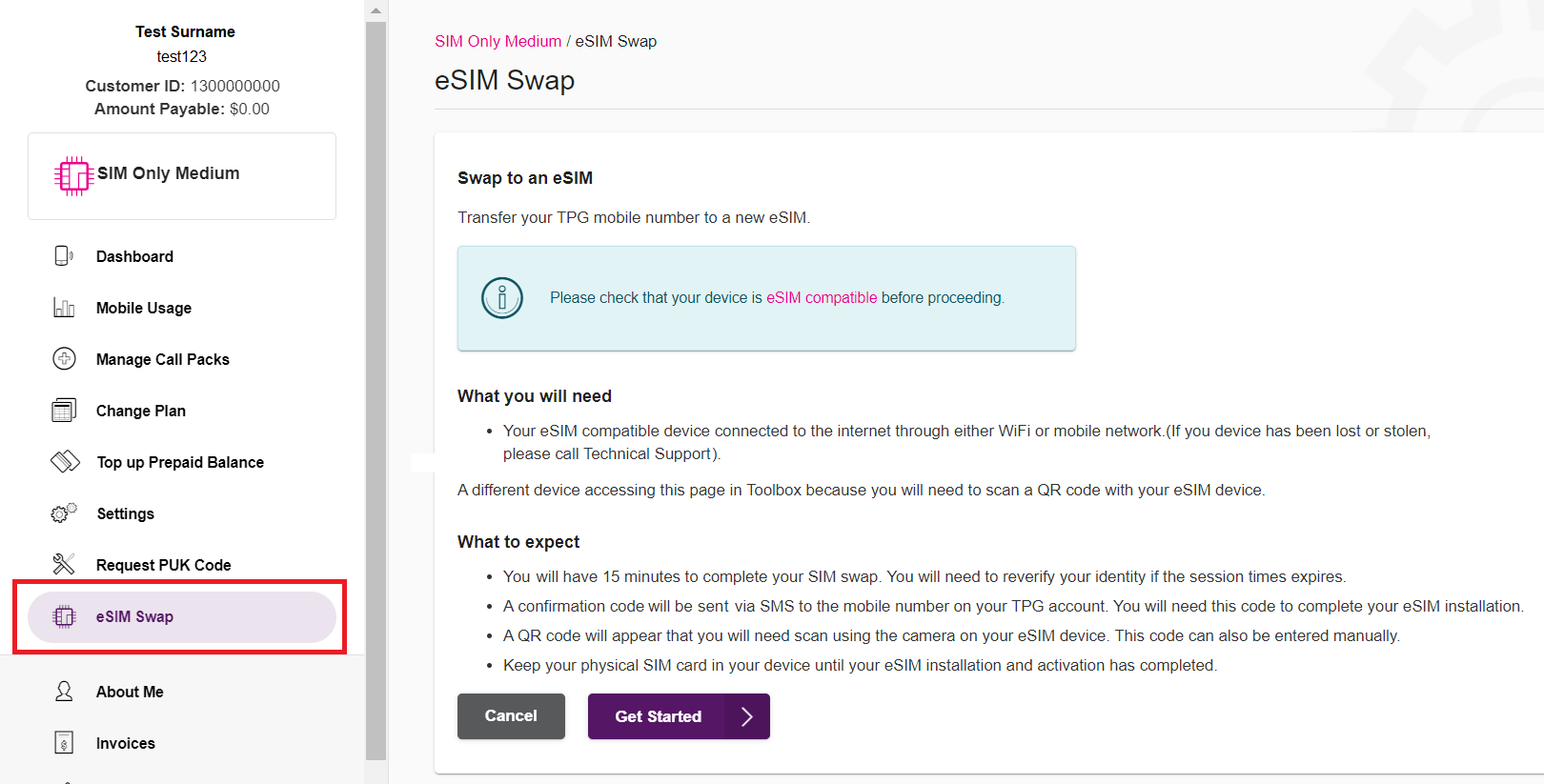
- Hit Get Started. An authorisation code SMS will be sent to your old SIM. Enter this code in My Account and hit Verify.
Important: If you ever get a call or SMS asking you to authorise a SIM swap that you did not request, do not provide any codes to anyone and call us on 1300 993 019.
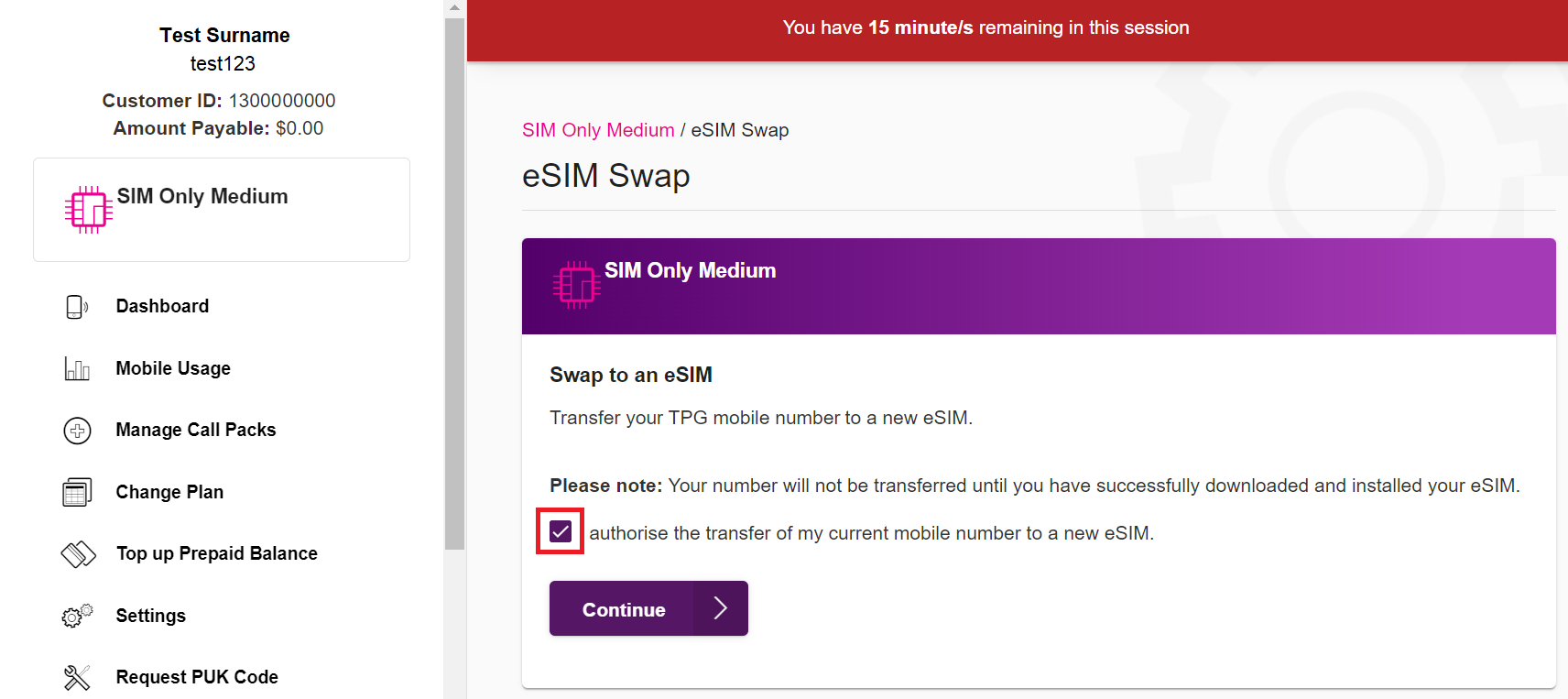
- Tick the box to authorise the eSIM swap, then hit Continue.
From this point, the eSIM swap session will expire after 15 minutes. You can try again if your session expires.
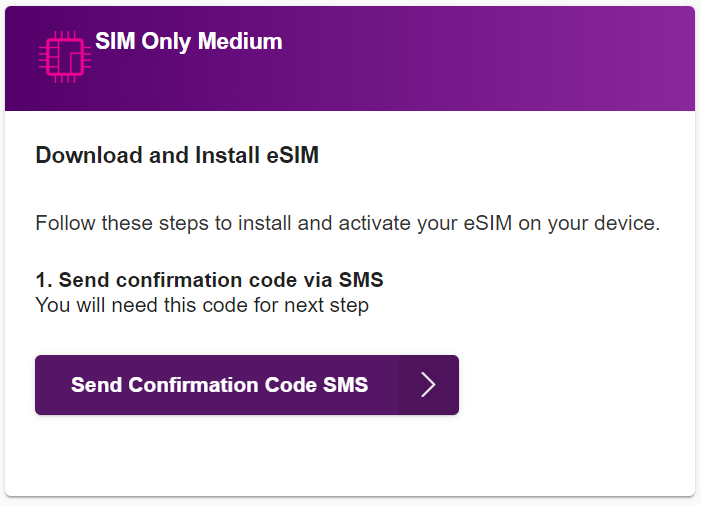
- Hit Send Confirmation Code SMS, then use your phone to scan the eSIM QR Code.
- Follow the prompts on your phone to enter your confirmation code and complete your eSIM swap. Your mobile service should be ready in 15 minutes - you may need to restart your phone.
Once your eSIM swap is complete, your old SIM will stop working.
Troubleshooting
How to complete an eSIM swap if you don’t have another device
If you don’t have another device like a computer, laptop or tablet to display the eSIM QR code so that you can scan it with your phone, then you’ll need to use your phone to log in to My Account instead.
- Before you get started, make sure you know how to manually enter eSIM details in your phone settings. The eSIM swap session will expire after 15 minutes, so you may not have time to look this up in the middle of the process. Please visit the manufacturer’s website for a guide if you’re not sure how to do this.
- Instead of scanning the eSIM QR code, write down the eSIM details and then enter them in your phone settings.
- Tear up and dispose of the written eSIM details once you’re done.
What happens if I don’t complete my eSIM Swap?
After entering the authorisation code in My Account, your eSIM swap order will stay open for 2 days. If you don’t complete your eSIM swap within 2 days, your eSIM swap order will be withdrawn. If this happens, you can lodge another eSIM swap order in My Account.
How do I use my eSIM once it's activated?
Check out eSIM Management.
An eSIM is a chip that’s already embedded into your handset or tablet, so you don’t need a physical SIM to use your mobile plan. Once your plan is active on an eSIM, it functions the same way as it would on a physical SIM.
You can select an eSIM when you sign up for TPG Mobile, then follow the activation steps. If you already have TPG Mobile with a physical SIM, check out eSIM Swaps.
For more information about using your eSIM once it's activated, see eSIM Management.
Please note: Your device must be on our approved devices list to use a TPG mobile service. eSIM plans are not currently compatible with smart watches or other wearables.
The devices below support eSIM technology. Before activating your service, please make sure your device is also listed as an approved device, as eSIM compatibility alone doesn't guarantee compatibility with our network.
Select one of the links below to jump to a query:
eSIM Phones
Apple
- iPhone SE 2020/iPhone SE 2022
- iPhone XR/iPhone XS/iPhone XS Max
- iPhone 11/iPhone 11 Pro/iPhone 11 Pro Max
- iPhone 12/iPhone 12 mini/iPhone 12 Pro/iPhone 12 Pro Max
- iPhone 13/iPhone 13 mini/iPhone 13 Pro/iPhone 13 Pro Max
- iPhone 14/iPhone 14 Plus/iPhone 14 Pro/iPhone 14 Pro Max
- iPhone 15/iPhone 15 Plus/iPhone 15 Pro/iPhone 15 Pro Max
- iPhone 16/iPhone 16 Plus/iPhone 16 Pro/iPhone 16 Pro Max/iPhone 16e
- iPhone 17/iPhone 17 Pro/iPhone 17 Pro Max/iPhone 17e
- iPhone 18 Pro/iPhone 18 Pro Max
- iPhone Air
Samsung
- Galaxy A36 5G
- Galaxy A37 5G
- Galaxy A55 5G
- Galaxy A56 5G
- Galaxy A57 5G
- Galaxy Note20 4G/Galaxy Note20 5G/Galaxy Note20 Ultra 5G
- Galaxy S20 4G/Galaxy S20 5G/ Galaxy S20 Ultra 5G/Galaxy S20+ 4G/Galaxy S20+ 5G
- Galaxy S21 5G/Galaxy S21 Ultra 5G/Galaxy S21+ 5G
- Galaxy S22 5G/Galaxy S22 Ultra 5G/Galaxy S22+ 5G
- Galaxy S23 5G/Samsung Galaxy S23 FE 5G/Galaxy S23 Ultra 5G/Galaxy S23+ 5G
- Galaxy S24/Galaxy S24 Ultra/Galaxy S24+/Galaxy S24 FE 5G
- Galaxy S25Galaxy S25 Ultra/Galaxy S25+/Galaxy S25 Edge/Galaxy S25 FE
- Galaxy S26/Galaxy S26 Ultra/Galaxy S26+/Galaxy S26 FE
- Galaxy Z Flip 4G/Galaxy Z Flip3 5G/Galaxy Z Flip4 5G/Galaxy Z Flip5 5G/Galaxy Z Flip6 5G/Galaxy Z Flip7 FE/Galaxy Z Flip7/Galaxy Z Flip8 5G
- Galaxy Fold 4G
- Galaxy Z Fold2 5G/Galaxy Z Fold3 5G/Galaxy Z Fold4 5G/Galaxy Z Fold5 5G/Galaxy Z Fold6 5G/Galaxy Z Fold7/Galaxy Z Fold8 5G/Galaxy Z Fold8 Ultra 5G
- Pixel 3/Pixel 3 XL/Pixel 3a
- Pixel 4/Pixel 4 XL/Pixel 4a
- Pixel 5
- Pixel 6/Pixel 6 Pro/Pixel 6a
- Pixel 7/Pixel 7 Pro
- Pixel 8/Pixel 8 Pro
- Pixel 9/Pixel 9 Pro/Pixel 9 Pro XL/Pixel 9 Pro Fold/Pixel 9a
- Pixel 10 Pro XL
- Pixel 11/Pixel 11 Pro XL
OPPO
- Find N6 5G
- Find X5 5G/Find X5 Pro 5G
Motorola
- Motorola edge 50 fusion 5G
- Moto g34 5G
- Moto g35 5G
- Moto g56 5G
- Moto g67 5G
- Signature 5G
eSIM Tablets
Apple iPads
- iPad 10.2 inch (7th/8th/9th/10th generation)
- iPad mini (5th/6th generation)
- iPad Air 2019 10.5 inch (3rd/4th/5th generation)
- iPad Air 10.9 inch (4th/5th generation)
- iPad Air 11 inch (M2)
- iPad Air 11 inch (M3)
- iPad Air 11 inch (M4)
- iPad Air 13 inch (M2)
- iPad Air 13 inch (M3)
- iPad Air 13 inch (M4)
- iPad Pro 11 inch (1st/2nd/3rd/4th generation)
- iPad Pro 11 inch (M4)
- iPad Pro 11 inch (M5)
- iPad Pro 12.9 inch (3rd/4th/5th/6th generation)
- iPad Pro 13 inch (M4)
- iPad Pro 13 inch (M5)
- iPad (A16) (A3355)
- iPad mini A17 Pro (A2995)
Samsung Tabs
- Galaxy Tab S9 11.0 5G/Galaxy Tab S9+ 12.4 5G/Galaxy Tab S9 Ultra 14.6 5G
- Galaxy Tab S10 FE 10.9 5G/Galaxy Tab S10 FE+ 13.1 5G/Galaxy Tab S10+ 12.4/Galaxy Tab S10 Ultra 14.6
- Galaxy Tab S11 Ultra 14.6
Last updated on 14/09/2026
Here's what you need to know about Voice over LTE (VoLTE), a feature that lets you make calls over the 4G network with a compatible phone. You can continue using 4G mobile data while making and receiving VoLTE calls.
To use VoLTE, you need an approved device that is VoLTE enabled.
Select one of the links below to jump to a query:
- What do I need to use Voice over LTE (VoLTE)?
- How to turn on VoLTE on a Samsung phone
- How to turn on VoLTE on an iPhone
- Does VoLTE cost extra or use my mobile data?
- How do I know when I'm using VoLTE?
- Can I use VoLTE to call emergency services?
What do I need to use Voice over LTE (VoLTE)?
To make calls over 4G, you need:
- A VoLTE-compatible phone;
- VoLTE and 4G turned on in your phone settings; and
- To be inside our 4G mobile coverage area.
How to turn on VoLTE on a Samsung phone
If you have a Samsung device, Voice over LTE should automatically be enabled. To manually enable, go to Settings > Mobile Networks.
How to turn on VoLTE on an iPhone
If you have an Apple device iPhone 6 or later, Voice over LTE should be automatically enabled. To manually enable, go to Settings > Mobile > Mobile Data options > Voice and Data.
Does VoLTE cost extra or use my mobile data?
No. Voice over LTE is charged in the same way as all other voice calls and doesn’t use your mobile data.
How do I know when I'm using VoLTE?
If you’re using an iPhone, ‘4G’ will be displayed in the status bar when using Voice over LTE.
If you’re using an Android device, ‘VoLTE’ will be displayed in the status bar beside the 4G icon.
Can I use VoLTE to call emergency services?
To keep you safe phones must support Triple Zero (000) calling over 4G (using VoLTE) in the event of an emergency. This is a legal requirement for all phones sold in Australia. Older 3G handsets, as well as some newer 4G/5G handsets (including those purchased overseas or from a retailer selling imported phones), do not meet these standards.
If your phone is on our list of Approved Devices, you should be able to call emergency services over VoLTE.
From 28 October 2024, if you have a device that is not able to make Triple Zero (000) calls, TPG is legally required to stop these mobile phones from accessing the TPG mobile network. This means you will not be able to make or receive calls/texts or use data on the TPG mobile network from this date.
If you have received an SMS and/or email with instructions to update your device’s software or replace it immediately to be able to access emergency 000 calls, see this information.
Note: If you have a Samsung device, you may need to update it several times until your device says 'Your software is up to date' to ensure you can call emergency services.
This article lists the phone numbers that TPG gives to customers so they can call us.
Using the Find tool in your web browser can help you find a specific phone number on this page:
- On Windows desktop, use CTRL + F on your keyboard to open the Find tool.
- On Mac desktop, use Command + F on your keyboard to open the Find tool.
- On Android mobile, tap More options (the three dots in the top right) then Find in page.
- On iOS mobile, tap Share (the square icon with the upwards arrow at the bottom of the screen) then Find on page.
Phone numbers for you to call us
The following phone numbers are well known from our Contact us page:
- 13 14 23
- 13 42 02
- 1300 043 005
- 1300 242 011
- 1300 365 313
- 1300 403 211
- 1300 720 016
- 1300 865 124
- 1300 920 158
- 1300 993 011
- 1300 993 012
- 1300 993 019
- 1300 994 533
- 1300 995 152
- 1300 997 270
- 1300 997 271
- 1300 997 273
- 1300 997 274
You may receive an email or SMS asking you to call us on a different phone number. These unique numbers help you get through to the right team in our call centre to help you with a specific issue:
- 13 57 01
- 13 59 91
- 1300 011 146
- 1300 056 356
- 1300 066 305
- 1300 085 262
- 1300 136 740
- 1300 137 425
- 1300 178 122
- 1300 189 663
- 1300 200 733
- 1300 226 799
- 1300 305 522
- 1300 404 856
- 1300 411 801
- 1300 430 925
- 1300 440 184
- 1300 502 337
- 1300 583 153
- 1300 701 202
- 1800 658 686
From 18 April 2025, if you want to transfer your nbn service to another provider, you’ll need your nbn AVC ID.
An nbn AVC ID is a unique 15-character ID number that identifies your nbn service, e.g. “AVC123456789000”.
nbn AVC IDs are required by the Australian Consumer and Media Authority (ACMA) to help regulate nbn service transfers, making them more accurate and secure.
You’ll find your nbn service ID in at least one of these places:
- On your invoice/bill
- In your nbn provider’s customer web portal or app
- Through a web chat with your nbn provider
Select one of the links below to jump to a query:
Other nbn® providers
You may find your current provider's instructions for locating your AVC ID on these pages:
- AGL: See "AVC ID and where to find it" on https://www.agl.com.au/help-support/account-setup-management/check-internet-plan-details
- Amaysim: https://www.amaysim.com.au/help/nbn/getting-started/where-can-i-find-my-avcid
- Aussie Broadband: https://www.aussiebroadband.com.au/help-centre/internet/what-is-avc-and-why-does-it-matter/
- Belong: https://www.belong.com.au/support/internet/manage-account/whats-an-avc-id-and-where-do-i-find-it
- Buddy Telco: See "What is an AVC ID?" on https://www.buddytelco.com.au/help/
- Compare Broadband: https://www.comparebroadband.com.au/broadband-articles/nbn-id14/what-is-an-avc-id-id2234/
- Dodo: https://www.dodo.com/support/internet/technical-advice#how-do-i-find-my-avc-id
- Foxtel: See "How do I find my AVC ID?" on https://help.foxtel.com.au/s/article/a7V2P00000001zJUAQ/foxtel-broadband
- iiNet: https://help.iinet.net.au/nbn-avc-id
- iPrimus: https://support.iprimus.com.au/internet/nbntm#how-do-i-find-my-avc-id
- Kogan: https://www.koganinternet.com.au/nbn-avc-id
- Mate: https://www.letsbemates.com.au/mate/faq/what-is-an-avc-id/
- Maxo: https://www.maxo.com.au/support/nbn-services/how-do-i-find-my-avc-id
- More Telecom: Search "AVC ID" at https://more.com.au/help-and-faqs
- Optus: https://www.optus.com.au/support/answer?id=20331
- Origin Energy: https://www.originenergy.com.au/help-support/internet-products-and-services/account-management/what-is-an-avc-id
- Solitary Technology: https://solitarytech.com.au/2024/12/09/what-is-an-avc-id-and-how-can-i-find-it/
- Swoop: https://www.swoop.com.au/blog/what-is-an-nbn-avc-id/
- Tangerine: https://www.tangerine.com.au/help/how-do-i-find-my-avc-id
- Telstra: https://www.telstra.com.au/support/internet-and-home-phone/avc-id
TPG nbn® services
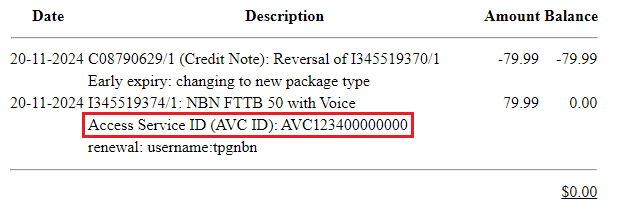
If you have a TPG service, your nbn AVC ID is on your invoice. You can get a copy of your invoice at any time in My Account. Learn more.
In the Description section, look for “Access Service ID (AVC ID)” listed under your nbn charge:
Still can’t find your nbn AVC ID?
Contact your current nbn provider and they can tell you.